@guowenzhang/dsh-worktree
English | 中文
Why this plugin
Our project spans multiple repositories and needs parallel development. Git worktrees provide isolated workspaces so file changes from different tasks do not interfere with each other.
This plugin lets you tick worktree on the DeepSeek Harness (DSH) New Session screen to create an isolated workspace and start a session inside it. It can also set up submodules and nested repositories alongside the parent checkout.
In the plugin list, display names and descriptions follow the Harness language setting in English or Chinese (English is the default fallback); English names use the package name without its npm scope, Chinese names describe the purpose, and installation still uses the unchanged real package name.
Screenshots
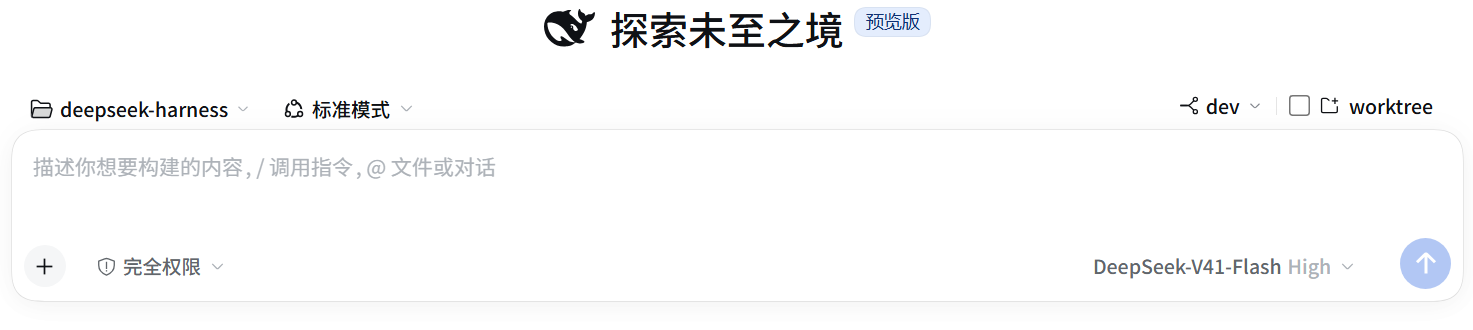
Select a base branch and tick worktree to create a workspace and open the new session. Unsent text, references, and attachments move with it without being submitted; a failed creation or navigation preserves the original draft.
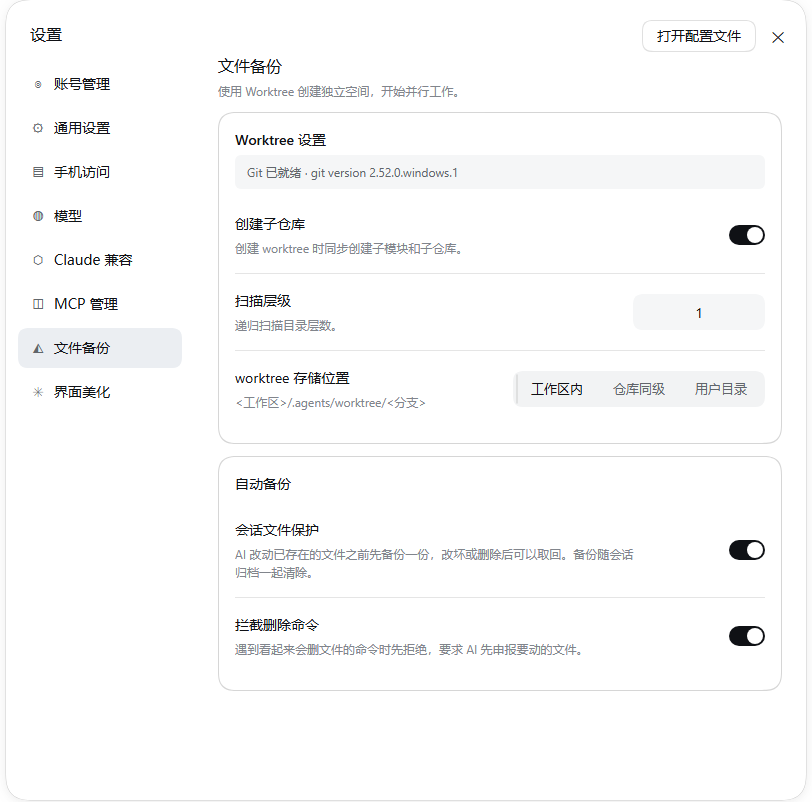
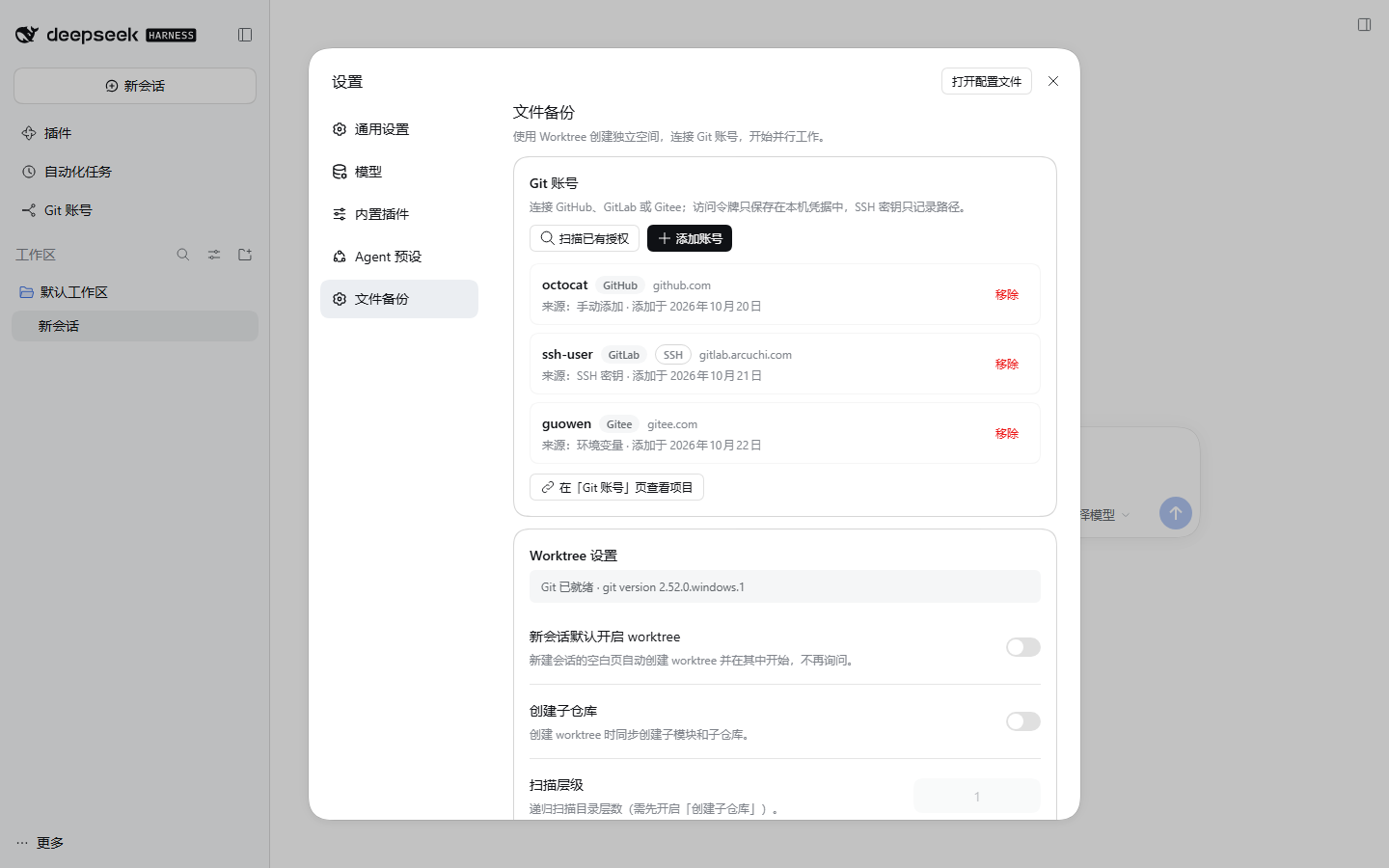
The settings page carries three cards: Git accounts on top to connect GitHub / GitLab / Gitee, scan this machine's existing authorizations, and jump to the Git accounts page for projects; Worktree settings in the middle for whether new sessions start in a worktree, child repositories, scan depth, and storage location; and Automatic backup at the bottom for the protection switches and the change-history page. Valid changes save automatically and take effect immediately; no Save or Reset to default button is needed.
Protection before a change
On by default. The first time the AI is about to change a file that already exists, that file's current content is copied out of the workspace — so a bad edit or a deletion can still be recovered.
The Automatic backup card on the settings page has three switch rows: Session file protection (on by default), Block delete commands (on by default), and Show the change history sidebar (on by default). Changes take effect immediately, with no restart.
Copies live in ~/.agents/file-guard/<session hash>/ and mirror the workspace layout, so recovery is copying the file back: no tool and no index needed. Files outside the working directory (another folder, another drive) go under external/ with their own path preserved. The copy is byte-level, so format does not matter: .docx, .pptx, and .xlsx are treated exactly like .txt.
Two things trigger a copy:
- Automatic: only
writeandeditcopy their target before the write, at about 1 ms per file. Read-only tools such asreadandread_imagedo not create backups. - Declared by the model: before changing files whose targets no argument names, the AI is asked to call the
worktree_backuptool with those paths. It has no scope limit — paths outside the working directory and on other drives are accepted. The result names the copy's absolute path, so restoring a file never requires searching for it.
Destructive shell commands are refused once. A bash / pwsh command that looks like it deletes files (rm, del, rd, Remove-Item, and so on) is denied, and the model is told to declare its targets through worktree_backup before retrying — a deletion cannot be recovered after it runs. Quoted spans do not count, so echo "rm -rf /" is not refused. The switch can be turned off in settings.
Rules worth knowing:
- One copy per file. A later change in the same session does not replace it, because the version worth keeping is the one from before the first change.
- Only files that already exist. A file the AI creates has no prior state. It is copied when a later session changes it — by then it exists.
- One directory per session, deleted when the session is archived. The archive's own durable write is the trigger, so the copies go as soon as it lands — a plain archive and a stop-and-archive behave the same. Failures log the session, directory, and reason and retry on later archive-related events; cancelling tools cannot recreate an archived session's backups. Only an archive that happens while the host runs is cleaned; earlier ones are never deleted retroactively.
- No size cap. One full set of copies is roughly the size of the workspace; measured on one machine, 243,529 files came to 12.72 GB.
- Writes outside the working directory are not automatic, so they rely on the AI declaring them through
worktree_backup. A change the AI never declares is not copied — which is why destructive commands are refused until it declares them.
For complete history, or recovery across machines and time, use Git commits. This feature exists for "the AI just broke this and I want the previous version back".
Change history in the sidebar
On by default. The right sidebar offers a Change history page — open it from the sidebar's own Start page, and use the page-refresh shortcut inside it to read the list again. It lists the files this session and its sub-sessions changed or deleted, one flat row each and no directory tree, with only the path and a Restore button, without state badges. Deleted paths are struck through; a successful restore removes the strike. A row a sub-session took names that sub-session, so it cannot be confused with this session's file of the same path.
- Modified means the file's content no longer matches its copy; Deleted means the file is gone. A copy whose file is still byte-identical is left out, because there is nothing to restore.
- Restore writes that one copy back over its file, creating the directories again if the file had been deleted. The copy itself is kept, so the same row can put the file back after a later change.
- Compare — click a row's path to open a two-column view: the copy from before this session first changed the file on the left, the current file on the right, aligned line by line. Changed lines are tinted and sit opposite each other; a collapsed band stands for a run of unchanged lines. Each side scrolls sideways on its own because the two may have different line lengths, while vertical scrolling moves both together, and the view opens on the first change.
- The comparison compares the two files on disk — no Git involved, so it works the same whether or not Git is installed. Its left side is the state before this session's first change, so it shows everything changed since then, including edits another session made to a shared working directory.
- A binary file (
.docx,.xlsx, an image), a side over 2 MiB, or a path that is no longer a regular file is reported with its sizes instead of a line comparison; Restore stays available. A very large text file shows the beginning of the comparison and says it is truncated. - Each row reports its own outcome — restoring, restored, or the Host's reason for a refusal. A restored row disappears on the next read, because the file then matches its copy.
- The list covers this session and the sub-sessions it delegated to: a sub-session's rows name it, and its restore uses that sub-session's own working directory. A session that is no longer live still reads — the directory comes from its durable record — so opening a history session or a finished sub-session does not fail with "could not read the change history"; only a session the Host has no record of while it still holds copies is refused. Copies live and die with the session that took them.
- The Show the change history sidebar switch turns the page itself on or off. Off, it is not registered at all — no tab type and no entry on the sidebar's Start page — so the sidebar keeps only the pages you chose. A tab opened before the switch was turned off keeps its "nothing here can view this" notice until it is closed.
Git accounts and projects
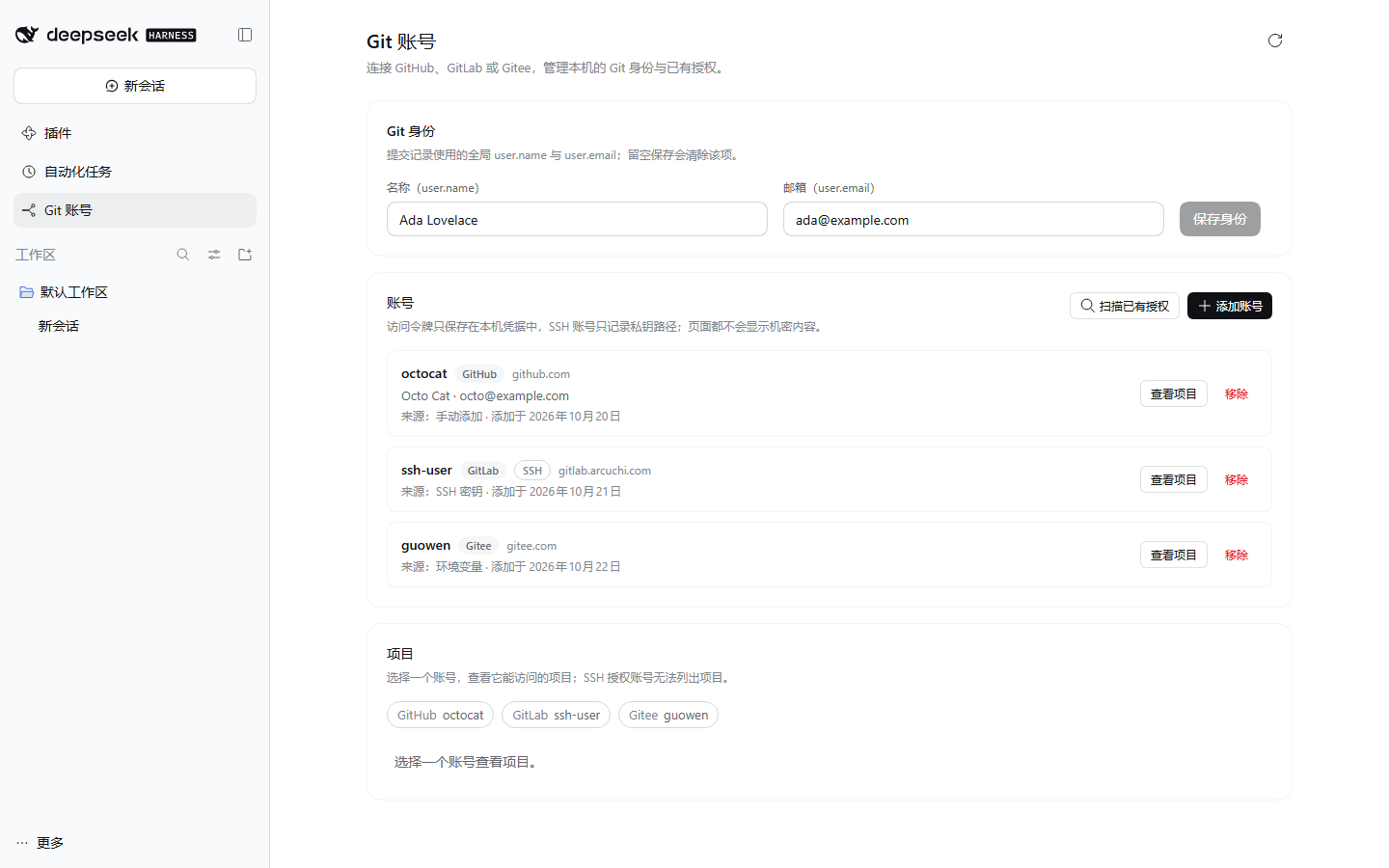
The left sidebar gains a Git accounts page that puts this machine's Git identity in one place: sign in to GitHub, GitLab (including self-hosted addresses such as gitlab.arcuchi.com), and Gitee; set the global user.name and user.email used for commits; and browse your own projects.
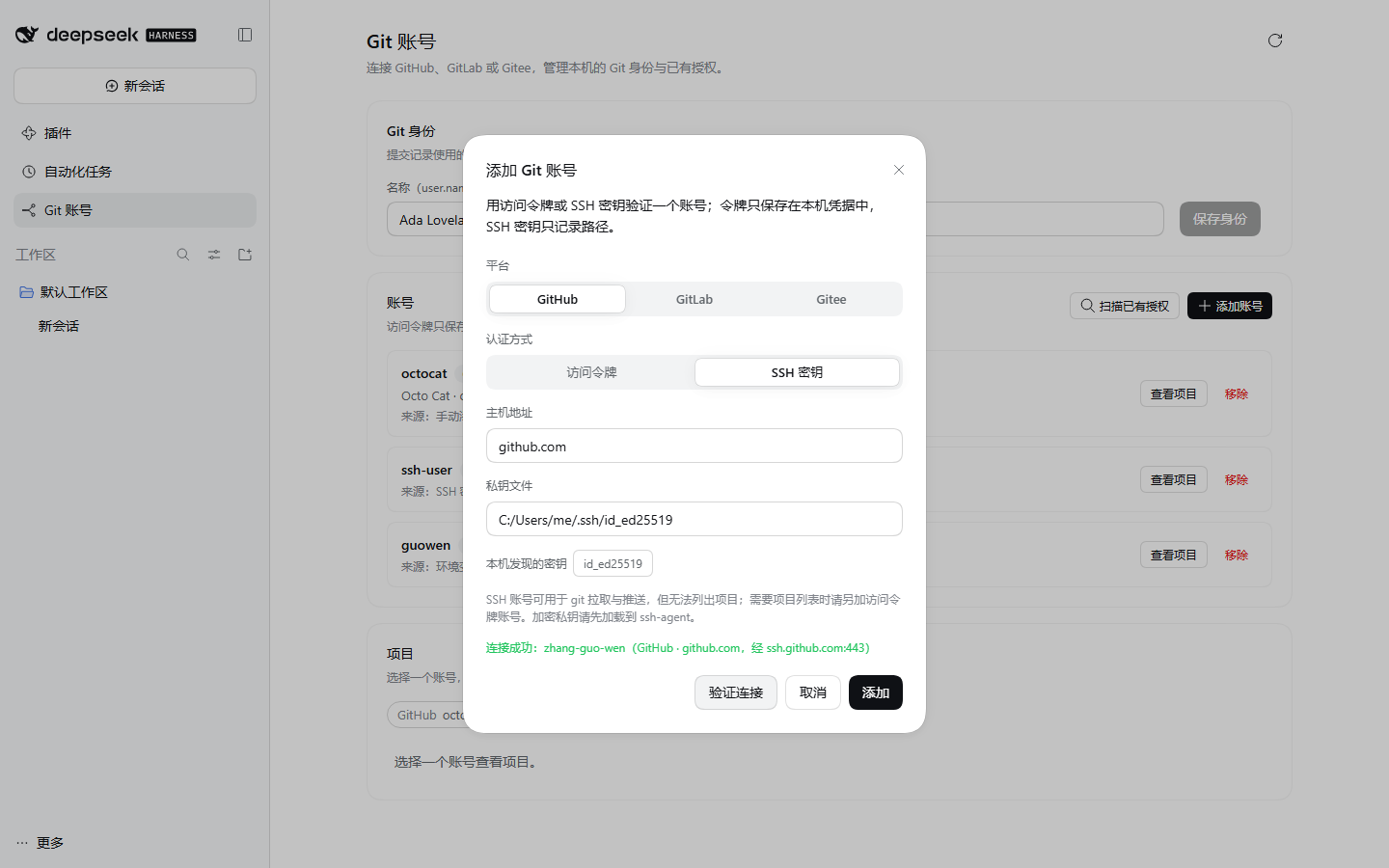
- Sign-in method: in Add account, pick the platform, confirm the server address, then choose an access token or an SSH key (no OAuth app registration); a separate Test connection button checks the credential without saving it. The Host verifies the credential against the platform and only then stores it — in the DSH credential store (
$DSH_HOME/.credentials.yaml, readable only by the current user) — and a token is never returned to the page or written to logs. GitHub tokens need permission to list repositories (classicrepo; fine-grained Metadata/Contents read), GitLab needsread_api(orapi), and Gitee needsprojectsanduser_info. - SSH-key sign-in: pick a private key from this machine's
~/.ssh(or type another path); the Host runs one non-interactivessh -Tso the platform can name the account that owns the key. Only the key's path is stored — its contents are never read or uploaded, host keys are recorded in a scratch file, and your existingknown_hostsis left untouched. A connection test has a five-second total budget; GitHub and GitLab are retried over port 443 (ssh.github.com/altssh.gitlab.com) when port 22 fails. If the network blocks SSH entirely, the account is still saved as unverified (the key's file name stands in for the login; adding the same key again on a working network upgrades it), and Git fetch/push works once the network allows it. An encrypted key must already be loaded intossh-agent. An SSH account cannot list projects — that needs an access-token account for the same host. - Scan this machine's existing authorizations: one click reads
git:credentials from Windows Credential Manager,~/.git-credentials,gh auth token, and environment variables such asGITEE_TOKEN, and also checks~/.ssh/configfor keys explicitly paired with a known platform. Every candidate must verify against its platform before it is added automatically; an existing account (same platform, server, login, and method) is skipped or refreshed. A scan ends with a single normal notification naming the added accounts — no result card is rendered. SSH keys that are not paired with a host are still reported as a note and can be picked manually in Add account. - Git identity: reads and writes the global Git configuration, so the commit name and email apply to every repository. An empty field clears that key (
git config --global --unset). When Git is missing or the global configuration cannot be read, the card explains why and disables the inputs. - My projects: select an account to list its projects by recent activity, search, page, and see visibility, default branch, and update time per row, with Copy HTTPS clone URL and Open in browser. This version is read-only: it neither clones nor creates worktrees; choosing an SSH account explains why it cannot list projects. Each account is its own small card, so connected accounts stay visually distinct.
For a self-hosted GitLab with a self-signed certificate, the Host's Node runtime must trust that certificate; otherwise verification and project listing fail with a network error. Scanning reads credentials in the current user's context only — it never shows an OS authorization dialog or starts an interactive login.
The connections are the first card on the Settings → File backup page, so an account can be added, scanned, or removed without opening the Git accounts panel first; the card's "View projects on the Git accounts page" control switches the main panel straight to the project list.
Install
npx @deepseek-ai/dsh plugin --profile web add @guowenzhang/dsh-worktree
Restart DSH after installation. Git must be installed and available on the host's PATH.
Notes
Upgrading to 2.x: model-facing Worktree tools have been removed. Create worktrees through the New Session control; archive notifications may clean up clean worktrees. Integrations that call the removed model tools must be updated.
Multi-repository support is off by default: enable “Create child repositories” in settings and adjust the scan depth to your directory layout (default: 1 level). Submodules use the commit recorded by the parent repository in detached HEAD; independent nested repositories get new branches.
Uncommitted changes are not copied: the worktree starts from a commit on the selected branch, with an automatically generated branch name.
Storage defaults to inside the workspace:
<workspace>/.agents/worktree/<branch>. Add.agents/worktree/to your Git ignore rules, or choose a location beside the repository or in the user home directory.New sessions can start in a worktree automatically: with “Start new sessions in a worktree” on, the first blank session in a repository creates its own checkout and moves into it, without asking. Off by default.
Archiving may clean up the worktree: the archive's durable write triggers a removal attempt right away — a plain archive and a stop-and-archive alike. Uncommitted changes prevent removal, and branches are kept. Stopping the host does not clean up worktrees; manually removing a workspace registration does not delete files either.
Check that no other session is using the directory before cleanup: worktree removal does not check for running sessions.
See AGENTS.md for other installation methods, configuration, and development details.
License
Apache-2.0; see also NOTICE.
No comments yet. Be the first to write one.