dsh-terminal-keypad

English | 中文
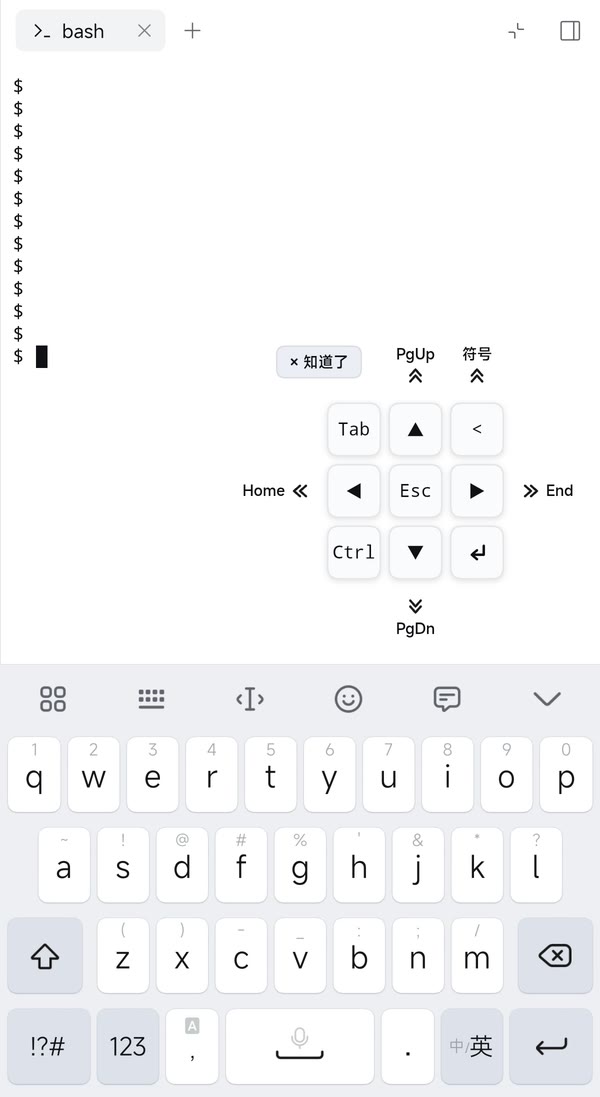
A translucent keypad floating over the DSH Web terminal. It supplies the keys a phone's soft keyboard lacks — Esc, Tab, Ctrl, Enter, a symbol key and the four arrow keys — and sliding outward on an arrow key sends Home / End / Page Up / Page Down. Holding the centre Esc key also drags the pad.
What you can do
| Cell | Tap / press | Hold | Slide outward, then release |
|---|---|---|---|
| ▲ ▼ ◀ ▶ | move the cursor | keep moving | Page Up / Page Down / Home / End |
| Esc | send Escape | hold and move to drag the pad | — |
| Tab | send Tab | — | — |
| |
type the current symbol | — | slide up, then release on a symbol |
| Ctrl | arm Ctrl | — | — |
| ↵ | send Enter | — | — |
Hold an arrow to repeat it
Press and hold a direction key and it keeps moving: the repeat gets faster the longer you hold, and stops the moment you release.
Slide an arrow outward for a function key
Touch an arrow and slide it outward, then release:
- ▲ → Page Up
- ▼ → Page Down
- ◀ → Home
- ▶ → End
The key shows the function key's name while you slide, and the arrow itself is not sent first, so a slide never moves the cursor or rewrites your shell history.
Slide up on the symbol key to pick another symbol
The key in the upper-right is not fixed to |. Slide up on it and a small picker
of common terminal symbols opens — pipes, redirects, quotes, brackets, operators
and more. Keep your finger down and slide across it: the key previews the symbol
under your finger. Release on a symbol to type it and keep it for next time;
release anywhere else and the picker closes without typing or changing anything.
A plain press still types the symbol the key holds.
Ctrl is sticky
Tap Ctrl — it highlights — and the next key is sent with Control held:
- a pad key becomes Ctrl+Arrow or Ctrl+
|; - a character you type into the terminal becomes its control key, so
carrives as Ctrl-C,mas Enter,zas Ctrl-Z, and so on.
Ctrl resets after one use; tap it again to cancel. Typing anywhere outside the terminal is never touched.
First-run hint
The first time the pad appears, small double-chevron arrows are drawn around it, blinking gently, with Page Up / Home / End / Page Down beside the four arrow keys and symbol above the symbol key. Press × Got it at the pad's top-left corner and it stays away for good.
Move it where you want
Press and hold the centre Esc key and drag. Once the finger has moved a few pixels the press becomes a drag and no Escape is sent; a tap still sends Escape. The pad follows your finger, always stays on screen (including above the soft keyboard), and remembers where you left it.
Appearance
The pad is made to sit on top of live terminal text without hiding it: the keys are a barely-there tint rather than a solid panel, the text behind stays sharp, and the outline keeps the keys easy to find. It follows the DSH theme, so light, dark and custom theme settings all apply.
It only appears while a terminal is actually on screen, floats against the terminal's lower-right corner by default, and disappears when you switch to another right-sidebar tab.
Install
The package is a DSH bundle; install the directory into the current profile:
plugin_manager action=install_bundle target=/absolute/path/to/terminal-keypad
The profile links this directory, so moving the folder breaks the install — reinstall from the new path if you move it.
Remove it with:
plugin_manager action=remove_bundle target=dsh-terminal-keypad
How it works
Implementation detailsindex.jsis the Host half, an emptyapply()that exists only so the bundle row has a Host activation. All behavior lives inclient.js.client.jsregisters one entry into theshell.overlayslot (idterminal-keypad) and portals its DOM todocument.body: the overlay layer isz-index: 20, below a fullscreen right-sidebar panel atz-index: 40.- Arrows, Home/End and PageUp/PageDown are delivered as key events to the
terminal's own xterm textarea rather than as fixed bytes, so xterm applies the
screen's current cursor-key mode.
lessandvimswitch on DECCKM (application cursor keys) and expectESC O Athere; a fixedESC [ Ais ignored by them. - Input for the remaining keys goes through the public Client terminal service,
ctx.webTerminals.view(sessionId, tabId, contentId).write(data). It reuses the cached view the sidebar's terminal body already owns, so no second attachment competes for the terminal; writes are dropped while another page owns input (the terminal's own "take control" contract). - Visibility and position come from measuring the live
.xtermscreen (getBoundingClientRectintersected with the visual viewport, thenelementFromPointprobes) on gestures and a 500 ms poll, so collapsing and reopening the right sidebar always brings the pad back.
Bytes sent
| Key | Bytes |
|---|---|
| Esc | ESC |
| Tab | \t |
| Enter | \r |
| |
the symbol the key holds (| by default) |
| ▲ ▼ ◀ ▶ | ESC[A…ESC[D, or ESC OA…ESC OD under DECCKM |
| Ctrl + arrow | ESC[1;5A … ESC[1;5D |
Ctrl + | |
the symbol's control byte when it has one (0x1C for |) |
| Home / End | ESC[H / ESC[F, or ESC OH / ESC OF under DECCKM |
| Page Up / Page Down | ESC[5~ / ESC[6~ |
Sticky Ctrl while typing
The next character typed into the focused terminal becomes its control byte:
a–z → 0x01–0x1A, [ → ESC, ] → 0x1D, ^ → 0x1E, _ → 0x1F,
@ → 0x00, ? → 0x7F. A keydown capture listener handles physical and
soft keyboards, with a beforeinput fallback for IME input that carries no
usable key.
Tuning
Constants at the top of client.js:
| Constant | Value | Meaning |
|---|---|---|
CELL / GAP / INSET |
36 / 5 / 12 | cell size, gap and default inset, in px |
TAP_GRACE |
90 ms | delay before an arrow sends, so a slide can replace it |
SWIPE_DISTANCE |
13 px | outward travel that turns an arrow into its function key |
DRAG_DISTANCE |
8 px | movement that turns a press on the centre key into a pad drag |
REPEAT_DELAY |
420 ms | delay before a held arrow starts repeating |
REPEAT_START / REPEAT_MIN |
160 / 80 ms | first repeat period / fastest period |
REPEAT_ACCEL |
0.85 | period multiplier per repeat |
OFFSET_KEY |
dsh-terminal-keypad:offset.v1 |
localStorage key of the drag offset |
SYMBOL_KEY |
dsh-terminal-keypad:symbol.v1 |
localStorage key of the chosen symbol |
HINT_KEY |
dsh-terminal-keypad:hint.v1 |
localStorage key that dismisses the first-run hint |
Files
| File | Purpose |
|---|---|
client.js |
the whole feature: pad, gestures, input |
index.js |
Host activation stub |
cordis.patch.yml |
inserts the terminal-keypad Host row |
package.json |
manifest and dsh.client declaration |
locale/en.json, locale/zh.json |
Plugin Manager title and description |
icon.svg |
plugin icon |
doc/Screenshot_2026-11-14.jpg |
the screenshot above |
License
MIT — see LICENSE.
No comments yet. Be the first to write one.