dsh-pptx-editor
Edit PowerPoint slides through conversation, right inside DeepSeek Harness.



Quick start · Features · Examples · Saving · Docs
Send a .pptx attachment, see it open beside your conversation, and describe
what you want to change. The plugin connects DSH's Agent to a full presentation
editor: you can alternate between conversation and manual editing in the same
document, with changes visible immediately.
See it in action
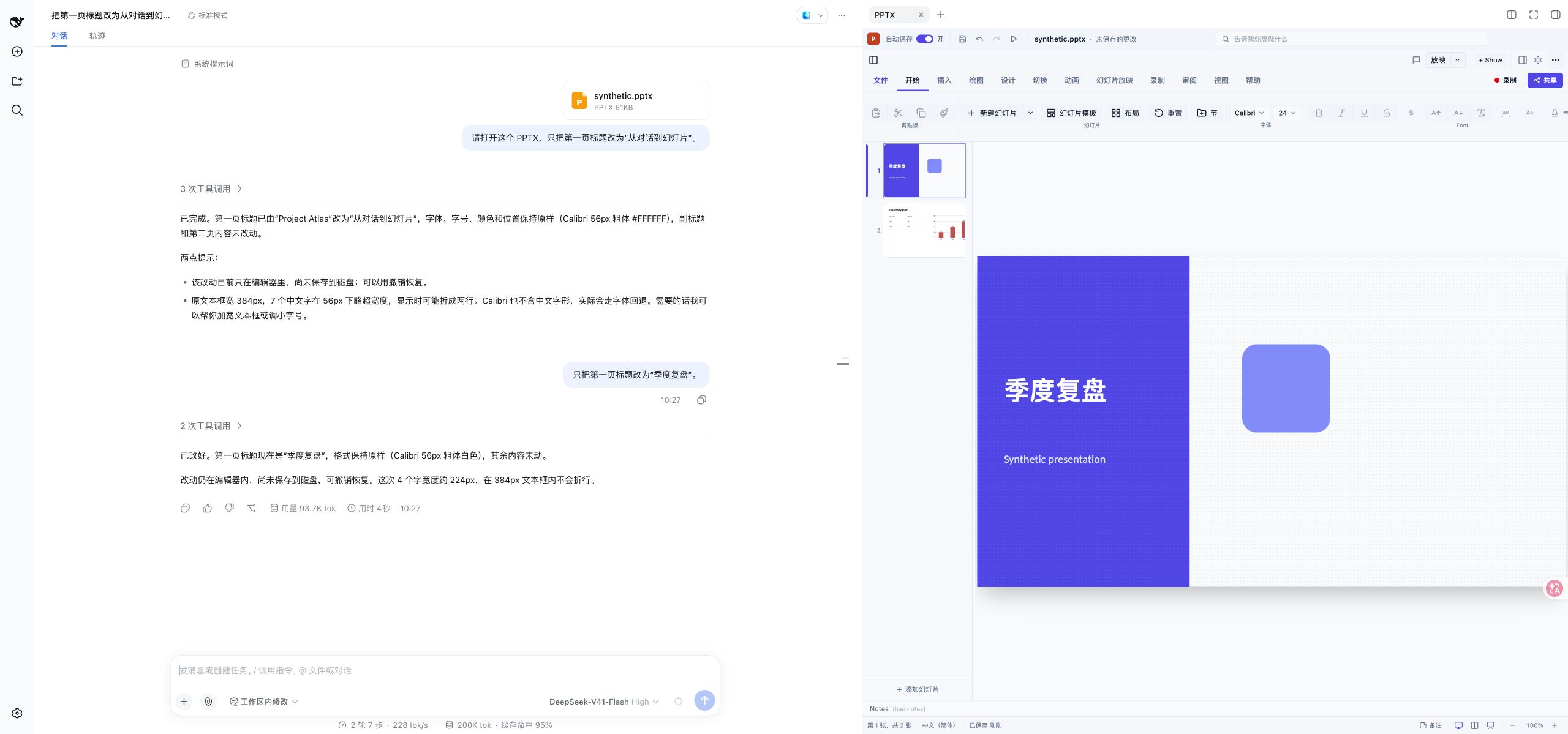
A real DSH conversation using a synthetic presentation. The title change appears in the editor on the right.
Quick start
You need Node 24, a configured DeepSeek Harness, and a current Chrome or Edge browser. Install the prebuilt npm package into the Web profile:
dsh plugin --profile web add dsh-pptx-editor@1.0.0
dsh web
- Open the login URL printed by DSH in your browser.
- Start a conversation, attach one
.pptxfile (up to 50 MiB), and send it with a request such as “Preview this presentation.” - Ask for a change. The document opens in the right sidebar and updates there.
- Use the editor's Save button when you want to download the edited PPTX.
The plugin uses the model selected in DSH; no separate model key is needed. If DSH Web is already running, save open documents before restarting it to load the plugin. Do not load the npm package and a source patch at the same time.
Tested host: DSH CLI 0.1.5-rc.1 with public plugin packages 0.1.5-rc.2,
running locally on 127.0.0.1. For version details, local tarballs, updates and
removal, see the
installation guide.
What you can do
| Area | Conversation controls |
|---|---|
| Slides | Add, duplicate, reorder, hide, delete and navigate |
| Text | Rewrite content; change font, size, color, bold, italic and underline |
| Paragraphs | Horizontal and vertical alignment, spacing, indents, bullets and numbered lists |
| Layout | Move, resize, rotate, flip, align and distribute elements |
| Shapes | Insert basic shapes; change fill and outline; copy or delete elements |
| Tables | Insert tables, edit cell values and formatting, resize rows/columns and change unmerged structure |
| Charts | Insert column/bar, line, pie, doughnut, area and radar charts; update supported data and styles |
| Images | Insert an uploaded image; crop it or adjust opacity, brightness and contrast |
| History | Undo and redo edits, or reopen the presentation through conversation |
The native editor remains available for direct manipulation. Conversation edits
use the same document and editor history. A sequence of separate tool commands
is not a single atomic undo step. Use edit_pptx_batch to change up to 100
existing elements across slides with one undo step.
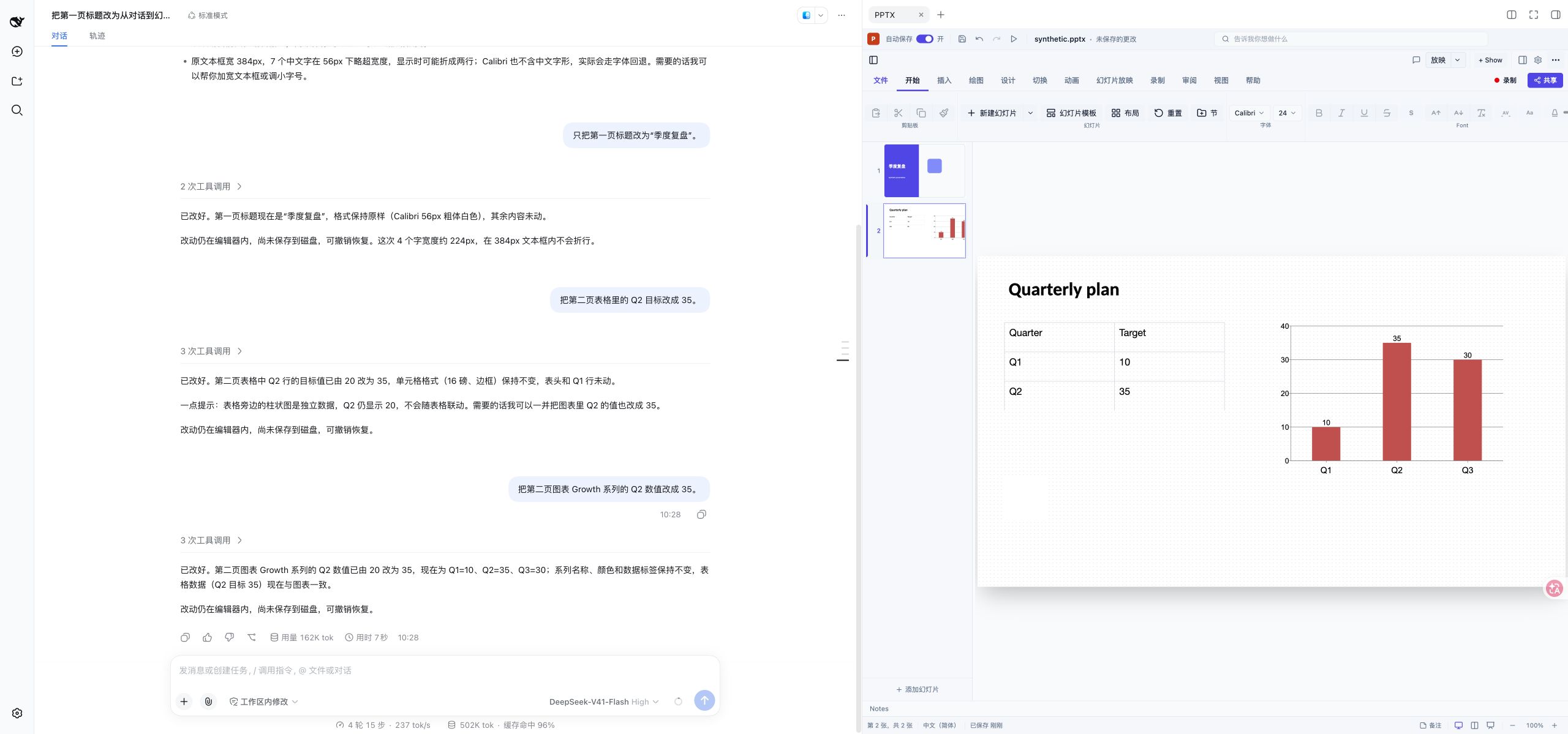
The native editor displays table cells and chart data alongside the slides. Screenshots use synthetic content; they do not promise identical rendering for every PowerPoint file.
Try it in conversation
Start with an attached presentation, then send one request at a time:
| Goal | Example request |
|---|---|
| Rewrite a title | “Change the title on slide 1 to ‘Quarterly review’.” |
| Add a slide | “Add a blank slide at the end.” |
| Add text | “Add a text box on slide 3 containing ‘Next steps’.” |
| Format a paragraph | “Center the paragraph in the title text box on slide 3.” |
| Edit a table | “Change the Q2 target in the table on slide 2 to 35.” |
| Edit a chart | “Change the Q2 value in the Growth series on slide 2 to 35.” |
| Insert a picture | Attach an image, then ask “Insert the uploaded picture on slide 3.” |
| Recover your workspace | “Reopen the PPTX on the right.” |
| Undo | “Undo the last edit.” |
PNG, JPEG, WebP and GIF image attachments up to 1 MiB are supported. Image insertion uses attachments from the same conversation. See the usage guide for detailed examples and operation limits.
Saving and recovery
AutoSave keeps a recovery cache in this browser (IndexedDB). It does not write or overwrite a
.pptxfile. The editor's “Saved to this computer” status refers to that browser copy. Click Save to download a PPTX file you can keep or share.
| Action | What it saves | What to expect |
|---|---|---|
| Save in the editor | A downloaded .pptx file |
Keep or share this file; it does not overwrite the uploaded attachment or source file |
| AutoSave in the editor | A recovery copy in this browser | After reopening the same source in the same conversation, restore the copy when prompted |
With AutoSave enabled, the plugin checks for changes every two seconds and stores a recovery snapshot. Recovery prompts cover the last 24 hours; the copies depend on browser storage and do not restore undo history. Clearing browser data removes them. A refresh before the latest snapshot finishes can lose that last edit. Download the PPTX for a durable, shareable copy.
Closing the PPTX tab keeps its editor available in memory for reopening. An explicitly closed tab stays closed after refresh; ask to reopen it when needed. See recovery and troubleshooting for the full lifecycle.
Scope and limitations
- This is a DSH Web plugin for an existing PPTX attachment. It does not need a separate editor launcher on the sidebar's Start page.
- Animation, transition, theme/master, speaker-note and comment editing are not connected to conversation commands. Some native UI functions have no supported plugin editing interface.
- Complex charts, merged-table structure, character-range formatting and some image effects have restrictions. Imported files are not guaranteed to make a lossless round trip. Consult the capability matrix.
- The Agent can read slide text, formatting and supported table/chart data. This information becomes part of the DSH conversation and may reach its configured model provider. See data handling.
Frequently asked questions
Why did choosing an attachment not open it?
Send the message first. Opening follows DSH's admitted-message feed, not the file picker selection. Send one PPTX per message.
Does “saved” mean my original file was overwritten?
No. AutoSave is browser recovery; Save downloads a PPTX. Neither overwrites the original attachment or local source file.
Can I keep using the mouse and keyboard?
Yes. Manual changes and Agent changes share the open document. You can also use the editor's native undo and redo controls.
How is the interface language chosen?
It follows DSH for English and Simplified Chinese, with English as the fallback. There is no separate plugin language selector.
Documentation and support
- Installation, usage and troubleshooting
- Conversation capability matrix
- Report a bug or request a feature
- DSH community discussion
- Release notes
- Contributing · Code of conduct · Security policy
For a bug report, include plugin/DSH/browser versions, a minimal reproduction and a non-sensitive sample if possible. Avoid attaching private presentations or credentials to a public issue.
Local development
Use the Node and pnpm versions specified in .node-version and package.json:
corepack enable
pnpm install --frozen-lockfile
pnpm check
pnpm dev
Development instructions distinguish unit, browser and live DSH checks. See contributing before opening a PR.
Credits and license
- Thanks to the DeepSeek team (@deepseek-ai) for DeepSeek Harness, the plugin host and conversation environment.
- Thanks to Christopher van Rooyen (@ChristopherVR) and the contributors to pptx-viewer for the PPTX editing and rendering engine.
Apache License 2.0. Third-party license details are in THIRD_PARTY_NOTICES.md.
No comments yet. Be the first to write one.