dsh-modes · Mode Manager
English | 中文
Mode manager for DeepSeek Harness (dsh). It adds a Modes page to the Web interface's Settings, where you switch what each agent mode can do, edit each mode's system prompt and the tool descriptions the model reads, manage skills per mode (saved versions, new skills, and imports from Codex, Claude Code, or a folder), create your own modes from templates, and merge built-in updates in one click after a dsh upgrade.
What it does
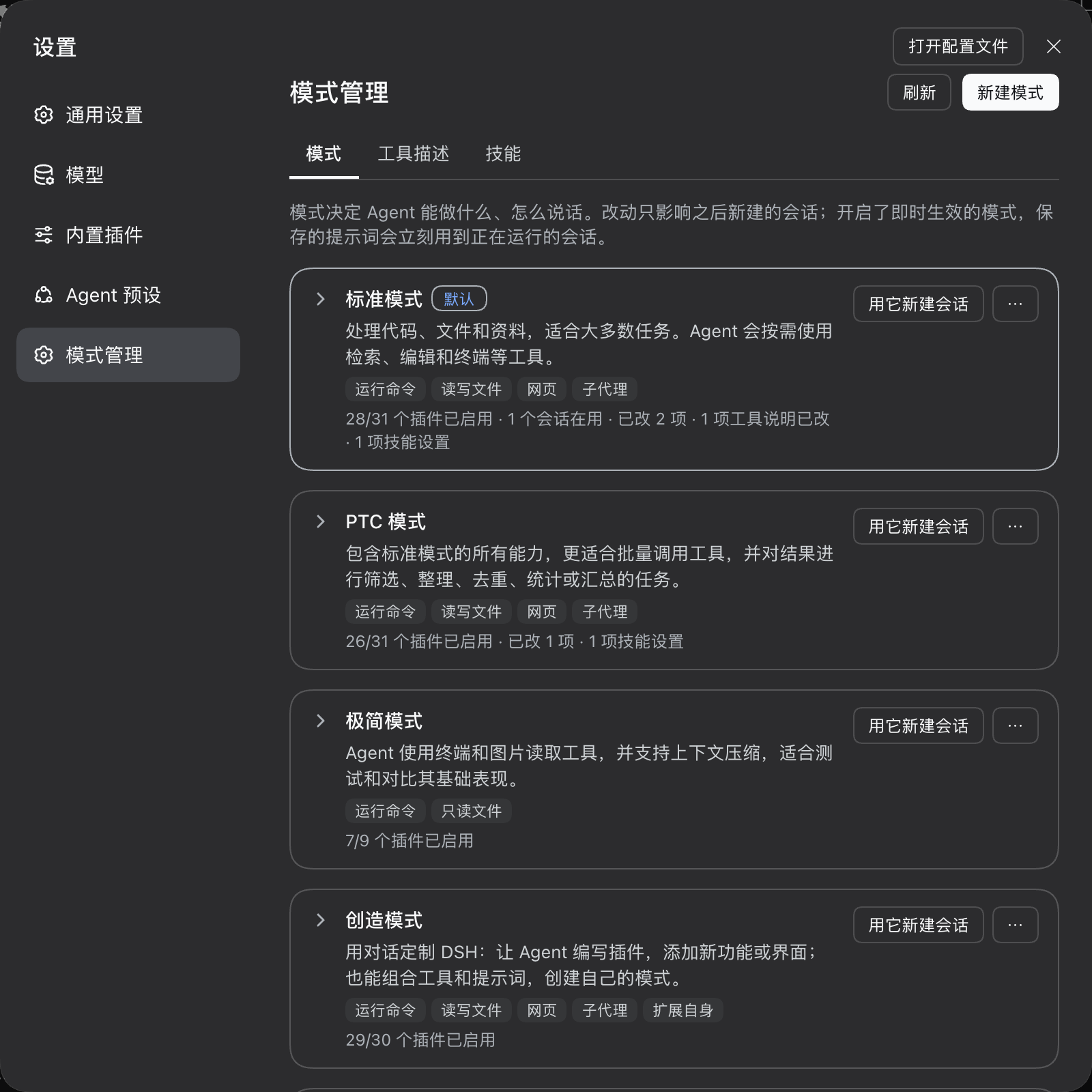
- Understand each mode at a glance: every mode gets a card that lists what it can do (run commands, read and write files, browse the web, use subagents, and so on), so you can compare modes without opening them.
- Switch capabilities, not plugins: 15 capabilities, one switch each. For example, turn off "Run commands" or make files read-only, without facing dozens of plugin names.
- Edit the prompt: edit each mode's system prompt with a preview and a version history. You can also let a saved prompt reach sessions that are already running, or let the model change the prompt in chat; every save asks you first.
- Edit tool descriptions: rewrite the description of any tool the model sees, for several modes at once, and restore the built-in text of one tool, one mode, or everything with one click. The tools' own definitions are never changed.
- Create your own modes: start from four templates (Develop, Write, Chat, Read-only research), or copy any existing mode.
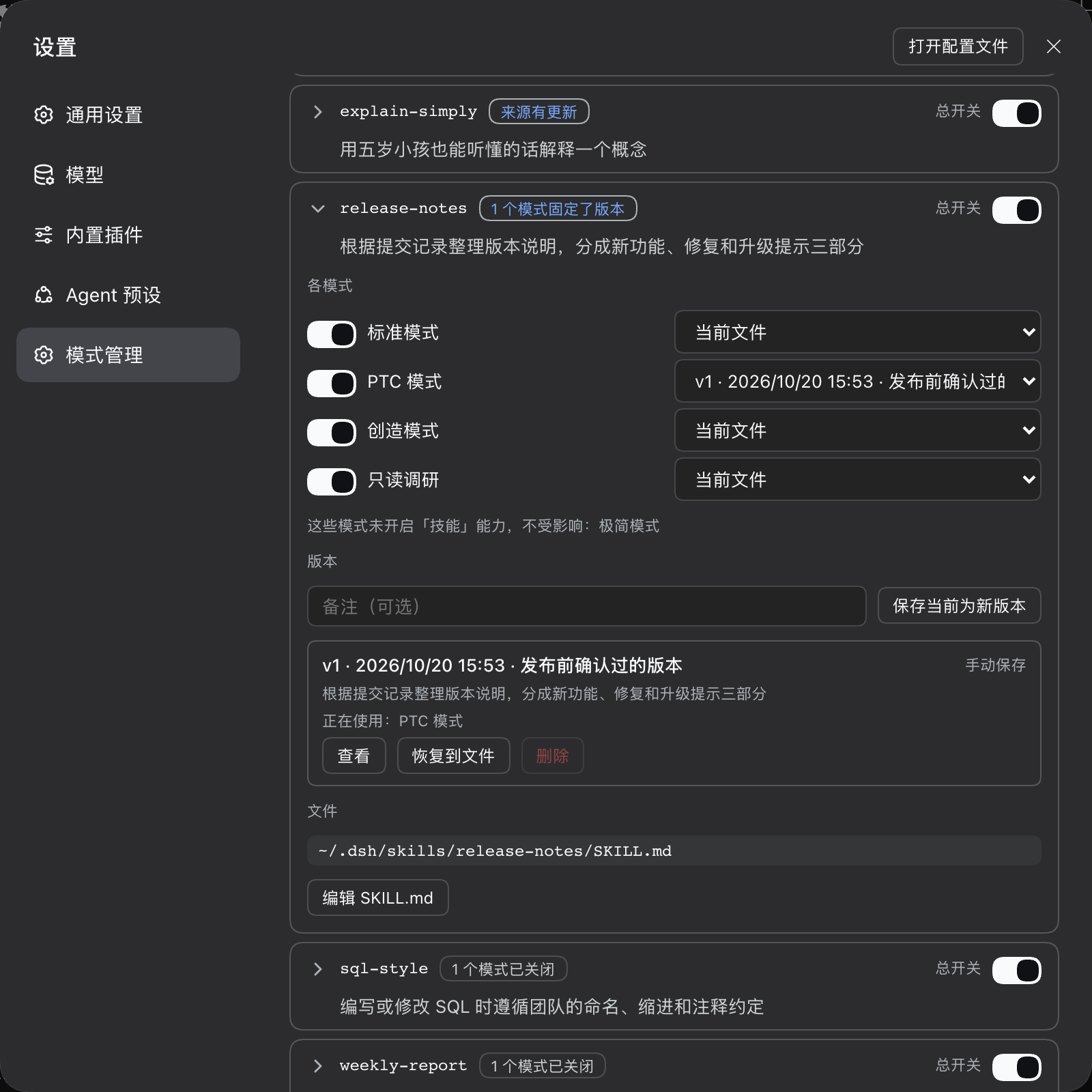
- Control skills per mode: turn a skill on or off in each mode or in all of them, pin a mode to a saved version of a skill, and keep a history of versions you can view, restore, or delete. Switching and pinning never move skill files.
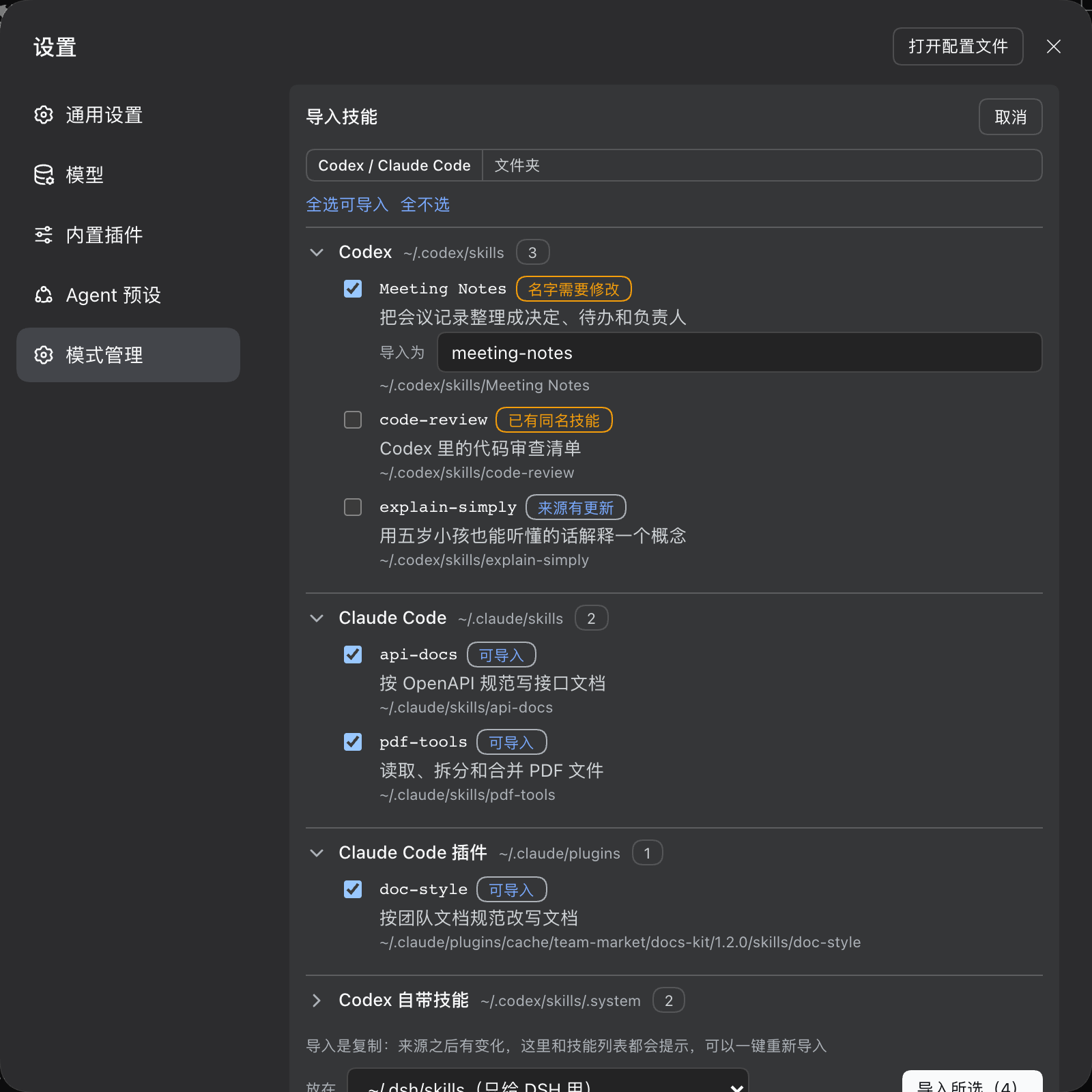
- Create and import skills: write a new skill in the page, or copy skills in from Codex, Claude Code, or any folder, several at once. When an imported skill's source changes, the page says so and imports it again in one click.
- Update the plugin itself: the page tells you when a newer version of this plugin exists and can install it with DSH's own installer, after you confirm.
- Keep up with dsh upgrades: when dsh updates its built-in modes, merge the changes in one click and keep yours. When a plugin fails to load, turn off just the failing plugins in one click.
Install
You need the dsh Web interface (dsh web). See Compatibility for supported versions.
dsh plugin --profile web add dsh-modes
If you run dsh from source, run pnpm dsh plugin --profile web add dsh-modes in the source folder instead. After installing, restart dsh web and open Settings → Modes.
Quick start
- Open Settings → Modes and look at the built-in modes: the small labels on each card are what it can do.
- Click New mode at the top right, pick Read-only research, and click Create.
- The new card opens on the Capabilities tab: Run commands is off, and Files is on with Allow file changes off.
- Click New session with it on the card and ask it to change a file. This mode has no tool to write files, edit files, or run commands, so it can only read and search.
- Go back to the card's Prompt tab, change a sentence, and save. New sessions use it right away; to apply it to sessions that are already running, turn on Live prompt below.
Features
The mode list
Each mode is one card:
- Header: the name and description, with Default and Custom labels.
- Capability labels: what the mode can do, for example "Commands · Files (read-only) · Web".
- Status line: plugins on, open sessions, changes made, and whether the prompt is live.
- Buttons: New session with it opens a new session in this mode. The ⋯ menu holds the other actions: Make default, Duplicate, View configuration (YAML), Edit details, Restore built-in, and Delete.
- Notices: when something needs your attention, the card shows one notice with a button to fix it, for example "The built-in mode was updated", "plugins cannot load", or "an unsaved prompt draft".
Click a card to open it. It has three tabs: Capabilities, Prompt, and All plugins.
Capabilities
| Group | Capabilities |
|---|---|
| What it can do | Run commands, Files (with a separate Allow file changes switch), Web, Subagents and workflows, Extend itself (plugin management, plugin market, plugin API lookup) |
| How it works | Plan mode, To-do list, Session goals, Skills, Ask you, Deliverables, Reminders |
| Context | Workspace instructions (AGENTS.md, CLAUDE.md, and similar), Time awareness, Context compaction |
- Turning a capability on restores it as the built-in mode has it. Plugins that switch by environment (such as Bash and PowerShell) go back to Auto, and plugins the built-in mode keeps off (such as the Codex subagent) stay off.
- Turning a capability off switches off every plugin it includes.
- A capability with only some of its plugins on is marked Partly on.
- Capabilities the mode has no plugins for are hidden; for example, dsh before 0.2.1 has no Reminders.
Prompt
- System prompt: edit this mode's system prompt. Insert variables such as
{{model}}with a click, and the editor checks them as you type. Preview full system prompt shows everything the model receives. - Advanced settings: a closing prompt (added after tool guidance and workspace rules), "use only the opening text as the complete prompt", and "include runtime context".
- Save: click Save or press ⌘/Ctrl + Enter. Everything above takes effect only after you save.
- History: every save records a version (up to 30), labeled by where it was made: Settings, in chat, or elsewhere. You can load any version back into the editor.
- Import and export:
.mdfiles. - Restore built-in prompt: asks before it replaces your prompt.
- Nothing gets lost: unsaved edits stay in the browser as a draft, even after a page refresh. If the prompt changes elsewhere while you edit, saving is refused and you choose between loading the latest version and overwriting it with yours.
The In chat section has two switches that save as soon as you click them. They apply to sessions created afterwards:
- Live prompt: after you save the prompt, running sessions use it from their next step.
- Allow prompt changes in chat: you can tell the model "change your prompt to …". The model reads or changes this mode's prompt with the
mode_prompttool, and asks for your approval before every save.
Tool descriptions
Open Settings → Modes → Tool descriptions. It rewrites the description of a tool: the text that tells the model what the tool does and when to use it. The tool's own definition is never changed, so the built-in text always comes back.
- Pick the mode: the Mode menu at the top is shared with the Skills view, and the page remembers the choice in this browser. Pick one mode to edit it alone, or All modes to see a list of modes and tick the ones an edit applies to (all are ticked at first). With nothing ticked, the list shows the tools of every editable mode and editing is off. Code mode (PTC) and modes declared by other plugins are listed with the reason and cannot be picked; if the mode picked in the Skills view cannot be used here, the page says so and shows all modes. Edit tool descriptions in a mode card's menu opens this view for that mode.
- Batch edits: edit one tool for several modes at once, or edit several tools and save them together with Save all. Drafts stay until you save or discard them, also while you visit another view. Under each tool you see its built-in text, its state in every ticked mode, and earlier versions you can load back.
- One-click restore: restore one tool in one mode, one tool in all ticked modes, everything in the ticked modes, or everything in every mode. Each asks first. A restore removes the edit, so the built-in text returns exactly.
- Built-in text changed: after a dsh upgrade, a tool whose built-in description differs from the one your edit was based on shows Built-in text changed. Your edit keeps applying. Open Built-in text to compare, then restore, or save again to accept the new text as the baseline.
- Copies: duplicating a mode copies its tool description edits.
- Limits: a description has at most 20,000 characters and cannot be empty (use restore instead). Only the description changes, never a tool's name or parameters. The list shows the tools each mode registers, so it works without an open session.
Skills
Open Settings → Modes → Skills. It lists every skill the modes find, with its description and file.
- New skill: New skill asks for a name (lowercase letters, digits, and hyphens), a one-line description, the folder (
~/.dsh/skills, read by DSH only, or~/.agents/skills, shared with other agent tools), and the modes it starts on in. It writes<folder>/<name>/SKILL.mdand opens it in the editor. - Import: Import skills lists the skills in
~/.codex/skills,~/.claude/skills, and Claude Code plugins under~/.claude/plugins, or, under Folder, the skills in a folder you name (a skill folder, or a folder of skill folders; a path in quotes, as Windows' Copy as path gives it, works too). Each line says whether it is ready, already imported, changed at its source, named like an existing skill (import it under another name, or replace that skill after a version of it is saved), or named in a way DSH would ignore (it is imported under the suggested name, and the copy'snameis rewritten). Skills shipped with Codex are listed folded and unticked, because they use Codex's own tools. - Imports are copies: the files are copied into the folder you choose, so editing them in DSH never changes the source. Links that point outside the skill,
.git, and.DS_Storeare left out. When the source changes later, the skill's line shows Source changed; Import again from the source in its opened part replaces the copy after saving the current files as a version. - View by mode: the Mode menu at the top, shared with the Tool descriptions view, shows all modes or one mode. In one mode, the list holds the skills that mode finds, with how many are on, and each line's switch and version menu act on that mode directly; Turn all on and Turn all off (which asks first) change every listed skill in it. Manage skills in a mode card's menu opens this view for that mode.
- On or off: viewing all modes, the switch on a skill's line turns it off in every mode; viewing one mode, that switch is in the opened part. Opened, the skill shows a switch for each mode that has the skill tool; a mode that does not find the skill, or has no skill tool, is shown as not affected.
- Modes with the Skills capability off: such a mode has no skill tool, so skills do nothing in it and it is left out of the switches. A note at the top names these modes, with a button that turns the capability on, as the switch on the mode card's Capabilities tab does. Modes made from the Chat template start with it off.
- Pin a version: each mode has a version menu: Current file, or a saved version. A pinned mode gets that version's description and instructions, and its resources from the saved copy, while other modes keep using the current file.
- Versions: Save current as a version copies the skill's files (up to 1,000 files and 25 MB) with an optional note. Editing the file here, or restoring a version, first saves the current file as a version, labelled so you can tell them apart. View shows a version's
SKILL.md; Restore to file copies it over the current files and keeps files the version lacks; Delete is refused while a mode uses the version. - Edit SKILL.md: edit the file in the page. A file that changed while you edited is not overwritten unless you choose to.
- Read-only skills: skills inside
node_modulesbelong to DSH or a plugin; you can turn them off per mode and save versions, but not edit or restore their files. Skills in~/.agents/skillsare shared with other agent tools, and the page says so before you edit one. - Copies: duplicating a mode copies its skill settings. Restore built-in and deleting a mode clear them; saved versions are kept.
All plugins
Lists every plugin in the mode, for when you need to adjust them one by one:
- Search within the tab, or show only changed plugins.
- Plugins that switch by environment offer Auto / On / Off.
- Each changed plugin can be reset on its own with Restore.
- Details shows the row id, module, and full configuration.
New modes
| Start from | What it can do | Good for |
|---|---|---|
| Develop | Same as the Standard mode | Everyday coding |
| Write | Read and write files, workspace instructions, to-do list, deliverables, skills, context compaction, asking you, time; no terminal | Documents and drafts |
| Chat | Web, context compaction, asking you, time; no files or terminal | Questions and conversation |
| Read-only research | Read and search files, web, workspace instructions, to-do list, skills, context compaction, asking you, time; cannot change files or run commands | Reading code and research |
| Copy a mode | Same as the mode you copy | Small changes to an existing mode |
Each template comes with a starter prompt in Chinese or English, following the interface language. The name and ID are filled in for you, and you can change both.
Keeping up with dsh upgrades
- Sync built-in update: after a dsh upgrade, built-in modes you changed, and custom modes based on a built-in mode, show "The built-in mode was updated". Before you sync, the card lists the plugins that were added, removed, or changed upstream. When you confirm:
- plugins you never touched follow the built-in version;
- settings you changed keep your value;
- plugins added upstream join template-based modes switched off.
- One-click repair: when a plugin in a mode fails to load, the whole mode stops working. The card lists the failing plugins with their reasons; Turn these plugins off switches off only those, and the mode works again.
- Before you delete: deleting a custom mode first tells you how many open and saved sessions use it. Those sessions cannot be opened after the mode is deleted.
Updates
The page checks for a newer version of this plugin and can install it.
- Check: when you open the page, the plugin asks the npm registry DSH is configured with (a mirror works) for the latest version of
dsh-modes, at most once every 12 hours. The request names only the package. Turn it off with Check for updates automatically at the bottom of the page; Check now still works. Development installs (link:) are never checked. - Upgrade: a banner shows a newer release with Upgrade…. After you confirm, DSH's own installer downloads that release's tarball from the registry and installs it, with progress and a Cancel install button. The installer restores the profile's files when an install fails or is cancelled. Only the
latestrelease is offered, never a prerelease, and the tarball address must be this package's file on the registry that answered. - After the upgrade: usually the new version loads when you restart dsh (web: run
dsh webagain; desktop app: quit and reopen). Running sessions are not affected, and your modes and edits stay. In some DSH versions the plugin is replaced on the spot, and the page asks you to reload. The banner shows the command that goes back to the old version. - Installed from GitHub: the banner shows
dsh plugin --profile web add github:xiaohai-78/dsh-modesinstead of a button. - By hand: Plugins page → Add plugin → paste
https://registry.npmjs.org/dsh-modes/-/dsh-modes-<version>.tgz, or rundsh plugin --profile web add dsh-modes@latestin a terminal. Without@latestthe command does nothing, because DSH keeps the version it installed. - From an older version: versions released before the update check have no banner. Upgrade them by hand once.
When changes take effect
- Every change applies to sessions created afterwards; running sessions keep what they started with. The one exception is a mode with Live prompt on: its saved prompt text reaches running sessions from their next step.
- Skills: the first setting of a mode adds one row of this plugin to it, so it reaches new sessions only; after that, a change reaches the running sessions of that mode on their next step. The
/menu in the composer keeps its list until the page reloads. - New and imported skills: DSH watches its skill folders, so a new skill reaches the catalog of running sessions from their next step without a restart; the
/menu shows it after a page reload. - Tool descriptions: the first edit of a mode adds one row of this plugin to it, so that edit reaches new sessions only. After that, every save or restore reaches the running sessions of that mode on their next step.
- Changes are written to the current dsh profile's
cordis.patch.yml, so other windows using the same profile see them too. The Desktop app uses a different profile and is not affected. - The result of every action shows in a bar at the bottom of the page. Errors stay until you close them. After a tool description or skill save, the bar also says when it takes effect: running sessions from their next step, or only new sessions for a mode's first setting, with a New session with it button when one mode needs a new session. A session that started before a mode's first setting never sees later changes either; start a new one.
Compatibility
| dsh version | Result |
|---|---|
0.2.0-rc.2 (npm latest) |
Works. This dsh version provides no localized plugin names, so the plugin shows each plugin's official name instead |
0.2.1-alpha.3 |
Works |
0.2.1-rc.1 (npm next) |
Works. rc.1 adds a plugin market tool to the built-in modes; modes you changed show "The built-in mode was updated", and syncing adds it switched off |
Every version above was installed and tested, including checks of the actual requests sent to the model through a local mock model. The dsh APIs this plugin uses are not stable yet, so other versions may need changes.
FAQ
I changed a switch or the prompt, but the chat did not change. Changes apply to sessions created afterwards. Try New session with it. Only a mode with Live prompt on applies its prompt text to running sessions.
A mode stopped working after a dsh upgrade. Open its card. If it reports plugins that cannot load, click Turn these plugins off. If it says the built-in mode was updated, click Sync built-in update.
I made a mess. How do I go back?
- One plugin: click Restore in All plugins.
- The prompt: load any version from History, or click Restore built-in prompt.
- A whole built-in mode: choose Restore built-in in the ⋯ menu.
I asked the model to change its prompt, and nothing happened. Allow prompt changes in chat only applies to sessions created after you turned it on. Also, if dsh's approval policy is "never" (for example in unattended runs), saves are refused.
Where does the plugin keep its data?
- Mode configuration: the profile's
cordis.patch.yml. - Sync baselines and prompt history: the
.dsh-modes/folder in the profile directory. - Unsaved drafts: only in your current browser.
Uninstall
dsh plugin --profile web remove dsh-modes
Before you uninstall:
- Clear skill settings first: in Skills, turn every skill back on and set every mode to Current file. A mode with skill settings contains the row
dsh-modes/skills. - Restore tool descriptions: in Tool descriptions, use Restore everything in all modes. A mode with edited tool descriptions contains a row of this plugin (
dsh-modes/tool-descriptions); once the plugin is uninstalled, such a mode cannot find it and stops working. - Turn off two switches: on each mode's Prompt tab, turn off Live prompt and Allow prompt changes in chat in the In chat section. These switches add this plugin's own modules to the mode. Once the plugin is uninstalled, such a mode cannot find them and stops working.
- For a full reset: Restore built-in on the built-in modes you changed, and delete the modes you created. Otherwise changed modes keep running with your changes after the uninstall.
- Clean up: you can also delete the
.dsh-modes/folder in the profile directory.
Known limitations
- Sync needs a baseline: syncing compares against the built-in plugin list recorded at your last save. Modes changed with a version before 0.5.0 have no such record, so the first sync keeps every difference from the built-in version as your change. Every save after that records a baseline.
- Scope of Live prompt: it applies only to the opening and closing prompt text. The "complete prompt" and "runtime context" settings still apply to new sessions only.
- Scope of chat edits:
mode_promptreads and writes only the opening prompt text. - Skills listed: the page lists the skills the modes find without a workspace: user, custom, and packaged skills. Project skills (
<project>/.dsh/skills,<project>/.agents/skills) depend on a session's workspace and are not listed. - Skills written for other tools: DSH reads
name,description,whenToUse,metadata,disable-model-invocation, anduser-invocable; other fields, such as Claude Code'sallowed-toolsormodel, have no effect. A skill that relies on another tool's own tools (for example Codex's image generation) is imported but may not work in DSH. - Where import looks:
$CODEX_HOME/skills(default~/.codex/skills),$CLAUDE_CONFIG_DIR/skills(default~/.claude/skills), andskills/<name>/SKILL.mdup to six levels below~/.claude/plugins, keeping the most recently changed copy of a plugin cached in several versions. Project skills such as<project>/.claude/skillsare imported through Folder. A skill as a single<name>.mdfile is not listed. - Replacing on Windows: the files are overwritten one by one, so a failure part way leaves a mix of old and new files. Restore the version saved before the import from the skill's version list.
- A new skill just written: the page waits 0.8 seconds for DSH's file watcher before it reads the list again. If a new skill still shows "This mode cannot find it", click Refresh.
- Skills turned off in every mode: this needs the policy row in every mode, so every built-in mode gets a profile override.
- Order against other skill plugins: the row's entries use rank -1000. A plugin that registers entries in the same scope with a lower rank wins over them.
- A hidden skill's details: once a skill is hidden in every mode, the page shows the description and file it had when last seen.
- Update check: it needs a reachable registry. When the registry cannot be reached the footer says the check failed. A mirror can lag behind npm, so the newest release may show up later.
- Version record after an upgrade: an upgrade from the page records the dependency as the tarball address instead of a version number. That does not affect use or later upgrades.
- A new version that cannot start: DSH does not keep running the old one. Run the rollback command from the banner in a terminal.
- Code mode (PTC): tool descriptions are not supported there yet. In code mode the model reads tool descriptions as comments inside the generated SDK text, which an edit does not rewrite.
- Tools registered at session start: the list comes from the tools each mode registers. A tool that is registered only when a session starts (for example
subagent) appears after a session of that mode has made its first request. - Plugins that repeat tool descriptions: a plugin that copies descriptions into the prompt, such as a tool-activator's
<available_tools>list, still shows the built-in text. The tool definitions sent to the model carry your edit. - Hand edits: the plugin reads
tool-descriptions.jsononce and again after each save from the page. Restart dsh after editing it by hand. A damaged file is reported and never overwritten. - Session count: counting saved sessions before a delete reads each session's record. With many sessions it stops after 8 seconds and shows "at least N".
- Permissions: write actions rely only on dsh's own sign-in check.
Parts
| File | Role |
|---|---|
index.js |
Host plugin. Serves POST /api/dsh-modes and the dshModes service the two modules below use. Edits to built-in modes are written as a profile override of the mode's row through configEditor.edit(); plugin display metadata comes from pluginInventory.list() |
container.js |
Custom-mode container: keeps the presets list in its config and calls agentPresets.register() for each entry |
rebase.js |
Three-way merge for syncing built-in updates: takes the built-in plugin list from your last save as the base and merges your changes onto the latest built-in list. On conflict, your value wins |
tool-descriptions.js |
The row that applies tool description edits: mounted inside a mode, listens to system-prompt/assemble first in its chain, and replaces the description of the edited tools in the tool list of every request |
tool-edit.js |
Pure planning for tool description edits: validation, batch edits with conflict checks, restores, history, and the per-mode tool list |
skill-policy.js |
The skill policy row: mounted inside a mode, it registers a skill provider in the mode's scope that lists an entry nobody may invoke for each hidden skill and the saved version for each pinned one, at rank -1000 |
skill-store.js |
Pure rules for skill settings: merging the all-modes list into a mode, batch changes, version ids, which modes need the row, and reading SKILL.md frontmatter |
skill-files.js |
Copies a skill into a version directory, restores one over the current files, and writes files through links |
skill-import.js |
Finds skill folders in Codex, Claude Code, and a named folder; reads a candidate's frontmatter; fingerprints, copies, and replaces skill folders; writes a new skill's SKILL.md |
update.js |
Version check and upgrade helpers without DSH services: version comparison, how the profile depends on the package, the registries to ask, and validation of the registry's tarball address |
state.js |
Files in the profile's .dsh-modes/ folder: state.json (sync baselines, plus which built-in mode and template each custom mode came from), history.json (prompt history), tool-descriptions.json (tool description edits and their history), settings.json (the update check switch), and skills.json (skill settings, the details each skill had when last seen, and the version index; the versions' files are in skill-versions/<skill>/<version>/). Writes go to a temporary file first and then replace the original |
live-persona.js |
The persona row for Live prompt: replaces the mode's @deepseek-ai/dsh-persona row and registers the same two prompt sections, reading the latest saved text every time the prompt is assembled |
prompt-tool.js |
The mode_prompt tool: mounted as a row inside a mode, so only that mode's sessions see it; asks the user for approval through tools/pre-execute before writing |
client.js |
The Web settings page (Chinese and English) |
cordis.patch.yml |
Inserts the index.js and container.js host rows |
Actions of /api/dsh-modes:
- Reads:
list,read,prompt,history,usage,tools,updateStatus,upgradeStatus,skills,readSkillFile,readSkillVersion. - Skills:
setSkillModes(a batch of{ preset, skill, enabled?, pin? }items),setSkillGlobal,saveSkillVersion,restoreSkillVersion,deleteSkillVersion,writeSkillFile. - Plugin rows:
toggle,followPlatform,applyRows,resetRow. - Whole modes:
reset,sync,repair,create,update,remove,setDefault. - Prompts:
setPrompt,setLive,setPromptTool. - Updates:
setUpdateCheck,upgrade(starts the install and answers at once),cancelUpgrade. - Tool descriptions:
setToolDescriptions(a batch of{ preset, tool, text, expected? }items, answered with one result per item),restoreToolDescriptions(items,presets, orall).
System prompt
- Where the prompt lives: the prompt is the
prefix(opening) andsuffix(closing) of the mode's persona row. Withcomplete: true, the opening text is the whole system prompt. - Variable checks: available variables are whatever the running dsh registers. For example,
0.2.0-rc.2still has{{cwd}}, which0.2.1-alpha.2removed. dsh resolves variables strictly, and one wrong variable makes every step of that mode fail, so saves (including saves from chat) check them first. - Conflict detection: a save carries the version you started editing; if the stored version has changed since, it returns
prompt-conflictinstead of overwriting. - How Live prompt works: dsh appends the new system prompt to the session history as a system message instead of rewriting the opening one, so the previously cached prompt prefix still hits. The change is recorded in the session log.
Tool descriptions
- Where the text is replaced: the
system-prompt/assembleoutput carries the tool definitions sent to the model. The row replacesdescriptionthere, after the listeners it wraps have run, so another plugin does not rewrite an edit. The registry's definitions are not touched, which is why a restore gives back the exact built-in text. - Storage:
.dsh-modes/tool-descriptions.jsonkeeps, per mode, each edited tool as{ text, base }, wherebaseis the built-in text at the time of the edit, plus the last 100 changes. The row reads it on every model step. - The tool list:
agentPresets.acquireScope(id)mounts a mode's plugins in a scope the registry releases again, andtools.schemas(scope)lists its tools without a session. A scan is reused for five minutes while the mode's rows are unchanged; Refresh scans again. - Rows: the first edit of a mode adds the row
dsh-modes-tool-descriptionswithconfig.presetset to the mode; restoring the last edit removes it. Copying a mode points the copied row at the new mode.
Skills
- Mechanism: the DSH skill registry merges the providers of an agent's scope chain; the nearest scope wins a duplicate name, and within one scope the lower rank wins. Each mode mounts its own
skill-filesystemrow, so the policy row registers in the same scope with rank -1000. A hidden skill gets an entry withmodelInvocableanduserInvocablefalse, which removes it from the model's catalog and from the/menu; a pinned skill gets an entry whose body is the saved version and whoseresourceBaseis the saved copy. - Live changes: after every change the manager calls the providers'
invalidate, andtool-skillappends a replacement catalog on the next model step. Earlier catalogs stay in the history. - Create and import: new skills go to
$DSH_HOME/skillsor$DSH_AGENTS_HOME/skills(defaults~/.dsh/skillsand~/.agents/skills), the user roots the filesystem provider scans. DSH watches every folder in a skill root, and Windows cannot rename a watched folder. So on Windows a copy is written straight into its folder withSKILL.mdlast, and a replacement overwrites the files in place (SKILL.mdlast) and removes the ones the source lacks; elsewhere a copy is written beside its final folder and renamed into it, and a replacement is copied first and swapped in. A linked folder is never replaced.skills.jsonrecords each import asskills.<name>.importedwith the source folder, its source kind, and two fingerprints: one of file paths, sizes, and modification times, and one of paths and contents, so an unchanged source is recognised without reading its files. - The list:
agentPresets.acquireScope(id)andskills.snapshot({ scope })give each mode's skills andtools.schemas(scope)whether the mode has the skill tool, without a session. The web profile turns the host's ownskill-filesystemrow off, so no unhidden copy exists outside the modes; the page therefore remembers each skill's details while it is visible.
Updates
- Check: the Host fetches
<registry>/dsh-modes/latestwith the processfetch, so DSH's outbound proxy applies. The registries come frompluginManager.registries()(the configured one, then its fallbacks), and the answer is reused for 12 hours (30 minutes after a failure). - How the profile depends on the package: read from
dependencies['dsh-modes']in the profile'spackage.json: a version or tag (registry), a tarball address (tarball), a git address (git), or a path (link). The plugin manager's own record is not used, because0.2.0-rc.2does not report it. - Install:
pluginManager.installBundle(tarballAddress, { requestId }). A tarball address does not name the installed package, so the manager accepts it over an installed package, and it restores the manifest and lockfile when the install fails or is cancelled. The Host does not wait for it: the page pollsupgradeStatusevery second. When the installer replaces the plugin during the install, the page sees an unknown action or an idle state and asks for a reload.
Verification
- Test environment: each compatible version was installed into an isolated
DSH_HOME. - Request checks: dsh's own local mock model plus a request-recording proxy were used to check the actual requests sent to the model:
- the Read-only research mode sends no tool that writes files, edits files, or runs commands;
- with Live prompt on, the next request of the same session carries the new prompt;
- when the model calls
mode_prompt, the interface asks for approval, and after approval the next request carries the changed prompt; - skills: in a new Standard session a skill turned off was missing from the catalog, a pinned skill showed the saved version's description and its loaded instructions were the saved body while the file held an edit, a skill turned off in every mode disappeared from a running session's next request, and restoring a version brought the file back after saving the edited one; checked on
0.2.0-rc.2and0.2.1-rc.1; - updates: a build labelled
0.5.0found the real latest release on npm and upgraded to it through DSH's installer. The dependency became the registry tarball address and the plugin stayed enabled.0.2.0-rc.2asked for a restart, and0.2.1-rc.1replaced the plugin on the spot. The same kind of install from the Plugins page was also checked across a restart: a custom mode created before the upgrade still worked. A failed install left the manifest, lockfile, and files as they were. The latest-release answers of npm and of the China mirror pass the tarball address check. The switch, the manual check, and the development install were checked in the page; - creating and importing skills: on
0.2.1-rc.2(npm) and0.2.1-rc.1(source), with sample skills in Codex, Claude Code, a Claude Code plugin, and a folder, the import list showed each status, copies were written under new names where needed with the copiednamerewritten, every mode's skill catalog (skills.snapshot) listed the new skills, a new skill left out of one mode was off there, and a changed source was flagged and imported again after a version was saved. Not checked through model requests: a running session picking up a new skill; - tool descriptions: a new session of an edited mode sends the edited text for exactly the edited tools, a running session sends a later edit with its next request, and after a restore the next request carries the built-in text again; checked on
0.2.0-rc.2and0.2.1-rc.1.
Tests
npm test
Runs the unit tests of the three-way merge, the tool description planner, the description row, the version check helpers, the upgrade flow against a fake plugin manager, and the skill settings, version files, skill policy row, and skill import (folder listing, fingerprints, copies that leave out outside links, renames, and replacements).
No comments yet. Be the first to write one.