dsh-wechat-plugin


Control DeepSeek Harness from WeChat: chat on your phone, and the DSH agent on your computer does the work.
No OpenClaw, and no public IP required.
Runs on the current DSH desktop app — developed and tested against DSH 0.2.0-rc.2, and kept
current as the desktop app moves on. A lot of community plugins quietly stopped working when DSH
updated; this one is maintained alongside it, and every change is released through CI.
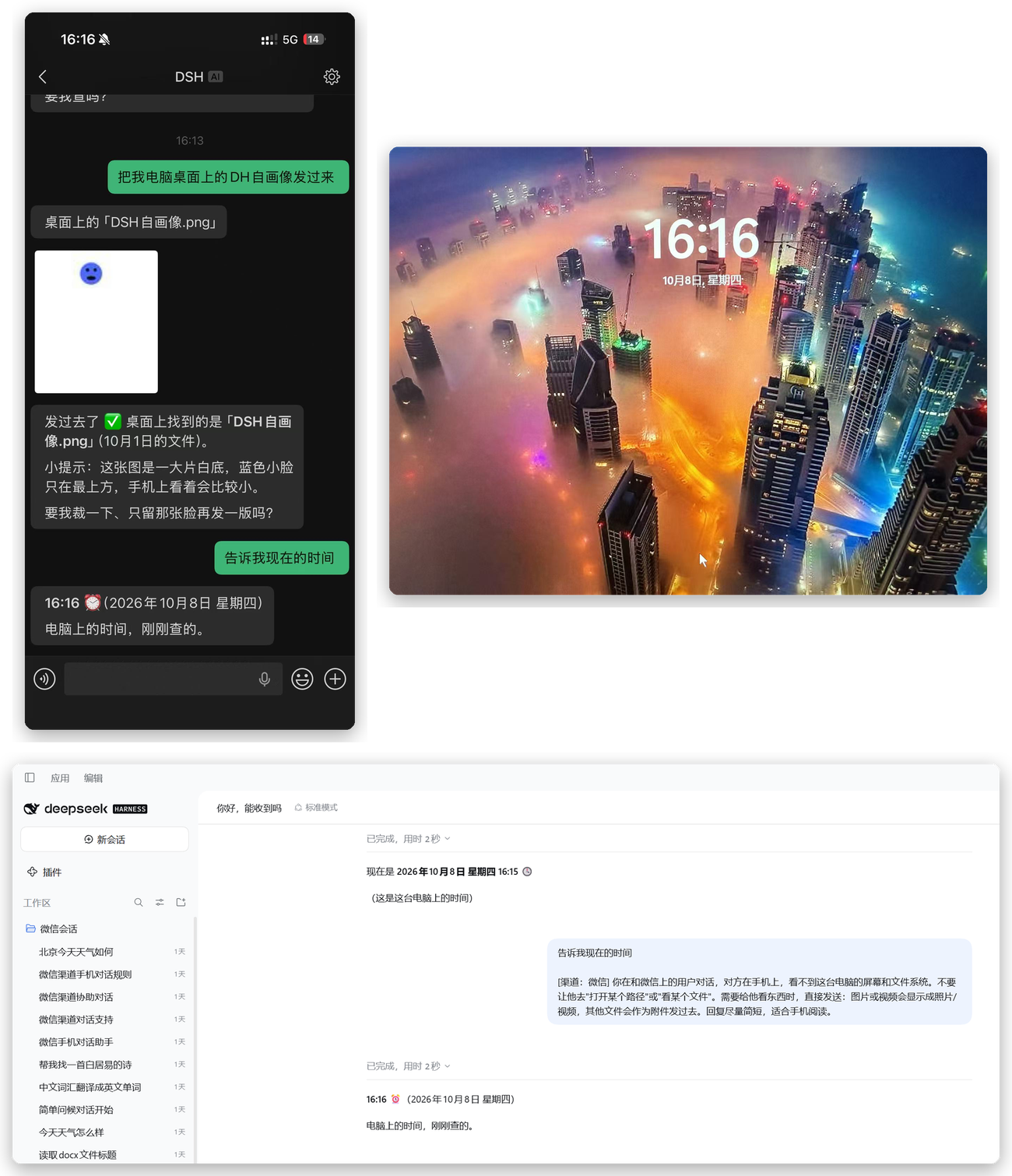
The screenshot above is the whole idea in one frame: the PC is locked, and the phone is still using it. At 16:16 the phone asks for a file on that machine's desktop and for the time on its clock — both come back, the two status bars read the same minute, and underneath is the window that did the work, with both requests already answered in the session list.
Features
- Text both ways. Your WeChat message becomes a DSH prompt; the reply comes back to WeChat.
- Photos, files, voice, video — both directions. Attachments are saved into the session workspace
and handed to the agent; the agent can send files back with
send_to_wechat. - One WeChat chat, many DSH sessions.
/new,/list,/switch,/current,/cancel— or just say "switch to the other one". - Answer permission prompts from your phone. Approvals and multiple-choice questions are sent to WeChat and answered with a number, so being away from the desk does not stall the agent.
- Settings page under Settings → WeChat.
What it looks like
 |
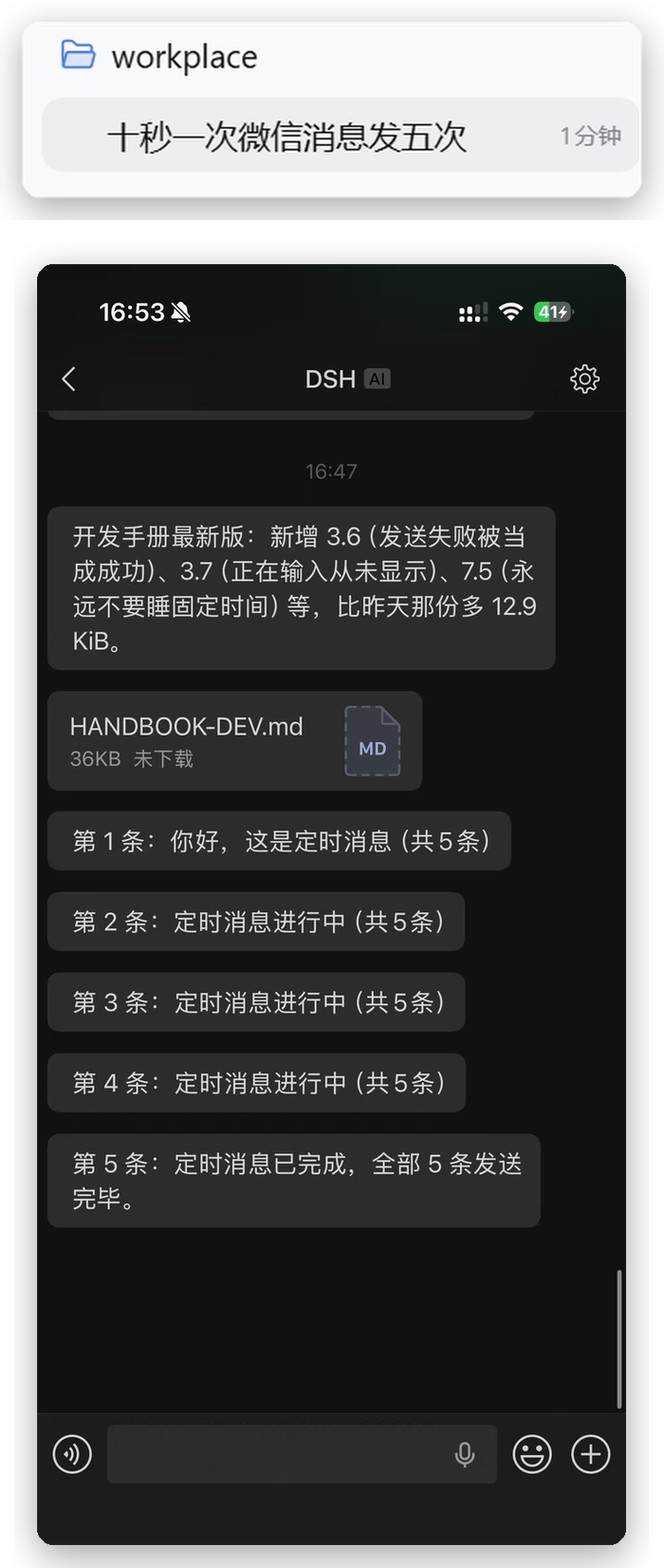 |
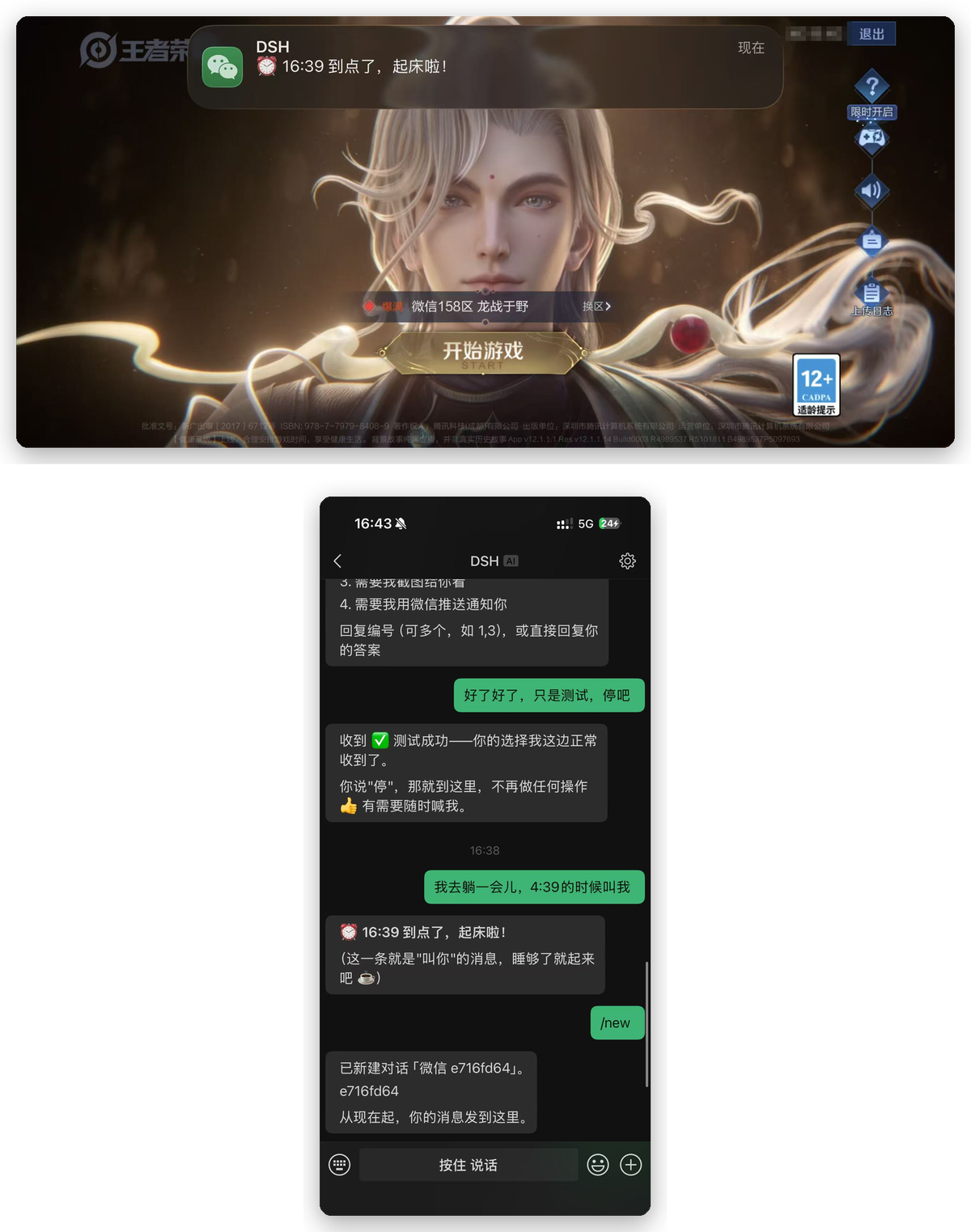
| Proactive push. A session can message you on its own. Here a "wake me at 16:39" lands while a game is open — the agent reaches the phone, not the other way round. | Any workspace, not just the WeChat one. This session lives in workplace and still pushes to your phone. Which conversations may do that is a setting. |
 |
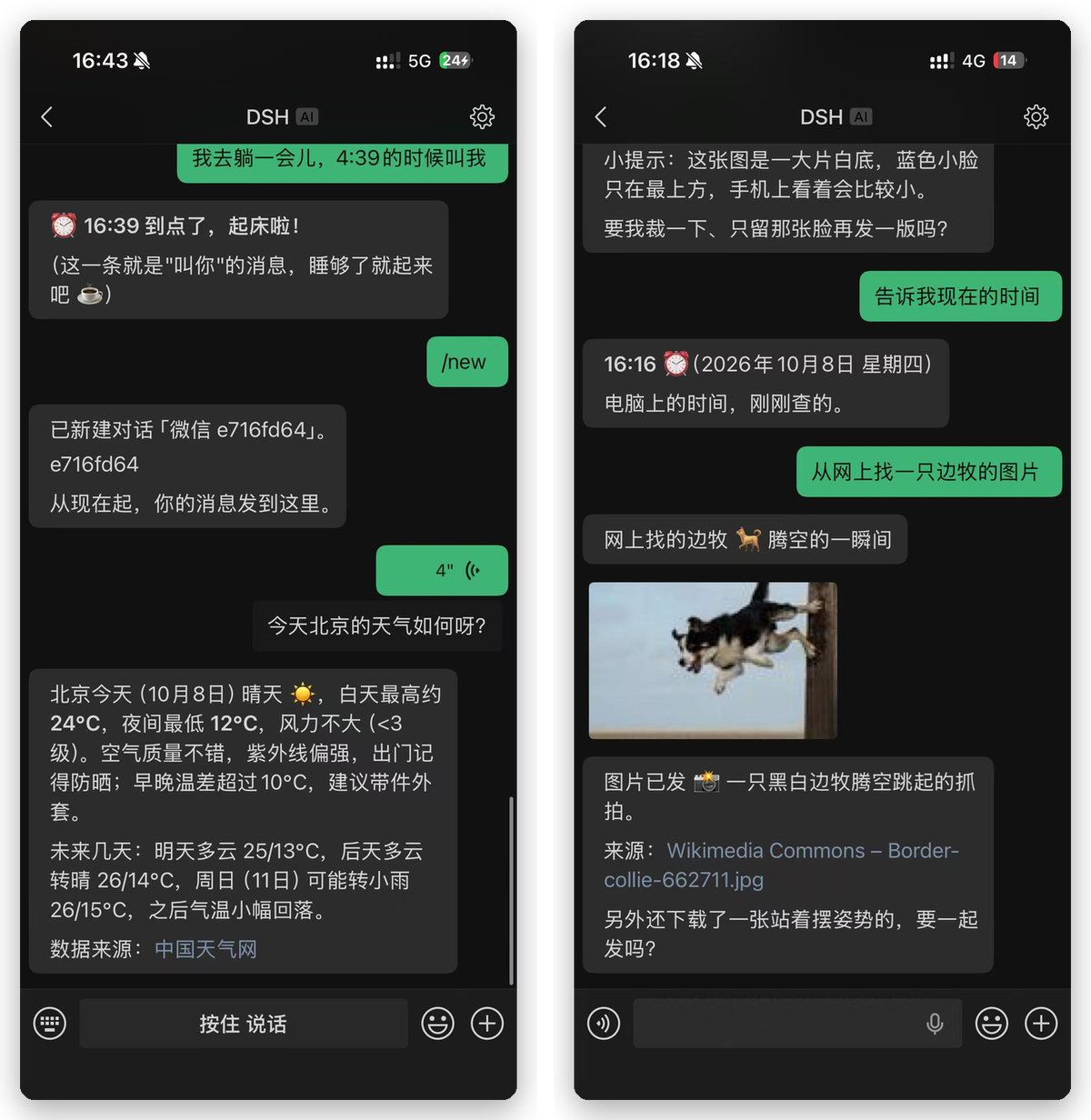 |
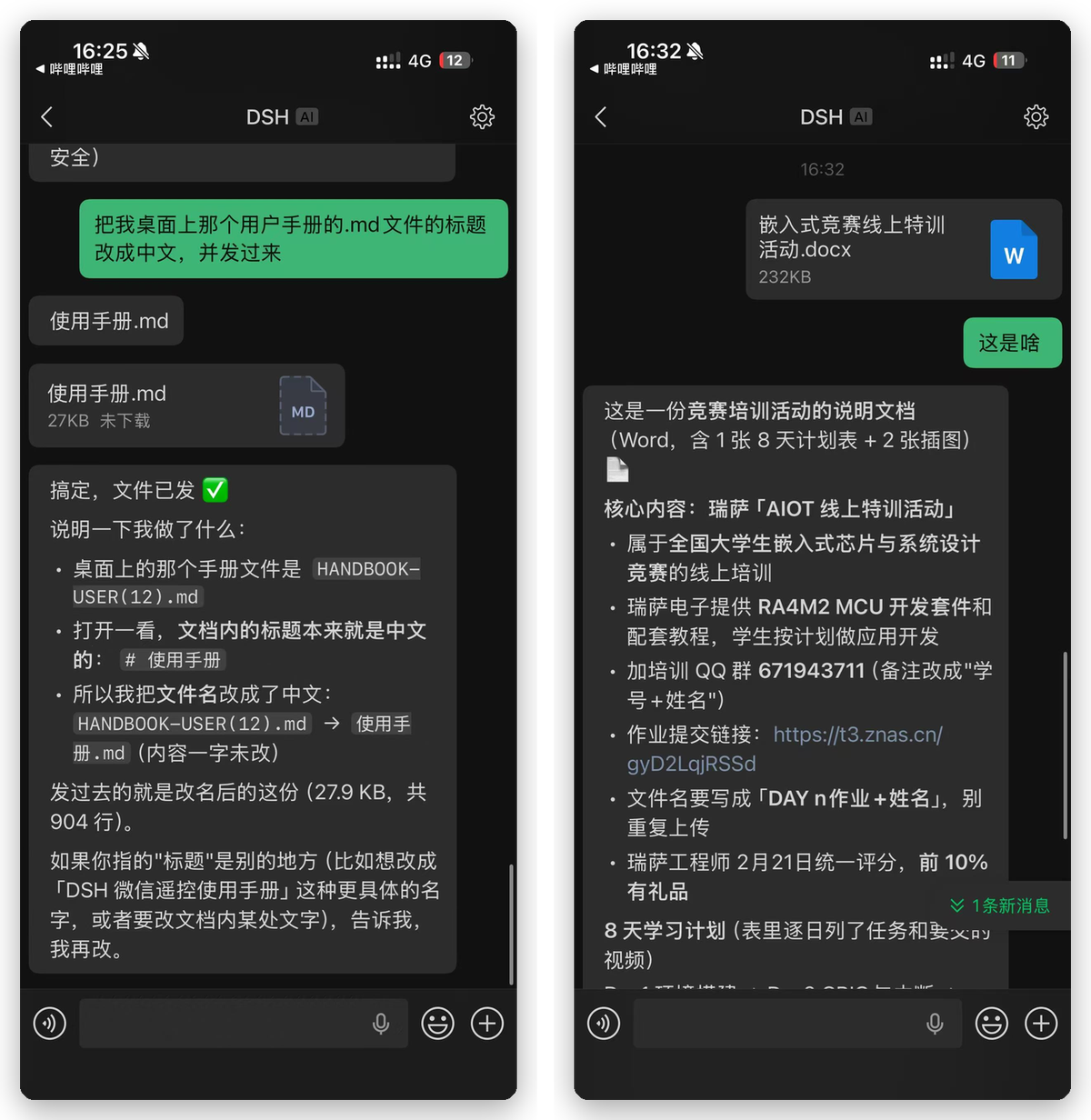
| Files both ways. Left: it edits a file on the PC and sends the result back. Right: you send it a document from the phone and ask what it says. | Voice in, pictures out. Speak the request instead of typing it. Ask for an image and it searches, downloads and sends one, source included. |
 |
|
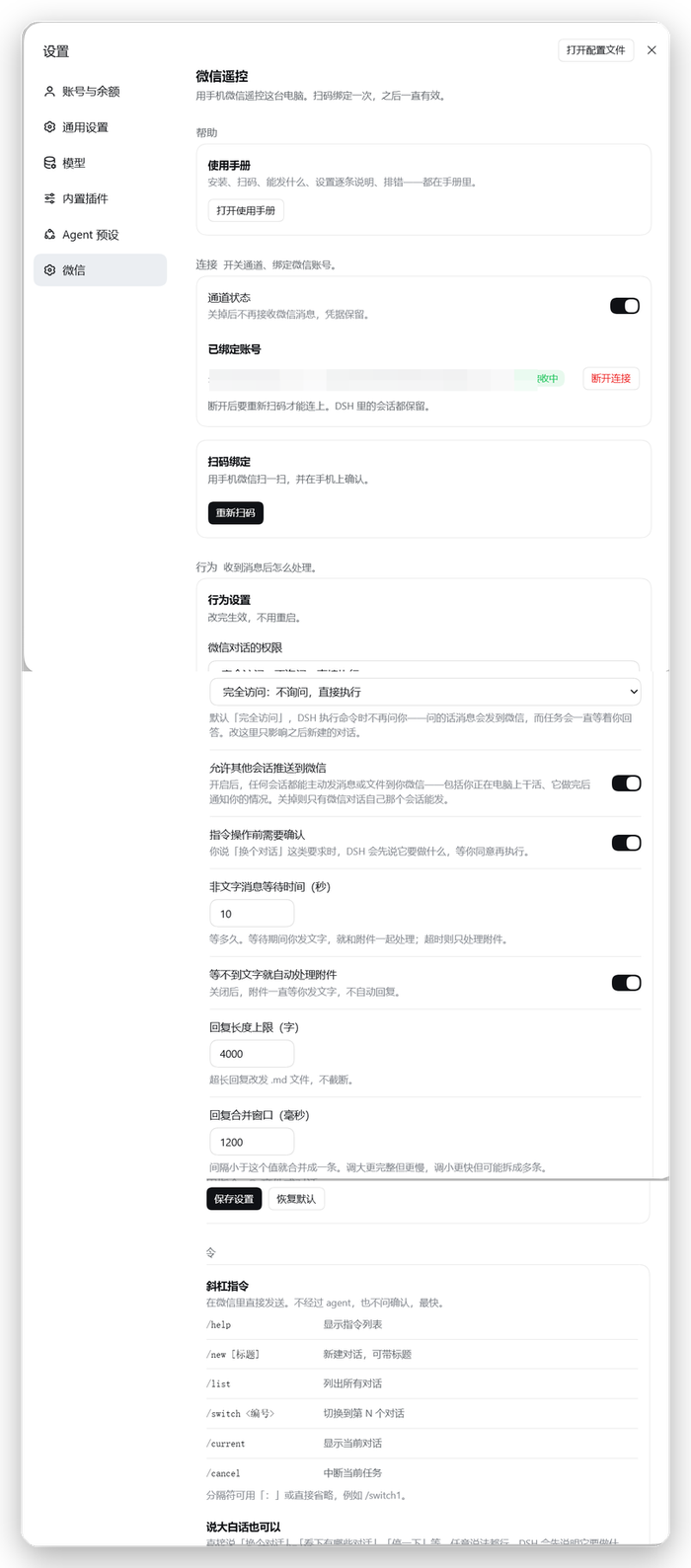
| Settings → WeChat. Permission preset per conversation, proactive push, attachment merge window, reply limits, command reference, logs. |
Install
For the DSH desktop app. It needs DSH's workspace, tool and UI services — the standard desktop
composition — on a machine that stays on. Tested against 0.2.0-rc.2, and updated alongside the
desktop app.
Open the plugin entry in the sidebar and choose 添加插件 (add plugin). The field takes a package name, a Git URL, a tarball, or a local path.
From npm — nothing to configureThe name to install is
dsh-wechat-pluginThe repository is called
dsh-wechat, but the package is not: copydsh-wechat-pluginrather than typing it, and mind the-plugin. The install command has to match the package name exactly.
dsh-wechat-plugin
Add a version if you need one: dsh-wechat-plugin@0.36.5.
https://github.com/xcisxc29/dsh-wechat
DSH clones the repository and builds it. pnpm will stop the build once and ask you to allow it —
that is expected, and it is how any Git-hosted plugin builds. DSH reports which key to add; it looks
like this, in ~/.dsh/profiles/desktop/pnpm-workspace.yaml:
allowBuilds:
  dsh-wechat-workspace@git+file:///…/dsh-wechat#<commit>: true
Most people do not need this. Reach for it to pin a commit or follow a branch, or when npm is unreachable.
Wait for the install to finish, click 立即启用 (enable now), and restart DSH.
Install from a terminal insteadThe app drives pnpm underneath, so the same thing headlessly:
dsh plugin --profile desktop add dsh-wechat-plugin
dsh plugin --profile desktop add https://github.com/xcisxc29/dsh-wechat
You then have to enable the bundle yourself — which is what 立即启用 does for you — in
~/.dsh/profiles/desktop/package.json:
{
  "dsh": {
    "profile": {
      "bundles": [
        "@deepseek-ai/dsh-base",
        "@deepseek-ai/dsh-web-app",
        "dsh-wechat-plugin"
      ]
    }
  }
}
pnpm install && pnpm run dist && pnpm run pack
# → dsh-wechat-plugin-<version>.tgz
Paste the absolute path to that .tgz into 添加插件, or hand it to the command line:
dsh plugin --profile desktop add /absolute/path/to/dsh-wechat-plugin-<version>.tgz
Getting started
After restarting DSH, open Settings → WeChat, click 重新扫码 (rescan), and scan the QR code with
your phone. Send 你好 from WeChat and you should get a reply.
Optional: voice to text
WeChat voice notes are SILK. Install this codec to transcribe them to WAV locally:
dsh plugin --profile desktop add silk-wasm
Without it voice still works: the raw SILK file is saved and handed to the agent along with the service's own transcription.
Usage
Just send a message and it reaches the agent:
你好
Type these to control which DSH conversation you are talking to:
| Command | What it does |
|---|---|
/new |
Start a fresh conversation. Anything after it becomes the title: /new 修复登录 starts a conversation called 「修复登录」. Without one, the conversation gets a name from your first message |
/list |
Conversations in the WeChat workspace, newest first |
/list all |
Every conversation, including other workspaces |
/switch 3 |
Move to number 3 in that list |
/current |
Which conversation you are in |
/cancel |
Stop the task that is running |
/help |
This list |
Spaces are optional: /switch3, /switch 3 and /switch:3 all work.
Plain language works too — "switch to the other one", "what conversations do I have", "stop". The agent judges the intent rather than matching fixed rules, and a switch tells you whether it succeeded or failed.
Security
Only you can reach it. The channel talks to Tencent's official iLink gateway, and nothing else —
no third-party service, no self-hosted relay in the middle. When you scan the QR code, the bot is
cryptographically bound to your WeChat account: the token it receives embeds your ilink_user_id,
and the service only ever delivers messages from that one account. The bot is not a WeChat contact —
it has no shareable card, nothing searches for it, and nobody can add it. There is no "someone else
could message it" surface, which is why no allowlist exists: the protocol already is one.
Two things are still true and worth knowing:
Conversations from WeChat run with full permissions by default — the agent does not ask before it
acts. That is deliberate: a permission prompt is delivered to WeChat and the task then waits there, so
on a phone every command would stall until you answered a conversation you had walked away from. Set
Permissions for WeChat conversations to Follow the DSH setting in the settings page if you want
the same guardrails you have at the desk.
The agent runs as you. It can execute commands and read and write files, with your user's permissions — that is what it is for, and it means anything you can do on this machine, it can do. So: skim what you asked for before walking away, and lock the screen when you leave. Locking does not stop the agent (see the user guide), and it keeps anyone passing by out of your desktop.
Any session on this machine can push to your WeChat by default. That is what makes "tell me when it is done" work: the session doing the work is usually not the one your WeChat conversation is bound to, and without this it could not report its own result. Turn off Let other sessions push to WeChat to restore the stricter rule, where only the bound session may send.
Documentation
| docs/HANDBOOK-USER.md | User guide, from installing to troubleshooting (Chinese) |
| docs/HANDBOOK-DEV.md | Development handbook: what went wrong, how to release (Chinese) |
| SETTINGS.md | What each setting actually does (Chinese) |
| docs/INTERNALS.md | Protocol references, architecture, the two packages (Chinese) |
| docs/PROGRESS.md | Feature status and how each was verified (Chinese) |
| docs/POSTMORTEM.md | Every real failure met while building this (Chinese) |
| docs/RELEASING.md | How a version gets published (Chinese) |
| examples/ | Complete core-only examples: an echo bot, and sending a file |
Development
pnpm install
pnpm build              # compiles only, leaving @dsh-wechat/core imports for pack to rewrite
pnpm run dist           # build + inline core: the loadable form a Git install needs
pnpm typecheck
pnpm test               # 195 tests
pnpm check              # build + typecheck + test
pnpm run pack           # run dist first
pnpm run verify-pack    # unpack, check the manifest's files, mount it as DSH would
Two build outputs, on purpose. build is the compiling step alone, and it keeps
@dsh-wechat/core as a package import so pack can redirect it into the vendored dist/core.
dist runs that compile and then rewrites the import to a relative path instead, which is what a Git
install ends up with — it clones the repository and runs prepare, never pack.
Rebuild core after changing it. Tests resolve @dsh-wechat/core through node_modules to
lib/, so source edits without a rebuild test the old code — and pass.
Licence
MIT — see LICENSE.
No comments yet. Be the first to write one.