COLAR IMAGEM DEEPSEEK HARNESS
Português (BR) | English
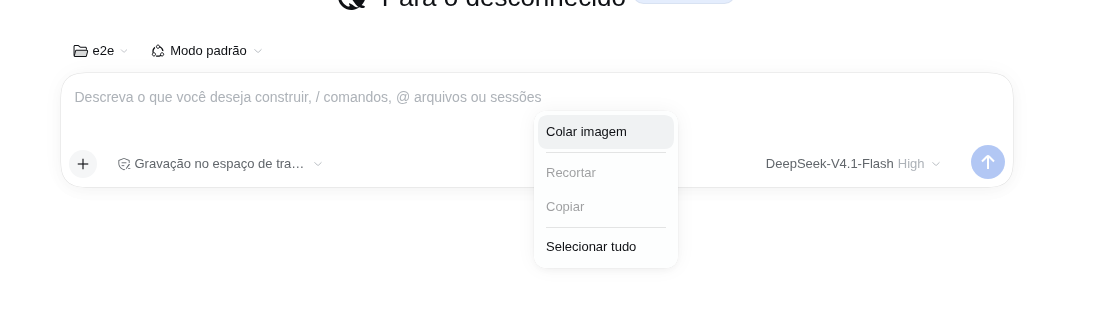
Paste clipboard images into the DeepSeek Harness Desktop composer with the right mouse button → Paste. The image is attached to the draft through the native pipeline (thumbnail, upload, limits) and a copy is written under pasted-images/YYYY-MM-DD/ inside the session workspace.
Why
Ctrl+V already works in the Harness composer, but the desktop shell's context menu is English-only and its Paste role does not handle clipboard-only images (screenshots copied from a capture tool). This plugin replaces the composer context menu with the Harness' own localized menu and adds a Colar imagem / Paste image action that reads the system clipboard from the Host and feeds the same native attachment path.
Features
- Colar imagem in the composer's right-click menu, localized (Portuguese / English).
- Image is attached to the draft exactly like a native paste: preview thumbnail, upload progress, size/count limits and Host refusal messages all keep working.
- Optional workspace copy: turn it on to save every pasted image under
<workspace>/pasted-images/YYYY-MM-DD/colada-YYYY-MM-DD-HH-MM-SS.png(folder and date grouping are configurable). Off by default — the plugin only attaches the image. - Ctrl+V untouched: the native paste keeps working; when workspace copies are on, the plugin can keep a copy for Ctrl+V too (off by default).
- Cleaner Settings header: hides the official “Open configuration file” button (on by default; can be turned off).
- Menu also keeps Recortar / Copiar / Selecionar tudo (Cut / Copy / Select all) so the composer is not left without the basic editing items.
- Fallback to text: when the clipboard holds text, the menu becomes a plain Colar / Paste and inserts the text at the caret.
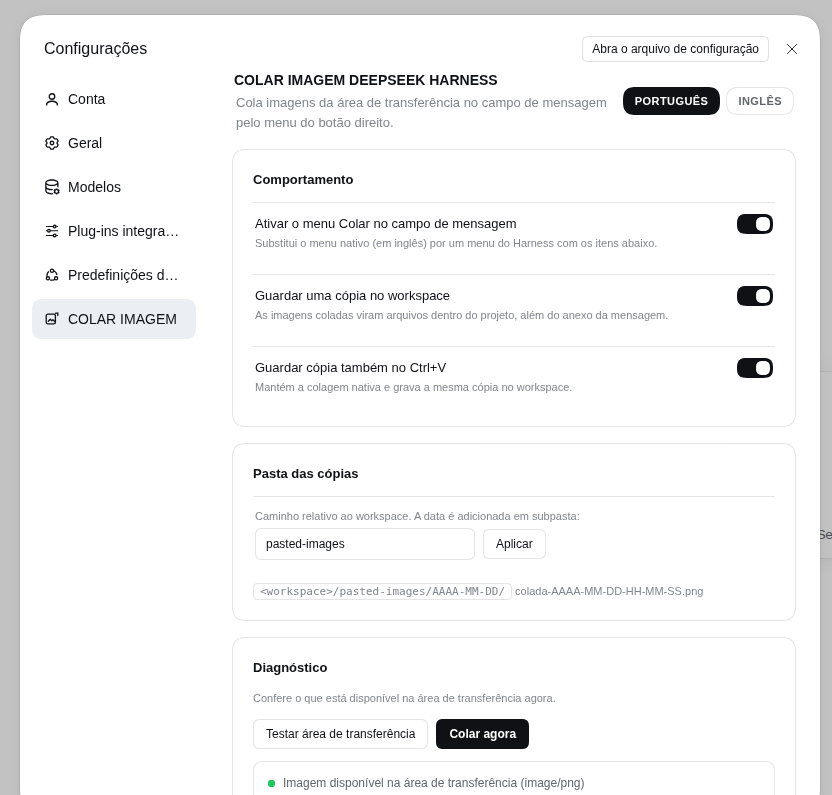
- Settings → COLAR IMAGEM: enable/disable, workspace copies, Ctrl+V copies, copies folder, and a clipboard diagnostics panel.
- No clipboard permission prompts: the Host reads the clipboard with the desktop's own tools (
wl-paste/xclip,pbpaste, PowerShell), so the browser never asks forclipboard-read. - Local only: routes are loopback + same-origin fenced; bytes never leave the machine and never reach a model beyond the normal attachment.
Install
Requires DeepSeek Harness Desktop 0.2.2-rc.1 or newer (<0.3.0).
# Desktop app profile
dsh plugin --profile desktop add dsh-colar-imagem-deepseek-harness
Or install a local tarball:
dsh plugin --profile desktop add ./dsh-colar-imagem-deepseek-harness-0.1.1.tgz
Then restart the Desktop app (the Host half registers HTTP routes at startup; reloading the page is not enough). From the GUI you can also use Plug-ins → Adicionar plugin with the package name or a local directory.
Usage
- Copy an image to the clipboard (screenshot tool, or "Copy image" in another app).
- Right-click inside the message field → Colar imagem.
- The image appears in the draft attachment rail. If workspace copies are enabled, the toast also tells you where the copy was saved.
The plugin also appears under Settings → COLAR IMAGEM, with:
- Ativar o menu Colar no campo de mensagem — turns the context menu replacement on/off.
- Guardar uma cópia no workspace — off by default; writes
pasted-images/...next to the message attachment. - Guardar cópia também no Ctrl+V — off by default (enabled once workspace copies are on); keeps native Ctrl+V and writes the same copy.
- Ocultar “Abra o arquivo de configuração” — on by default; removes that button from the Settings header.
- Pasta das cópias — workspace-relative folder (default
pasted-images). - Diagnóstico — checks the clipboard now and can paste immediately.
Configuration
Everything has a working default. Override fields in the profile's cordis.patch.yml:
- id: colar-imagem-deepseek-harness
  config:
    pastedDir: pasted-images
    dateFolders: true
    saveWorkspaceCopies: false
    saveNativePastes: false
    maxClipboardBytes: 52428800
    clipboardTimeoutMs: 5000
| Field | Default | Meaning |
|---|---|---|
pastedDir |
pasted-images |
Workspace-relative folder for the copies. Absolute paths and .. fall back to the default. |
dateFolders |
true |
Add a YYYY-MM-DD subfolder per day. |
saveNativePastes |
false |
Default for the “Ctrl+V too” setting (the user setting wins after the first save). |
saveWorkspaceCopies |
false |
Default for “keep a copy in the workspace”; off means paste only attaches the image. |
maxClipboardBytes |
50 MiB |
Largest image accepted from the clipboard. |
clipboardTimeoutMs |
5000 |
Budget for each system clipboard tool invocation. |
The user-facing settings (toggles/folder/language) are stored in the browser's localStorage; the Host configuration above only supplies the defaults.
Clipboard backends
| System | Image | Text |
|---|---|---|
| Linux / X11 | xclip |
xclip |
| Linux / Wayland | wl-paste (wl-clipboard) |
wl-paste |
| macOS | osascript + pbpaste |
pbpaste |
| Windows | PowerShell + Windows Forms | PowerShell + Windows Forms |
Linux (X11 and Wayland) is the tested target; macOS and Windows paths are implemented as best-effort and have no CI coverage. If no backend is available, the browser clipboard API is used as a fallback (may require the desktop shell to grant clipboard-read).
Workspace layout
<session workspace>/
└── pasted-images/
    └── 2026-11-10/
        ├── colada-2026-11-10-00-14-06.png
        └── colada-2026-11-10-00-14-07.png
Existing files are never overwritten: a numeric suffix is added (colada-....-2.png). Identical pastes are kept as separate files (the native attachment store handles deduplication for the model).
Privacy and security
- The two Host routes (
/colar-imagem-deepseek-harness/clipboard,/read,/save) only accept requests from the local page: loopbackHost,Originequal to the Host andSec-Fetch-Site: same-origin|none. Cross-site pages get403. - Clipboard bytes are read on the machine, written inside the session workspace and returned to the page that requested them. Nothing is uploaded by the plugin.
- The plugin never reads or stores model credentials.
Limitations
- The composer context menu is replaced while the plugin is active. Undo/redo stay on
Ctrl+Z/Ctrl+Shift+Z; the menu offers Paste, Cut, Copy and Select All. - Copy/Cut use the browser editing commands; a browser that refuses the command reports a toast instead of copying.
- Only clipboard image data (and text) is handled. A file copied in a file manager as a file reference (
text/uri-list) is not turned into an attachment in0.1.1. - On Wayland the desktop must expose
wl-clipboard(wl-paste); otherwise use the browser fallback. - Copies are never deleted automatically; clean up the folder when it gets large.
- macOS/Windows backends are not covered by automated tests yet.
Development
npm test              # unit tests (clipboard parsing, paths, routes helpers)
npm run validate      # package/catalog checks (also runs on prepack)
dev/run-e2e.sh        # isolated DSH web + Xvfb clipboard + Puppeteer end-to-end
npm pack              # produces dsh-colar-imagem-deepseek-harness-<version>.tgz
The end-to-end script starts its own DSH_HOME, Xvfb display, PNG clipboard and dsh web instance, then verifies: menu opens, “Colar imagem” attaches the image, the workspace file is written, the text menu variant works, the Ctrl+V hook writes a copy, and the Settings section renders, reads the clipboard, hides the configuration-file button and flips the new defaults (24 checks).
Publishing
publish/ contains the community catalog entry, an index reference and a Portuguese walkthrough (PRIMEIRA-PUBLICACAO.md). npm run publish:npm runs tests + validation and publishes to npm. Set the GitHub owner with node scripts/set-owner.mjs <user> if the repository is not under wgrbiss-spec.
License
MIT © wgrbiss-spec
No comments yet. Be the first to write one.