



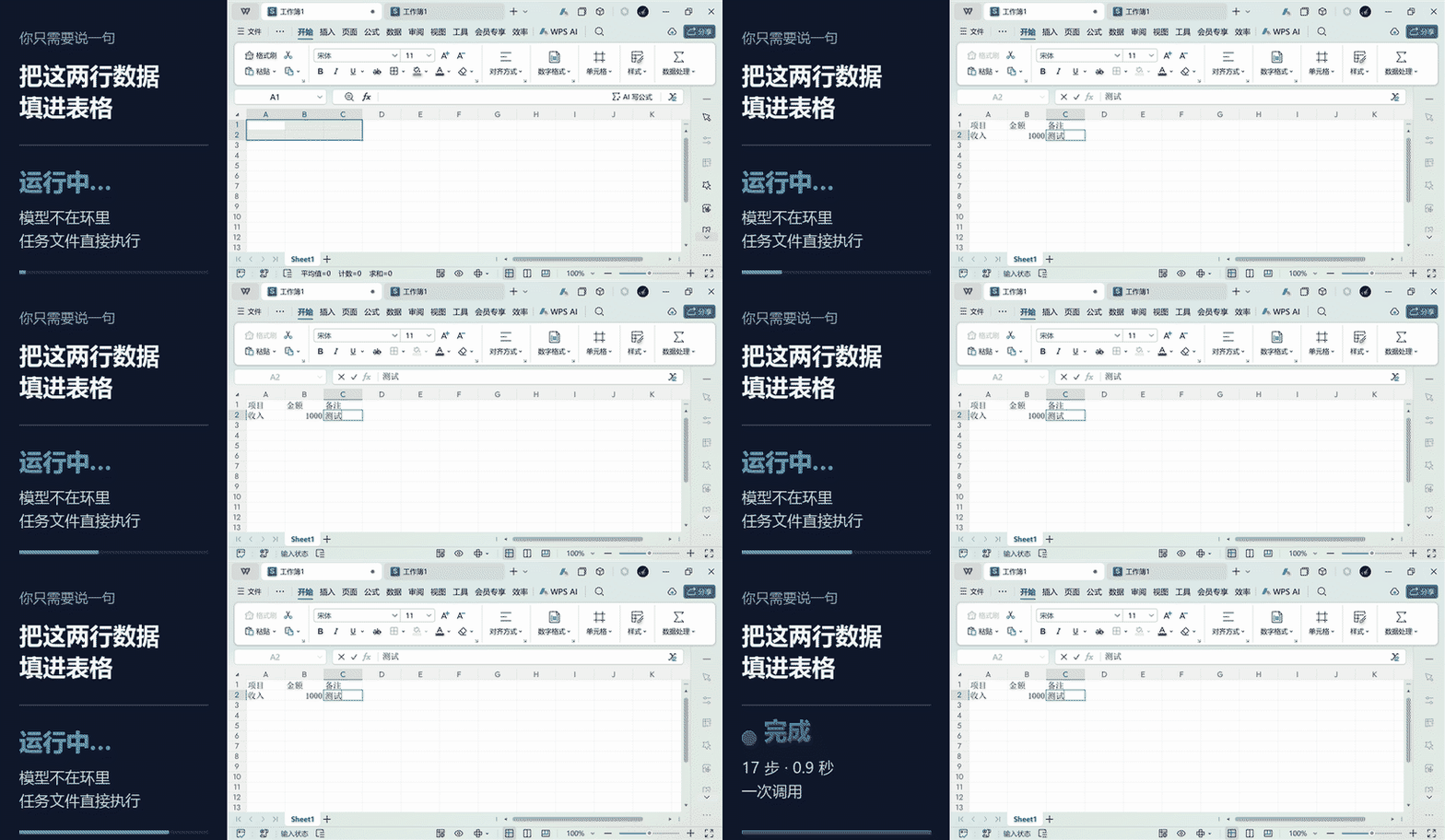
中文说明
它和别的桌面 Agent 有什么不同
大多数桌面自动化解决的是一次性操作:看一眼屏幕、点一下、再看一眼。这个插件多做一层——把一套动作固化成任务文件,跑的时候模型完全不参与。
| 常见做法 | dsh-gui-control | |
|---|---|---|
| 感知 | 截图 → 模型猜坐标 | 无障碍树优先,按控件名定位;树不可用时才截图 |
| 一次任务的往返 | 每步一次模型调用 | 一次调用跑完整个任务文件 |
| 失败之后 | 不知道点没点上 | 投递判定:没发出去 / 可能发出去了 / 已验证 |
| 重复执行 | 每次重跑一遍 | 任务文件可复用,带条件等待与重试 |
演示
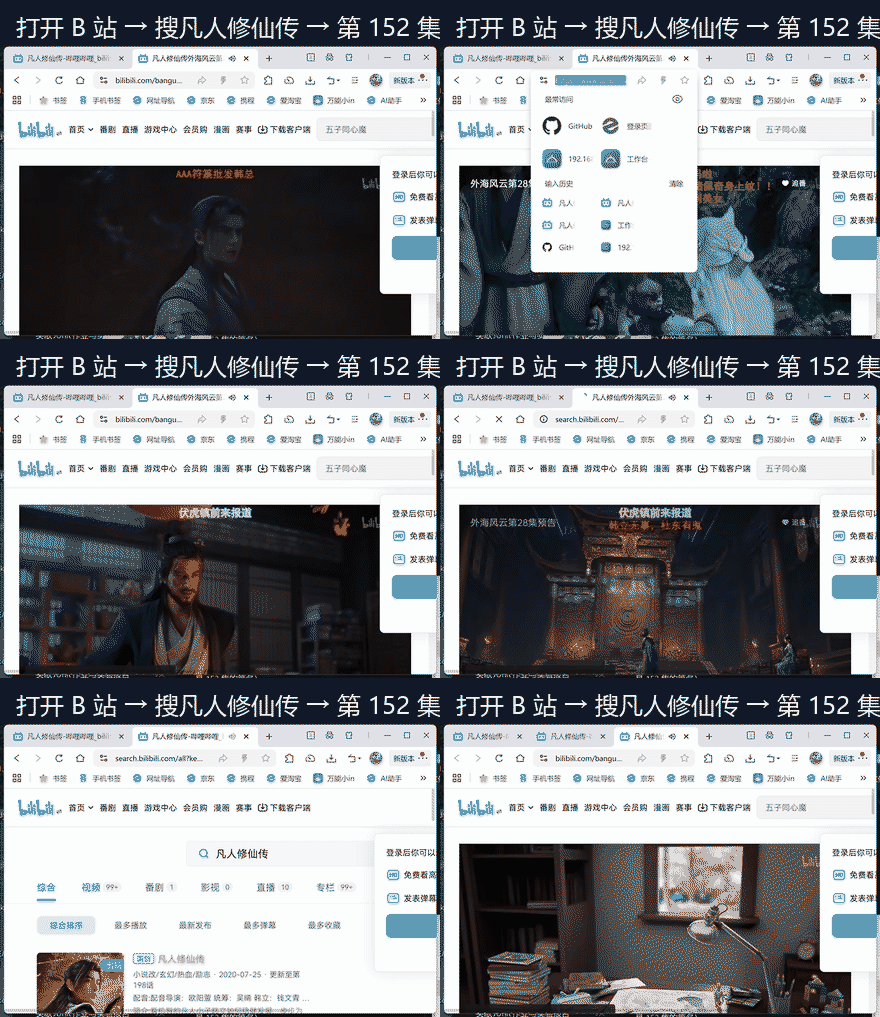
① 打开 B 站 → 搜番剧 → 播到指定集数
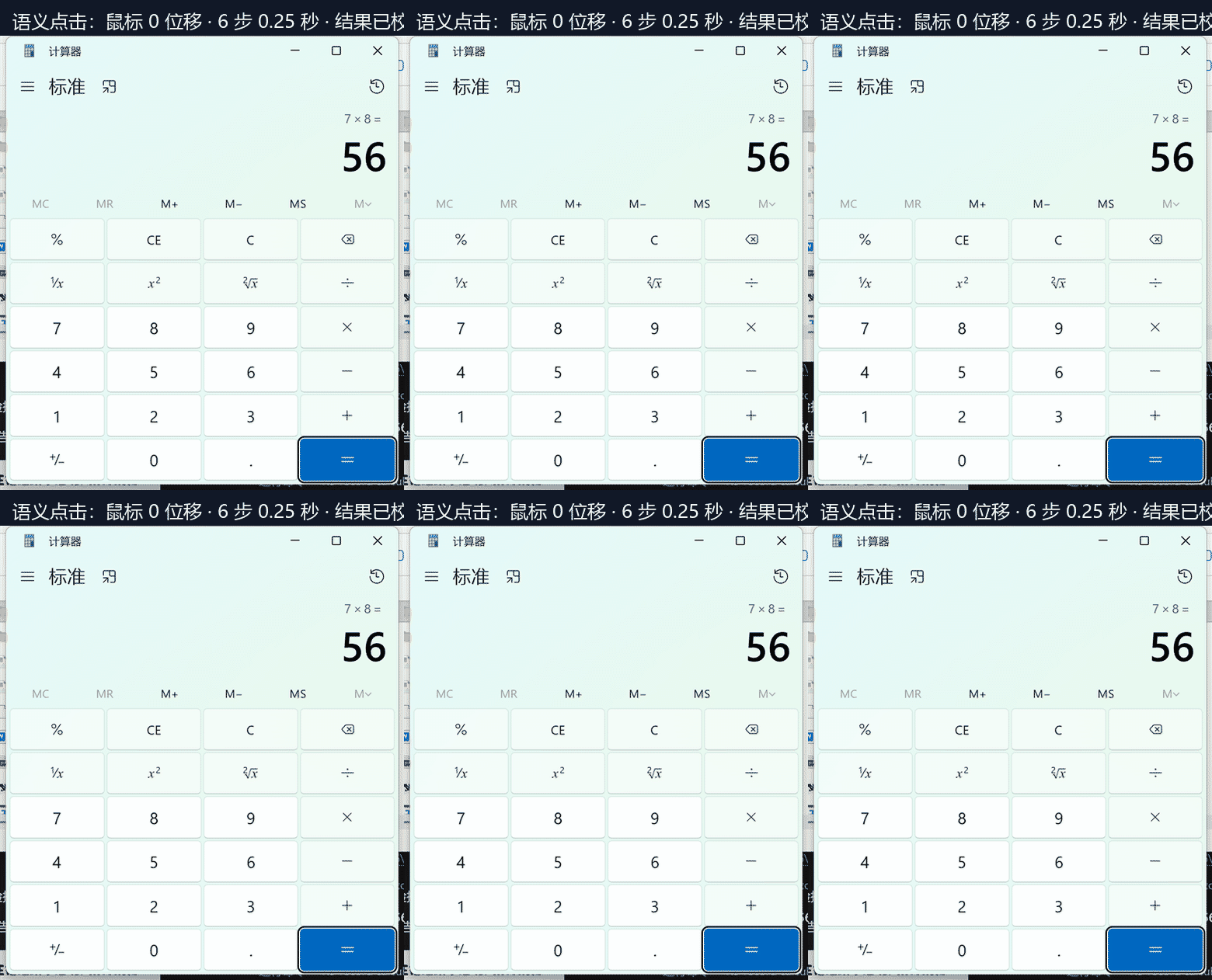
② 语义点击:鼠标位移 0 像素(直接调用控件的 Invoke,鼠标不动、窗口在后台也能点)
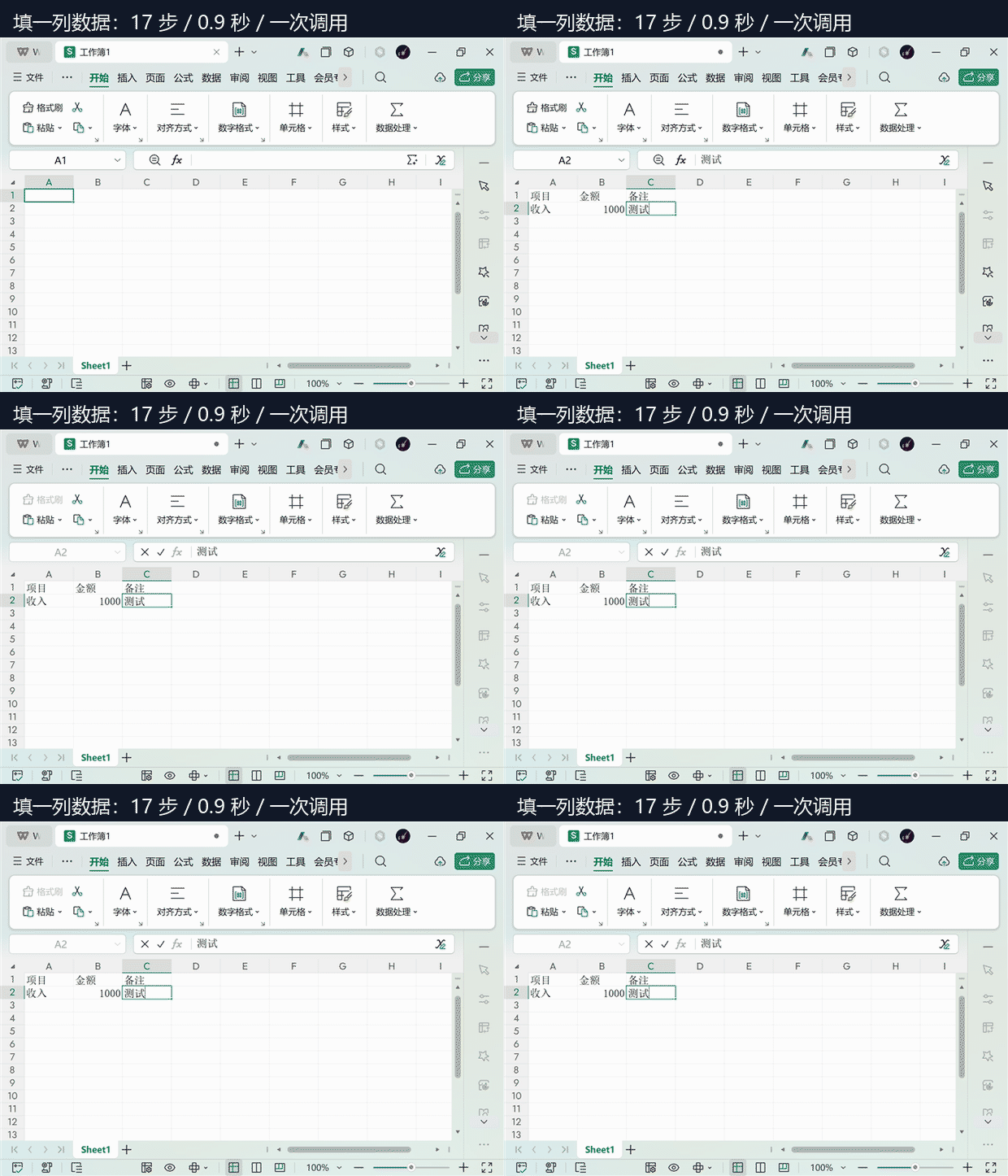
③ 填一列数据(17 步 / 0.9 秒 / 一次调用)
安装
dsh plugin add dsh-gui-control
或从源码:
dsh plugin add seetown/dsh-gui-control
要求:Windows 10 1809+、PowerShell 5.1、DeepSeek Harness 0.1.5-rc.2 ~ 0.2.x。装完不需要重启。
三个工具
| 工具 | 作用 |
|---|---|
gui_snapshot |
读窗口的无障碍树(文本,精确、便宜、与位置无关),或带屏幕坐标刻度尺的截图 |
gui_act |
执行一个动作,带身份校验和投递判定 |
gui_task |
跑声明式任务文件:一次调用完成多步,带条件、重试、风险闸门 |
gui_snapshot { window: "Notepad", mode: "tree" }
→ Butto 关闭标签页 / Docum 文本编辑器 / MenuI 文件 ...

gui_act { action: "click_text", window: "Notepad", text: "最大化" }
→ click ok via InvokePattern | verified: text appeared
优先用 click_text 而不是坐标:它按控件名定位,鼠标不动,窗口布局变了也不会点错。
任务文件
{
  "name": "fill-sheet",
  "steps": [
    { "do": "activate", "win": "工作簿1" },
    { "do": "type", "text": "项目" },
    { "do": "key", "key": "tab" },
    { "do": "type", "text": "金额" },
    { "do": "key", "key": "enter",
      "until": { "op": "pathexists", "text": "C:\\out\\report.xlsx" }, "untilTimeout": 10 }
  ]
}
每步字段:do + 该动作参数,外加 until(轮询到条件成立才算过)、untilTimeout、retry、risk。
risk: "high"的步骤默认拒绝执行,必须显式confirm: truedryRun: true只返回计划,不碰桌面
投递语义
每个动作返回三选一:
| 判定 | 含义 | 能否重试 |
|---|---|---|
not_delivered |
什么都没发出去(派发前就被拒) | ✅ 安全 |
delivered_unverified |
发出去了,效果未确认 | ❌ 不能盲目重放 |
delivered_verified |
发出去了,且后置条件验证通过 | ❌ |
这一条决定了「发消息 / 删文件 / 提交表单」这类不可逆操作是否安全。
安全
- 只监听
127.0.0.1:38471,不对外暴露 - 密码字段一律输出
<redacted> - 高风险步骤需要显式确认
- 结果不明时绝不自动重试
这个插件能操控整台机器的鼠标键盘。装之前请知情,只在可信环境使用。
实测数据
| 操作 | 耗时 |
|---|---|
| 单步动作(常驻进程) | 10.8 ms |
| 语义点击(UIA 树) | 26–34 ms |
| 紧凑树读取 | 86 ms,865 字符(比完整 dump 省 88%) |
| 7 步任务(含启动计算器) | 680 ms,一次调用 |
| 桌面建 3 个文件夹 | 3.45 s,3/3 成功 |
| WPS 填 2×3 表格 | 0.9 s,17 步 |
首次调用会预热常驻进程(约 1 秒),之后每个动作是一次 loopback 往返。
已知限制
- 仅 Windows(Win32 + UI Automation)
- 需要 PowerShell 5.1
- 画布类应用(WPS 表格、游戏、自绘列表)没有无障碍树,只能截图 + OCR,准确率下降
- 网页任务目前基于截图;CDP 通道已实现但尚未接入工具
Roadmap
- 截图自动编号(Set-of-Marks),把坐标估计降级成编号分类
- 接入 CDP:网页任务按选择器操作,而不是按坐标
- 任务库与意图路由:一句话命中现成任务
- macOS / Linux 适配
English
Windows desktop control for DeepSeek Harness. Not "click that button for me" — "this job is yours from now on."
Most desktop agents do one-off operations: look, click, look again. This one adds a layer underneath: it turns a sequence into a task file that runs with no model in the loop.
What makes it different
| Typical approach | dsh-gui-control | |
|---|---|---|
| Perception | Screenshot, then the model guesses coordinates | Accessibility tree first, addressed by control name; screenshots only when no tree exists |
| Round trips per task | One model call per step | One call runs the whole task file |
| After a failure | Unknown whether it landed | Delivery verdict: not delivered / may have landed / verified |
| Repeating a flow | Replay it by hand | Task files are reusable, with conditions and retries |
Install
dsh plugin add dsh-gui-control
Windows 10 1809+, PowerShell 5.1, DeepSeek Harness 0.1.5-rc.2 – 0.2.x. No restart needed.
Three tools
| Tool | Purpose |
|---|---|
gui_snapshot |
Read a window's accessibility tree as text, or a screenshot with a screen-coordinate ruler |
gui_act |
One action, with an identity check and a delivery verdict |
gui_task |
Run a declarative task file: many steps in one call, with conditions, retries and a risk gate |
Delivery semantics
| Verdict | Meaning | Retry |
|---|---|---|
not_delivered |
Nothing was sent | ✅ safe |
delivered_unverified |
Input may have landed, effect unconfirmed | ❌ never blind-retry |
delivered_verified |
Landed, and the post-condition held | ❌ |
That distinction is what makes "send a message / delete a file / submit a form" safe to automate.
Security
Loopback-only (127.0.0.1:38471), password fields are redacted, high-risk steps require explicit confirmation, and an uncertain outcome is never retried automatically.
This plugin drives the real mouse and keyboard of the whole machine. Install it knowingly, in a trusted environment.
Limitations
Windows only; PowerShell 5.1 required; canvas-like apps (spreadsheets, games, self-drawn lists) expose no accessibility tree and fall back to screenshot + OCR with lower accuracy; web tasks currently use screenshots (the CDP path exists but is not wired into the tools yet).
MIT © seetown
No comments yet. Be the first to write one.