Side Memo
Language: English · 简体中文 · 繁體中文
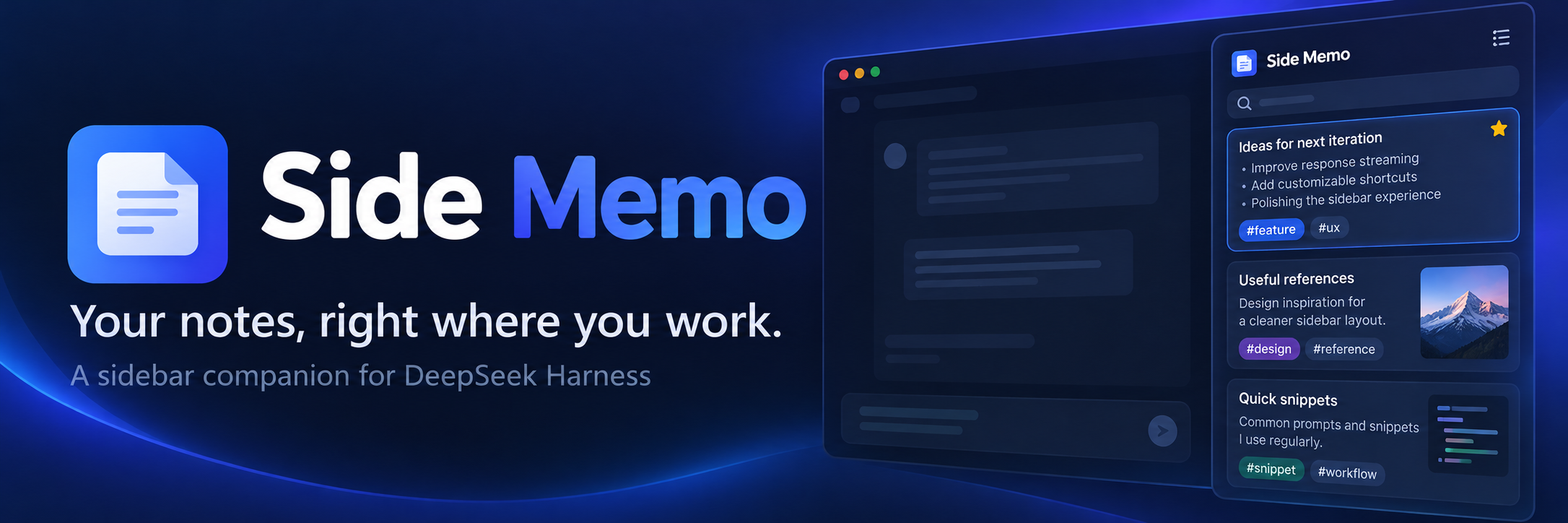
A lightweight, toggleable right-side notes panel for DeepSeek Harness. Jot memos while you chat — text, inline images, and labels — copy them with one click, star favorites to keep them pinned at the top, and move everything in or out as an Excel workbook.




Category: UI & Experience
Install
dsh-side-memo is published on npm. Install it through your DSH profile:
dsh plugin --profile web add dsh-side-memo
The same plugin can also be installed straight from this repository — use the GitHub form when you need a commit that is not on npm yet, or when npm is unreachable:
dsh plugin --profile web add github:r48n34/dsh-side-memo
If your DSH runs the Desktop profile, use the profile name shown in Settings → Plugins (for the Desktop app this is usually desktop):
dsh plugin --profile desktop add dsh-side-memo
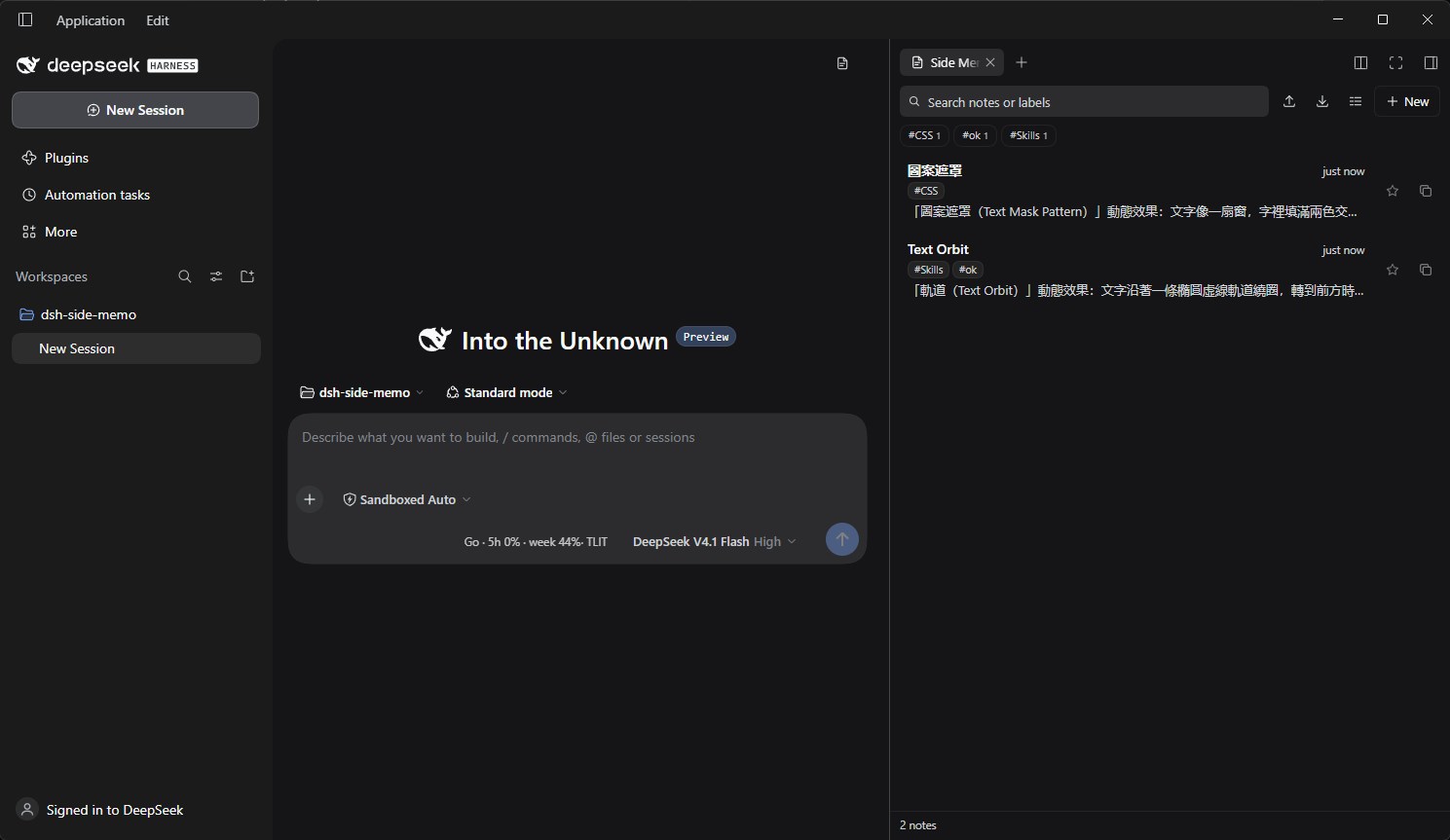
After installing, the Side Memo icon is already available in the Session header — at the header's right edge, including before any Session exists (the first screen) and on the new-Session welcome screen. Open it from there, from the Session header's right-side utilities, or from the right sidebar's add/guide control. If the icon does not appear, restart DSH once so the new plugin bundle is loaded.
To remove it, use Settings → Plugins in DSH (or the equivalent dsh plugin command for your profile).
What it does
- Quick notes: Open notes beside your chat, or in a floating drawer before a Session starts.
- Drag into chat: Drag a memo from the list onto the chat box to paste its text into the message you are writing.
- Stay organized: Search notes, add labels, filter or group by label, and pin favorites.
- Add images: Paste or drag images into notes, or use the image button.
- Resize images: Select an inline image for a Photoshop-style transform box, then drag a handle, nudge with the arrow keys, or reset it to its original size.
- Copy and transfer: Copy notes in one click; import or export notes as Excel workbooks.
- Save locally: Notes and images stay in your browser and are available across Sessions.
Usage
- Click the Side Memo icon at the right of the conversation header to open or close the panel.
- Click New and start writing. Changes save automatically; you can also create a note from the editor.
- Add labels below the title, or paste, drag in, or insert an image. Click an image to select it: a brand-colored outline, eight resize handles and a
W × Hsize badge appear. Drag a handle to resize — corners and edges keep the aspect ratio,Shift-drag distorts freely andAlt-drag resizes from the center — press the arrow keys to step by 8 px (Shift+arrow changes one axis only), and double-click the image or click the overlay's reset button to restore its original size. PressEscapeor click elsewhere in the editor to deselect it. Use the star to pin a favorite and the copy icon to copy a note. - Search or use the label filters and Group by label to find notes. Use the toolbar's import/export icons to transfer notes as
.xlsxfiles. - While writing a message, drag a memo from the list onto the chat box; its text is inserted at the caret in your draft, and the memo's images stay in the panel.
Imports add new notes without overwriting existing ones. Images remain local and are not included in Excel exports. An image's chosen display size is saved with the memo, so it survives reloads; resizing only changes how the stored image is shown, not the stored image itself.
Compatibility
- DeepSeek Harness 0.2.x (developed and tested against 0.2.1-rc.3, Desktop profile).
- Web GUI and Desktop (Electron/Chromium). The client half relies on standard browser APIs:
localStorage, IndexedDB, Clipboard, File API,Blob/URL, Canvas, andDecompressionStream('deflate-raw')for reading compressed.xlsxfiles. - Uses the shipped right-sidebar plugin API (
@deepseek-ai/dsh-client-ui-sidebar-right); the panel is a normal right-sidebar tab, so a Session is required to host it. Before any Session exists the same notes UI is rendered by the plugin itself in the frame-level overlay layer (shell.overlay). In the pre-Session and new-Session phases the toggle mounts through the resident header'sconversation.header.leadingseat and positions itself at the header's right edge from the live header/panel-toggle geometry. - Uses the conversation client's composer insertion API (
inputActions) to paste a dragged memo into the chat draft as a single undoable edit. - TypeScript sources live under
src/;client.jsandindex.jsare the compiled browser and Host modules committed to the repository, so installing or running the plugin never needs a build step.
Permissions & privacy
- No network access and no external services.
- No Host data access and no agent-facing tools. The Host half is an empty
apply(). - Memos and images stay in this browser (
localStoragefor notes, under thedsh.side-memo.notes.v1key; IndexedDB for image data, under thedsh-side-memo-imagesdatabase); they are not encrypted or synced across devices. - Clipboard writes happen only when you click copy.
- Excel files are read from and written to your machine through the browser's file picker/download — they are never uploaded.
Known limitations
- Browser-local storage only: no cross-device or cross-browser sync.
- Without a Session the notes open in the plugin's own floating drawer (the right sidebar itself is Session-scoped); the drawer and the right-sidebar tab are alternative hosts for the same notes.
- Drag-to-compose needs an open Session with an editable chat box and pastes plain text only: memo images and labels are not transferred.
- Text is plain text (no Markdown or rich-text formatting); images are the only rich content. Images are downscaled before storage and are not exported to Excel — the
Imagescolumn only holds a count. - Image support needs IndexedDB and Canvas. If the browser blocks IndexedDB, the text memos keep working and image insertion is disabled.
- Excel import reads the first worksheet only; formulas import as their cached values, and rich-text cell formatting is ignored.
- Limits: 300 memos, 120-character titles, 8,000-character bodies, 12 labels per memo (24 characters each), 20 images per memo (source images up to 24 MB, downscaled to at most 1,400 px at quality 0.82 before storage; display sizes 24–1,400 px), 8 MB
.xlsximports (up to 32 MB expanded across at most 64 entries), and a 60 MB total image budget for the browser. - Labels are flat tags — no nesting, per-label colors, or separate tag manager — and each label is stored per memo, so renaming one means editing every memo that carries it.
- Favorites are pinned within the memo list; there is no separate favorites-only view yet.
Development
TypeScript sources live under src/ and compile to the committed client.js / index.js with the TypeScript compiler only (no bundler):
| File | Role |
|---|---|
package.json |
Bundle/client manifest (dsh.bundle patch and dsh.client browser module) |
cordis.patch.yml |
Inserts the dsh-side-memo Loader row |
index.js |
Host half (no-op apply; generated from src/host/index.ts) |
client.js |
Notes panel, tab type, always-available header toggle, pre-Session drawer, localStorage + IndexedDB store, inline-image editor with the resize/transform overlay, label tags/filter/grouping, editor top-bar new-memo button, drag-memo-to-composer paste, .xlsx import/export (generated from src/client/) |
src/ |
TypeScript sources for both halves |
tsconfig.json, scripts/build.mjs |
Type-check configuration and the yarn build script |
locale/en.json, locale/zh.json |
Plugin Manager title and description |
icon.svg |
Plugin artwork |
Load it into a profile with the DSH Plugin Manager (install_bundle on this directory) or install it with the commands in Install. Package contents are limited to the published files — index.js, client.js, the locale files, icon.svg, package.json and cordis.patch.yml. The TypeScript sources, build script and config never ship, and the published tarball only adds the three READMEs and the LICENSE.
Tests
- Unit tests:
yarn testrunsnode --teston Node.js >=22 after rebuilding the artifacts (pretest). Runyarn installonce for the build toolchain —typescriptand@types/reactare the only dev dependencies and the published package has none — then the suite exercises the real helpers in the compiledclient.js. - Browser e2e (optional, dev-only; not part of
yarn test): seetest/e2e/README.mdfor the isolated-profile harness and its suites. - CI runs the unit suite on every push and pull request:
.github/workflows/ci.yml.
License
MIT © 2026 Reemo Studio
No comments yet. Be the first to write one.