dsh-quickstart

Launch DeepSeek Harness from a
desktop icon — dsh web starts without a console window, then the browser
opens automatically once the web UI is ready.
Status: implemented and tested on Windows. macOS and Linux are in the codebase but not yet tested — see Roadmap.
No more typing npx @deepseek-ai/dsh web and waiting for the page by hand — this
double-click-and-go wrapper handles startup, readiness polling, and browser opening.
Preview
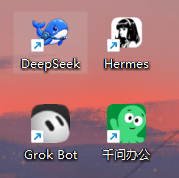
The desktop shortcut you get — double-click the icon to launch:
Why
dsh webblocks a terminal window and gives no feedback on when it is ready.- Starting it from a desktop shortcut shows an ugly console box.
- Users who double-click and see nothing think the tool is broken.
dsh-quickstart starts dsh web detached and hidden, polls http://127.0.0.1:<port>
until it answers, then opens your default browser. A desktop shortcut created with
dsh-quickstart shortcut shows no console window at all.
Install
# the launcher
npm i -g dsh-quickstart

# the harness itself (required)
npm i -g @deepseek-ai/dsh
Usage
# start dsh web, wait for readiness, open the browser
dsh-quickstart

# custom port / timeout
dsh-quickstart --port 3000 --timeout 120000

# wait but do not open the browser
dsh-quickstart --no-open

# spawn and exit immediately (no polling)
dsh-quickstart --no-wait

# pass extra args to dsh
dsh-quickstart -- web --port 3000
Install a desktop shortcut — the primary way to use it on Windows. Double-click to launch, no console window, and it uses the bundled DSH icon by default:
# Windows (.lnk)
dsh-quickstart shortcut --name "DeepSeek" --working-dir "D:\your\workdir"
macOS (
.command) and Linux (.desktop) shortcuts are implemented but untested (TODO) — Windows is currently the only fully verified platform.
Options
| Option | Default | Description |
|---|---|---|
--port <n> |
3080 |
Port to poll |
--timeout <ms> |
90000 |
How long to wait for readiness |
--command <cmd> |
dsh |
Command used to start dsh (e.g. npx @deepseek-ai/dsh) |
--no-open |
— | Do not open the browser |
--no-wait |
— | Exit immediately after spawning |
--watch |
— | Enable watchdog mode (overrides config) |
--no-watch |
— | Disable watchdog mode (overrides config) |
--max-restarts <n> |
10 |
Give up after n restarts (watchdog) |
--restart-delay <ms> |
3000 |
Delay between restarts (watchdog) |
Shortcut-only: --name, --icon, --working-dir, --output.
Watchdog mode (opt-in)
By default dsh-quickstart is a plain launch: it starts dsh web, waits,
opens the browser, and exits — the dsh process keeps running on its own. To have
dsh auto-restart when it exits (for example after installing a plugin that
needs a restart), opt into the watchdog explicitly:
# one-off
dsh-quickstart watch

# or make it the default for every bare `dsh-quickstart` run
# ~/.dsh-quickstart.json
{ "watch": true, "maxRestarts": 10, "restartDelayMs": 3000 }
The watchdog stays alive, restarts dsh up to maxRestarts times on exit, opens
the browser on the first ready, and keeps the URL. --watch / --no-watch on the
command line override the config. Stop it with Ctrl-C (or SIGTERM).
The watchdog deliberately stays off by default — it must be enabled by an explicit
watchcommand,--watch, or"watch": truein the config.
How it works
startDshspawnsdsh webso it inherits the launcher's (hidden) console.waitForServerpolls the port every second until the server answers (or times out).openBrowseropens the URL with the platform default (start/open/xdg-open).- On Windows,
shortcutwrites a tiny.vbsthat runs the launcher inside a hidden console, plus a.lnkpointing at it — so double-clicking shows nothing but the browser.
Icons / assets
The project ships its icon assets in assets/:
| File | Description |
|---|---|
assets/dsh.png |
Source icon — transparent background, 1254×1254 |
assets/dsh.ico |
Multi-size Windows icon (256/128/64/48/32/16) generated from dsh.png |
assets/desktop-icon.png |
Real screenshot of the desktop shortcut (shown in the Preview above) |
dsh-quickstart shortcut uses the bundled icon by default, so a shortcut created
on Windows already carries the DSH look. Override it with --icon <path> if you
want your own. More icon assets (alternate sizes, variants) can be dropped into
assets/ following the same dsh.png / dsh.ico convention.
Linux quick start
Linux already runs the same commands; only the "desktop double-click" surface differs. Three layers, from simplest to most "always-on":
# 1. Command line (cross-platform, works today)
dsh-quickstart

# 2. Desktop / app-menu icon (.desktop file)
dsh-quickstart shortcut --name "DeepSeek"
#    writes ~/.local/share/applications/deepseek.desktop — double-click it,
#    or find "DeepSeek" in the desktop app menu (GNOME/KDE)

# 3. Watchdog (opt-in auto-restart; see above)
dsh-quickstart watch
For a systemd user service (crash-restart + optional login auto-start, the Linux equivalent of a Windows service), a minimal unit is:
# ~/.config/systemd/user/dsh-web.service
[Unit]
Description=DeepSeek Harness web GUI
Wants=network-online.target
After=network-online.target

[Service]
Type=simple
ExecStart=dsh web
Restart=always
RestartSec=3

[Install]
WantedBy=default.target
systemctl --user daemon-reload
systemctl --user enable --now dsh-web.service   # start + auto-start on login
loginctl enable-linger $USER                     # optional: run before login too
Roadmap
- Windows — hidden-console launch, readiness polling, auto-open browser, desktop shortcut
- Watchdog mode — opt-in
watchcommand +watch: trueconfig (all platforms) - Settings plugin — companion
dsh-quickstart-plugin(快速开始 card in 设置 → 插件 → 插件配置) - macOS — verify and polish the
.commandshortcut flow - Linux — verify and polish the
.desktopshortcut flow
Contributing
欢迎贡献!请先阅读 贡献指南 了解开发流程、提交规范与 PR 检查清单。
Security
安全漏洞请勿在公开 Issue 提交,请走仓库页 Security → Report a vulnerability。详见 安全政策。
License
MIT
No comments yet. Be the first to write one.