Dsh Plugin Subhub
English · 中文





Bring a third-party subscription account into DeepSeek Harness and chat with the models your subscription covers: text chat, image understanding, image generation, and image editing.
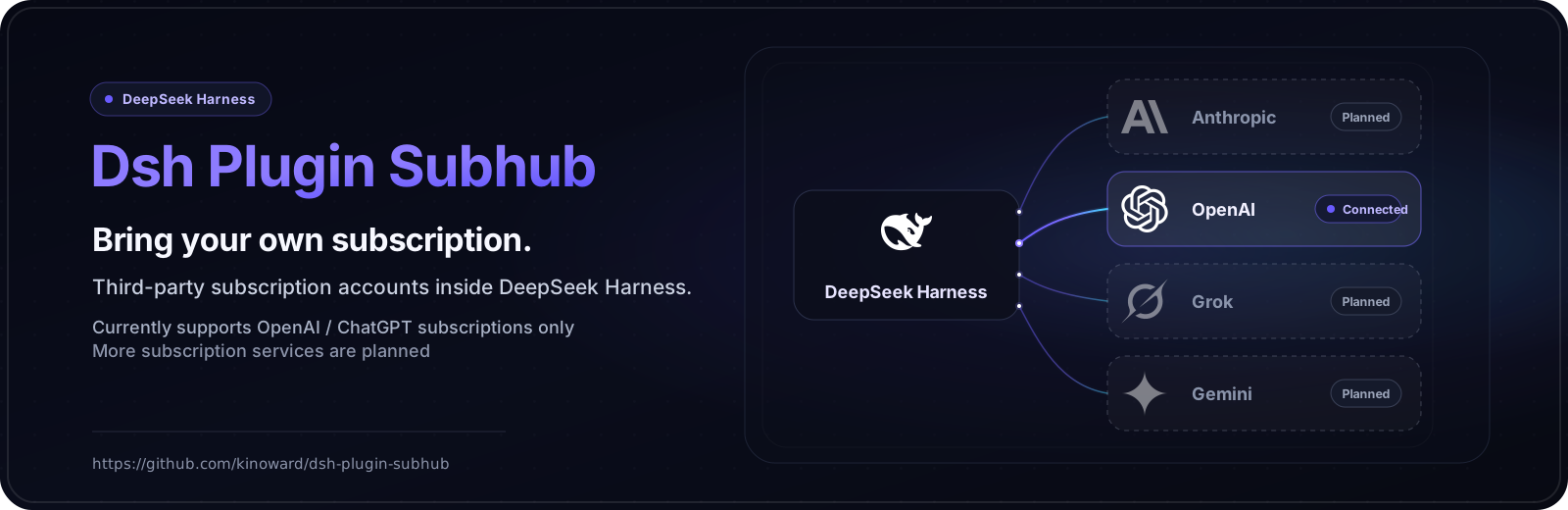
Only OpenAI / ChatGPT subscriptions are supported today; more subscription services are planned.
Model availability, usage limits, and response speed are decided by the subscription provider and your account. Some features may become temporarily unavailable after the provider changes its service.
Install
- DeepSeek Harness (
dsh) with Node.js 18.17 or later.
dsh plugin --profile web add github:kinoward/dsh-plugin-subhub
dsh web
dsh web boots the web profile (same as dsh --profile web). Restart DeepSeek Harness after installing.
Quick start
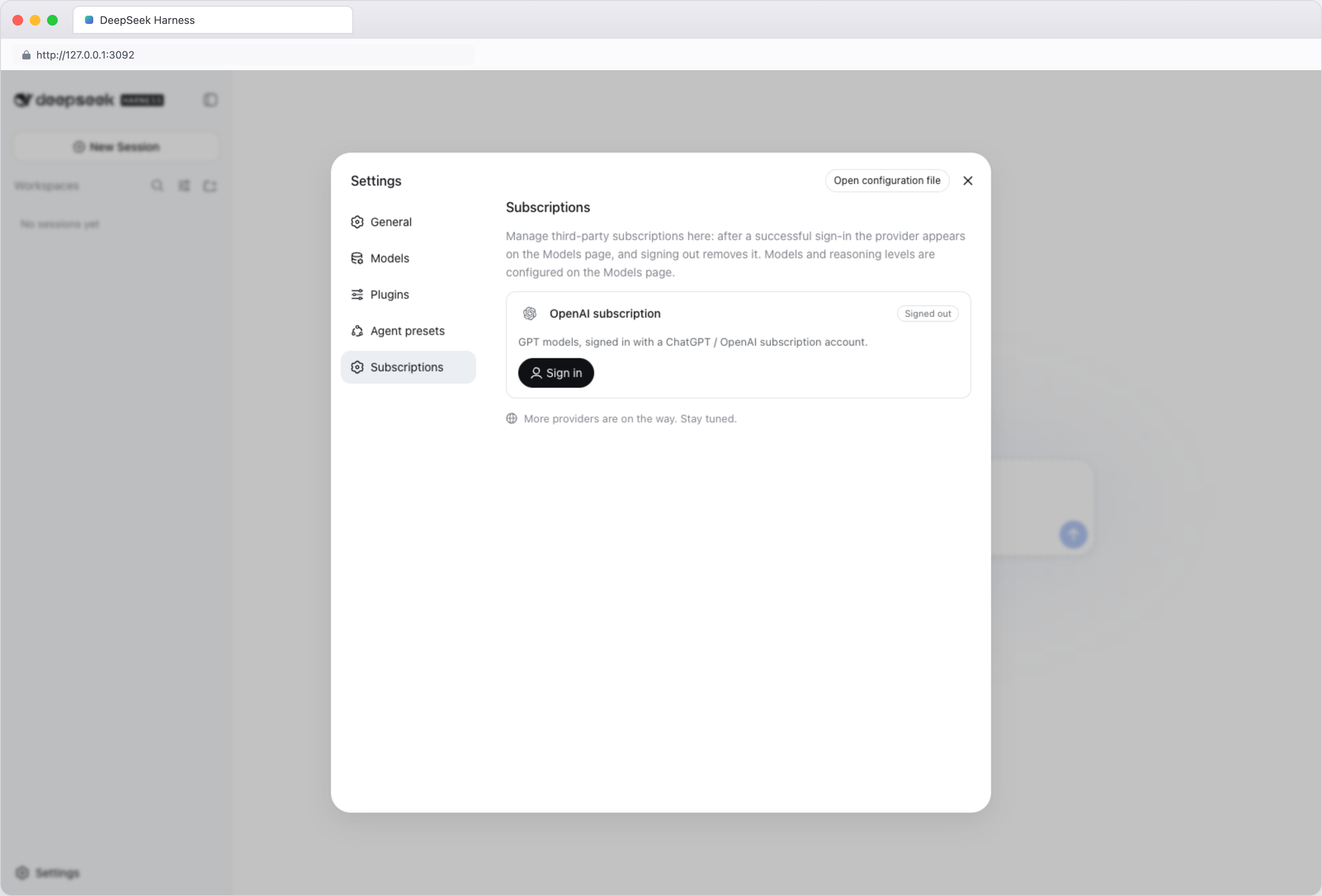
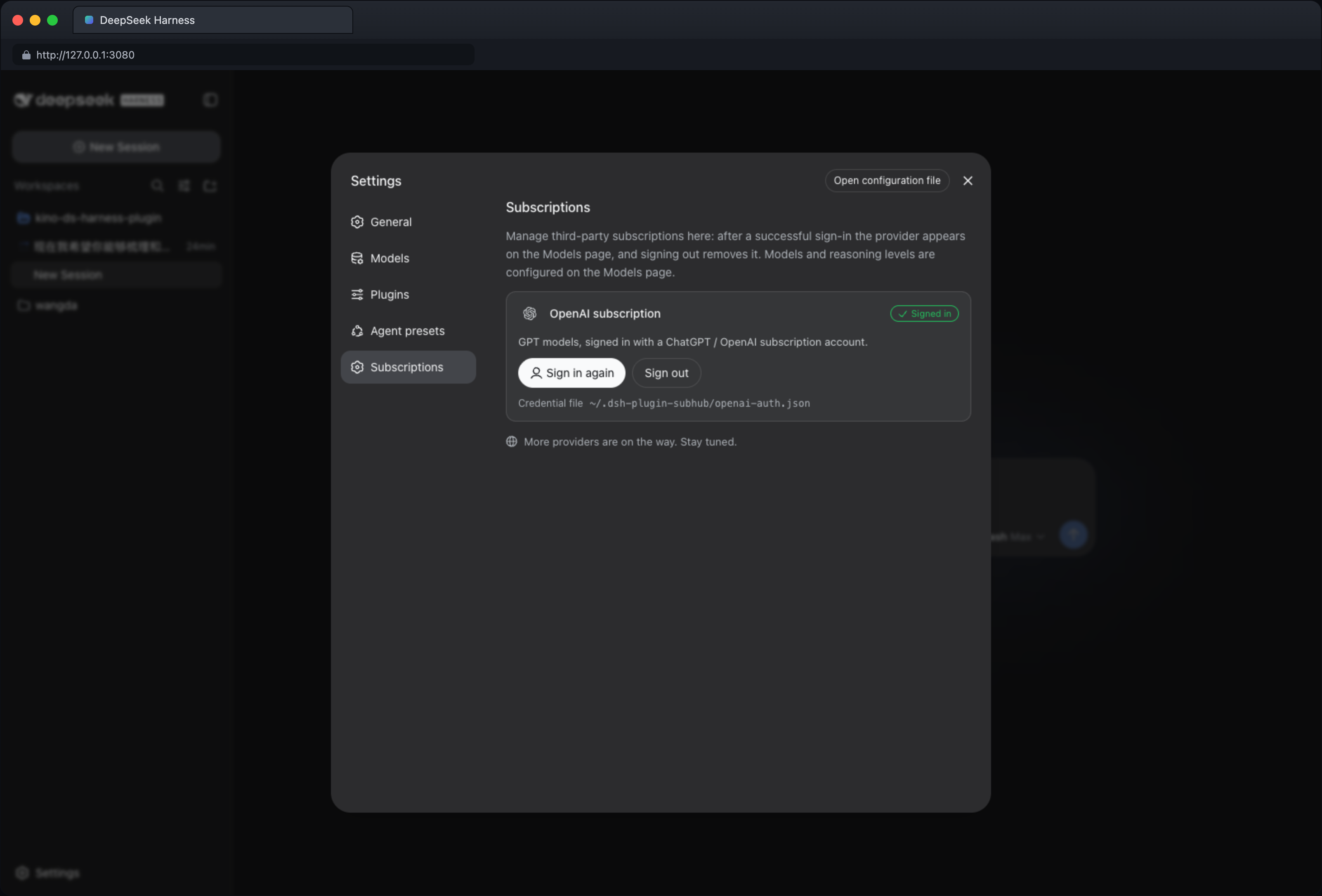
Log in — open Settings → Third-party subscriptions, click Sign in on the OpenAI subscription card, then open the authorization link in a browser and enter the one-time code (valid for 15 minutes). Once authorized, the page syncs automatically and the subscription appears in the model picker.
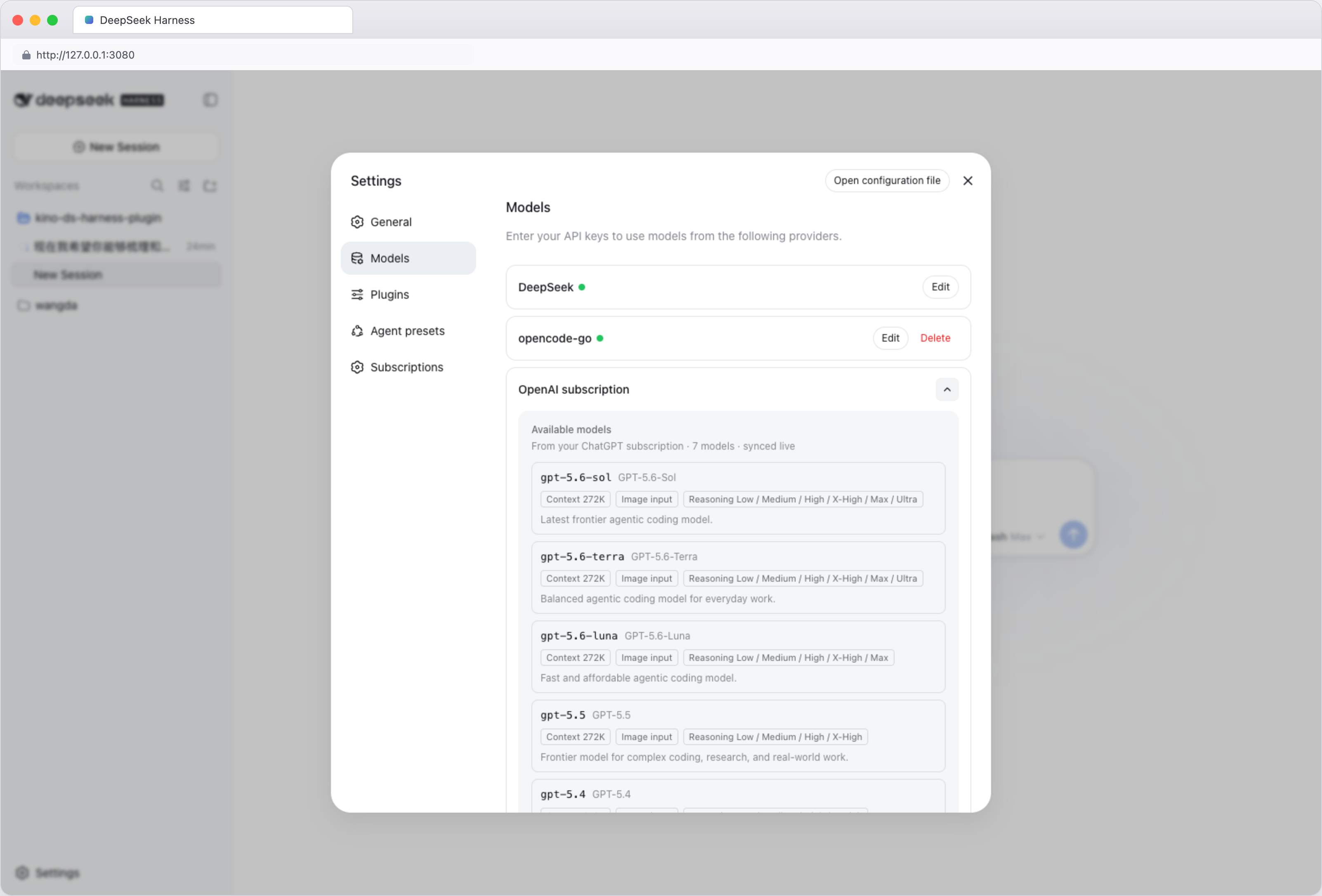
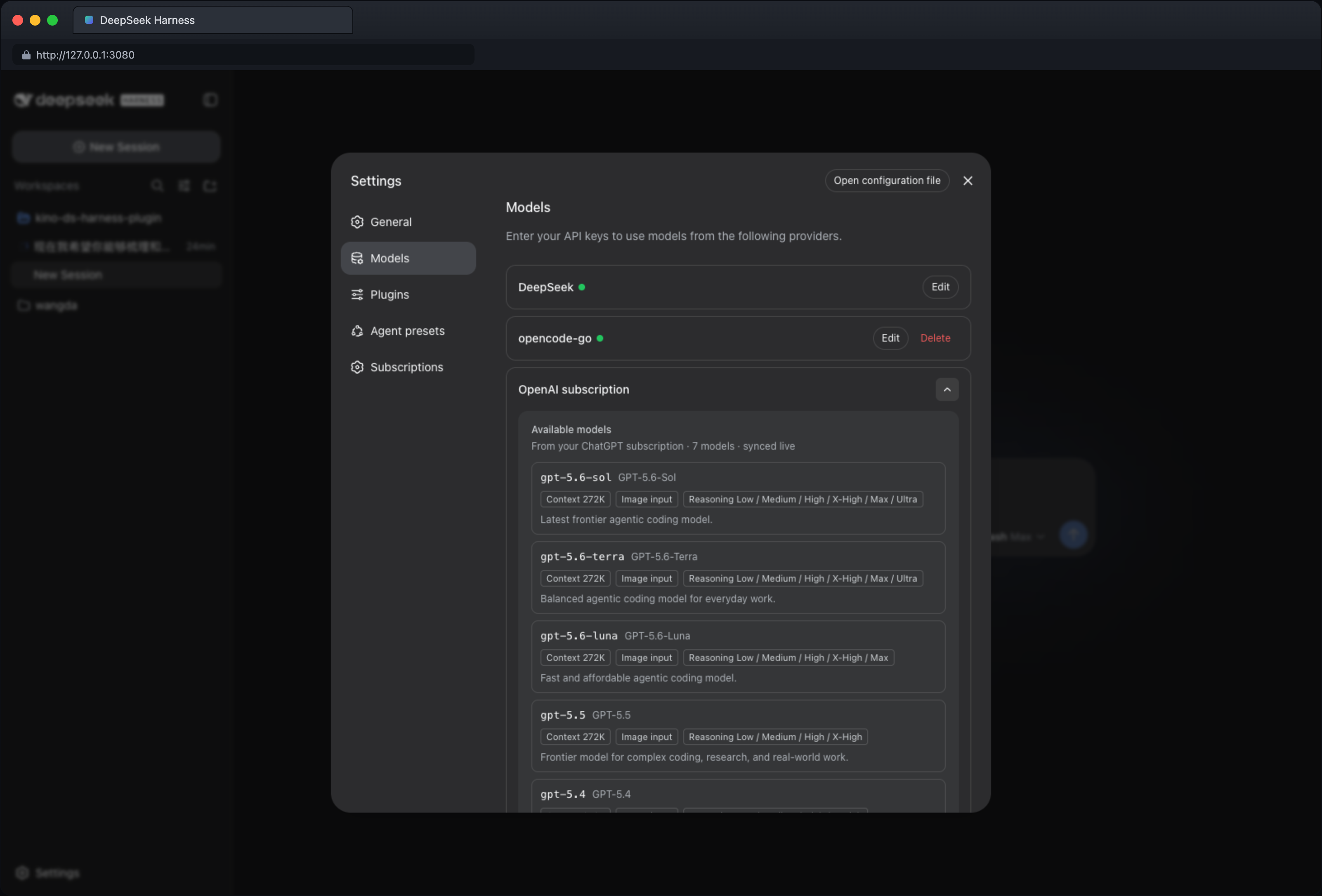
Pick a model — click the model selector at the bottom-left of the input area (it shows the current model and reasoning level), choose Model, and pick a model under OpenAI subscription. Adjust the reasoning level from the same menu if needed. Available models and reasoning levels come from your account and stay in sync automatically.
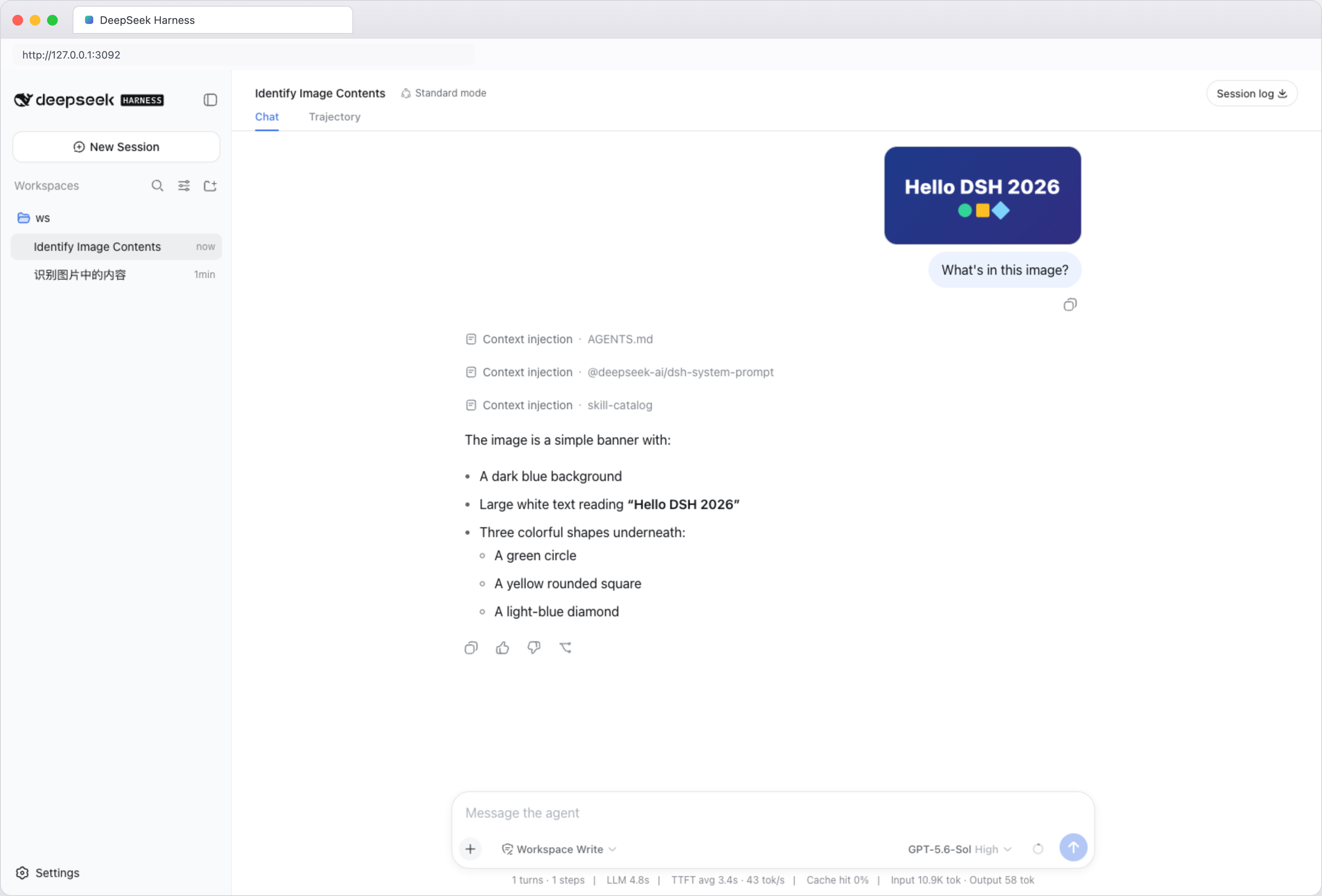
Use images — upload an image and ask about it, describe an image to generate one, or ask to edit an image:
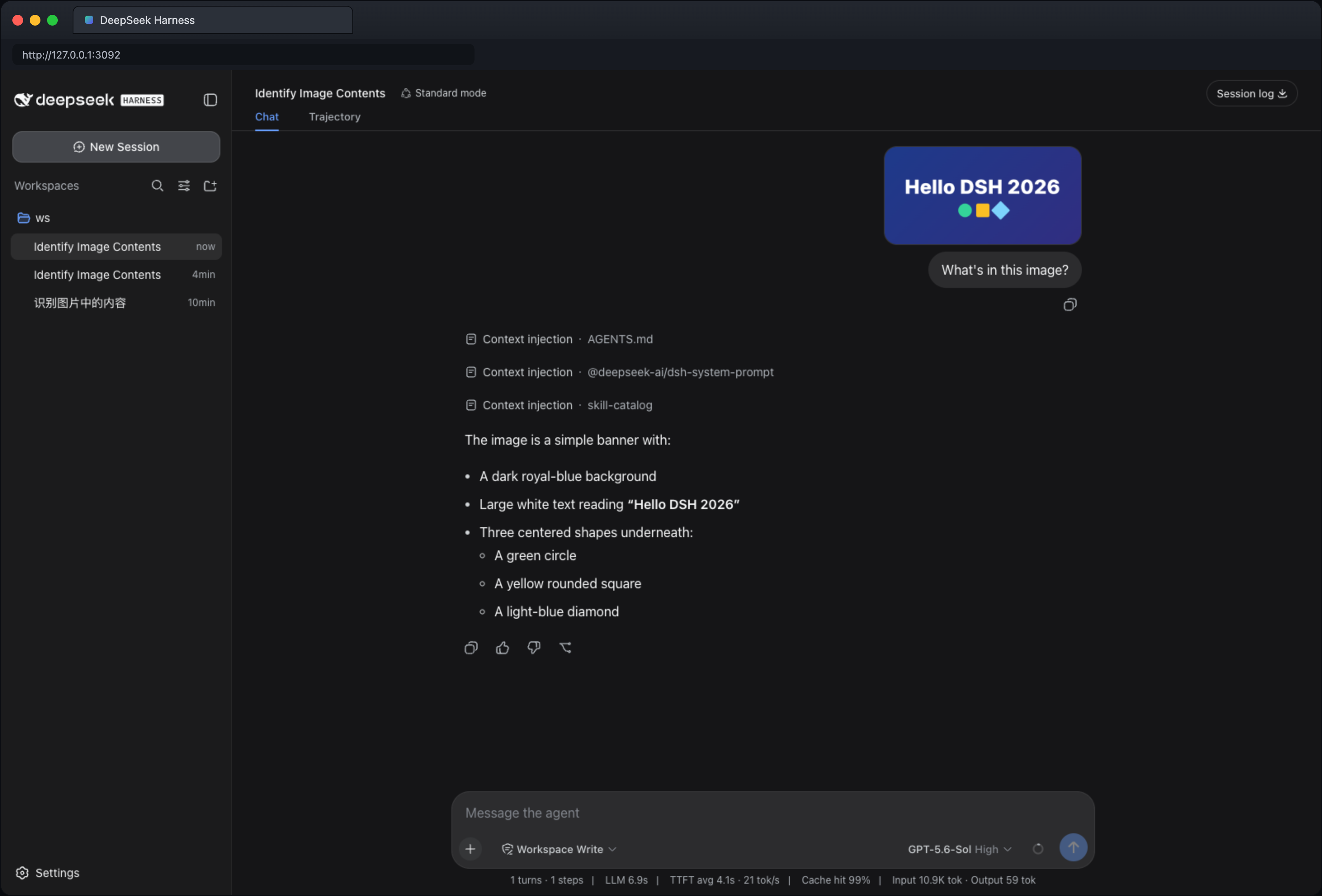
- View: “What's in this image?” / “Extract the text from this screenshot.”
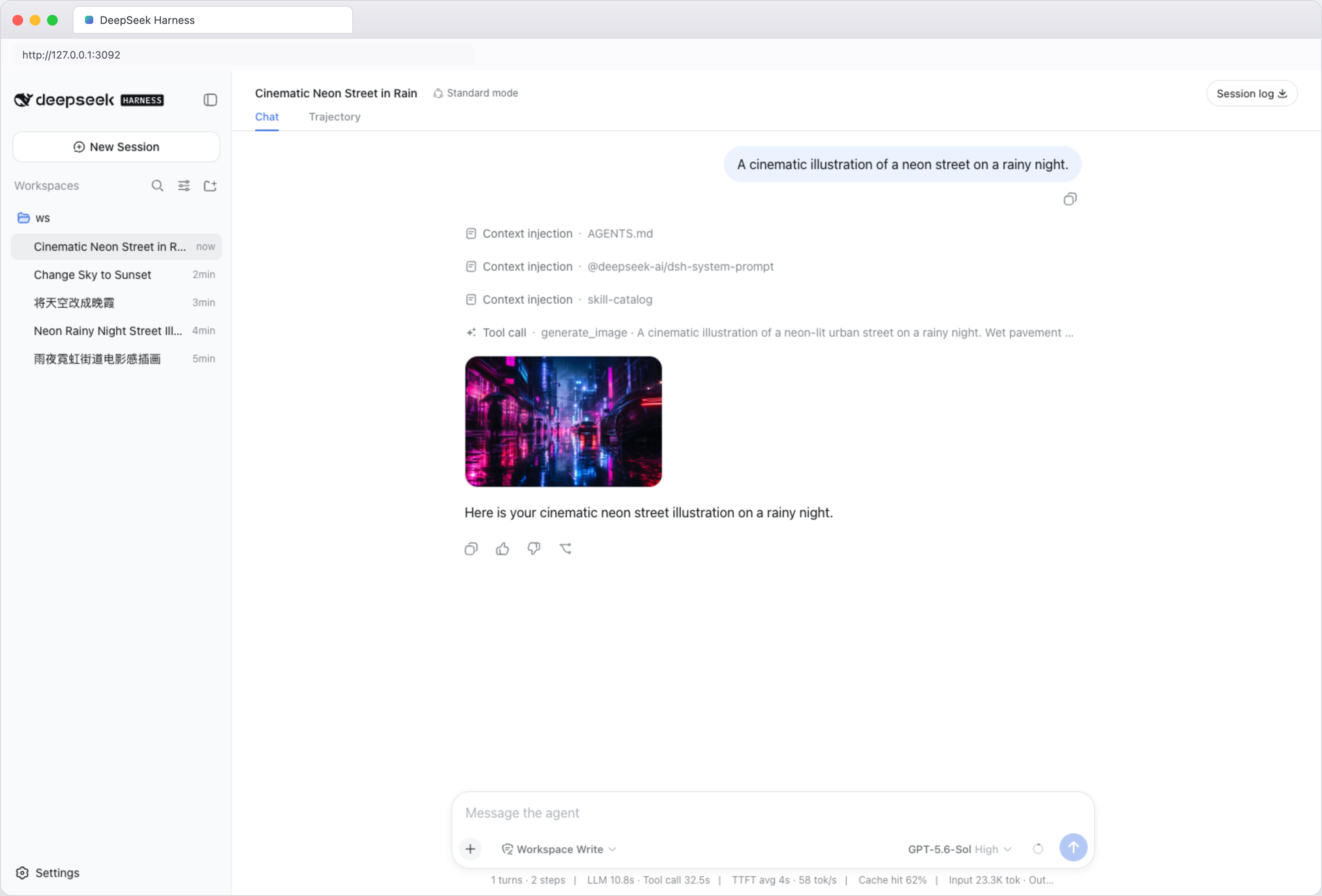
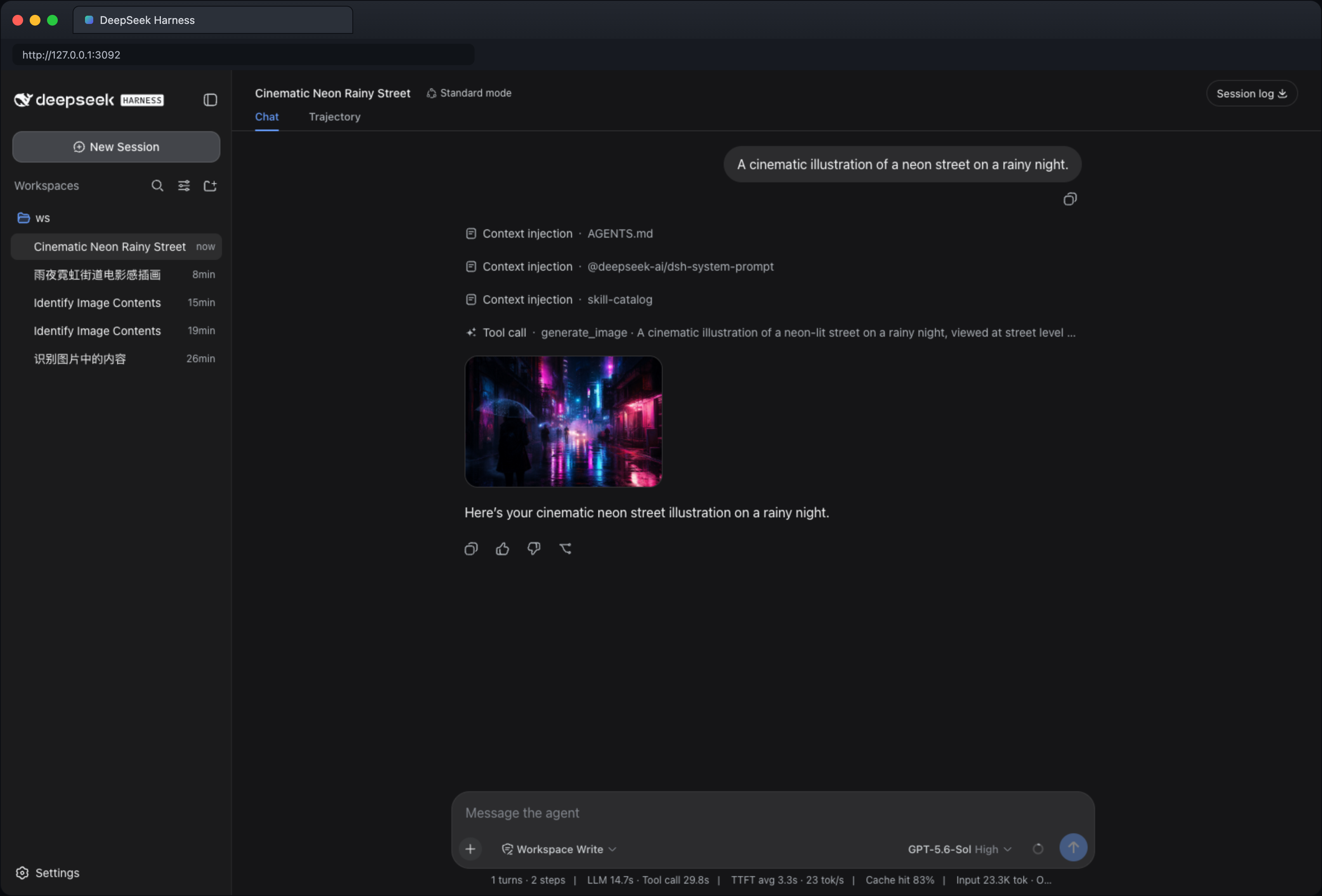
- Generate: “A cinematic illustration of a neon street on a rainy night.”
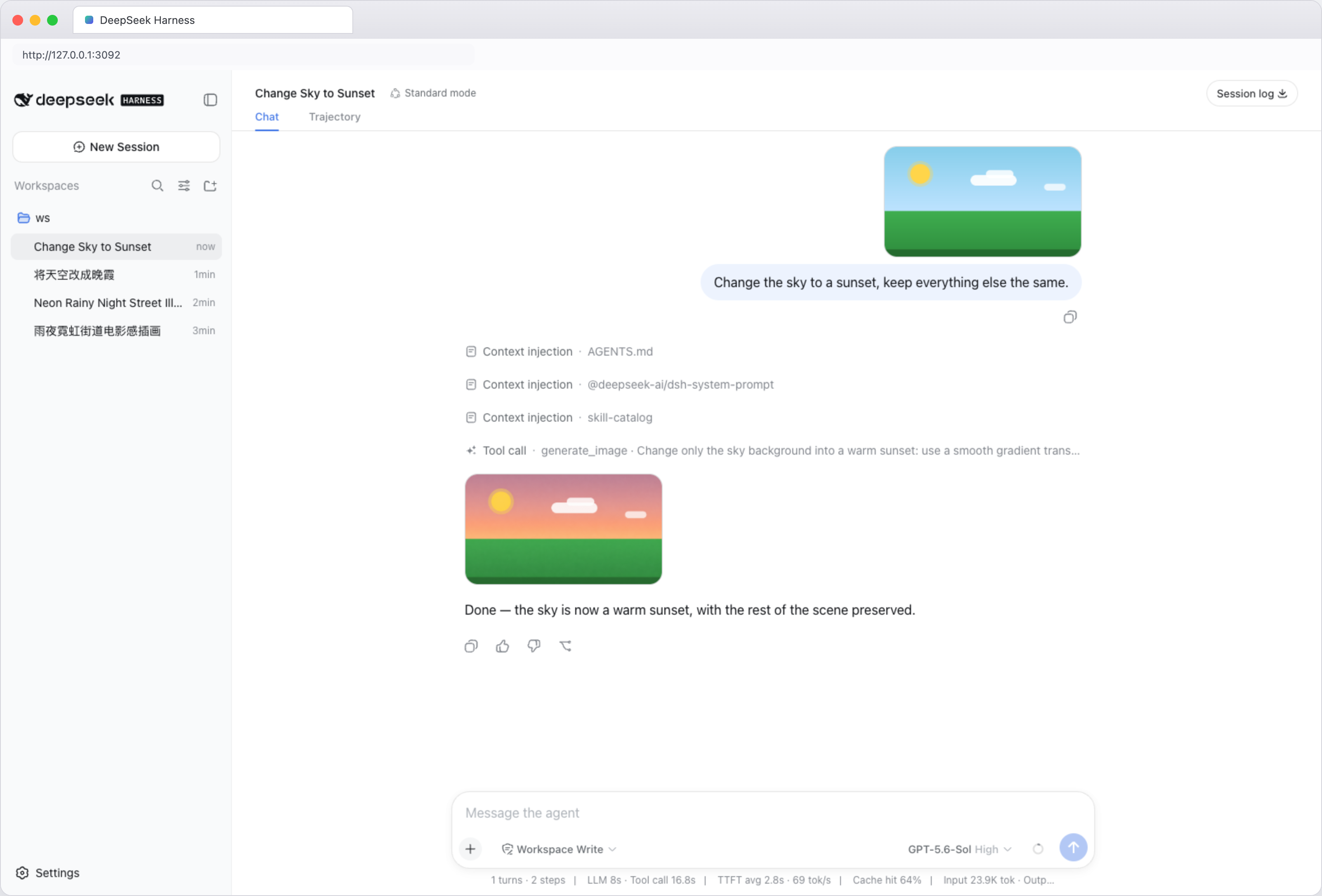
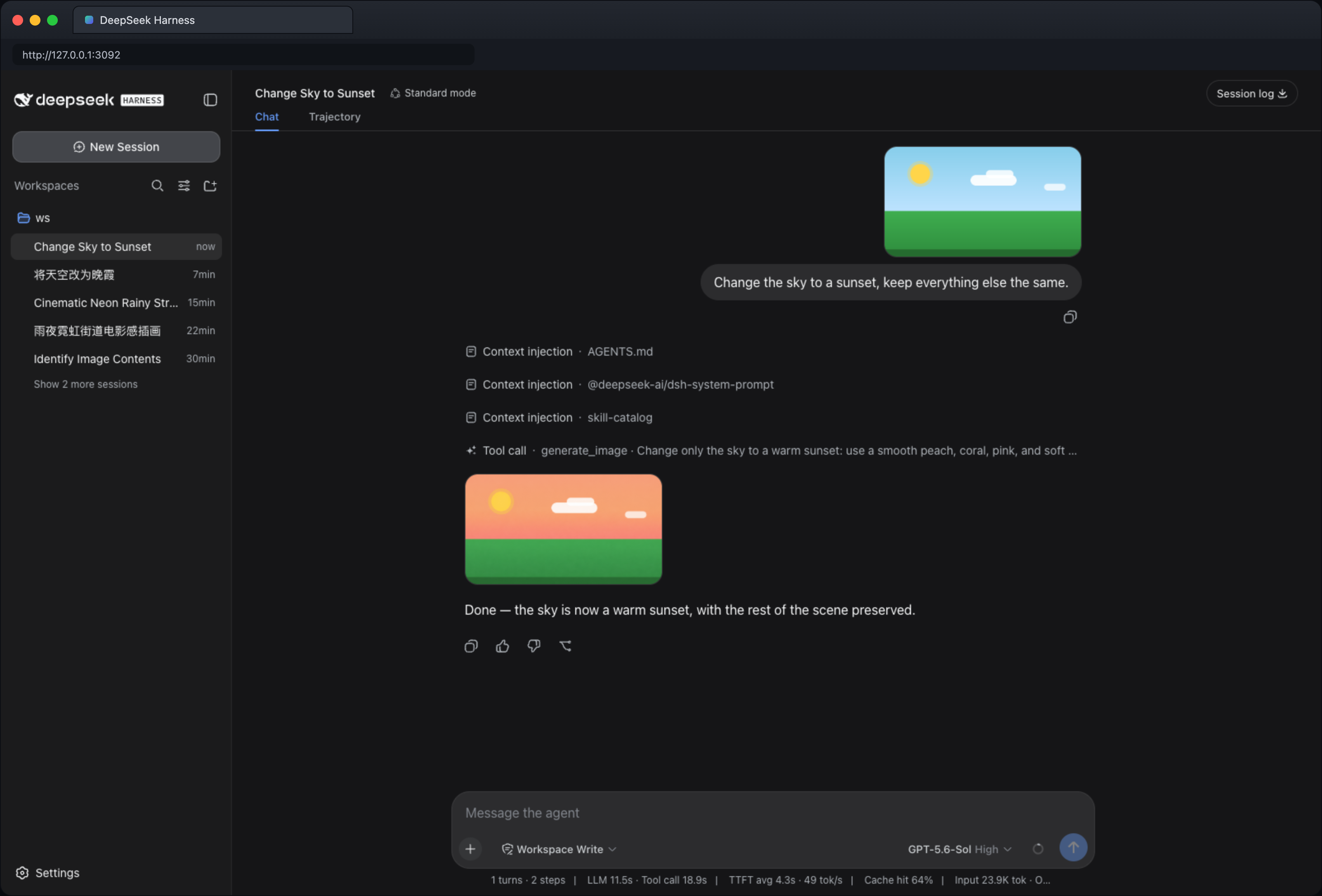
- Edit: upload an image (or use the one just generated), then “Change the sky to a sunset, keep everything else the same.” The edit uses the most recent image in the conversation; upload one first if there is none.
Viewing, generating, and editing images all require a model that supports image input; the model info marks it with an “Image input” tag.
Manage your account
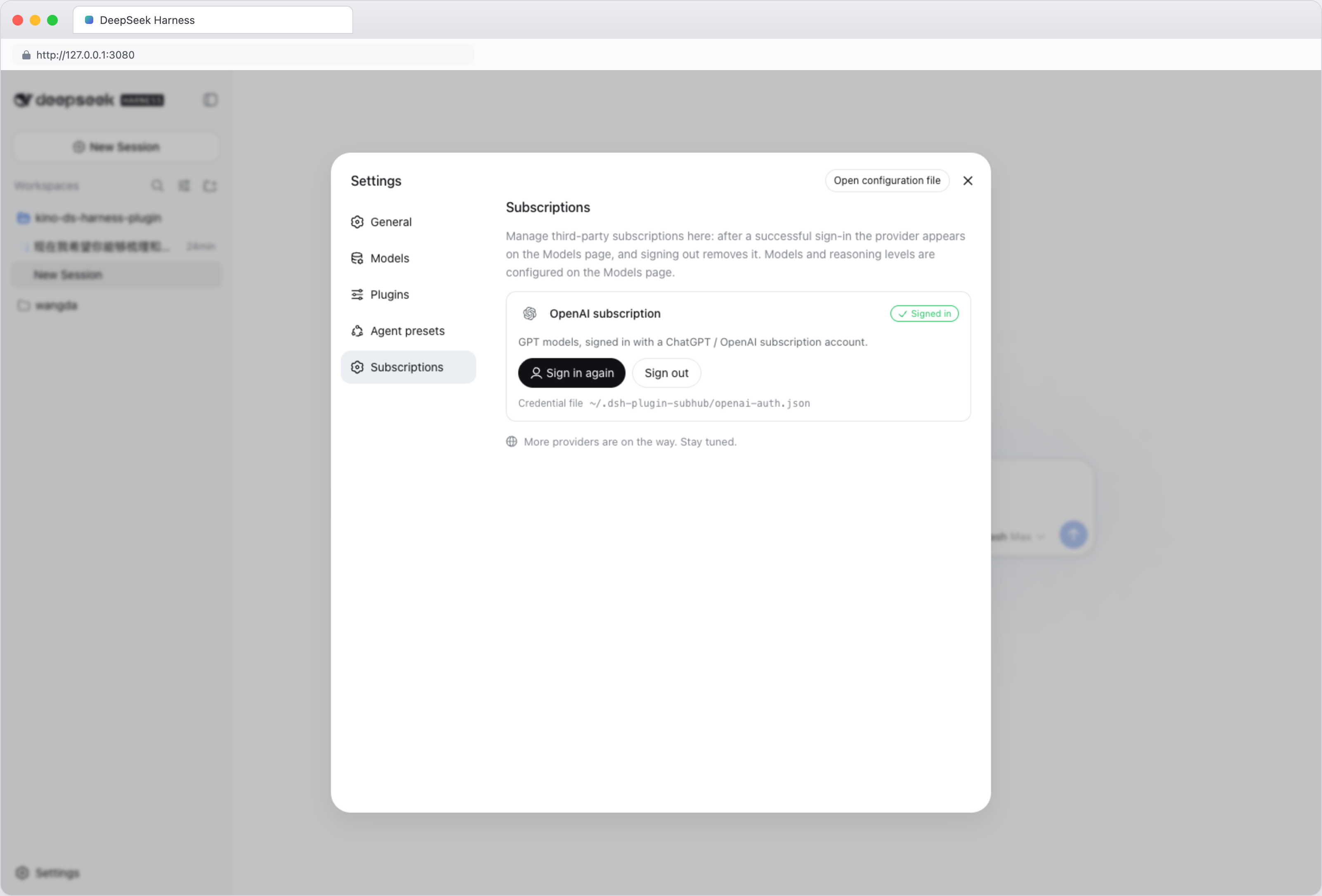
- Re-login / log out — Settings → Third-party subscriptions → Log in again switches accounts; Log out removes the saved login.
- Update — rerun the install command, then restart DeepSeek Harness.
- Disable — Settings → Plugins → Plugin list → turn off
dsh-plugin-subhub.
CLI sign-in (optional)
No graphical interface? Sign in with the bundled script instead. From the profile directory, run:
node node_modules/dsh-plugin-subhub/login.js
The script prints an authorization link and a one-time code — open the link in a browser, enter the code, and the credentials are saved to ~/.dsh-plugin-subhub/openai-auth.json. After signing in, open Settings → Third-party subscriptions once so the subscription appears in the model picker.
Screenshots
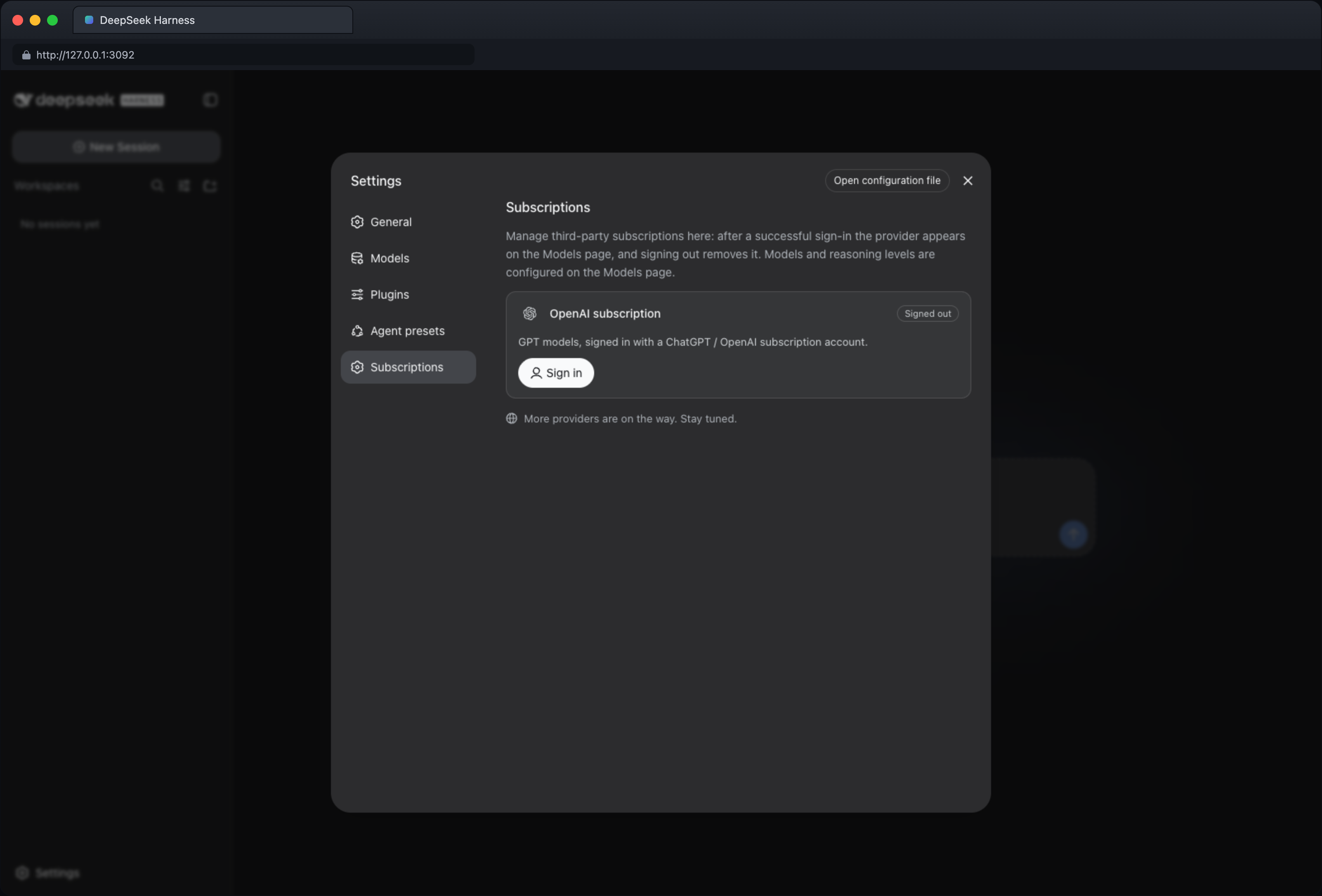
Browser-framed captures of the plugin in the DeepSeek Harness Web UI — light and dark themes:
Settings → Third-party subscriptions — signed out:
Settings → Third-party subscriptions — signed in:
Models page — OpenAI subscription expanded (signed in):
Using images in a conversation — image understanding:
Generating images in a conversation — text to image:
Editing images in a conversation — image to image:
Security & privacy
- Unless you configure another location, login data is stored in
~/.dsh-plugin-subhub/openai-auth.json; - The plugin creates or updates that file with access restricted to the current system user;
- The plugin never reads login data saved by other programs (such as the Codex CLI); sign in once inside this plugin after installing;
- Signing out deletes the login file the plugin currently uses;
- Don't share login files, one-time codes, or other account details — and don't commit them to Git or post them in issues.
Support
- GitHub Issues — report bugs or request features. Remove account details and other sensitive content before posting.
No comments yet. Be the first to write one.