dsh-startup-command
Language: English · 简体中文
A DeepSeek Harness Web plugin that runs a user-defined command after the web profile has started successfully.
Once dsh web has finished booting (the Loader tree has settled and the web server is listening), this plugin executes the command you configure in settings.yaml — for example, opening the Web GUI in a specific browser with specific flags.
The command is fully driven by the settings file (the dsh-startup-command namespace of settings.yaml), never hard-coded in the plugin source. The {url} placeholder is replaced with the actual GUI address (http://127.0.0.1:<port>/?token=…), so it works correctly even when --port 0 lets the OS pick the port.
Screenshots
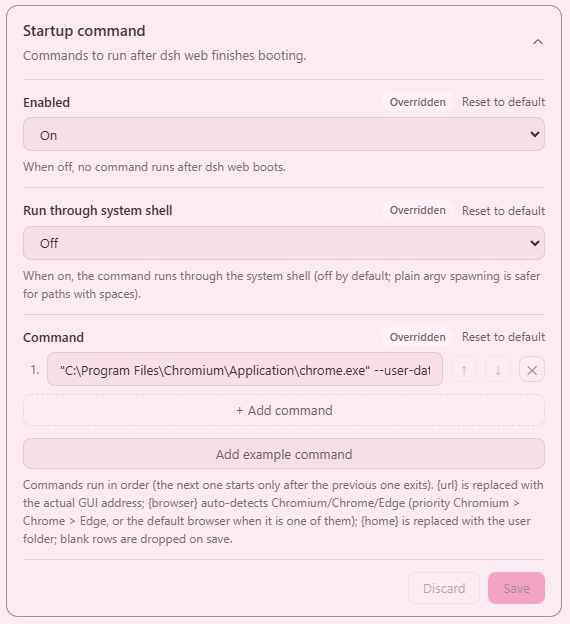
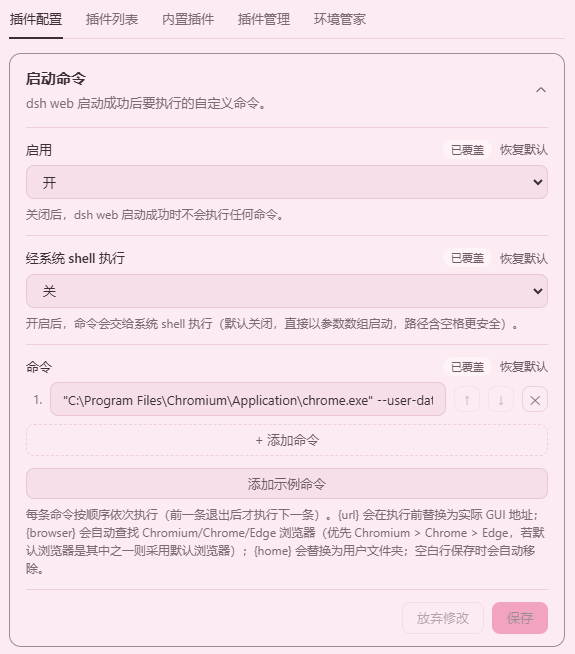
The settings card under Settings → Plugins → Plugin configuration:
Features
- Fires after startup succeeds: it follows the exact lifecycle of the built-in
web-appopenBrowser— it waits for the whole Loader tree to settle and thewebServerservice to be ready, so the address it uses is always the real one after the server starts listening. - Fully configurable command: the plugin registers the
dsh-startup-commandnamespace through the settings service;commandaccepts either a single string or an array of multiple commands, which run in order (the next one starts only after the previous one exits). No plugin source changes needed. {url}/{home}/{browser}placeholders:{url}is replaced withhttp://127.0.0.1:<actual port>/?token=…before execution (newer dsh web requires the token to exchange a browser-login cookie; it degrades to the clean URL when theconnectionservice is absent) and works with OS-assigned ports (--port 0);{home}is replaced with the user folder;{browser}auto-detects a Chromium-family browser (priorityChromium > Chrome > Edge, or the default browser when it is one of them).- Does not block dsh: the child process is spawned
detachedandunref()ed, so it runs independently and never holds up dsh shutdown. - Toggle and mode:
enabled: falsetemporarily disables the plugin;shell: trueruns the command through the system shell (default off — spawning with a plain argument array is safe even for paths with spaces). - Skips when unconfigured: if
commandis not set, it prints a warning and skips — no silent failure, no accidental execution. - Web settings card: an expandable card under Settings → Plugins → Plugin configuration edits
enabled,shell, andcommandin place, with an Add example command button that opens an explanation dialog and then inserts a ready-made auto-detect-browser command — no need to editsettings.yamlby hand.
Installation
This plugin is dual-face: a host half (index.js, runs the command at startup) and a browser half (client.js, registers a settings card under Settings → Plugins → Plugin configuration).
1. Get the package
From npm (recommended):
npm install @kagurazakayashi/dsh-startup-command
# or, in a pnpm-based profile:
# pnpm add @kagurazakayashi/dsh-startup-command
Or from source (local development) — place the plugin directory under the profile and link it:
C:\Users\<you>\.dsh\profiles\web\plugins\dsh-startup-command\
{
  "dependencies": {
    "@kagurazakayashi/dsh-startup-command": "link:plugins/dsh-startup-command"
  }
}
Then run pnpm install to materialize the link — or create a
node_modules/@kagurazakayashi/dsh-startup-command junction/symlink pointing
at ../../plugins/dsh-startup-command manually.
2. Mount the plugin
Add an insert entry to C:\Users\<you>\.dsh\profiles\web\cordis.patch.yml (mounting only; the command lives in settings.yaml):
- insert:
    - id: dsh-startup-command
      name: '@kagurazakayashi/dsh-startup-command'
      inject: [webServer]
3. Configure and restart
Add the dsh-startup-command namespace to C:\Users\<you>\.dsh\settings.yaml (see the next section), then restart dsh web. After the restart, a settings card for this plugin appears under Settings → Plugins → Plugin configuration, where enabled, shell, and command can be edited in place.
Configuration
The configuration lives in the dsh-startup-command namespace of settings.yaml. The plugin registers this namespace through the settings service at startup; the schema defaults apply when nothing is configured:
dsh-startup-command:
  enabled: true
  command: '"C:\Program Files\Google\Chrome\Application\chrome.exe" --app={url}'
  shell: false
Supported fields:
command(string | string[]) — a single command as a string, or multiple commands as an array run in order (the next one starts only after the previous one exits); each entry is split into argv honoring quotes, so wrap paths containing spaces in double quotesenabled(boolean, defaulttrue) — set tofalseto disable temporarilyshell(boolean, defaultfalse) — set totrueto run through the system shell
command supports these placeholders, all replaced before execution:
{url}— the actual GUI address (the?token=-authenticated URL on newer dsh web){home}— the current user folder (os.homedir()){browser}— the auto-detected Chromium-family browser executable. Detection rule: if the system default browser is Chromium / Chrome / Edge, the default browser wins; otherwise the first installed browser inChromium > Chrome > Edgepriority is used
The Add example command button on the web settings card opens a dialog explaining the example, then appends a ready-made command using {browser}, {home}, and {url}. If no Chromium / Chrome / Edge browser was found when dsh started, it shows a "cannot generate example command" message with the reason instead.
Examples
Open the GUI in Chrome as an app window with dedicated profile and cache directories, no first-run welcome screen, and no extensions:
dsh-startup-command:
  command: '"C:\Program Files\Google\Chrome\Application\chrome.exe" --user-data-dir="D:\dsh-chrome-profile" --disk-cache-dir="D:\dsh-chrome-cache" --app={url} --no-first-run --disable-extensions'
What each flag does:
--app={url}— app-mode window (no address bar / toolbar)--no-first-run— skip the first-run welcome screen--disable-extensions— load no extensions--user-data-dir=<path>— set the configuration (profile) directory--disk-cache-dir=<path>— set the disk cache directory
Note: a dedicated --user-data-dir avoids clashing with an already-running Chrome instance (otherwise --app is taken over by the existing instance and the switches have no effect).
Auto-detect Chromium / Chrome / Edge with the flags above (equivalent to the Add example command button on the web card):
dsh-startup-command:
  command: '"{browser}" --user-data-dir="{home}/.dsh/dsh-browser-data" --disk-cache-dir="{home}/.dsh/dsh-browser-cache" --app={url} --no-first-run --disable-extensions'
Multiple commands run in order (the next one starts only after the previous one exits):
dsh-startup-command:
  command:
    - 'cmd /c ping -n 3 127.0.0.1' # do some preparation first (exits after ~2s in this example)
    - '"C:\Program Files\Google\Chrome\Application\chrome.exe" --app={url}'
Launch any program (e.g. Notepad):
dsh-startup-command:
  command: 'C:\Windows\System32\notepad.exe'
Relationship to the built-in "open default browser"
dsh web opens the system default browser via the open package after startup (the openBrowser flag of the web-runtime row). If you use this plugin to open a specific browser, you usually want to disable the built-in behavior to avoid double-opening. Override that row in cordis.patch.yml (a patch replaces the row's whole config, so every key must be restated):
- id: web-runtime
  config:
    openBrowser: false
    printUrl: true
    surfaceContext: true
    trustedHosts: !!js ctx.webStartup.trustedHosts
If you do not want to disable the built-in behavior (e.g. you want the default browser and your custom command to coexist), simply omit that block.
Timing
dsh web boots
    │
    ▼
Loader tree settles (web server starts listening)
    │
    ▼
dsh-startup-command runs: {url} replacement → spawn(command)
    │
    ▼
child runs detached; dsh keeps serving
Uninstall
Remove the dsh-startup-command insert entry from cordis.patch.yml (and the web-runtime override if it is no longer needed), remove the dsh-startup-command namespace from settings.yaml, delete the plugin directory, and restart dsh web. The plugin produces no persistent state, so no further cleanup is required.
Notes (safety & limitations)
- Restart required: a running process does not load new patch rows; restart
dsh webafter changing the configuration. - ESM directory-import limitation:
namemust point atindex.js, not the directory, otherwise Node throwsERR_UNSUPPORTED_DIR_IMPORT. - Command parsing: each command string is split into argv by double-quoted groups; an unquoted path containing spaces will be split incorrectly.
- Sequential multi-command: commands run in order; the next one starts only after the previous one exits. If a command is a long-running process (e.g. a browser), every command after it waits indefinitely — put long-running commands last.
- Skips when unconfigured: if
commandis not set, it prints a warning and does nothing. - Does not wait for the whole sequence: each command is spawned
detached+unref(); if dsh exits mid-sequence, commands not yet started never run, while already-started detached processes keep running. To confirm the commands ran, check thedsh-startup-command:lines in the dsh startup log.
License
MIT — see LICENSE, copyright KagurazakaYashi(KagurazakaMiyabi).
No comments yet. Be the first to write one.