npm scripts for DeepSeek Harness
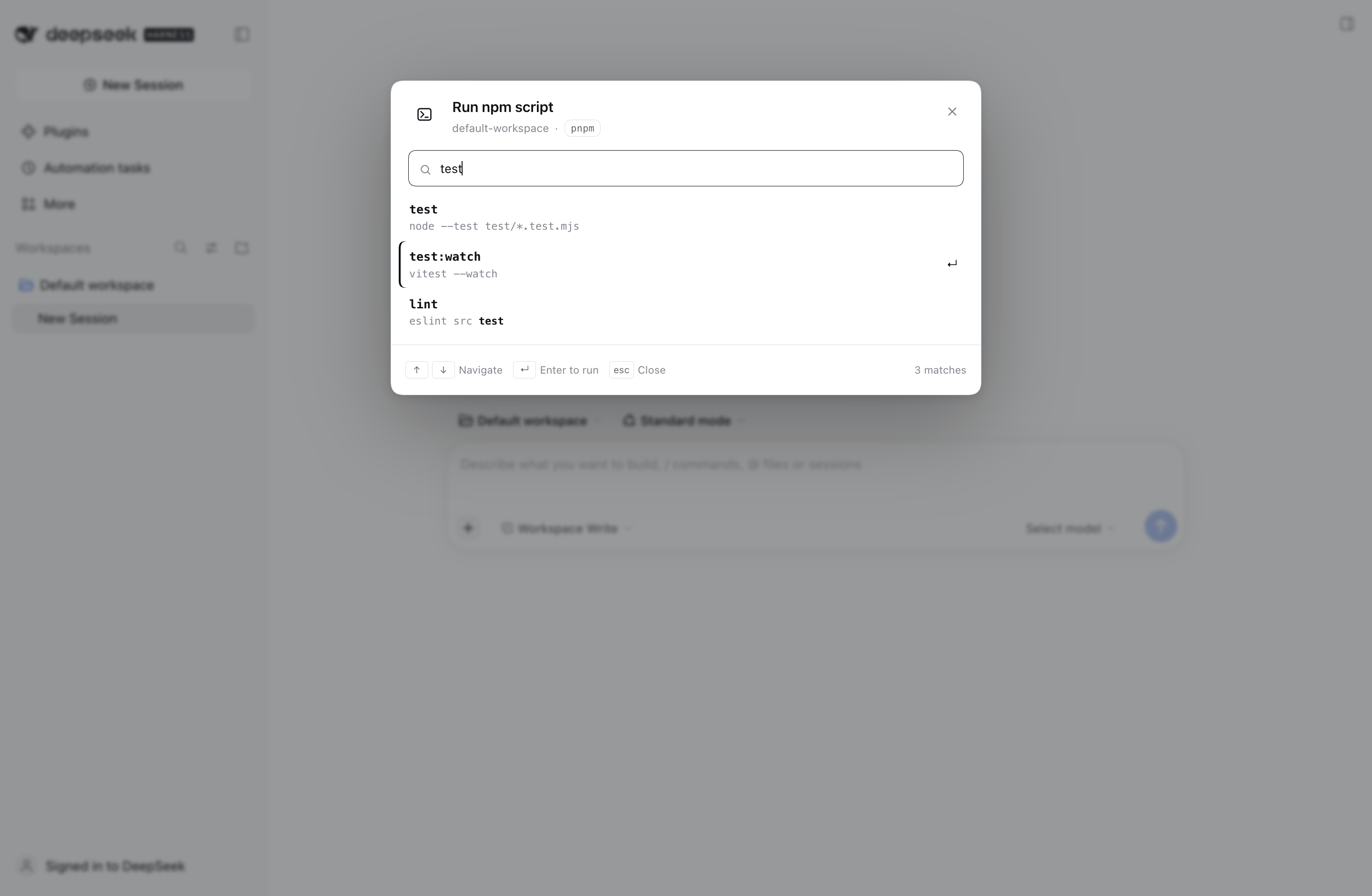
Press Option+A in any DeepSeek Harness session to open a searchable list of the active repository's package.json scripts. Pick one with the keyboard, and it starts in a new Harness terminal tab. The shortcut is configurable from the plugin's own page.
Features
- Option+A from anywhere in the session — composer, page, or terminal.
- Configurable shortcut in the plugin's own Plugins page, using the same device-local bindings as Settings → Keyboard shortcuts.
- Search filter over script names and commands, case-insensitive and ranked so exact and prefix matches come first.
- Keyboard first:
↑/↓navigate,Home/Endjump,PageUp/PageDownmove a page,Enterruns,Esccloses. The search field uses the ARIA combobox + listbox pattern, so screen readers announce the active script. - Runs in a real Harness terminal: opens a new terminal tab in the right sidebar, waits for the shell to attach, then types the selected command.
- Correct package manager: reads
packageManagerand lockfiles, supportingnpm,pnpm,yarn, andbun. - Monorepo aware: walks up from the session folder to the Git root and uses the nearest
package.json, thencds into that package before running. - Safe quoting: script names are quoted for the target shell instead of being pasted as raw shell syntax.
- English and Chinese UI.
- No project code runs in the Host: discovery only reads
package.json; the terminal runs the script with the user's normal terminal permissions.
Install
In the desktop app, open Plugins in the sidebar, choose Add plugin, and enter the local directory path. The desktop profile is managed by the Electron app, which is why this is the preferred path there.
For another profile, use the CLI:
git clone https://github.com/jeremytenjo/dsh-plugin-npm-scripts.git
dsh plugin --profile <profile> add ./dsh-plugin-npm-scripts
Replace <profile> with the name shown by dsh --profile <name> --dump-config (for example web). Restart the Host or reload the page after installing.
The package ships its browser bundle (client.js), so no build step is required to install it.
Usage
The plugin is profile-wide: install it once and it is enabled by default in every session. It adds nothing to individual projects and there is no per-project switch — a project only needs a package.json.
- Open a session whose working directory is inside a repository with a
package.json. - Press Option+A (
⌥A). - Type to filter the scripts.
- Use
↑/↓to highlight a script and pressEnter. The first result is selected automatically, soOption+A,Enterruns the first script. - A new terminal tab opens, is renamed to the script name, and receives the command.
- To use a different key, open Plugins → npm scripts → Keyboard shortcut and record a new binding (see Configuration).
The command shown in the palette is what will be typed:
cd '/path/to/package' && pnpm run 'build'
cd is omitted when the package already is the session working directory.
Which scripts appear
The palette uses the nearest package.json between the session working directory and the repository root. This means a session opened in a monorepo package shows that package's scripts, while a session at the repository root shows the root scripts.
If no package.json exists, the palette shows an error with a retry action.
Package manager detection
packageManagerinpackage.json(pnpm@9.15.0,yarn@4.5.0, …).- A lockfile in the package directory, then the repository root:
pnpm-lock.yamlyarn.lockbun.lockb/bun.lockpackage-lock.json/npm-shrinkwrap.json
npm.
Configuration
| Setting | Where | Default |
|---|---|---|
| Keyboard shortcut | Plugins → npm scripts → Keyboard shortcut | Option+A on macOS, Alt+A on Windows/Linux |
Open Plugins in the sidebar and select npm scripts. Select the current binding (the keycaps with the pencil), press the new combination, and release to save.
- Esc cancels recording.
- Reset to default restores the default binding after a custom one has been saved.
- Combinations already used by Harness or the operating system are rejected with a conflict/reserved message.
- The binding is saved per device, in the same store as Settings → Keyboard shortcuts; it is not written into the repository. Editing the shortcut in either place updates the same preference.
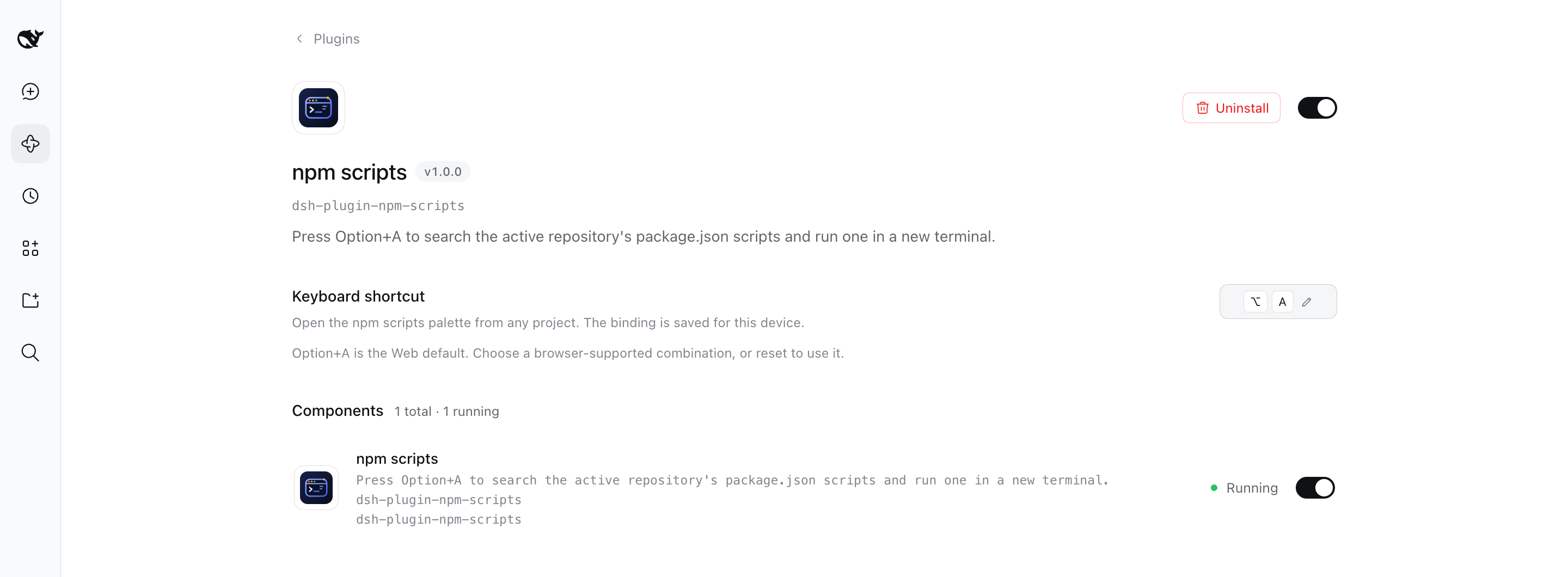
On the Desktop app the binding is registered with the native keyboard service. On the Web, Option+A is a local fallback because browsers reject single-modifier Option bindings; saving a browser-supported combination replaces that fallback, and Reset to default brings Option+A back.
Keyboard model
| Key | Action |
|---|---|
Option+A (default) |
Open the palette; press again to close. Change it on the plugin page. |
↑ / ↓ |
Move the highlight |
Home / End |
First / last script |
PageUp / PageDown |
Move six rows |
Enter |
Run the highlighted script |
Esc |
Close the palette |
Tab / Shift+Tab |
Cycle focus between search and close |
While the palette is open, Harness's modal layer blocks background shortcuts. The effective binding appears in both Settings → Keyboard shortcuts and the plugin page; editing either place updates the same preference. In the Web app, Option+A remains a local fallback until you save a browser-supported combination.
How it works
- The browser half registers a
plugins.bundle.configpage fordsh-plugin-npm-scripts. It records one physical key combination, validates it with the shortcut service (describeBinding), and persists it throughctx.shortcuts.edit. - The Host half registers one exact loopback route,
POST /__dsh/npm-scripts. - The browser sends the active Session id. The Host resolves that Session's working directory itself, runs
git rev-parse --show-toplevel, walks to the nearestpackage.json, parses it, and returns the scripts plus the detected package manager. - The browser half builds a quoted command and asks the right sidebar to open a
terminaltab. - It subscribes to the terminal view until it becomes writable, renames the tab to the script name, waits for the first prompt, and writes the command.
The Host route never runs project scripts, never accepts a client filesystem path, and refuses non-loopback or cross-origin requests.
Development
pnpm install
pnpm test      # filter, quoting, and manifest tests
pnpm build     # regenerates client.js
src/client.jsx is the browser source. src/filter.js and src/shell.js are pure, testable helpers. client.js is generated by esbuild and wrapped for the Harness module loader; commit the regenerated bundle with source changes.
Layout while developing:
index.js              Host route and repository inspection
src/client.jsx        Modal, shortcut, terminal launch
src/filter.js         Search/ranking and highlight slices
src/shell.js          Package-manager command construction and quoting
test/*.test.mjs       Node test runner suites
cordis.patch.yml      Profile layer entry
Requirements
- DeepSeek Harness
0.2.1-rc.3or newer. - A session inside a project with a
package.json. - The built-in right-sidebar terminal (enabled in the shipped Web and Desktop bundles).
- Git is optional; without it the palette falls back to the session working directory.
Security and limits
- Script names and package paths are shell-quoted for the target platform; NUL bytes are rejected.
- Only scripts from the selected
package.jsonare listed, at most 1000, with bounded name and command lengths. - Scripts run in the user's terminal with the user's normal permissions, independent of the Agent sandbox, exactly like a terminal command typed by hand.
- The palette follows the nearest
package.json; it does not scan every workspace package or browsenode_modules. - Terminal recovery and process lifetime follow Harness's terminal controller. Closing the tab ends the process tree according to the terminal provider.
License
MIT
No comments yet. Be the first to write one.