dsh-image-annotate
A DeepSeek Harness (dsh) web plugin: click a pending image in the composer to annotate it, then insert the annotated copy back as a second attachment. The original stays.
English | 中文
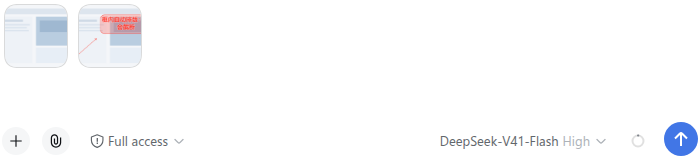
Sending a screenshot to the agent usually means circling something first. The composer's pending images were preview-only, so the circle had to happen in another app and the file had to be re-attached. This plugin moves that step into the composer.
Minimal footprint. Nothing in DSH's own UI is restyled: the attachment rail, drop target, file cards and the original-image lightbox stay exactly as shipped — the plugin only takes over the click on a pending thumbnail. One browser-side file, an empty host stub, no host routes, no dependencies, no configuration files, and no work at all until you click an image.
Features
- Click a pending image in the composer to open the annotation dialog instead of the plain original-image lightbox. The dialog shows the image large and lets you draw on it.
- Four tools: pen (freehand), box, arrow, and text.
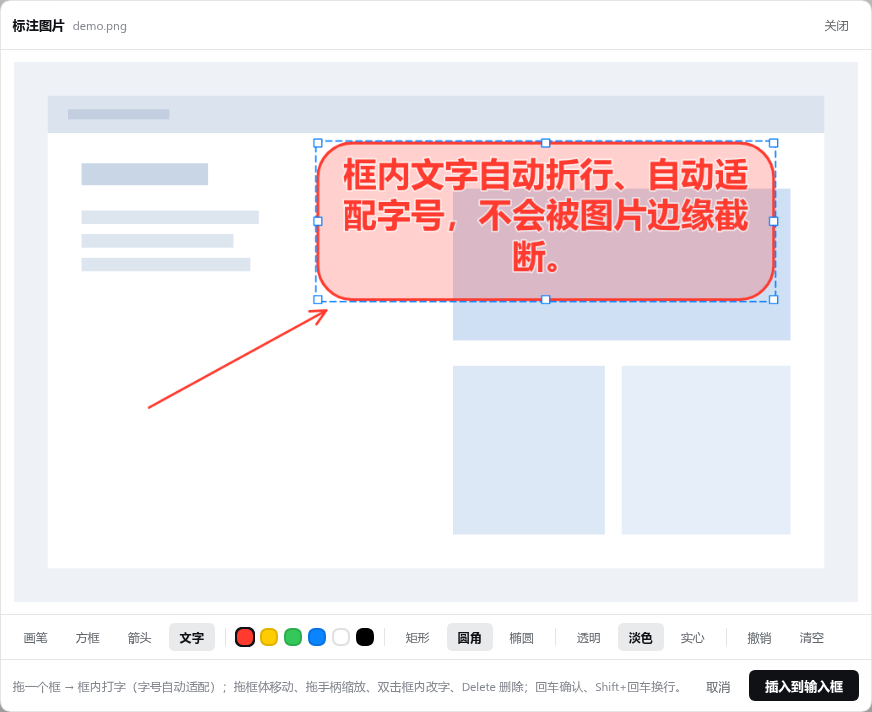
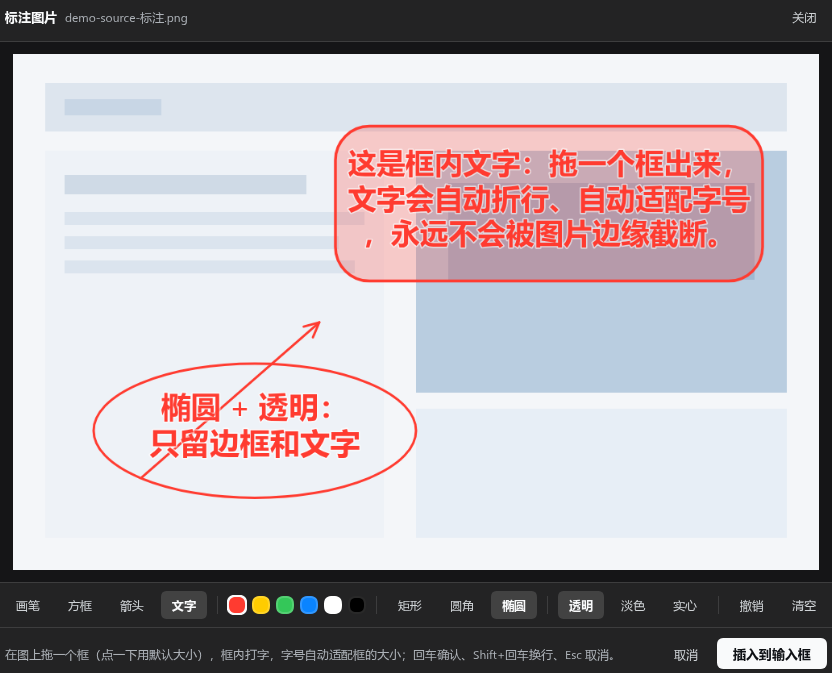
- Text lives in a frame you can move and resize: with the text tool, drag a frame (a plain click gives one at a default size) and type inside it. Lines wrap to the frame and the font size is solved for it, so a long paragraph shrinks instead of running off the image — nothing is ever truncated. Afterwards drag the frame's body to move it, or any of its eight handles to resize it; the text re-fits as you go, and the frame refuses to shrink below what its text needs at the minimum readable size. Double-click inside to change the text, select and press Delete to remove it, Ctrl/Cmd+Z to undo. The frame has a shape (rectangle / rounded / ellipse), uses the current colour, and can be filled (transparent / tinted / solid); transparent keeps only the border and the text. Shift+Enter starts a new line.
- Text frames are separate from the box tool: the box tool still just draws an outline, and text frames are only selectable while the text tool is active, so circling something and labelling it never interfere.
- Six colours (red, yellow, green, blue, white, black) and three widths (thin / medium / thick) stored as a fraction of the image's short side, so they look the same on a phone screenshot and on a 4K capture.
- Undo (button or Ctrl/Cmd+Z), clear, Escape or backdrop press to dismiss.
- Insert as a new attachment: the result is added to the composer as
<name>-<suffix>.png, next to the image it came from. The annotated file is an ordinary attachment — it can be opened and annotated again. - Settings page (Settings → 图片标注) with the plugin's defaults; see below.
- Nothing about the frame is guessed from the image: shape, colour, fill and the solver are the whole text feature.
- Works in light and dark themes, and does not restyle any of DSH's own UI.
Install
Requires DSH 0.1.5-rc.1 or a compatible release (dsh web, profile web); verified on that version.
From GitHub (recommended)
dsh plugin --profile web add github:janewas/dsh-image-annotate
This adds the package to the profile's bundle stack, so the plugin's own cordis.patch.yml mounts it. The bundle list is read at startup, so restart dsh web afterwards, then refresh the page.
From the release tarball (no pnpm, no restart)
Download dsh-image-annotate.tgz from Releases, then:
tar -xzf dsh-image-annotate.tgz
cd package
bash install.sh          # pass a profile name for anything other than web
install.sh is idempotent. It links the directory into ~/.dsh/profiles/web/node_modules/ and appends the mount row to that profile's cordis.patch.yml, backing the file up first. Profile patches apply live, so just refresh the page — no restart. Keep the extracted directory where it is; the profile links to it.
Both routes end in the same mount. The row written by install.sh disables itself automatically if the package is later installed as a bundle, so following both does not double-mount.
Usage
- Add an image to the composer as usual (drag it in, or use the paperclip).
- Click its thumbnail. The annotation dialog opens with the image at full size.
- Draw: pick a tool, a colour and a width; for text, click a spot and type.
- Click 「插入到输入框」 (Insert into composer). The annotated PNG appears at the end of the attachment rail, and the original is still there.
| Tool | Interaction |
|---|---|
| Pen | drag to draw freehand |
| Box | drag from one corner to the other |
| Arrow | drag from tail to head |
| Text | drag a frame, type inside it; Enter confirms (Esc cancels, clicking elsewhere confirms, Shift+Enter adds a line) |
| Move / resize a frame | with the text tool: drag the frame body to move, drag one of the eight handles to resize. The text re-fits live, and the frame stops shrinking when the text would no longer fit at the minimum readable size |
| Edit / delete a frame | double-click inside it to change the text (clearing the text deletes the frame); select it and press Delete. Ctrl/Cmd+Z undoes a move, a resize, a text change or a delete |
Undo and Clear sit in the toolbar (Ctrl/Cmd+Z also undoes). Both stay available while you are typing inside a frame: Undo discards the text you have not committed yet, Clear discards it and wipes the committed annotations; they are greyed out only when there is genuinely nothing to undo or clear. Close with Esc, the 关闭 button, or a press on the backdrop.
Settings
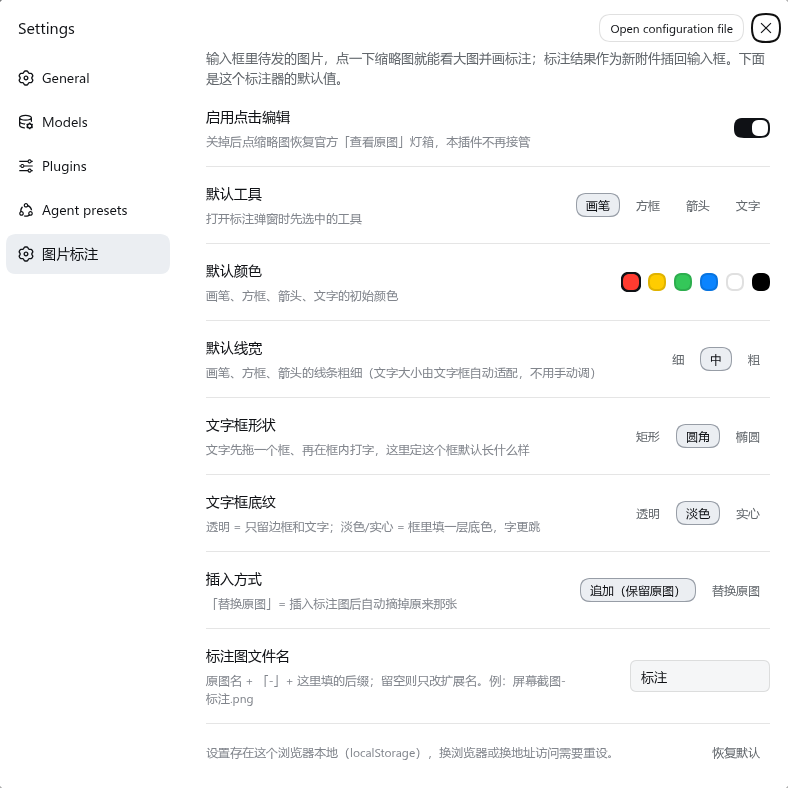
Settings → 图片标注, after the built-in sections.
| Setting | Default | Effect |
|---|---|---|
| 启用点击编辑 (Enable click-to-edit) | on | Master switch. Turned off, clicking a thumbnail opens DSH's original-image lightbox again and the plugin does nothing. |
| 默认工具 (Default tool) | pen | Tool pre-selected when the dialog opens. |
| 默认颜色 (Default colour) | red | Starting colour for pen, box, arrow and text. |
| 默认线宽 (Default width) | medium | Line width for pen, box and arrow. Text size is not set here — the frame decides it. |
| 文字框形状 (Text frame shape) | rounded | Shape of the frame a new text box is drawn with. |
| 文字框底纹 (Text frame fill) | tinted | Transparent keeps only the border and the text; tinted and solid fill the frame so the type stands out. |
| 插入方式 (Insert mode) | append | append keeps the original; replace removes it once the annotated copy is in. |
| 标注图文件名 (Output file name) | 标注 | <name>-<suffix>.png. Leave empty to only change the extension. |
「恢复默认」 resets everything. Settings live in the browser's localStorage under dsh-image-annotate.settings.v1: they apply to that browser and origin only, so a different origin (a LAN or Tailscale address, say) starts from the defaults. The plugin writes no host configuration.
How it works
Two halves, in lib/:
lib/index.js— the host half, deliberately empty. Its only job is to give the loader an entry, sodsh-client-modulesscans the package'sdsh.clientdeclaration and putslib/client.jsin the browser plugin graph.lib/client.js— the browser half; everything else lives here.
Key points for anyone changing it:
- Mount point:
conversation.input.overlay, a session-scoped list slot. Its standard props supplysessionIdandinputActions; the component rendersnulluntil a thumbnail is clicked, and installs one capture-phase click listener. The editor is portalled todocument.body, because the composer card establishes a containing block forposition: fixed. - Hit test: a
clickwhose target is an<img>inside[data-composer-card]and whosesrcequals a draft attachment'spreviewUrl. Pending thumbnails use their own object URL, so the match is exact and never catches a transcript image. A hit callsstopPropagation(), which suppresses DSH's own lightbox for that click only. - Inserting:
conversation.createDrafts(sessionId, [file])registers the file, theninputActions.addAttachments(ids)appends it through the same admission path the paperclip uses; a refusal (a submission in flight) rolls back and reports inside the dialog. - Canvas: a base canvas holds the image at its natural size and is painted once; an overlay canvas holds the annotations and is repainted whole. Shapes are stored in image pixels with width/size as a short-side fraction, and exporting composites both onto one canvas for
toBlob('image/png'). Display size is CSS only, so the exported bitmap is always the original resolution. - Text: dragging with the text tool draws a frame; a
<textarea>is then laid over it, styled to match the committed result. Line breaking and the font size come from one solver shared by the preview and the export:fitTextInBoxwraps the text token by token (CJK characters break anywhere, Latin stays whole and is hard-split only if a single word cannot fit) and binary-searches the largest size whose wrapped lines still fit inside the frame — if even the minimum size cannot fit, the frame grows taller instead of clipping. Enter/blur commits{type:'textbox', x, y, w, h, text, color, shape, fill}; the frame is filled and stroked, and the text is centred inside with a contrasting colour over a solid fill and an outline over anything lighter. - Settings: registered into
settings.sectionand stored with a smalllocalStorage+useSyncExternalStorestore that the dialog reads each time it opens. - No dependencies: the browser half requires only the platform seed modules (
react,react-dom); the host half imports nothing.dsh.client.injectis therefore empty and there is no load-order constraint.
Known limitations
- Pending composer images only. A transcript image still opens DSH's lightbox.
- Export is always PNG: animated GIFs lose their animation, and very large images (tens of megapixels) use a lot of memory.
- Very long text in a small frame becomes small; if it still cannot fit at the minimum readable size the frame grows downwards rather than clipping.
- No crop or rotate.
- One image at a time.
Uninstall
Remove the mount row (id: image-annotate for the bundle route, id: image-annotate-manual for install.sh) from ~/.dsh/profiles/web/cordis.patch.yml, drop the node_modules/dsh-image-annotate link if install.sh created one, and refresh the page. For dsh plugin installs, run dsh plugin --profile web remove dsh-image-annotate and restart.
License
MIT
No comments yet. Be the first to write one.