
DSH Notch Pet
Your DSH agent, living at the top of the screen.
On macOS it tucks into the MacBook notch. On Windows it floats at the top
center of the primary display. Either way it shows the current session, the
exact step the agent is on, and how far the turn has come — without opening a
window.



DSH Notch Pet shows the session title and the live step line that DSH shows in the chat. Hover and it unfolds into a compact status card with elapsed turn time, task or goal progress, the session's token usage, the active-agent count, the model, and one-click access back to DSH.
Jump to: Screenshots · Highlights · Install · Controls · Settings · Architecture · Troubleshooting · License
What it looks like

macOS, collapsed: the title and live step sit beside the notch, with a progress hairline underneath. It never adds height to the strip.
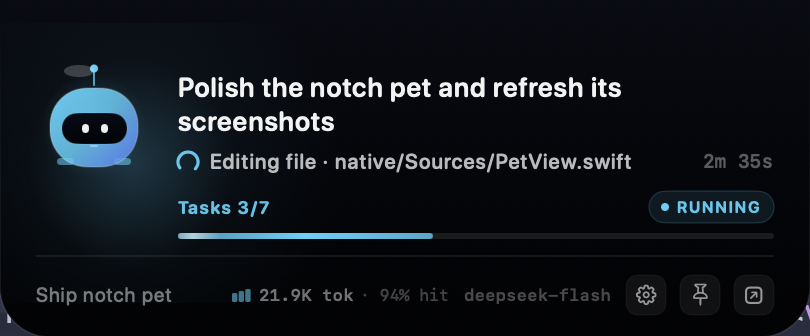
macOS, expanded: up to two title lines, live step, elapsed time, Tasks 3/7,
active agents, the session's token usage and cache hit, the goal, the model, and
the controls.
Highlights
- Live, not decorative. The line under the title mirrors the step DSH shows
below the assistant message: a changing reasoning preview while the model
thinks,
Editing file · native/Sources/PetView.swiftwhile a tool runs, and elapsed turn time on the right. It deliberately avoids the finished assistant reply. - Progress without invented percentages. It uses
todo_writecompletion when DSH has tasks, and falls back to goal rounds when it does not. With no countable unit, the bar shimmers indeterminately while the agent works, then freezes or disappears when it stops. - The session's bill, not a guess. The expanded footer reads the same
provider-reported
tokenUsageprojection as DSH's own Usage pill: cumulative billed input plus output, with the cache-hit share beside it. No estimator and no extra model calls. - Gets out of the way. Turn on Only while working and the panel is ordered out entirely whenever no task is running. A pawprint takes its place in the menu bar or system tray; on macOS a second switch hides that too. Pinning overrides it. Prefer a quieter top edge? Hide pet drops the animated mascot and its glow while keeping the session title, live step, progress, and token readout.
- Six accents, honest status colors. Glacier (the default cyan), Aurora, Iris, Sakura, Tangerine, and Mint, plus a custom hue/saturation/brightness picker. Waiting stays amber, errors stay red, and completed turns stay mint.
- At home on both platforms. macOS uses a nonactivating AppKit/SwiftUI panel with no Dock icon; Windows uses a nonactivating WPF window with no taskbar button, per-monitor DPI scaling, Reduce Motion support, and the same 60 fps progress animation. Neither steals focus.
- Bilingual without a restart. The interface follows the macOS or Windows display language by default and falls back to English for every other locale. Settings → Language switches between Follow system, English, and 中文, and the panel, menu, and settings update immediately.
- Local by design. The host talks to the panel over a private Unix socket on macOS and a per-user named pipe on Windows. No telemetry, no network calls, no account.
Requirements
- macOS 14 Sonoma or newer, or Windows 10 (1809 or newer) / Windows 11 with .NET Framework 4.8. Current Windows 10 and Windows 11 releases include 4.8; Windows Update can install it if a machine is missing it.
- DSH Desktop, or a DSH host running inside a macOS or Windows GUI session.
- The bundled helpers are prebuilt: an ad-hoc-signed universal binary for macOS and a .NET Framework executable for Windows. Nothing is compiled on install.
- Xcode Command Line Tools only if you rebuild the macOS helper; PowerShell and the in-box .NET Framework compiler only if you rebuild the Windows helper.
A notched MacBook is not required: on other Macs the panel floats at the top center of the main display with rounded top corners. Windows PCs have no hardware notch, so they always use that rounded-top presentation.
Install
- Open Plugins in DSH and click Add plugin
- Paste this plugin name
dsh-notch-petinto the dialog: - Confirm. DSH fetches the bundle and installs it for you.
Prefer the terminal? The same bundle installs from a public repository with:
dsh plugin --profile web add github:hyzmm/dsh-notch-pet
web is the DSH Desktop profile; keep the profile you actually run.
The pet appears at the top of the display a moment later. If it does not, make sure the plugin is enabled in Plugins, disable and re-enable it, or restart DSH.
The Windows helper is an unsigned, locally built .exe. DSH launches it
directly, so no installer or background service is involved. When the plugin is
disabled or DSH quits, the helper stops with it.
Controls
| Input | Result |
|---|---|
| Hover the panel | Expands, and stays open while the pointer is inside. |
| Click the robot | Pins or unpins the panel. A pinned panel ignores hover-out and Only while working. |
| Gear in the footer | Opens settings. |
| Pin / Open DSH in the footer | Pin the panel, or return to DSH — the desktop app, falling back to the web origin. |
| Right-click the panel | Open DSH, pin or unpin, open settings, or quit. |
| Pawprint in the menu bar / system tray | Appears while the panel is hidden: Settings, Open DSH, the Only while working and Hide pet switches, and Quit. |
| Launch | Peeks open for about three seconds, then settles back to the collapsed strip. |
| Click an accent, toggle, or drag the picker | Applies immediately and is remembered for the next launch. |
What the pet shows
Which session?
The panel focuses one session: a running root session when there is one, preferring the most recently active. If only subagents are running, the most recent subagent takes the spotlight. Running subagents count toward the active-agent total.
The title is DSH's own session title, so an auto-generated or user-renamed title wins. The first prompt is a fallback, then the workspace folder name.
The live line
The narrow line mirrors the live step, not the final answer. While the model is
thinking it is Thinking · <latest reasoning>, built from reasoning deltas and
trimmed to a sentence-aligned preview that keeps changing. While a tool runs it
is Editing file · native/Sources/PetView.swift, Running command · Build the native app, and so on. The elapsed time on the right is the current turn's
duration.
The collapsed strip has room for two compact lines under the top edge, so it shows the session title plus the live step. The new information uses the empty width beside the panel instead of adding height.
Progress
With a todo_write list, the bar tracks Tasks 3/7. Without tasks but with a
goal that has rounds, it tracks Goal 2/6 rounds. Without either, it becomes an
indeterminate band while the agent is busy. When the agent is idle, the
indeterminate band is hidden and any determinate bar is frozen, so the panel
does not keep flashing.
Token usage
The expanded footer shows the focused session's cumulative provider-reported
tokens — the same tokenUsage projection behind DSH's own Usage pill — as
21.9K tok · 94% hit. The total is billed input (uncached, cache read, and cache
write) plus output; hit is the cache-read share of prompt-side input, and a
partial hit never rounds up to 100%. Hover the readout for the exact breakdown.
If dsh-token-meter is not mounted, the host falls back to folding each
assistant/message usage record.
The expanded panel also shows the goal objective, the last error, or a short status hint in the footer. The step text itself does not move; the loading arc and the progress shimmer animate while the agent works.
Settings
The gear opens the same settings popover on both platforms:
- Accent color — six presets and a custom HSB field. The choice is stored under the user's profile and restored on the next launch.
- Language — Follow system (the default), English, or 中文. With Follow system selected, Chinese Windows/macOS displays Chinese and any other system language displays English. The choice is saved and applied immediately; no helper restart is needed.
- Only while working — hide the panel when no task is running. The pawprint appears in the menu bar or system tray instead.
- Hide pet — keep the task details but hide the animated mascot and its glow.
- Hide menu bar icon (macOS) — suppress the pawprint too. Starting any task still brings the panel back, so it is never permanently lost. Windows always keeps the notification-area pawprint while the panel is hidden.
On Windows the pawprint is a notification-area icon; on macOS it is a menu-bar status item. Both open the same menu.
Architecture
DSH host (Cordis plugin, index.js)
  │  normalizes agent/status, tool/call, todo_write, usage, turn and goal events
  │
  ├── macOS:  private Unix socket (~/Library/Application Support/DSHNotchPet)
  │           └── native/DSHNotchPet.app  (Swift · AppKit · SwiftUI)
  │
  └── Windows: per-user named pipe (\\.\pipe\dsh-notch-pet-<pid>)
              └── native/windows/bin/DSHNotchPet.exe  (C# · WPF)
                  and a user-local snapshot fallback in
                  %LOCALAPPDATA%\DSHNotchPet\state-<pid>.json
The host half is shared and platform-neutral above the transport layer. It builds a single snapshot from DSH's own services and events, so the two helpers render the same data model. The Windows helper is a native WPF overlay compiled against .NET Framework 4.8; it does not require Electron, a browser, or a developer SDK at install time. It is nonactivating, has no taskbar button, sits above normal windows, and uses per-monitor DPI scaling.
Rebuilding the Windows helper
From a normal PowerShell on Windows:
powershell -ExecutionPolicy Bypass -File native/windows/build.ps1
The script uses the in-box .NET Framework csc.exe and writes
native/windows/bin/DSHNotchPet.exe. It needs no Visual Studio installation.
The source is under native/windows/src.
Privacy
Everything stays on your computer. On macOS the host writes the current state to
a per-process Unix socket (0600) under
~/Library/Application Support/DSHNotchPet/, and the panel reads it. On Windows
the state goes to a per-user named pipe and, when no pipe client is attached, to
a user-local snapshot under %LOCALAPPDATA%\DSHNotchPet\. The plugin makes no network
calls, collects no telemetry, and needs no account. The Windows fallback exists
for managed environments that deny named-pipe clients; it never leaves the
user's profile.
Logs are local too:
- macOS:
~/Library/Logs/DSHNotchPet.logandDSHNotchPet-host.log - Windows:
%LOCALAPPDATA%\DSHNotchPet\logs\DSHNotchPet.logandDSHNotchPet-host.log
Troubleshooting
- Nothing appears. Make sure the plugin is enabled in Plugins, then disable and re-enable it. The helper is launched by DSH; there is no app to open.
- Only while working is on and no task is running. Look for the pawprint in the system tray (Windows) or menu bar (macOS); it always appears on Windows. On macOS, if Hide menu bar icon is also on, start any DSH task and the panel will return.
- On Windows, Open DSH opens a browser instead of the desktop app. The
button follows the host that serves the session. A session hosted by DSH
Desktop raises the Desktop window instead — restoring it from the tray or from
behind other windows — and only starts the application again when every window
is gone. A session served by
dsh webin a terminal has no window, so the browser is the right destination. - The Windows panel does not appear. Check
%LOCALAPPDATA%\DSHNotchPet\logs\DSHNotchPet-host.logandDSHNotchPet.log. Confirm .NET Framework 4.8 is installed. If you are developing the helper, rebuild it withnative/windows/build.ps1. - The macOS panel does not appear. Rebuild with
native/build.shif you changed the Swift sources; otherwise check the logs above. - Need to debug the transport. Set
DSH_NOTCH_PET_DISABLE_OVERLAY=1before starting DSH to skip the native overlay, then inspectcurrent.jsonand the host log.
Limits
- macOS 14+ or Windows 10/11 only; the host half is a no-op elsewhere.
- On Windows the panel lives on the primary display. It does not follow the DSH window to another monitor and is not mirrored to every virtual desktop.
- Windows has no hardware notch, so the panel always uses rounded top corners and a small top gap, the same treatment macOS uses on non-notched Macs.
- One focus session at a time. Subagents contribute to the active count, but the panel does not show a session list.
- Live state only: no history, no transcript, and no controls for the agent. The pet is a viewer, not a controller.
License
MIT © 2026 WengXiang. See LICENSE.
Built with AppKit, SwiftUI, WPF, a Unix socket, and a named pipe.
No comments yet. Be the first to write one.