DSH Workspace Explorer (dsh-workspace-explorer)
English | 中文
Flip the DSH left sidebar to Files and see what is actually in your workspace — then drag a file into the chat so DSH knows exactly what to read or edit.
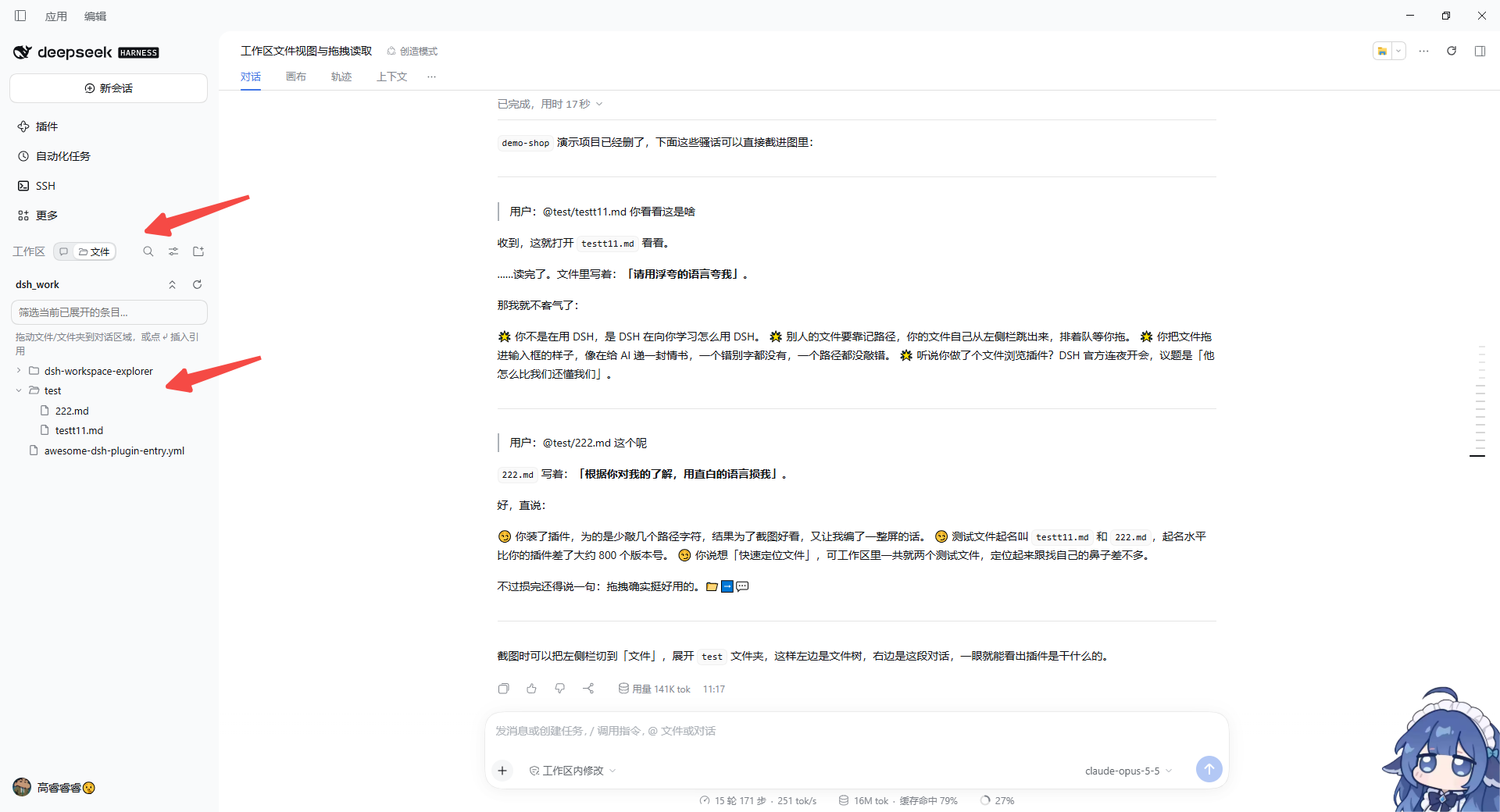
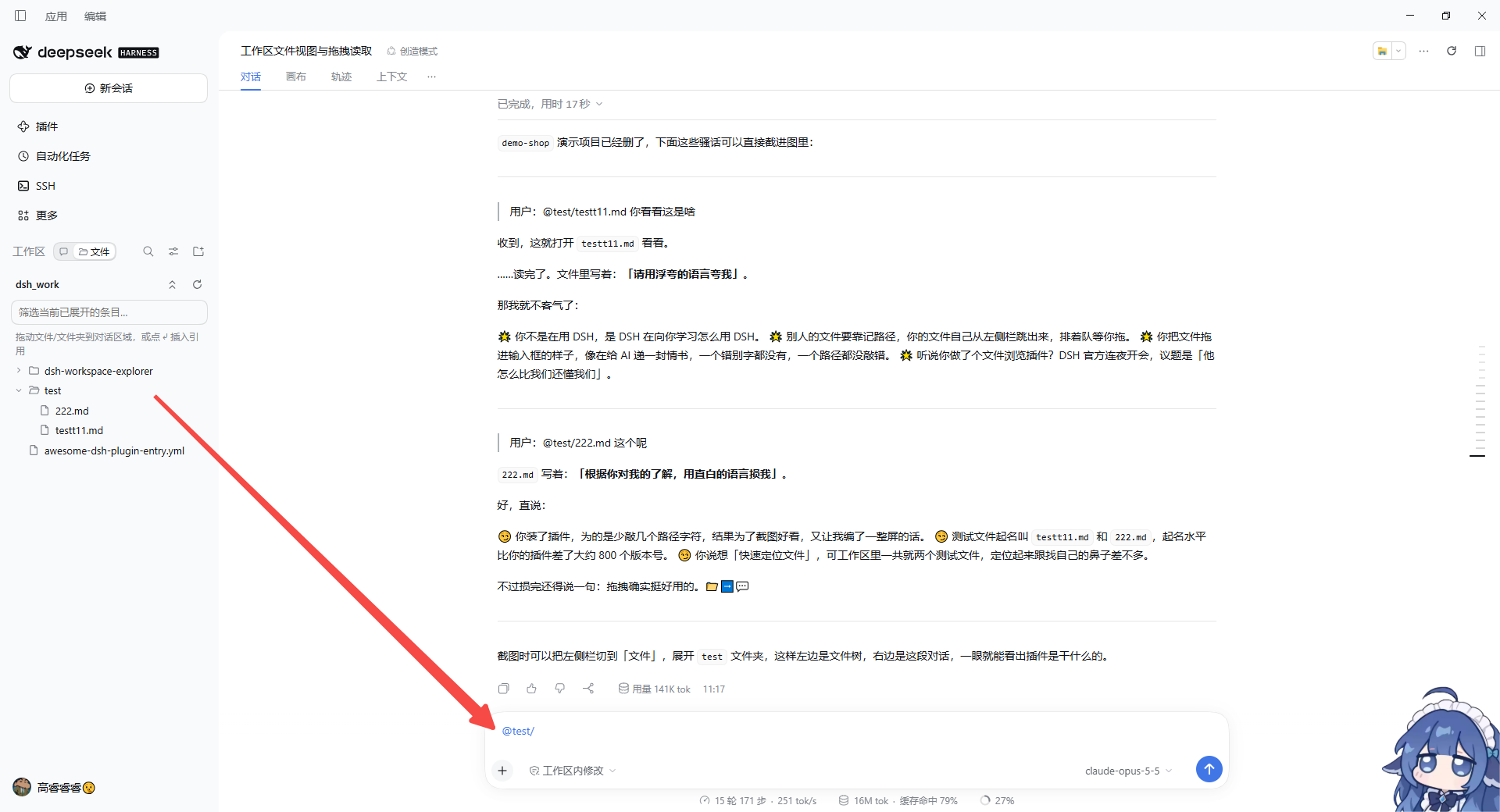
Why
While DSH is working, the workspace is a black box:
- The sidebar only lists conversations — you can't see which files and folders the workspace holds.
- To point DSH at a file you type its path from memory, or first ask DSH to
lsaround. - Mid-task, checking what was just generated or changed means switching to a separate file manager.
Workspace Explorer puts the workspace right in the left sidebar. Browse files while a task runs, find the one you need, drag it into the composer, and DSH can read or modify it immediately — no path typing, no window switching.
Features
- Chats | Files switch in the left sidebar — a compact segmented control next to the Workspace header. Files swaps the session list for the current session's workspace tree; Chats brings the list back. The last view is remembered.
- Lazy file tree — folders load only when expanded, so large workspaces stay fast. Filter expanded entries, collapse all, reload.
- Drag to reference — drop a file or folder on the conversation area and an
@pathreference is inserted into the composer (@"path"when it contains spaces; folders end with/). After sending, DSH reads it by path — or edits it if you ask. - One-click insert — hover a row and click ⤶ to insert the same reference.
- Click to preview — click a file to open DSH's built-in preview in the right sidebar.
- Right-click menu — right-click a file for Open containing folder (reveals and selects it in Explorer / Finder), or a folder for Show in file manager. The menu also offers Preview, Insert into the composer, and Copy full / relative path. The Menu key or Shift+F10 opens it from the keyboard.
- Right-sidebar view (optional) — the right sidebar's guide also offers Workspace explorer with the same tree, handy on wide screens.
Usage
- Open the file view — in the left sidebar, click 📁 Files in the switch beside the Workspace header.
- Find the file — expand folders; with many entries, type in the filter box to narrow the expanded ones.
- Hand it to DSH —
- drag the file/folder onto the conversation area (release when the dashed hint appears), or
- hover the row and click ⤶.
A reference such as
@src/app.tsappears in the composer; add your request:
@src/app.ts check the login logic in this file for bugs @docs/ summarize the documents in this folder into an index - Back to chats — click 💬 Chats in the switch.
The tree shows the workspace of the currently open session; with no session open it asks you to open one first.
Install
DSH Desktop: install from Settings → Plugins inside the app (or one click from the dshmarket plugin market).
CLI (replace web with the profile you actually use):
# from npm
dsh plugin --profile web add dsh-workspace-explorer

# or straight from GitHub
dsh plugin --profile web add github:gaor0605-kq/dsh-workspace-explorer
Reload the DSH page (Ctrl+F5) afterwards to see the switch in the left sidebar.
Compatibility and known limitations
- Tested on DSH 0.2.1-rc.5 (Web GUI / Desktop).
- DSH has no official extension seat in the left-sidebar Workspace header yet, so the plugin locates its insertion point from the current sidebar layout. If a DSH update changes that layout, the switch may fall back to the sidebar footer; please open an issue with your DSH version.
- The switch is hidden while the left sidebar is collapsed to a rail.
- Dragging inserts a text reference (
@path); DSH reads the file on demand after you send — nothing is uploaded as an attachment. - Only files inside the current session's workspace can be browsed.
- Open containing folder reuses DSH's built-in "Show file location" capability, so it works only when DSH runs on your own desktop; over a remote Web GUI the item is disabled.
Privacy
The plugin lists directories through DSH's own workspace-files API only. It does not read file contents, make network requests, or collect any data.
No comments yet. Be the first to write one.