dsh-composer-plus — Composer Plus for DeepSeek Harness


English · 中文 · Türkçe · Español · Português (Brasil) · Français · Deutsch · Русский · 日本語 · 한국어 · Bahasa Indonesia · Tiếng Việt · हिन्दी
Codex-style quality-of-life features for the DeepSeek Harness (dsh) desktop and web UI: a Changes panel, swipe-card feature ideas, sidebar search in message text, turn rollback with file restore, chat deletion to the Trash, the project name under the composer, project status in the sidebar, input history, a plan-mode shortcut, one-click Continue, resume running chats after a restart, queue drag-and-drop, session deeplinks, chat export as Markdown, per-chat Auto Review grants, background notifications, iPhone access with the Tether app and automatic updates.
In one line: a single DeepSeek Harness plugin (npm dsh-composer-plus, shown as Composer Plus in Settings → Plugins) that adds a git Changes panel, Tinder-style feature idea cards, sidebar search that also finds words in messages, ↶ turn rollback (chat only, or chat and files), Delete chat, the project name under the composer, ↑/↓ input history, a Shift+Tab /plan toggle, one-click ▶ Continue, Resume after restart, drag-and-drop queue reordering, Copy session link, Export as Markdown, Auto Review “Allow for this chat”, background notifications, iPhone access (Mobile connect, Tether app), 11 extra interface languages and automatic updates.
Unofficial community plugin. The update check (GitHub releases and the npm registry) makes network calls; switch off Automatic updates to stop them at startup. Turkish skill pack (on by default) downloads the turkish-anti-ai-skill from GitHub and checks it for a newer version once a day, only while Application language is Türkçe; switch it off in Settings → Composer Plus to stop these calls. Feature ideas calls your chat's own model only when you click Suggest features. Next message prediction (on by default) calls the model chosen in Settings (dsh's default unless you pick another) once after each finished turn, without a click. Switch it off in Settings → Composer Plus to stop these calls. Complete while typing (off by default) calls its chosen model (by default the prediction's) at each pause while you type, after you switch it on. Improve prompt calls a model only when you click its magic wand. Task board calls the new chat's model once for the tags of each task that you start on the board. With its AI summary setting (the default is Fast (no AI)), it also calls a running chat's model for a short progress note while you look at that task's progress on the board or in Tether. Goal check (on by default) calls a model once each time the agent marks a /goal complete in an automatic round. Mobile connect (off by default) accepts iPhone connections from your local network or tailnet only after you switch it on.
Install
Desktop app: Settings → Plugins → Add plugin → enter dsh-composer-plus → Enable now.
You can also paste https://github.com/furkancak1r/dsh-composer-plus instead of the npm name.
Web / CLI profile:
dsh plugin --profile web add dsh-composer-plus
Then restart dsh. (The CLI can't install into the desktop profile; the app manages it.)
dsh's pnpm skips versions younger than 24 hours. Right after a release, add the version:
dsh-composer-plus@1.24.1.
Features
| Feature | How to use it | Screenshot |
|---|---|---|
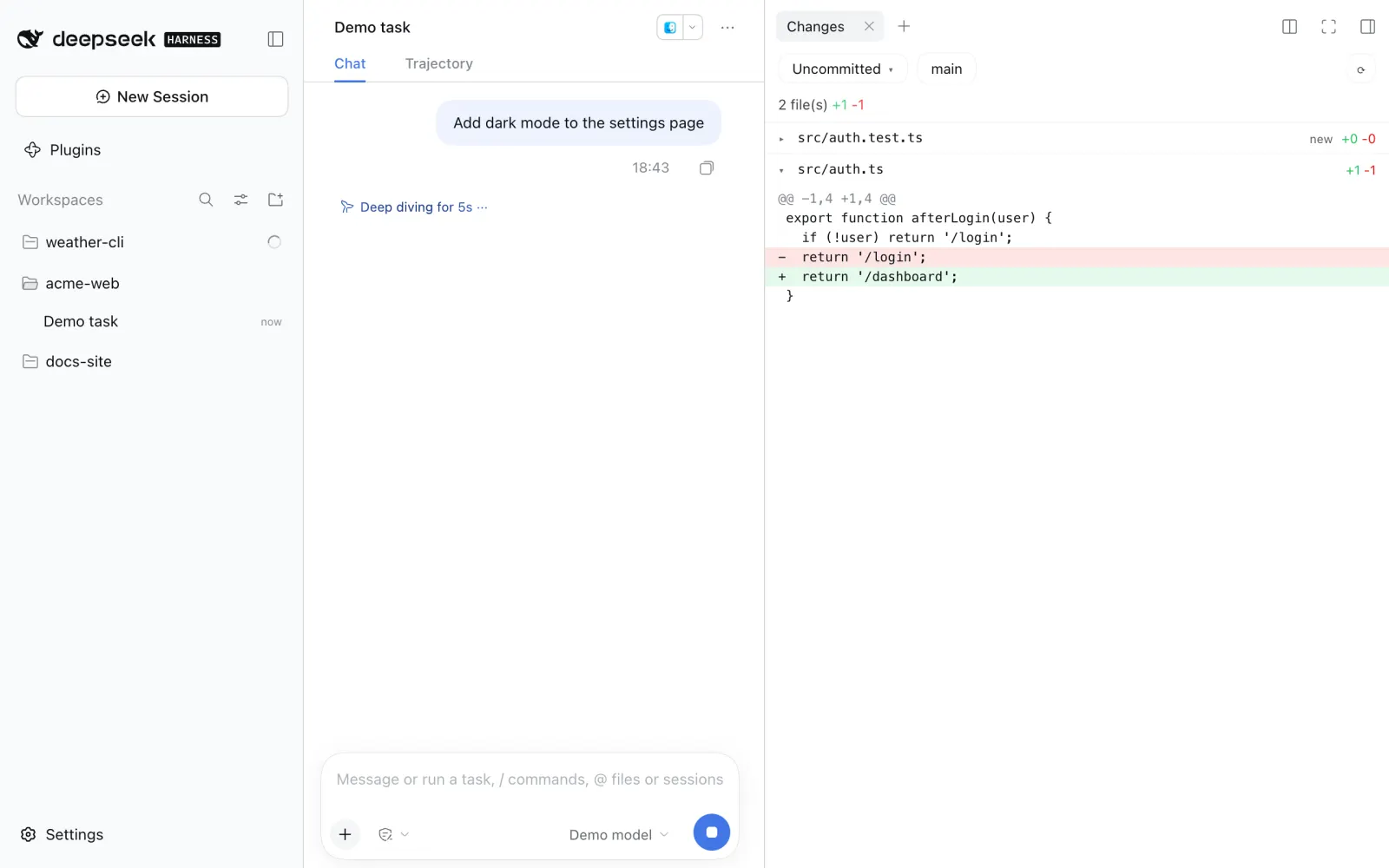
| Changes panel | Right sidebar → + → Changes. The page opens on Tree: a branch map of the chat's repository. Three cards count the branches: all of them, the merged ones and the ones that wait to merge. Click a card to show only those branches; click it again to show all. Each branch is a box with its last commit: green when the main branch has its work, orange when not, blue for the main branch. An arrow goes from each branch to the branch that took it (✅ Merged) or to the branch that it started from (⏳ Waiting, dashed). Click a box to see the branch's commits, then click a commit to see its files and their diffs. Click Merged to see the files of the merge commit, or Waiting to see the files that the branch brings into its target. A remote branch shows only when no local branch has the same name. In the mode menu, pick Uncommitted, Unstaged, Staged or Branch to see changed files with +/- counts; click a file for its diff. Last Turn opens dsh's own review of the latest turn. This chat lists only the files that the open chat's file tools (write, edit) wrote, in all its turns, and their total diff since its first message. The ␣ button hides whitespace changes (git diff -w): lines that changed only in indentation or line endings do not show. A file's … menu → Chats that changed this file lists the chats of the same repository whose write or edit tools changed that file, newest first, with the request that did it; a click opens that chat at that request. |
 |
| Feature ideas | Right sidebar → + → Feature ideas → Suggest features. The chat's own model reads a short summary of the chat's project (top-level files, the README and manifest heads, an outline of the rest of the README, the titles of recent commits) and suggests up to 8 features, shown as a stack of cards in dsh's UI language. Swipe a card right (or click ✓, or press →; the card flies off to its side in each case) to start a new chat in the same project: it starts in plan mode with the idea as the request, so nothing changes before you approve the plan. To skip the plan, click ▶ Build now (or press ↑; the card flies up): the new chat starts at once with the idea as an ordinary request, and the model makes the change and runs its checks (approvals apply as usual). Swipe left (or ✕, or ←) to skip; Undo (or Z) brings a skipped card back. Click ↓ (or press ↓) to save a good idea for later: it goes to the project's Later list, which every chat in the same project folder shows (also after a restart). Later (N) opens the list; Plan starts the same plan-mode chat for the idea and Build now the chat without a plan, both take it off the list; Plan all (N) starts one plan-mode chat for every idea in the list, so shared parts are planned once; Remove from the list deletes it. Copy as checklist copies the whole list to the clipboard as a Markdown checklist (- [ ] Title — Summary, one line per idea) for an issue tracker or a TODO file; it makes no network call. Open GitHub issue on an idea opens an issue with its title and summary (and why it matters) in the GitHub repository of the project, with your own GitHub CLI (gh) login; the link Issue #N then shows next to the idea and opens the issue. More ideas adds cards. To get ideas about one area only, type a short focus topic in the field next to Suggest features (at most 80 characters; Enter also suggests), or click one of the fixed topics under it: Performance, Accessibility, Tests, Security, Usability or Documentation (click it again to clear it). The model then suggests only features about that topic; an empty field means any feature. Ideas are not suggested twice in a project: every suggested idea (skipped, saved or started) goes to the project's History, the model is told not to suggest those again, and a repeated title is dropped. History lists them with Started or Suggested; Forget (or Forget all) lets one come again; an idea that is still in the Later list stays out of the suggestions until you remove it there. The model runs only when you click. |
 |
| Content search | dsh's own sidebar search (the magnifier next to Workspaces; Cmd+K in the desktop app, Cmd+Alt+K in a browser) also finds chats by the words in your messages and in the replies, not only by title, and shows the matching text under the chat. dsh already has this search, but ships it switched off; this feature switches it on with a search index file on your computer. The index is made at the first search after a start (about 15 s for 250 chats, see Limits) and is kept for the next starts. On by default; a change applies after you restart dsh. |
 |
| Turn rollback | Hover one of your messages and click ↶ (next to Copy). Chat only takes that message and everything after it (replies, tool calls) out of the chat and out of the model's context, and puts the message back in the composer: change it and send it again. Chat and files first lists the project files that changed since that message, then also puts them back as they were, including changes made by commands (bash), not only by dsh's edit tools. A running turn stops first. The chat log is never rewritten: one hidden marker hides the withdrawn part, the same way dsh's own /compact hides old messages. When dsh-rewind-plugin is installed, it does this job and Composer Plus shows no second button. After a rollback, a Redo bar shows above the composer: it starts a new chat from just before the rollback (the same messages and context) and, with Chat and files, puts the files back; a file that you changed after the rollback is listed and kept, unless you tick the box that overwrites it. |
 |
| Delete chat | Sidebar → a chat's … menu (or right-click) → Delete… → Delete. dsh itself can only archive. The chat stops (its turn, jobs, subagents and schedules, like dsh's own archive) and its saved history, with its subagent chats, moves to the macOS Trash (on other systems: $DSH_HOME/trash). To get it back, put the folder back and restart dsh: it shows in the sidebar's Archived only view. |
 |
| Project name in the composer | The row under the composer (turns, tokens, cache hit, context) starts with the chat's project name, so you always see which project a chat works in. It is dsh's own project title, or the folder name when the project has no title. Hover it to see the full folder path. Click it to find the chat in the sidebar, in the list or project view: the sidebar and the project open (also a collapsed project and its Show N more sessions), the list scrolls to the chat and the chat blinks for 5 seconds. |  |
| Input history | In an empty composer, press ↑ / ↓ to walk through messages you sent, like a terminal. |
 |
| Shift+Tab plan mode | Shift+Tab adds /plan to the start of the draft (press again to remove it). If the chat is already in plan mode, Shift+Tab leaves it. |
 |
| Keep composer focus | After you send a / command or skill, the cursor stays in the composer, and you can type again at once. This also works for keyboard macros that type a command and press Enter. dsh makes the composer read-only while it resolves the command, and the browser then removes the focus. This feature puts the focus back, unless a menu, a dialog or another field has it. |
 |
| Fit question card to window | When the agent asks you a question, the question and its answers scroll together in the card, and Skip and Submit stay in view at the bottom. The card uses the height of the window (less 200 px for the chat header and a strip of the chat), so it grows and shrinks with the window. Without this feature, dsh keeps the card at 60% of the window (at most 520 px) and only the answers scroll: a long question can push its own end, the answers and the buttons out of the card. |  |
| Fit chat header to window | In a narrow window, the buttons in dsh's chat header (the mode, subagents, background jobs, Open in, the branch pill and the grants chip) no longer cover each other. The chat title keeps at least 120 px; the buttons that do not fit move to a second line at the right, and each one stays clickable. When everything fits on one line (a wide window), the header is exactly dsh's. Without this feature, dsh shrinks only the title: with a subagent and background jobs, its buttons slide over each other in a narrow chat column. The branch pill (Branch per chat) and the grants chip (Allow for this chat) also fit the header when this switch is off. |  |
| Remember window size | dsh's desktop app opens its window at 1280 × 820 at each start. With this feature, it opens with the size and place that the window had when you last used it. The size is saved each time you resize or move the window, and it comes back when the plugin loads at the next start. A full-screen or minimized window is not saved; a place on a display that is not connected now comes back on the main display. Only in the desktop app: a browser tab cannot change the size of its window. |  |
| One-click Continue | After a stopped, failed or cut-off turn, an empty composer shows ▶. One click resumes from the existing conversation without writing in the input or adding a visible chat message (the model receives a short hidden “continue from where it stopped” note, because some providers, such as Claude, reject a request that ends on an assistant reply). Messages that wait in the queue stay there: ▶ continues only the stopped task, then the queue runs. A completed turn keeps the regular Send button. |  |
| Resume after restart | Off by default: switch it on in Settings → Composer Plus. If you quit dsh (or it closes) while a chat is working, that chat continues by itself when you open dsh again, with the same hidden note as One-click Continue. If a goal round (/goal) was running, the goal goes on with its next round (dsh pauses goals at every start until you resume them). Chats that you stopped, that finished or that failed do not continue. dsh itself has no setting for this: it only marks such a turn as interrupted. |
 |
| Queue drag-and-drop | Queued messages get a grip (⠿). Drag to reorder, or focus the grip and press ↑ / ↓. Esc cancels. |
 |
| Edit queued message in place | Double-click a queued message, or click its Edit button (Edit queued message). An editor opens in the row: change the text, remove an image or a file with its ✕, or add new ones with the paperclip (Add images or files) or paste an image. Enter saves, Esc cancels, Shift+Enter adds a line. The message keeps its place in the queue, and the images and files that you keep stay as they are. While the editor is open, the queue cannot be reordered. In Tether: queued message menu → Edit. |
 |
| Send after Stop goes first | On by default. Stop a chat while messages wait in its queue, then send a new message: it runs at once, alone. The queued messages keep their order and run after it, one per turn. Without this, dsh adds the new message at the end of the queue and runs the first queued message instead, so the new one runs last. A message that you send while the chat works still waits at the end of the queue. |  |
| Copy session link | Right-click a chat in the sidebar → Copy session link. Paste the dsh-session:… link into another chat to attach that chat as read-only context. dsh 0.2.1 has its own Copy Session ID, which copies only the plain id; this item comes right after it. |
 |
| Copy message link | Hover a message and click 🔗 (in its action row; for an answer, next to the time). The link is the session link plus the message number: dsh-session:…#42. Paste it in a message and send it: on dsh 0.2.1 and later the link shows as a chip, and a click opens that chat, scrolls to the message and highlights it for 2 seconds. Like a session link, it also attaches that chat as read-only context. |
 |
| Export chat as Markdown | Right-click a chat in the sidebar (or open its … menu) → Export as Markdown…. A dialog shows how many messages the chat has; Copy to clipboard copies the chat as Markdown, Save .md file saves it as <chat title>.md through the browser's download (dsh desktop: your Downloads folder or a save dialog, as your system is set). The file has the chat title, the project name and the date, then one ## You or ## Assistant section per message. Code blocks stay as they are; a code block that a message leaves open is closed. |
 |
| Copy project path | Right-click a project in the sidebar → Copy path copies the full path of its folder. |  |
| Project search in a new chat | New chat → the project button above the composer. The projects show in A–Z order, with a Search projects box on top. Type part of a name (case and accents do not matter) and press Enter to pick the first match. No matching project shows when nothing matches. dsh's saved project order in the sidebar does not change. |
 |
| Default workspace for New session | Settings → Composer Plus → Default workspace for New session → Open New session in: choose a project, or General folder (default-workspace) (the default: dsh's own folder Documents/deepseek-harness/default-workspace, made at the first use). Then New session at the top of the sidebar (and its shortcut) always opens there, also while another project's chat is open. The + next to a project still opens that project, and the project button above the composer of the new chat still changes the project. |
 |
| Find in chat | Press Cmd+F on a Mac (Ctrl+F on Windows and Linux) in a chat: a find box opens over it. Type a word: every match in the messages and replies on screen is highlighted, the current one in a stronger color, and the box shows n / total. Enter or ↓ goes to the next match and Shift+Enter or ↑ to the previous one (also the arrow buttons); the chat scrolls the match to the middle. Case, accents and the Turkish dotless ı do not matter. Esc closes the box and puts the cursor back where it was. It follows the chat while a reply streams in. |
 |
| Branch per chat | On the New chat screen, the branch button (branch icon) between the project button and the mode button shows New branch by default. Type the first message and send it. To stay on the current branch, choose “Current branch (main)” in the same button. The first message can carry images and files. In plan mode the new chat starts in plan mode too: send the message as /plan <message> (Shift+Tab), or put the New chat in plan mode first. The AI names the branch (feat/…, fix/…) from that message, Composer Plus makes a git worktree for it in <project>/.worktrees/, copies the ignored files that .worktreeinclude lists (for example .env and node_modules/) and opens a new chat there with your message. The open chat's header shows ⑂ branch · N changes · ↑ ↓ (or not pushed); click it to open Changes. The same menu lists the open worktrees: pick one to start a chat in it. To see the branch folders inside their project in the sidebar, choose dsh's View options → Workspace tree. |
 |
| Branches in the workspace tree | Settings → Composer Plus → Branches in the workspace tree (off by default). Each branch that has a worktree folder in <project>/.worktrees/ then shows as a project inside its project; choose dsh's View options → Workspace Tree to see it nested. A branch whose folder is deleted leaves the list, and dsh shows its chats under Ungrouped. When the agent of a chat in the project folder creates a branch and switches to it (git switch -c, git checkout -b) while the folder has no uncommitted changes, the project folder goes back to its branch, the branch gets its own folder, and the chat moves into it: a copy opens in the branch project and goes on with the task, and the old chat is archived. The list is checked at start, every 30 seconds, after each turn and when you come back to the window. |
 |
| Next message prediction | On by default; switch it off in Settings → Composer Plus. When the agent finishes a turn (not a stopped or failed one), the empty composer shows a guess of your next message in grey, with a Tab to accept hint. Tab puts the text in the composer, but does not send it. Esc hides it for that turn. Typing also hides it, and a new turn replaces it. The Model menu under the switch lists dsh's own models (the same list as dsh's model menu). dsh default is selected by default and follows dsh's default model. Each finished turn costs one short model call. In Tether, the guess shows above the empty composer: tap it to put it in the field. |
 |
| Complete while typing | Off by default; switch it on in Settings → Composer Plus. While you type, grey text right after the cursor shows how your message may go on. Tab adds it to the message, but does not send it. Esc hides it. It suggests only your own next words: never an answer to you, and no made-up error texts or names. When the message looks complete or the model is not sure, nothing shows. Typing the next letters of the grey text keeps it, with no new model call. It has its own Model menu under its switch. Its first entry, Same as Next message prediction, uses the model of Next message prediction (the default); pick another model to use a different one for each feature, for example a faster model for completions. It makes one model call at each pause while you type, so it uses many more tokens than the prediction: pick a fast, low-cost model. It does not run for a slash command, a message with a file chip, or when the cursor is not at the end. In Tether, the rest shows above the field while you type: tap it to add it. |
 |
| Improve prompt | Type a rough request, then click the magic wand (Improve prompt) next to the model menu. One model call rewrites it as a clearer prompt: the goal first, short numbered steps when there are several parts, and the check to run. It reads this chat (rolled-back messages left out), the project's README, AGENTS.md and manifest, the changed files and the files whose names match your words, and keeps your language. It never makes up file names. The new text replaces your draft but is not sent: read it, edit it, then press Enter. Cmd/Ctrl+Z brings your text back in one step, and so does the button (Undo improvement). If you type while it works, your new text stays. Esc or a second click cancels. It has its own Model menu in Settings (default: Same as the chat's model). On a /goal <objective> message it rewrites only the objective, as a completion condition that Goal check can verify: the outputs, the checks that must pass, the evidence to show in the chat, a part that cannot be done marked as unresolved, and a stop when the same blocker stays. The /goal command stays. Not for other slash commands, a /goal control word (clear, pause, resume) or a message with a file chip. In Tether, the wand is next to the field. |
 |
| Goal check | Start a goal with /goal. When the agent marks the goal complete in an automatic round, the goal closes only after two checks. First, the project's test command runs in the chat's folder, under the chat's sandbox mode. The command is your own one or the one found in package.json, Makefile, Cargo.toml, go.mod or pytest. When the agent's own newest step was a passing run of that test, it does not run again. Then one independent model call, with no tools, reads the goal, this chat, git status and the test result. The model answers with an evidence table: each part of the goal is verified, incorrect or unresolved, with the evidence and the fix; the goal closes only when every part is verified. If a check fails, the goal stays active and the agent reads each open part with its evidence and fix, then the next round goes on. A row under the goal bar (Goal check) shows the test, the last result and how many parts were verified (hover it for the table). Edit sets your own test command and a time or token limit; over the limit the goal becomes blocked. The token limit also counts the chat's subagents. Run now runs the check without closing the goal. It has its own Model menu in Settings (default: Same as the chat's model). When you complete the goal yourself, nothing is checked. |
 |
| Continue in a new chat | Right-click a chat in the sidebar (or open its … menu) → Continue in a new chat…. One call to the chat's own model writes a handoff note from the chat: Task, Outputs, Completed, Decisions, Open issues and Next action, from what the chat shows (tool calls and results are the evidence; steps that you rolled back are left out). The note opens in a dialog: read it and edit it. Write again writes a new note. Start new chat (or Cmd/Ctrl+Enter) opens a new chat in the same project with the note and a link to the old chat as its first message; the old chat stays as it is. Use it when a long chat is full or slow, or to continue tomorrow. Nothing is written to the project. |
 |
| Context breakdown | Right sidebar → + → Context. The page shows what fills the open chat's model context now and how much of the context window it uses: the system prompt, project instructions (AGENTS.md), skills, your messages, agent replies and tool calls, tool results (by tool), MCP results (by server), tool definitions, the compact summary and other context notes, each with its tokens and its share. Click a part to see its tools or servers. It reads the chat log only, after /compact and rollbacks, and calls no model; it reads again after each turn and with Refresh. Use it to see why a chat is slow or full, for example a big MCP tool result or many tool definitions. |
 |
| Planned steps | Off by default: switch it on in Settings → Composer Plus. The agent gets the tool plan_next_steps: in the same message as a command, it can plan the next commands with their exact arguments and a condition, for example "run npm test when the build passes". When the result meets the condition, Composer Plus runs the next step itself, without a new model call, so a long chat uses fewer tokens. The step shows in the chat as a short line, "Composer Plus · Planned steps: ran test … without a model call", followed by its tool call and its result. Only bash, read, grep and glob steps; approvals, the sandbox and Protected files apply to each step as usual. The model answers again when a condition fails, when two steps are ready at the same time, after the last step, and when you send a message. The idea comes from HarnessMM (arXiv 2610.32813). |
 |
| Turkish skill pack | Only while Application language is Türkçe (on by default; switch it off in Settings → Composer Plus). Composer Plus downloads the open-source turkish-anti-ai-skill (MIT, by Yüce Zerey) from GitHub and adds it to dsh's skills. Ask the agent to humanize, rewrite or write a Turkish text: dsh loads the skill, and its rules help the agent write natural Turkish without AI patterns. Only the pack's Markdown files are kept; each file must match GitHub's file list, and no script of the pack runs. Once a day the plugin asks GitHub for a newer version and installs it. The row shows the installed version, or why it is not installed. In another language the skill is not installed; switch the language back to Türkçe and it comes back. |  |
| Untangle codebase | On by default; switch it off in Settings → Composer Plus. Adds the skill /untangle-codebase from caldoai/skills (MIT, © 2026 Maze) to dsh's skill list. In a chat, type /untangle-codebase (it shows in the / menu), optionally followed by an area to focus on, for example /untangle-codebase src/api, and send it. The agent first asks whether it should also remove comments that only restate the code and tests that cannot catch a real bug. Then it lists every copy, hidden link, needless link, pass-through wrapper, piece of dead code and one-off special case, plans the fixes from first principles, makes them as a goal, and checks again with subagents until nothing worth fixing is left. Only you can start it: the model does not see it in its skill list, so it costs no tokens in other chats. A skill with the same name in the project or in ~/.dsh/skills comes first. Start it in a chat of Branch per chat and review the result in Changes panel. In Tether: type /untangle-codebase in the message field. |
 |
| Protected files | On by default. The agent's own file tools cannot read or change files that match your patterns: read, read_image and grep on a file are refused for read and write patterns, and write, edit and str_replace_editor for both kinds. The agent reads why and is told to ask you. The defaults are .env*, *.pem and *.key. Settings → Composer Plus → Protected files: add a pattern (for example published/** or config/*.yml), click its kind to switch between read and write and write only, remove it with ✕, or Use the defaults. A pattern without / matches a file name in any folder. This is a guard rail, not a sandbox: a shell command (cat .env), a script or an MCP tool can still reach the file (see Limits). |
 |
| Blocked commands | On by default, with an empty list. The agent's shell commands (bash, pwsh) cannot run a command that matches your rules: a block rule refuses the call (the agent reads why and is told to ask you), an ask first rule shows dsh's approval card, and the command runs only when you allow it. Settings → Composer Plus → Blocked commands: type a rule (for example npm publish, git push --force or ssh *192.168.2.19), click the kind to switch between block and ask first, then Add; click a rule's kind to change it, remove it with ✕. A rule is a command name and words that must come after it in this order; * matches any text. It also finds the command after &&, ;, |, inside $(…), bash -c "…" or eval, and after sudo or env. This is a guard rail, not a sandbox: a variable ($CMD), a script file or another program can still run the command (see Limits). |
 |
| Task board | Left sidebar → Task board, or press Cmd+Shift+K (Ctrl+Shift+K on Windows and Linux) anywhere in dsh. A kanban board of your dsh chats with the live state that the sidebar shows: a chat that waits for your approval, answer or plan review is in Review with an orange dot, a running chat is in Doing, a finished chat that you did not open yet is in Done (green). When you open a chat, its card leaves Done by itself; click Recently finished (N) under the green cards to see the finished chats that you read (the newest 10, then Show N older; open or closed is kept on this device). A chat that finishes while it is open behind the board (a New task) stays green until you open it. Click the project name at the top of the board to open the project list, then pick a project or All projects; a Branch per chat folder counts as its project. The list closes after the pick, with Esc or with a click outside it. Type in Search projects at the top of the list to find a project by its name (case and accents do not matter; Esc empties the box) and press Enter to pick the first match, and click Active in the last 2 hours to show only projects with a chat that waits, runs, finished unseen or changed in the last 2 hours (kept on this device). New task (or n) opens dsh's own new chat in the project that the board shows (with All projects, the project that dsh's New session picks), so you can add files, use commands and pick the model as in any chat. When your first message goes, the board comes back by itself. Until then the chat waits at the top of Doing as New task: click it to write the first message. A project with a chat that waits for you has an orange dot in the project list (the project name at the top has it too while any chat waits). dsh names the chat and the chat's model writes up to 3 tags from that message. Click a card to open its chat. Click an orange card (or its Answer) to answer it on the board; the panel has Open chat for the whole chat: Reject or Allow once, Approve or Request changes for a plan, or the options and your own text for a question. Click × on a finished card to take it off the board, or open Recently finished and click Clear all at the top of Done to take those cards off it: it first shows how many cards of which project go, and unread (green) cards stay. For 8 seconds after, Undo puts the cards back; Removed (N) under Done lists the cards that are off the board, and Put back shows one in Done again. No chat is deleted: the chats stay in dsh's sidebar, the board remembers this after a restart (Tether shows the same board), and a chat that runs again comes back. Point at a card in Doing (or move the keyboard focus to it) to see its progress: how long it runs, the step of its todo list, the tool that runs now and the agent's last line. In Settings → Composer Plus → Task board, Progress on hover picks Fast (no AI) (the default: it reads the chat only) or AI summary (one short call to the chat's model also writes one or two sentences). |
 |
| Assistant | On by default (switch it off in Settings → Composer Plus). Click Assistant in the left sidebar (right under Task board): it opens one lasting chat that you use as your personal assistant, like a ChatGPT or Grok chat. The first click makes the folder ~/Assistant, adds it as the project "Assistant" and starts the chat with the workspace-write permission mode and dsh's default model; each later click opens the same chat (an archived one comes back, a deleted one is made again). Ask it to remind you ("remind me to drink water in 2 minutes"): it uses dsh's scheduled tasks, so the reminder runs the chat at that time, and Tether sends its "Turn finished" notification when Mobile connect is on. Ask it to search the web, or about your other chats: it can list the chats of all projects (running, waiting for you or idle) and read the newest messages of one. It can also send a message to a chat, start a new chat in a project, stop a running chat or archive one: each of these four actions shows dsh's approval card first (also in Tether), and nothing happens until you click Allow once. It has no delete tool. Only this chat has these tools and its short instructions; text that it reads in a web page or another chat counts as data, not as an order. Keep your profile in this project's memory (Project memory, topic "profil") instead of telling it each time. |
 |
| Project memory | Off by default: switch it on in Settings → Composer Plus. Each project folder gets its own memory, which later chats of that project read, as DS Bot keeps one per Bot. After each finished turn, one call to the chat's model reads the new messages (not rolled-back ones) and keeps your lasting preferences, decisions and facts as short notes, and changes or removes old ones. The agent can also save, remove and search notes itself (memory_remember, memory_forget, memory_recall). A note can also be global: every project reads it. A new chat gets the notes in its system prompt; a note saved later shows from the next chat. The files are Markdown under the dsh home (storages/dsh-composer-plus/memory/), never in the project folder. Open memory in the same row shows every saved note, grouped by project (and the global memory), with a filter. Write what to change in your own words (for example "I switched from yarn to pnpm"), then Preview changes: dsh's default model proposes the changes, and only Apply saves them. In Tether: chat title menu → Project memory. |
 |
| Memory version history | On by default while Project memory is on. Before each save of the memory (the agent, the review after a turn, Open memory), a copy of the notes as they were is kept. In Open memory, select a project or Global memory, then History: the versions by date and who changed the memory after each one. Select a version to see what a restore changes as a diff, then Restore. The notes before a restore are kept too, so you can undo it. The newest 50 versions of each memory stay. In Tether: chat title menu → Project memory → History. |  |
| Export memory to AGENTS.md | In Open memory, select a project, then Export to AGENTS.md: the notes of that project go into a marked section of AGENTS.md in its folder, so you can commit them and share them with your team and other agent tools. You see the change as a diff first; only Write AGENTS.md saves it. The next export replaces only that section. The global memory, sources and dates stay out. In Tether: chat title menu → Project memory → Export to AGENTS.md. |
 |
| Memory note source link | In Open memory, a note that came from a chat (the agent saved it, the review after a turn kept it, or you accepted a suggestion) has Source next to it: a click opens that chat at the message, so you can check why the note is there before you change or remove it. A note from an earlier version opens only its chat. In Tether: chat title menu → Project memory → Source. |  |
| Copy memory to another project | In Open memory, select a project or Global memory, then Copy to project: tick the notes, search dsh's projects and click one. All the ticked notes go into that project's memory (with their topic and source), or none: when one does not fit, nothing is copied and the reason shows. A note the project already has is skipped. In Tether: chat title menu → Project memory → Copy to project. |  |
| Find stale memory notes | When you select a project in Open memory, the file paths (in code), npm scripts and branch names that its notes name are checked against the project now. A note that names something the project does not have any more shows ⚠ with what is missing, so you can fix or remove it before the model works from it. It reads only regular files inside the project folder and one git list of branches; it changes nothing and calls no model. In Tether: chat title menu → Project memory. |
 |
| Do not use memory in this chat | While Project memory is on, the chat header shows Memory on: click it to switch the memory off for that chat only (Memory off). That chat's model then gets no memory section and no memory tools, and the review after each turn does not read it. On dsh 0.2.1 and later the same button is on the New chat screen, so a test chat starts without the memory. Other chats are not changed. In Tether: chat title menu → Use project memory. |  |
| Suggest memory notes from a chat | While Project memory is on, the chat header has Suggest for memory: a click asks the chat's own model which rules and decisions of this chat are worth keeping for later chats. Each suggestion shows why; Accept saves it with a link to the chat and the message it came from, Reject drops it. Nothing is saved before you accept, and the model is called only when you click. Messages withdrawn by a rollback are not sent. In Tether: chat title menu → Suggest for memory. |  |
| Allow for this chat | When Auto Review asks you, the approval card gets Allow for this chat: the same tool in the same chat is allowed from then on, with any arguments, until the time limit ends (1 hour by default; choose it under Settings → Composer Plus → Allow for this chat). Then the agent asks again. A header chip lists the grants with their end time and revokes them. Grants survive a restart. |  |
| Reject with note | An approval card gets Reject with note… next to Reject. Click it, write why, or what to do instead, and click Reject (or press Enter; Shift+Enter adds a line, Esc closes the field). The note goes to the agent first, as a message into the waiting turn, then the request is rejected: the model reads the rejection and your note in the same turn, without one more message from you. If the note cannot be sent, nothing is rejected and the field stays. In Tether: approval sheet → Reject with note. |
 |
| Secret input | The agent gets the tool request_secret. When it needs a password, a token or an API key, it asks with it instead of in the chat: a card shows on the tool's row with the label, why it needs the value, a password field, Save and Decline. Save writes the value to a file on this Mac that only you can read, and the agent gets only the file's path, which it uses as input in a command (for example "$(cat <path>)"). When a later tool result shows the value, [secret] replaces it before the model sees it. The file is deleted when the turn ends. Decline tells the agent that you did not give it. Switch it off in Settings → Composer Plus to remove the tool. In Tether: a "Secret: …" bar above the composer → Enter. |
 |
| Quote in reply | Select a part of an answer: a Quote button shows above the selection. Click it: the part goes into the composer at the caret as a Markdown quote (> …), with an empty line after it, and the composer gets the focus, so you write your reply below it. Only the answer text counts, not the reasoning, tool rows or your own messages. A quote has at most 2,000 characters. Cmd+Z (Ctrl+Z) removes it. In Tether: touch and hold an answer → Quote (the whole answer). |
 |
| Quote from file preview | Open a file in the right sidebar (Workspace files, or a file that the chat opened) and select lines in it: a Quote button shows above the selection. Click it: the file path, the line numbers and the lines go into the composer at the caret, and the composer gets the focus, so the agent knows which part you mean. Code and text files give src/login.js:2-3 and the lines as a code block; Markdown and PDF files give the path (a PDF also its page, docs/spec.pdf#page=3) and a > … quote. A path inside the chat's folder is relative. At most 2,000 characters. Cmd+Z (Ctrl+Z) removes it. Not in Tether. |
 |
| Side chat | Type a side question in the composer and click the speech-bubbles button (Ask in a side chat): a copy of the chat opens and answers it in dsh's read-only mode, while the chat goes on working. The copy knows the chat up to now, except messages that still wait in the queue, and keeps its model. A bar above its composer has Bring back: the chat opens and its composer gets your questions (as > quotes) and the answers. Back to the chat only opens the chat. The side chat stays in the sidebar as "↳ "; archive it there. In Tether: the chat title menu → Side chat…. |
 |
| Diff notes | In Changes panel, open a file's diff and click + at a line (Shift+click a second line of the same block for a range), write a note and click Save note. The chat's notes wait in a bar at the top of the panel; Send to composer puts them at the composer's caret as Markdown: path:12-14, the lines as a diff block and your note. Clear drops them. The notes stay in this browser until you send or clear them. Needs Changes panel. In Tether: a file's diff → touch and hold a line → Add note…. |
 |
| Project status | A project row in the sidebar shows the same spinner / waiting / done marker as its chats, so a collapsed project still tells you a chat inside is working or needs you. A chat waiting for you shows first, then a finished chat you have not opened yet (the green dot, also while another chat still runs), then the spinner. Hover it for details. In Workspace Tree, the row of a parent folder also shows the chats of each project inside it (for example each branch folder in .worktrees/), also while it is collapsed. |
 |
| Git branch on chat rows | In the sidebar's “In one list” view, each chat row shows a small grey pill with the git branch that the chat's project folder was on at the chat's last turn (for example main or feature/login; a detached HEAD has no branch and shows no pill). Two chats of one project on different branches no longer look the same, and you see at once when you are about to continue a chat on the wrong branch. Hover the pill for the full name. The Host half reads the branch (git branch --show-current, read-only) when a turn starts and when it ends; a chat with no turn since you installed this, or a folder that is not a git repository, shows no pill. In “WorkSpace” and “Workspace Tree”, no chat row shows the pill, because the chat is already under its project row. |
 |
| Mark all as read | In the sidebar, click a project's … button → Mark all as read. Every chat in that project loses its green unread dot at once; other projects keep theirs. The item is greyed out (No unread chats) when the project has none. |  |
| Active projects first | When a chat starts running or needs you, its project moves to the top of the sidebar with dsh's own row animation (the same move as dragging it there). Finished projects stay where they are; drag them anywhere as usual. Moves are saved to dsh's project order, so turning this off keeps the current order. | |
| Recent projects filter | Sidebar → view options (sliders icon) → Active in the last 2 hours. While it is selected, the sidebar shows only projects with a chat that was active in the last 2 hours: a chat updated in that time, a running or waiting chat, the open chat, or a finished chat that you did not open yet (dsh's green “done” dot), also after the 2 hours. Projects without such a chat are hidden, also new and empty ones. In Workspace Tree, a parent folder stays while a project inside it is active, and the chats that were not active in the last 2 hours hide too, so only the recent chats show. Select it again to show all projects. The choice is kept on this device. |  |
| Collapse all projects | While a project is open in the sidebar, a button appears next to the view options (sliders icon). Click it to close every open project at once, for example 3 open projects out of 5. The button hides again when no project is open. |  |
| Order by status | Sidebar → view options → Order by → By status (with In one list). Finished chats come first (dsh's “done” dot, which a turn that ended with an error also gets), then running or waiting chats, then chats with an active automation (Schedule), then the rest in dsh's order. Opening a finished chat moves it down. Only the view changes: select Manual or Last updated to go back. |  |
| Background notifications | While dsh is in the background you get a notification when a turn finishes (first line of the reply), or when a chat really waits for you: an approval (tool name), an answer (the question) or a plan review. A request must still be open 1.5 s later, so approvals answered automatically (Auto Review grants, other plugins) stay silent, and a notification is withdrawn as soon as its request is answered. The Dock/taskbar badge counts waiting chats. Clicking opens that chat. |  |
| Open waiting chat when idle | When a chat asks a question, or waits for an approval or a plan review (the orange dot), or finishes a turn that you have not read yet (the green dot), and you do not use dsh for 30 seconds, dsh opens that chat. Orange chats open before green ones. In each group, the one that waits longest opens first; the next one opens after another 30 seconds without use. A key, a click, a mouse move, the scroll wheel or a touch starts the 30 seconds again. Text in the field that has the focus, selected text, or an open menu or dialog also stops the switch. While a waiting chat is on screen, nothing moves. When you leave a waiting chat without an answer, it can open again after the next 30 seconds without use. When a green chat opens, its dot goes; the next green chat opens only after you use dsh again and then do not use it for 30 seconds. This also works while dsh is in the background, but dsh does not come to the front. |  |
| Next waiting chat | A button in the sidebar header shows how many other chats wait for you, with a dot in the color of the next one: orange when it asks a question or waits for an approval or a plan review, green when it finished a turn that you have not read. Click it, or press Cmd+Shift+E (Ctrl+Shift+E on Windows and Linux), to open that chat. A click on the button also finds the chat in the sidebar: a collapsed project opens, the list scrolls to the chat and the chat blinks for 5 seconds. Orange chats come before green ones; in each group, the chat that waits longest comes first. The chat on screen does not count. When no other chat waits, the button is not shown and the key does nothing. You can change the key on dsh's Keyboard shortcuts page (Next waiting chat). |  |
| Option buttons | When an answer ends with a list of options (a numbered list of 1 to 9 items under an "Options" heading or a bold "Options" line, also "Next steps" and the same words in the app's languages), a button for each option shows under the answer. A click sends "Option N: …" with the whole option as your message, as if you typed it. The option marked "(recommended)" is marked. The buttons show only under the newest answer, while the chat is idle and the composer is empty; a picked answer and an answer that a rollback withdrew show none. While they show, Next message prediction makes no guess. On a question card of the agent, the keys 1–9 pick that option, as a click does (not in the answer field, and not in the first 0.8 seconds after the question shows). |  |
| Application language | Settings → Composer Plus → Application language switches the whole dsh interface to Türkçe, Español, Português (Brasil), Français, Deutsch, Русский, 日本語, 한국어, Bahasa Indonesia, Tiếng Việt or हिन्दी (see below). |  |
| Mobile connect (iPhone) | Use dsh from your iPhone with the Tether app, on the same Wi-Fi or over Tailscale. Switch it on in Settings → Composer Plus (it is off by default, because it opens a network port on this Mac). Then click Mobile connect at the bottom left of the sidebar: scan the QR code with the iPhone Camera (tap Open in Tether) or with Scan code in Tether, tap Connect and click Approve. Tether must be installed first: without it the Camera cannot open the code. The phone shows your chats, sends messages (with photos: the composer's + → Camera, Photos or Paste image), answers approvals and questions, and switches models and agents. Pair as many Macs as you like: the Mac name at the top left of the app switches between them. The Mobile connect panel lists the paired iPhones with their last connection: Remove cuts one off at once. Tailscale only refuses the local network (for a shared Wi-Fi), and the access log shows who tried to connect. In Tether, Settings → Privacy locks the app with Face ID. |  |
| Remote computers | Open the dsh of your other Macs over Tailscale and use them in this dsh window. Switch it on in Settings → Composer Plus on each Mac (it is off by default, because it opens network ports). On the Mac that you want to open, switch on Let other computers open this Mac, click Create pairing link and copy the link. On this Mac, pick Add a computer… in the computer picker of the left sidebar (right of the brand, above New session), paste the link, type a Name (not the name of this Mac or of another computer), click Connect, then click Approve on the other Mac. The picker then lists This Mac and your computers: pick one and its dsh fills this window, with its own chats, sidebar, tools and files, while this Mac keeps running behind it. The picker stays in the same place and says Back to this Mac: click it to come back. With more than one computer, the click opens the menu, where you pick This Mac or another computer. The Settings panel renames and removes computers, and lists the computers that can open this Mac (Remove cuts one off at once). |  |
| Automatic updates | When dsh starts, the plugin checks the latest GitHub release. If it is newer and already on npm, it installs that exact version through dsh's own plugin manager (the same path as Settings → Plugins) and notifies you. Restart dsh to load it. Settings → Composer Plus → Composer Plus updates shows the version and has Check for updates / Update now. The first time dsh starts with the new version, a What’s new in Composer Plus N window shows the release notes of that version once, in the language of Application language (they come with the new version, no extra network call; a language without notes shows the English notes); Close or Esc closes it. Below the notes, one line asks for a GitHub star, at most once in 30 days (no network call); after Star on GitHub or Do not ask again, it does not show again. The window also shows after an update from Settings → Plugins or a copied folder, once per new version; not at the first install. What’s new in this version in the update row opens it again. When a newer version is on disk than the one that runs, the row says to restart dsh. |
 |
| On/off filter | Next to Search features in Settings → Composer Plus: All shows every feature, On only the features whose switch is on, and Off only the ones whose switch is off. Each row's own switch decides, also a switch that dsh's Host keeps (for example Mobile connect). It works with the search: type a word and pick Off to find a feature that you switched off. A row that you switch while On or Off is picked stays until you pick a filter again, so the focus stays on its switch. On and Off hide the Application language and Composer Plus updates rows (they have no switch). Settings opens with All each time. |  |
| Report an issue | Settings → Composer Plus → Report an issue… (under the intro), or right-click a chat in the sidebar (or open its … menu) → Report a Composer Plus issue…. Pick a type: Bug, Feature request, Improvement, Translation or Question. Describe it in your own words and language, then click Write draft (or Cmd/Ctrl+Enter). One call to dsh's default model writes an English issue: a title with the type's prefix (for example [Bug]) and the sections of that type (for a bug: What happened, Steps to reproduce, Expected, Actual), plus one line with the Composer Plus, dsh and system versions. Read and edit the title and the description; Write again writes a new draft. Open issue opens it in the Composer Plus GitHub repository with your GitHub CLI (gh) login and shows its link. The issue is public: text that looks like a key or a password is refused. When gh cannot open it, Open on GitHub instead opens GitHub's own page with the draft filled in. |
 |
| Backup | Settings → Composer Plus → Backup → Back up now writes your whole dsh home (chats, settings, plugins, MCP, skills) into one archive in ~/Desktop/dsh-backups, with a checksum. Secrets are masked in the archive: credential files, key files (.pem, .key) and the token, secret and password values of the yml settings stay on this computer only, in the folder's vault. cache/, dsh-runtimes/ and node_modules are not archived (dsh makes them again). Each backup in the list has Check (reads it fully), For another computer (a folder to copy to the new computer, with the rescue console) and Delete. dsh-backup's archives in the same folder show and work too. To restore, quit dsh and use the rescue console. |
 |
| Automatic backup | Switch on Automatic backup (off by default: each copy is about as large as your dsh home without its cache). Choose how often (Every: 6 hours to 7 days, 24 hours by default) and how many backups stay (Keep: 3 to 14, 7 by default). The next time shows under the switch; a failed backup shows there too and is tried again 30 minutes later. When dsh or Composer Plus starts with a new version, a snapshot comes soon after the start, before the new version has used your data for long (the two newest stay, marked Before an upgrade). |  |
| Session log check | Check session logs reads every chat's log and lists the ones that dsh cannot open (a broken frame, a cut record, a wrong sequence number). A torn tail is not listed: dsh repairs it itself. Repair from backups puts back the copy from the newest backup that has a healthy one and keeps the damaged file next to it (.corrupt-<time>). Messages written after that backup are not in the copy. A chat that is open in this dsh is not repaired here: quit dsh and repair it in the rescue console. |
 |
| Rescue console | Each backup also puts a rescue console into the backup folder. When dsh is closed or does not start, open Composer Plus Rescue in that folder (macOS: Composer Plus Rescue.command): a menu in a terminal window lists, checks and restores backups and checks and repairs session logs. It opens no network port. A restore asks you to type RESTORE, keeps your current dsh home as .dsh.pre-restore-<time>, puts the masked secrets back from the vault and moves cache/, dsh-runtimes/ and node_modules over. It works without dsh: it uses Node.js, or the DeepSeek Harness app itself. On a new computer, copy the folder of For another computer and open Composer Plus Rescue there. |
 |
Buttons, tooltips, notices and notifications follow the selected dsh language (see Application language below).
Settings
Every feature can be switched on or off on its own: dsh Settings → Composer Plus. Each row has a small screenshot: hover it for a larger preview, click it to open it full size (Esc closes). The Search features box at the top filters the page by name or description (any language, case- and accent-insensitive); Esc clears it. Next to it, All, On and Off show every feature, only the features that are on, or only the ones that are off (switch off On/off filter to hide them). Each row has a switch and a short description; changes apply immediately, without a restart, and are remembered on that device. The small ? after a row's name opens the part of this README that describes that feature, in the README of dsh's interface language. Everything is on by default, except Mobile connect, Resume after restart and Complete while typing. dsh's Host keeps the switches of these three and of Content search, Turn rollback, Next message prediction and Goal check, so they apply to every window and survive a restart. The Host also keeps the Model choice of Next message prediction, the one of Complete while typing (by default Same as Next message prediction), the one of Improve prompt and the one of Goal check (both by default Same as the chat's model), and the Time limit of Allow for this chat (1 hour by default). Content search changes only after a dsh restart (dsh reads it at start); until then its row says Restart dsh to apply this change.
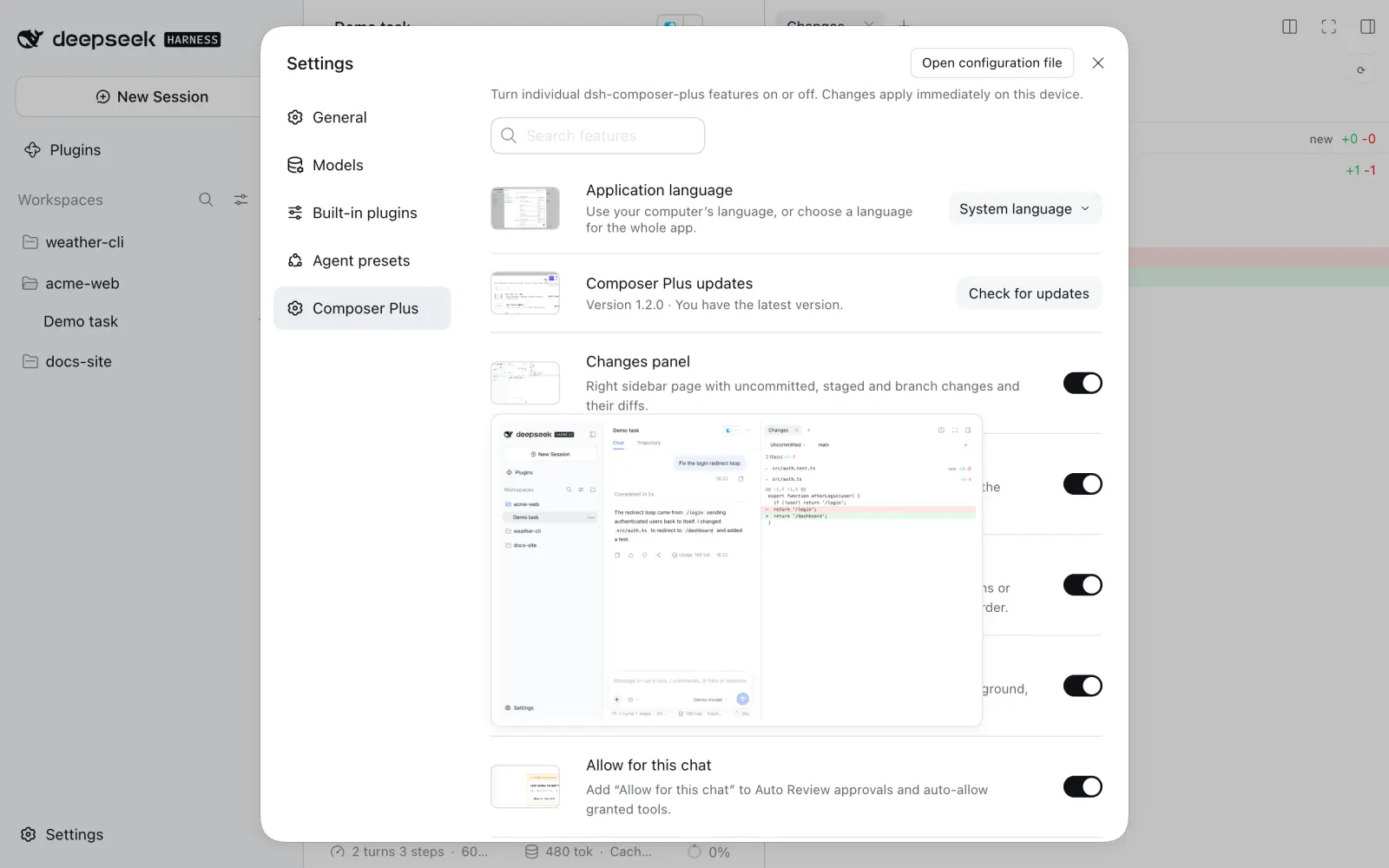
Application language
Open Settings → Composer Plus → Application language and choose System language or one of 13 languages:
English · 中文 · Türkçe · Español · Português (Brasil) · Français · Deutsch · Русский · 日本語 · 한국어 · Bahasa Indonesia · Tiếng Việt · हिन्दी
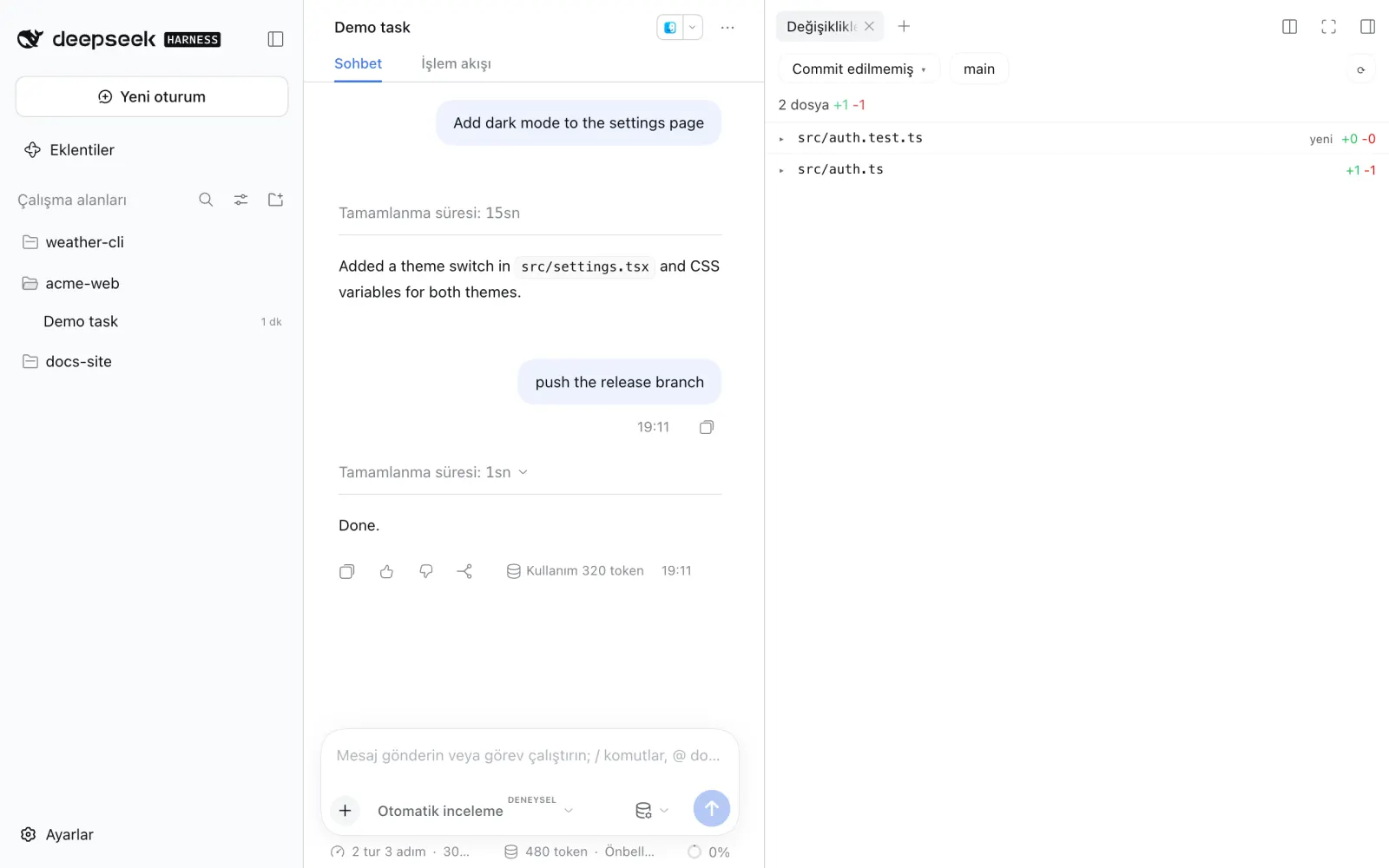
The whole app switches immediately. The choice is dsh’s own saved locale.preference (the same one as General → Language), so it survives restarts. System language clears that choice: the desktop app follows the OS language, the web UI the browser language, and an unsupported language falls back to English. Installing the plugin never overrides a language you already picked.
Each pack has 3,280 texts: every UI text of dsh 0.2.0-rc.2 and 0.2.1-rc.2 (chats, sidebar, settings, approvals, schedules, file previews, plugin manager, plugin market), the plugin’s own controls, and the popular dsh-rewind plugin. Not translated: your messages, model output, code, slash-command names (/plan, /compact), provider-owned labels such as the High reasoning effort, other plugins’ texts, and the desktop app’s native menus/update dialogs (dsh ships those in English/Chinese only). Strings added by a newer dsh show in English until the packs are updated. If another plugin already provides a language, that plugin keeps it.
Keyboard shortcuts
| Key | Where | Action |
|---|---|---|
↑ / ↓ |
empty composer | previous / next sent message |
Shift+Tab |
composer | add/remove /plan , or leave plan mode |
↑ / ↓ |
focused queue grip | move the queued message |
Esc |
while dragging | cancel the move |
→ / ← |
Feature ideas page | build / skip the top card |
↓ |
Feature ideas page | save the top card in the project's Later list |
↑ |
Feature ideas page | build the top card now, without a plan |
Z |
Feature ideas page | bring back the last skipped card |
Enter |
new chat project menu, search box | pick the first match |
↑ / ↓ |
new chat project menu | move through the projects that are shown |
Esc |
new chat project menu, search box | clear the search (press again to close the menu) |
Tab |
empty composer with a prediction | put the prediction in the composer |
Tab |
grey completion after the cursor | add the completion to the message |
Esc |
empty composer with a prediction | hide the prediction |
Cmd/Ctrl+Z |
composer, after Improve prompt | bring back the text that you typed |
Esc |
composer, while Improve prompt runs | cancel the improvement |
Enter / Esc |
queued message editor | save / cancel the edit |
Cmd+F on a Mac, Ctrl+F on Windows and Linux |
open chat | open Find in chat |
Enter / Shift+Enter, ↓ / ↑ |
Find in chat box | next / previous match |
Esc |
Find in chat box | close the box |
Cmd+Shift+E on a Mac, Ctrl+Shift+E on Windows and Linux |
anywhere in dsh | open the Next waiting chat (change it on dsh's Keyboard shortcuts page) |
Cmd+Shift+K on a Mac, Ctrl+Shift+K on Windows and Linux |
anywhere in dsh | open the Task board (change it on dsh's Keyboard shortcuts page) |
1–9 |
dsh's question card, not in its answer field | pick that option (Option buttons) |
An open / or @ menu keeps these keys for itself.
Compatibility
Tested on dsh 0.2.0-rc.2 (desktop and web) and 0.2.1-rc.2 (web). CI runs the tests on every push.
Privacy and security
Continue: the authenticated local endpoint resumes only the last interrupted turn, rejects stale or duplicate requests, and preserves the existing approval hooks. It does not send a new user message.
Resume after restart: off until you switch it on. The Host half keeps only chat ids and start times in
$DSH_HOME/storages/dsh-composer-plus/resume.json(owner-only permissions), and nothing leaves your machine. It continues a chat only when dsh's own log says that dsh (not you) stopped its last turn. Approvals and Auto Review apply to the continued turn as usual.Changes panel: git runs read-only on your machine, in the chat's own folder, through dsh's authenticated
/apichannel. It never commits, stages or fetches, and only shows paths git itself listed. Tree lists up to 1000 local and remote branches and shows the newest 300 commits of one branch: its first-parent line, so a merge commit stands for the commits that it brought in. It never checks out a branch. This chat reads the chat's own log for the files that its file tools wrote and compares them with the chat's Turn rollback snapshot in a temporary folder that is deleted at once; it writes nothing to your repository or to the snapshot store.Feature ideas: nothing runs until you click Suggest features. Then the Host half reads only the chat's own folder (the browser never sends a path): the names of the top-level entries, the first 6 kB of the README, AGENTS.md and the manifest (
package.json,pyproject.toml,Cargo.toml,go.mod, …), an outline of the rest of the README (headings, table rows, list items; at most 6 kB) and the titles of the newest commits (git log --format=%s, at most 6 kB), at most 28 kB in total. It skips.env*, key files and folders such asnode_modules, and it reads only regular files that stay inside the folder: a symlink that points out of the folder, a FIFO or a device is skipped. This summary goes to the model that the chat uses, through dsh's own provider settings, as one request; it is not added to any chat. Nothing in the project is written. A swiped-right idea starts a new chat in plan mode, so approvals and plan review apply as usual. Build now starts the chat without plan mode: the model can change files at once, with the chat's usual approvals and Auto Review. Ideas saved for later (title, summary, why, effort) are kept with the project's folder path instorages/dsh-composer-plus/later.jsonunder the dsh home (owner-only file); nothing goes into the project. The history of suggested ideas (title, summary, why, effort, date, started) is kept the same way instorages/dsh-composer-plus/idea-history.json, at most 200 per project (the oldest leave first); its titles go to the model with the next Suggest features of that project.Content search: no new code searches your chats: the plugin only switches on dsh's own message index (SQLite FTS5,
dsh-session-query-sqlite) and gives it a file,$DSH_HOME/cache/composer-plus/session-search.db(owner-only file and folder). The file holds the text of your user and assistant messages, so it is as private as the chat logs in$DSH_HOME/sessions. Nothing leaves your machine. It is a copy that dsh can make again: you can delete it while dsh is closed. The switch is in$DSH_HOME/storages/dsh-composer-plus/content-search.json.Turn rollback: before each of your messages, the Host takes a git snapshot of the chat's folder in its own store,
$DSH_HOME/cache/composer-plus/rollback/<chat>.git(owner-only folder). It holds copies of the files in that folder that git sees (not ignored files), so it is as private as the project. It reads your repository's objects (no copy of what git already has) and never writes your repository's index,HEAD, branches, tags, stash or config; the only change git makes there is a newer time stamp on object files it reuses (this delays their cleanup bygit gc). A rollback with files writes only regular files inside the chat's folder; it skips symlinks, pipes and anything outside the folder. Nothing leaves your machine. You can delete the store while dsh is closed (rollback then works for the chat only, until new messages). Delete chat deletes a chat's store too. The switch is in$DSH_HOME/storages/dsh-composer-plus/rollback.json. A rollback with files also keeps the files as they were just before it (refs/r/…in the same store), for Redo; the rollbacks that were redone are listed in$DSH_HOME/storages/dsh-composer-plus/redone.json(owner-only).Open GitHub issue (Feature ideas → Later list): runs only when you click it. The Host half runs your own GitHub CLI (
gh issue create) in the chat's folder, with the idea's saved title and summary (and why it matters);ghuses its own login and the folder's GitHub remote, so the issue goes to that repository with your account, and GitHub shows it to everyone who can see that repository. dsh removes variables named like a token from the commands it starts; when you gavegha token throughGH_TOKENorGITHUB_TOKEN, the plugin passes only these togh. The issue link is kept with the idea inlater.json.Report an issue (Settings → Composer Plus → Report an issue…, or a chat's … menu → Report a Composer Plus issue…): nothing runs until you click. Write draft sends only the type and the text that you typed (not the chat, not the project) to dsh's default model, in one call. The Host adds one line with the Composer Plus, dsh and operating system versions and replaces your home folder path with
~. Open issue runs your own GitHub CLI (gh issue create --repo furkancak1r/dsh-composer-plus) with yourghlogin, so the issue is public and shows your GitHub account. Text that looks like a key, a token or a password is refused and does not leave your Mac.Chats that changed this file (Changes, a file's "…" menu): the Host half reads the logs of the chats whose folder is in the same repository, as dsh keeps them, and answers each chat's title, the time and the first line of the request; it never opens the file itself.
Git branch on chat rows: the Host half runs
git branch --show-current(read-only) in the chat's folder when a turn starts and when it ends, and keeps only the chat id, the branch name and the time in$DSH_HOME/storages/dsh-composer-plus/session-branches.json(owner-only file, newest 2000 chats). The switch is inbranches.jsonnext to it.Find in chat runs only in the page: it reads the text that the page shows and sends nothing.
Export chat as Markdown: the Host half reads only the chat's own log (the same messages that dsh shows) and gives them to the page; it reads no project file and sends nothing over the network. The Markdown goes only to your clipboard or to the file that you save.
Delete chat: moves the chat's own log folders (
$DSH_HOME/sessions/<project>/<chat>) to the Trash. It does not touch the project folder.Allow for this chat: grants are stored with the time they were given in
$DSH_HOME/storages/dsh-composer-plus/chat-grants.json(owner-only permissions). A grant covers one exact tool in one chat, until the time limit ends (1 hour by default). If that tool can write, the grant covers any write too. Revoke it from the header chip.Auto Review still runs on every call; review failures are never auto-allowed.
Mobile connect: off until you switch it on. While it is on, the Host half runs the Tether gateway: HTTPS on port 19390 that accepts only your Wi-Fi subnet and your tailnet (100.64.0.0/10), and a pairing page on
127.0.0.1:19391(this Mac only). A phone needs a one-time code from the QR code (5 minutes) and your Approve on the Mac. The phone pins the gateway's certificate. The Mac keeps only a hash of each phone's token (30 days, renewed while used); Remove closes that phone's connections at once. Phones can call only an allowlist of dsh methods (chats, prompts, attachments, slash commands, approvals, questions, models, agents, goals), not settings, credentials, the file browser or the terminal. Tailscale only refuses every connection from the local network, also open ones. The access log keeps the newest 200 connection attempts (time, IP address, device name, allowed or refused, and why) inaccess.json; it never holds a token or a pairing code. Data:$DSH_HOME/storages/dsh-composer-plus/mobile/(owner-only files). Details: tether/README.md.Remote computers: off until you switch it on, on each Mac. Let other computers open this Mac opens a second HTTPS port (19392) on this Mac's Tailscale address only (not on the Wi-Fi, not announced with Bonjour). Another Mac needs a one-time pairing link (5 minutes), the matching certificate (pinned) and your Approve; this Mac keeps only a hash of its token. A paired computer gets full control of dsh on this Mac, as if you used it here: its chats, models, tools, files and terminal. Remove it in the Settings panel and its connections close at once. The Mac that opens another one keeps that computer's token in
$DSH_HOME/storages/dsh-composer-plus/computers.json(owner-only). It opens a relay on127.0.0.1for each computer that you pick: the page gets a one-time link (60 seconds), and the relay accepts only its own page (its address, no other site). The other Mac's page in this window can read the names and states of this Mac's computers (no address, no token) and can switch this window between them; it cannot add, rename or remove a computer or change this Mac's settings.Updates: the Host half asks
api.github.comfor the latest release andregistry.npmjs.orgfor that exact version; nothing about you or your chats is sent. Installation uses dsh's plugin manager (pnpm add dsh-composer-plus@<version>; when dsh 0.2.1 refuses that for an installed plugin,pnpm add https://registry.npmjs.org/dsh-composer-plus/-/dsh-composer-plus-<version>.tgz, and the profile then lists that URL as the plugin's source), so dsh's own registry, script and version-compatibility checks apply. Pre-release tags and older versions are never installed.Turkish skill pack: on by default, and it works only while the app language is Türkçe: the browser tells the Host dsh's UI language. Then, at most once a day, the Host asks
api.github.comfor the newest commit ofyucezerey/turkish-anti-ai-skilland its file list, and downloads the changed Markdown files fromraw.githubusercontent.com. GitHub sees your IP address, as with each update check; nothing about you or your chats is sent. Only regular.mdfiles of theskills/turkish-anti-ai-skill/folder are kept (at most 20 files and 1 MB), and each file must match its id in GitHub's file list. The copy is in$DSH_HOME/cache/composer-plus/turkish-skill/<commit>(owner-only) and goes into dsh's skill list; no script of the pack runs. The switch and the last reported language are in$DSH_HOME/storages/dsh-composer-plus/turkish-skill.json. Switching it off removes the skill and deletes the copy.Usage count: the Host half asks GitHub for two small files of the release of the installed version (
github.com/furkancak1r/dsh-composer-plus/releases/download/v<version>/<file>):active.txtonce a day, andinstalled.txtonly once for each dsh home. GitHub counts these requests per file, so the owner sees only how many copies of each version asked foractive.txtthat day, and how many copies asked forinstalled.txtin total (the number of copies). The request has no id, cookie or data about you or your chats; GitHub sees your IP address, as with each update check. The day of the lastactive.txtrequest is kept in$DSH_HOME/storages/dsh-composer-plus/active.json, and the mark thatinstalled.txtwas counted in$DSH_HOME/storages/dsh-composer-plus/installed.json. A git checkout of this repository and a renamed copy send nothing. There is no switch for it.Next message prediction: on by default; switch it off in Settings → Composer Plus to stop these model calls. After each finished turn, the Host half sends the chat's own user messages and the agent's text replies (no tool output, no hidden context, no reasoning), at most about 6,000 characters (the newest part), to the chosen model (dsh's default unless you pick another). It goes through dsh's own provider settings, as one request. Nothing is saved in the chat: the guess is not added to the chat history. The switch and the model choice are in
$DSH_HOME/storages/dsh-composer-plus/predict.json(owner-only file).Complete while typing: off until you switch it on. While it is on, at each pause while you type, the Host half sends the text that you typed so far and the chat's own user messages and agent text replies (no tool output, no hidden context, no reasoning), at most about 3,000 characters of chat, to the model chosen under Complete while typing (by default the model of Next message prediction). A newer pause stops the older request. Nothing is saved in the chat. The switch is in
$DSH_HOME/storages/dsh-composer-plus/complete.json(owner-only file).Improve prompt: nothing runs until you click the magic wand. Then the Host half sends your draft, the chat's own user messages and agent text replies (no tool output, no hidden context, no reasoning, no rolled-back messages; at most about 6,000 characters, the newest part), the same project summary as Feature ideas (with the same file rules: no
.env*or key files, no symlink out of the folder, no FIFO), the paths thatgit statuslists as changed and up to 30 tracked or untracked (not ignored) paths whose names share words with your draft, to the model chosen under Improve prompt (by default the chat's own model), as one request. File contents other than that summary are not sent. Nothing is written to the chat or the project: the answer only replaces your draft in the composer, and you decide whether to send it. The model choice is in$DSH_HOME/storages/dsh-composer-plus/improve.json(owner-only file).Goal check: it runs only when the agent marks a
/goalcomplete in an automatic round (or when you click Run now). The Host half runs the test command in the chat's folder with the chat's sandbox mode (as dsh's ownbashtool: the same file-access policy; when that sandbox cannot start, the test does not run and the check fails). It reads onlypackage.json,Makefile,Cargo.toml,go.mod,pyproject.tomlandpytest.inito find the command, as regular files inside the folder (no symlink out of it, no FIFO). Then it sends the goal, the chat since the goal started (your messages, the agent's replies, tool calls cut to 1,000 characters and the last 2,000 characters of each tool result; no reasoning, no rolled-back steps; at most about 60,000 characters, the newest part),git status --shortand the end of the test output to the model chosen under Goal check (by default the chat's own model), as one request with no tools. Tool output can contain what the agent read, so this request can hold parts of your files, as the chat itself does. Nothing is written to the chat or the project. Your test command, the limits, the last result (with the end of its output) and the model choice are in$DSH_HOME/storages/dsh-composer-plus/goal-check.json(owner-only file, newest 500 chats).Continue in a new chat: nothing runs until you click it. Then the Host half sends the chat (as Goal check reads it: no reasoning, no rolled-back steps) to the chat's own model and shows the note; only Start new chat makes a new chat. Nothing is written to the project.
Context breakdown: reads only the chat log on the Host; no model call, no project file.
Task board: the board shows dsh's own chats from dsh's own lists in this window; it adds no chat data of its own. New task opens dsh's own new chat, and you write the first message in dsh's composer, so approvals, the sandbox and the chat's model apply as usual. The Host half keeps that chat's first message as the card's prompt and sends it (its first 4,000 characters, nothing else) to that chat's model in one more request, with no tools, for up to 3 tags. The prompt, the tags and the start time of each task are kept in
$DSH_HOME/storages/dsh-composer-plus/board-chats.json(owner-only file, the newest 2,000), with the ids of the chats that you took off the board with × or Clear all (the newest 5,000); the switch is inboard-switch.jsonnext to it. Nothing is written to a project folder. Answer sends your answer to dsh's own pending request, the same way the chat's own card does. The old task list of earlier versions (board.json) stays on disk as it was and is not read. Progress on hover reads the chat's log on this Mac. With Fast (no AI) (the default), nothing is sent. With AI summary, while a running card's progress box shows (or while Tether's board is open, for up to 8 running cards), the Host half sends that chat's newest part (at most about 6,000 characters: your messages, the agent's text replies, its tool calls and the end of their results; no reasoning, no rolled-back messages) to the chat's model, as one request with no tools. It sends again only after the chat moved on, at most once every 20 seconds per chat. The note is kept only in memory; the setting is in$DSH_HOME/storages/dsh-composer-plus/board-progress.json(owner-only file).Assistant: the assistant chat is an ordinary dsh chat in
~/Assistant; its model calls go to dsh's default model as in any chat. Its tools read your other chats' logs on this Mac (titles, projects, status, and with chat_read their newest messages) and give them to that model only when it calls a tool. Sending, starting, stopping and archiving a chat each wait for your approval. The chat id is kept in$DSH_HOME/storages/dsh-composer-plus/assistant.jsonand the switch inassistant-switch.json(owner-only files). Reminders and automations are dsh's own scheduled tasks. Nothing leaves this Mac except the model requests and the web searches that the chat makes.Protected files: the list and the switch are in
$DSH_HOME/storages/dsh-composer-plus/protected-files.json(owner-only file). The check reads only the path of each file tool call (and its real path), never the file.Blocked commands: the rules and the switch are in
$DSH_HOME/storages/dsh-composer-plus/blocked-commands.json(owner-only file). The check reads only the command text of eachbashandpwshcall; it runs nothing and sends nothing.Secret input: the value goes from the card (or from Tether, through the gateway, which does not log request bodies) to the Host only in the answer request. The Host writes it to
$DSH_HOME/storages/dsh-composer-plus/secrets/<random name>(folder 0700, file 0600); nothing goes into the project, the chat log or the tool result. The Host keeps the value in memory to replace it with[secret]in later tool results of that chat. The file and that copy go when the chat's turn ends and at dsh start. The switch is insecrets.jsonnext to it. A command that the agent runs with the file can send the value where that command sends it: that is the purpose.Project memory: off until you switch it on. While it is on, after each finished turn of a top-level chat, the Host half sends the chat's own new messages since the last review (your messages and the agent's text replies; no tool output, no reasoning, no hidden context, no rolled-back messages; a fork's copy of its parent is left out; at most about 16,000 characters) and the saved notes to the chat's own model, as one request with no tools. The notes are Markdown files under
$DSH_HOME/storages/dsh-composer-plus/memory/(owner-only files):projects/<id>/for each project folder (<id>is a hash of the folder's real path;project.jsonnames the folder),global/,journal.jsonl(every change with the line before and after) andreviewed.json(how far each chat was read). Nothing is written to the project folder. Notes that look like a key, a token, a password or an ID number are refused. The notes of a project go into the system prompt of each new chat in that folder, so they reach the model with every request of that chat. The switch is inmemory.jsonnext to it. Open memory sends nothing until you click Preview changes; then it sends the notes it shows and your text to dsh's default model, as one request with no tools. Its changes are written only on Apply, witheditorin the journal. Tether reads and changes the notes through the same route. Memory version history (on by default) keeps a copy of the memory files before each save inmemory/history/next to them (owner-only files, the newest 50 per memory); it sends nothing to a model. Export memory to AGENTS.md sends nothing to a model and writes only when you click Write AGENTS.md: it reads and writesAGENTS.mdin the memory's own project folder (only a regular file inside it, never through a symlink that leaves it), and changes only its marked section. Find stale memory notes sends nothing to a model and writes nothing: it checks paths inside the project folder with realpath (no file is read), readspackage.jsononly as a regular file inside the folder, and runs onegit for-each-refthere. Do not use memory in this chat keeps each chat that you switch off inmemory-chats.jsonnext to it (owner-only, the newest 500); such a chat sends no memory to its model. Suggest memory notes from a chat sends nothing until you click Suggest for memory; then it sends the saved notes of the chat's project and the global notes, and the chat's own messages and text replies (no tool output, no rolled-back messages; a fork's copy of its parent is left out; at most about 24,000 characters), to the chat's own model, as one request with no tools. A suggestion is saved only on Accept.Backup: nothing leaves your machine. Archives go to
~/Desktop/dsh-backups(owner-only files). Secrets are not in an archive: credential files (.credentials.yaml,.env), key files (.pem,.key,.p12,.pfx) and the values of token, secret, password and API key settings in the yml files are masked; their real copies stay incomposer-plus-vault/<archive>/in the same folder (owner-only), on this computer only. For another computer copies no vault: enter those secrets again there. Your chat logs, settings and the rest of the dsh home are in the archive as they are: keep the folder private, as$DSH_HOMEitself. The backup reads files withO_NOFOLLOW | O_NONBLOCK; a symbolic link is stored as a link (never followed) and a FIFO or device is skipped. The automatic backup switch and settings are in$DSH_HOME/storages/dsh-composer-plus/auto-backup.json, the rescue console switch inrescue-console.json, and while dsh runs,running/host-<pid>.jsonnames each dsh process (the rescue console reads them to refuse a restore).Rescue console: a terminal menu; it opens no network port. A restore writes only into a new folder next to the dsh home (files with
O_EXCL | O_NOFOLLOW, symbolic links last and never followed) and refuses an archive with an unsafe name (.., an absolute path), a device or FIFO, more than one top folder or an entry below a link.
Troubleshooting
- No notifications on macOS: System Settings → Notifications → DeepSeek Harness → allow. Choose Alerts to keep them on screen.
- ▶, queue grips, project status, the recent projects option, Collapse all projects, Copy path, the project search box, the next message prediction, the completion while typing, Allow for this chat or right-click missing after a dsh update: these attach to dsh's current HTML because dsh has no slot for them yet. If dsh changes that markup they hide themselves; nothing else breaks. Please open an issue.
- "Update failed" or "not installed from npm": a copy linked from a local folder or renamed can't update itself; reinstall
dsh-composer-plusfrom Settings → Plugins. Otherwise the message shows the first line of pnpm's error; Check for updates retries. - Mobile connect says the gateway is not running: "no IPv4 address on en0" means this Mac has no Wi-Fi/Ethernet address; "EADDRINUSE" means another dsh (or app) uses port 19390 or 19391. Only one dsh can run Mobile connect at a time.
- Mobile connect, Resume after restart or Content search says "Restart dsh": the plugin was updated while dsh was running (or, for Content search, you changed the switch); the new state loads after a restart.
- The search finds only titles: Content search is off, dsh has not restarted since you switched it on or installed the plugin, or the word is only in a tool output (see Limits).
- No ↶ button on my messages: Turn rollback is off, the chat is a subagent chat, or dsh-rewind-plugin is installed (use its ↶ button). After an update, restart dsh.
- Chat and files is greyed out: the project is not a git repository, there is no snapshot from before that message (the message is older than the plugin, or one of the 50 newest snapshots replaced it), or no file changed.
- Delete says another dsh has this chat open: a second dsh on the same dsh home holds the chat's lock. Close that window or dsh, then delete again. The chat stays archived meanwhile.
- My iPhone cannot connect after I switched on Tailscale only: Tailscale must be on in both the Mac and the iPhone. The Mobile connect panel warns when it is off on the Mac. The access log shows each refused attempt with its reason.
- A chat did not continue after a restart: Resume after restart was off when dsh quit, you stopped that turn yourself, the turn had ended (done or failed), the chat was archived, or more than 20 chats were running (the newest 20 continue).
- The queue is empty after a restart: dsh itself empties the queue when it quits. Resume after restart puts it back only in a chat that it continues; in other chats, send the messages again. A message that you removed just before the quit can come back: remove it again.
- Open GitHub issue says "gh could not open the issue": the message is
gh's own first line. Rungh auth statusin a terminal and log in withgh auth login; the chat's folder must have a GitHub remote (git remote -v). "not installed or not on the PATH of dsh" means dsh did not findgh: install it, or start dsh from a terminal whereghworks. - Report an issue says "gh could not open the issue": the message is
gh's own first line. Rungh auth statusin a terminal and log in withgh auth login. Or click Open on GitHub instead: GitHub's own new issue page opens with the draft filled in, and you submit it there. - No branch pill on a chat row: the sidebar is not in “In one list” (in “WorkSpace” and “Workspace Tree”, no chat row shows a pill), the chat had no turn since you installed this version, its folder is not a git repository, or Git branch on chat rows is off. After an update, restart dsh (the Host half records the branch).
- Goal check says the test exited with code 127 or "not found": dsh started from the Finder or the Dock can have a shorter PATH than your terminal, so it does not find
npm,pnpmorcargo. Start dsh from a terminal, or set your own test command with the full path under Goal check → Edit. Run now shows the result at once. - The goal does not close and the agent keeps working: Goal check found a failing test or missing work; the row under the goal shows why (hover the result for the details). Fix the cause or the test command, or complete the goal yourself with
/goalor the goal bar (that is not checked). - Install fails right after a release: add the version (
dsh-composer-plus@1.24.1), see the install note above. - Back up now says "another backup action is running": an action runs in another dsh window or in the rescue console (they share a lock file,
.composer-plus.lock, in the backup folder). Wait for it. If no action runs, the lock of a closed process is taken over at the next click. - The rescue console says "dsh is running": quit dsh first. If dsh is really closed, the file named in the message is left from a crash: remove it and try again.
- After a restore, dsh does not start or a plugin is missing: the plugin packages of a profile must be installed again. The rescue console offers it after a restore; or run
pnpm installin each folder under$DSH_HOME/profiles/that it lists. Secrets that were not in the vault (another computer) must be entered again: the console lists them.
Limits
Message-free Continue relies on dsh’s
agent/pre-step→agent/requestlifecycle. Recheck compatibility when upgrading dsh.Feature ideas keeps the cards in memory for each chat until dsh or the page reloads; then Suggest features asks the model again. The cards come in the UI language that dsh has when you click; after you change the language, cards already on the stack keep theirs and More ideas uses the new one. The model sees only the short project summary, not the code, so an idea can repeat something the project already has: skip it. The new chat runs in plan mode only when the profile has dsh's
/plancommand; otherwise the idea goes as an ordinary first message. The Later list belongs to the chat's folder path: the same folder opened through a symlink has its own list. It keeps at most 50 ideas per project (remove one to add more) and the same title only once. Dragging a card decides left or right only; use ↓ to save it and ▶ to build it now. A repeat is found by its title only: the model can still suggest an earlier idea under a new name; skip it. When the model answers only earlier ideas, nothing new shows: click again. A narrow focus topic makes that more likely; use a wider topic or clear it. The focus topic stays in the field for each chat until dsh or the page reloads.Export chat as Markdown has only your own messages and the assistant's text replies: tool calls and their output, thinking, images (a
[image]line marks them), hidden context and messages that Turn rollback or dsh-rewind-plugin took out are left out. Replies of one turn join into one section. At most about 4 million characters go into one export; a longer chat gets its first part and a note.Resume after restart continues the turn; it does not replay it. A tool call that was running at the quit ends with dsh's “outcome unknown” result, and the model is told not to repeat finished work, but a command that is not safe to run twice can run again. Subagents, approvals and questions that were open are not restored: their parent chat continues and asks again. At most 20 chats continue at one start.
Resume after restart and the queue: dsh empties a chat's queue when it quits. The plugin puts your queued messages back from the chat's log, with their order, edits, images and files; they run after the continued turn. Only chats that continue get their queue back (switch on, a quit while the turn ran). dsh logs your own removal of the last queued messages the same way: if you remove them and dsh quits before the next step starts, they come back.
Content search is dsh's own search, so it has dsh's limits. It searches only user and assistant messages: not tool output (commands, file contents, results), not reasoning, and it has no filter for user, assistant or tool messages. It matches whole words, not parts of a word (
deploydoes not finddeployment); letters with accents match without them (sekerfindsşeker). One row per chat, with dsh's 240-character snippet, at most 20 rows.Content search cost, measured on a copy of 247 real chat logs (159 MB, dsh 0.2.1-rc.2, Apple Silicon, 32 GB): the first search after a start builds the index in about 15 s. During that time dsh's Host answers nothing for about 7 s, so other chats stop streaming for that moment (the page itself does not freeze). The Host's memory grows by about 1.1 GB at the peak; one minute later it is still about 0.5–0.6 GB above the start, until dsh quits. The index file is about 165 MB. Later searches take about 0.5 s. After a restart, the first search takes about 1 s (only new or changed chats are added) and adds about 70 MB. Switch it off if your computer has little memory.
Content search applies only after a dsh restart, and the index file is shared by every dsh that uses the same dsh home: run only one such dsh at a time (dsh allows one owner per index file).
Turn rollback puts files back only in a git repository, and only in the chat's folder. It keeps the 50 newest snapshots per chat. Ignored files (
.gitignore,info/exclude, your global ignore file), empty folders, symlinks and submodules are not put back; a file that was ignored when the snapshot was taken is never deleted, even when the turn changed the ignore rules. A file that git cannot read is left out of the snapshot. Each of your messages runs onegit add --allof the chat's folder into the private store: in a very large folder with many untracked files this can take a few seconds, and the next tool call waits for it (at most 10 s; the snapshot then finishes in the background). If your repository'sgit gcremoves an object that an old snapshot needs, that file is listed as not put back. Only the text of the message comes back into the composer: add its images or files again. Subagent chats have no ↶ (a subagent's file changes count as changes of the chat that started it). The exported chat (/export) still has the withdrawn messages. The idea of one hidden marker that withdraws part of a chat comes from dsh-rewind-plugin by SiriLee (MIT); Composer Plus uses no code from it.Delete chat needs dsh's archive (dsh 0.2.0 and later). A chat (or one of its subagent chats) that does not stop within 15 s, or that another dsh holds, stays archived and nothing moves. On other systems than macOS the trash folder must be on the same disk as the chat history. An open chat that you delete stays in dsh's memory, archived and hidden, until dsh restarts. Empty the Trash yourself; dsh does not.
dsh's queue has no
moveaction, so the plugin's Host moves the queued message itself in dsh's queue (one change, the same message). Messages with images or files move too. Only your own messages move: a goal round or a question reply in the queue stays where it is. If a message starts to send while you drag, nothing moves and a notice says so.dsh 0.2.1 loads an update at once when the new version changes no dsh settings; otherwise, and on dsh 0.2.0, restart dsh to load it. The plugin never restarts dsh for you. Web/CLI profiles without dsh's plugin manager only report a new version.
What’s new in Composer Plus N shows the notes in the language of Application language. A UI language with another region gets the notes of its base language (
en-GBgets the English notes,zh-TWthe Chinese notes ofzh). A language without notes (one that another language pack adds, orpt-PT, which is notpt-BR) shows the English notes. The notes come with the new version. When the running copy has no readable notes file (release-notes.json), the window shows the English notes from GitHub.A version that dsh installed while it runs (an update from Settings → Plugins or a copied folder) loads only after a dsh restart: until then, Composer Plus updates shows the running version and asks for a restart. Its What’s new in Composer Plus N window shows once at the first start of that version. The first start after this plugin is installed shows no window; What’s new in this version opens the notes of the running version.
The GitHub star line below the notes cannot know whether you starred the repository: the plugin makes no network call for it. Each browser (and the desktop app) keeps its own record, so the line can show once more in another one.
Reject with note sends the note as a message into the waiting turn, then rejects the request; dsh shows the note in the chat as your message. While the note field is open, the card shows only Cancel and Reject, so a click cannot allow the request by mistake;
Escor Cancel brings dsh's buttons back. An empty note sends nothing (use dsh's own Reject). If the rejection fails after the note went (for example, the request was answered elsewhere in the meantime), the note stays in the chat and the model reads it at its next step. The button goes into dsh's approval card markup (data-approval-key), because dsh has no slot for card actions; if a dsh update changes that markup, the button is not shown and dsh's own Reject works as before. A note can have at most 4,000 characters.Secret input hides only the exact text of a value:
[secret]replaces it in the later tool results of the same chat. The agent can still read the file with a shell command and print the value in another form (base64, a part of it, with spaces), and that form reaches the model. The agent's own file tools (read, grep, write, edit) cannot open the secrets folder. When the value is also a common word, other results of that chat show[secret]too. The file stays until the turn ends; when dsh quits during the turn, the next start deletes it. A chat can have one open request at a time. The tool adds about 870 characters (about 220 tokens, estimated) to each model request: switch it off when you do not use it.Quote in reply quotes the text as the page shows it: a code block, a table or a list comes as plain lines, without its Markdown marks. A selection that starts in one answer and ends in another, or that touches the reasoning, a tool row or your own message, shows no button: select inside one answer. The button finds an answer through dsh's chat markup, because dsh has no slot for a text selection; if a dsh update changes that markup, the button does not show. When the quote ends the field, one more empty line goes after it so the next line that you type starts below it; dsh removes empty lines at the end when it sends.
Quote from file preview reads dsh's own file preview: the line numbers come from its rows, so they are right for code and text files. A Markdown file shows as a formatted page, so its quote has the text without its Markdown marks and without line numbers; a PDF quote has the page, not a line. A selection in the path header, in another viewer (a spreadsheet, an Office file, an image) or over two open files shows no button, and neither does a right sidebar in full screen (the composer is not on screen then). The button finds the preview through dsh's markup, because dsh has no slot for a selection there; if a dsh update changes that markup, the button does not show. Only the selected text goes into the composer: if the file changes later, the quote does not change.
Side chat is read-only through dsh's own read-only mode: file tools cannot write and shell commands run in dsh's sandbox without writes (or do not run when the sandbox cannot start). The agent can still ask for more access with dsh's approval card, and a network call (for example an API request) can still change something outside the computer. The copy is made at the newest moment at which no message waits in the queue, so a question asked while queued messages wait does not see what happened after them. A running step of the chat is closed in the copy, so the side chat knows the start of that step but not its result. The side chat is an ordinary chat: it stays in the sidebar and counts toward your model use; archive it there. Bring back takes the side chat's own messages (at most 12,000 characters), only the last reply of each question; the agent's notes between its tool calls stay out. dsh has no slot for a chat inside the right sidebar for a plugin, so the side chat opens in the main view.
Diff notes works in the Changes panel only, not on dsh's own Last Turn view. A range must stay in one block of the diff (one
@@part). The notes are kept in this browser's storage, so another browser or the dsh app on another computer does not see them; Tether keeps its own notes in memory. A note keeps the lines as they were when you clicked: when the agent changes the file later, the note still shows the old lines and numbers. At most 50 notes per chat, 2,000 characters per note and 40 lines per note (then a…line).Allow for this chat counts the time limit from the moment of the grant. A new time limit applies at once to the grants that run, so a shorter one can end them at once. Grants from version 1.12 and earlier have no time: after the update, the agent asks once again for those tools.
Keep composer focus gives the focus back only after a
/command or skill. While dsh resolves the command, the composer stays read-only for a few milliseconds, so keys pressed in that time are lost. If dsh's/menu is still open,Enterpicks the highlighted row and does not send.Fit question card to window changes only dsh's question card, not the plan review card. It finds the card by dsh's markup (
data-question-key,data-question-scroll); if a dsh update changes that markup, the card shows as dsh draws it. The card's height follows the window, not the chat: in a chat in a narrow side panel, a tall card can still reach above the chat.Fit chat header to window finds dsh's chat header by its generated class names (
_titleRow,_titleCluster,_crumbs,_headerActions,_headerUtilities), because dsh has no layout hook for it. If a dsh update renames them, the header shows as dsh draws it. In a very narrow chat column the header can take two or three lines, so the chat area above the messages gets lower.Mobile connect works on macOS only (it uses
en0,openssl,swiftanddns-sd). It uses fixed ports 19390 and 19391, so only one dsh on each Mac can run it at a time (each Mac is one entry in the phone's Mac list). With an APNs key inapns.json(seetether/README.md), the Mac sends the notifications through Apple's push service, so they come also while Tether is closed; the Mac must be awake with dsh open. Without the key, the phone gets them only while Tether is open or just went to the background. Tether sends them only after you switch on Settings → Notifications → Send notifications in Tether. Tether keeps this switch and its hours separately for each paired Mac. The switch is off by default for each Mac, and iOS asks for the permission when you switch it on. The iOS app is not on the App Store yet: build it fromtether/ioswith Xcode. Tailscale only still needs a Wi-Fi or Ethernet address on the Mac (the gateway starts only with one). The access log is per Mac and keeps only the newest 200 attempts; a repeated attempt within a minute counts up one row. Each notification shows the Mac and the chat's project (Studio Mac · recipe-box), the chat's title and the text: Turn finished shows the agent's last reply. With the APNs key, this text goes through Apple's push service. Tether's app lock does not hide notification previews on the iPhone Lock Screen: turn them off in iOS Settings. Tether's green dots follow the Mac: a chat that you open in dsh loses its dot on the phone too. A chat that you open in Tether loses its dot on the phones only; dsh's own dot on the Mac stays until you open the chat there.Remote computers needs Tailscale on both Macs, and Composer Plus with this feature on the Mac that you open. That Mac must be awake with dsh running. The picker shows only while the left sidebar is open (not in its icon rail). When the other Mac's page has no picker of its own (Composer Plus older than 1.23.0 there), this Mac's picker shows over that page in the same place. With 1.23.0 there, the picker shows that Mac's name: pick This Mac in its menu to come back. Each computer that you opened keeps its page in memory until you switch the feature off or restart dsh. On the desktop app, the other Mac's page is an embedded page: dsh's own keyboard shortcuts (for example a new chat) do not work in it, and file downloads, microphone and notifications do not work there either. It uses port 19392 (only one dsh on each Mac can let other computers in). From another Mac's page, the picker switches only among the computers of this Mac: you cannot open a third Mac through the other Mac.
A session link works inside chats; clicking it does not open the chat. A Copy message link link opens its message only on dsh 0.2.1 and later, and only from a message in a chat (dsh 0.2.0 has no user-text rules, so there the link is copied but shows as plain text). A message that a rollback took out, or that compaction removed from the history that dsh loads, cannot be shown: the link then says so. The 🔗 buttons attach to dsh's message rows; if a dsh update changes that markup, they do not show.
Mark all as read changes dsh's own unread dots through a part of dsh that is not a public API (the
completionUnreadlist of dsh's session status). If a dsh update renames it, the item does not show. The item goes into dsh's project "…" menu, which has no slot for plugins; if dsh changes that menu, the item does not show either.Edit queued message in place does not change a message that started to send meanwhile, and it does not overwrite a message that changed meanwhile (for example in Tether on the iPhone): a notice tells you. A new image needs a model that takes images (dsh's own image limits apply), and a new file must finish its upload before you can save. Only your own queued messages can be edited: a goal round or a question reply in the queue cannot. After a plugin update, only text-only edits work at once: restart dsh before you save a message with images or files (the Host half loads at start).
Redo never changes the rolled-back chat: it starts a new chat from just before the rollback (dsh's own fork, the same model context), so the new chat has a new id and title. Only the newest rollback of a chat can be redone, once, and only while nothing came after it (a new message ends the offer). A file that you changed after the rollback is kept unless you tick the box that overwrites it. Redo needs the snapshot that the rollback kept (the same 50-entry window); a rollback made before this version, or with Chat only, brings back the messages only.
The Tree branch map guesses where each arrow goes, because git does not save the branch that a branch merges into. A merged branch points to the branch whose merge commit took it first. A branch that waits points to the nearest branch that it started from (the main branch first); when two branches started from the same commit, the map can choose the wrong one. A branch that moved forward with a fast-forward has no merge commit, so its Merged label opens nothing. The main branch is the default branch of
origin, elsemainormaster, else the open branch. The map reads the newest 20,000 commits and shows at most 60 branches; in a longer history, it says that some arrows can be wrong. A branch that was merged with a squash or a rebase (for example on GitHub) shows as Waiting: git keeps no link to its commits.This chat counts only files that dsh's file tools (
write,edit,str_replace_editor) wrote. Files that a command (bash) changed are not in this view; they show under Uncommitted. Without a Turn rollback snapshot of the chat (Turn rollback off, dsh-rewind-plugin installed, or a chat older than the plugin), the view compares with the last commit and says so. Turn rollback keeps the 50 newest snapshots of a chat: in a longer chat, the view compares with the oldest kept one, says from which message, and does not count earlier changes. Hide whitespace changes isgit diff -w: a line that changed only in spaces inside it is hidden too.Open GitHub issue needs the GitHub CLI (
gh) on the PATH of dsh and a GitHub remote in the chat's folder. It runs at most 60 s; ifghtakes longer, the issue can exist on GitHub without its link in the list (click again: the list reads the link only from a finished run, so look on GitHub before you open a second one). A folder with more than one GitHub remote usesgh's own default (gh repo set-default).Report an issue opens issues only in the Composer Plus repository (
furkancak1r/dsh-composer-plus), not in your project (for that, use Open GitHub issue in the Feature ideas Later list). It needs a default model in dsh for the draft, and the GitHub CLI (gh) with a login to open the issue. The draft is always in English. The model can get a detail wrong: read the draft before you click Open issue. Opening runs at most 60 s; the same title and text again within an hour shows the earlier issue instead of a copy. Open on GitHub instead cuts a very long description to keep the link short.Chats that changed this file knows only dsh's file tools (
write,edit,str_replace_editor), as This chat: a change made by a command (bash) is not listed. It reads the newest 300 chats of the repository (by when they were made) and says so when there are more; it shows at most 100 rows. A renamed file is listed under the name that the tool wrote. A chat whose folder is outside the repository (also through another path to the same files) is not counted. The first open after a dsh start reads every chat log of the repository (about 4 s for 275 chats); later opens read only the chats that changed since.Git branch on chat rows shows the branch of the chat's folder when its last turn started or ended, not the branch now: a branch switch outside a turn shows after the next turn. Chats from before this version show no pill until their next turn. The pill sits in dsh's chat row markup (dsh has no slot there); if a dsh update changes that markup, no pill shows. The pill shows only in “In one list”.
Branch per chat in plan mode: dsh sends
/plan <message>as a command, not as a message, so Composer Plus takes the command's submit in dsh's composer (not a public API). If a dsh update changes it,/plan <message>with New branch chosen runs in the open New chat as dsh's own command. When the Host cannot turn on plan mode in the new chat, the branch folder stays and the message is not sent, so the new chat does not change files in the default mode.Branch per chat: when a chat's branch folder (
<project>/.worktrees/<name>) is deleted, for example when the chat's own agent removes the worktree and deletes the branch, the chat's next step moves the chat out of it. Its branch folder project goes from the sidebar, and the chat shows under Ungrouped and stays open. On dsh 0.2.1 and later the chat continues in the main project folder, and the model gets a note about the new folder. On dsh 0.2.0 the chat keeps the deleted folder: a command there fails until you start a new chat. A project of a deleted branch that no chat uses also leaves the sidebar: Composer Plus checks the branch folders at start and every 30 seconds, also with no sidebar filter. While a chat moves, New branch in the same repository answers "try again". With the switch off, dsh's own error shows again ("working-directory: directory does not exist").Branches in the workspace tree writes to git without a click: when it moves a chat, it switches the project folder back to its branch (
git switch) and adds a worktree (git worktree add). It never deletes a branch, a worktree or a file. dsh cannot change the folder of a chat, so a moved chat is a copy (dsh's own fork, with a new id) and the old chat is archived. The copy continues the stopped task; a tool call that was running when the branch appeared ends with a refusal, and the agent runs it again in the new folder. A goal of the old chat does not move with it. Only a chat whose folder is the repository's main folder moves, and only for a branch that it created and switched to in that turn (git switch -c,git checkout -b): a branch made withgit branchalone, a folder with uncommitted changes, a linked worktree or a subfolder moves nothing. Only worktrees directly in<project>/.worktrees/with a branch show in the tree; a detached worktree or one elsewhere does not. The copy opens by itself only when its chat was the open one (the plugin reads dsh's sidebar row for that); else it is in the branch project.Find in chat searches only what the page shows: the messages and replies that are loaded (scroll up or click Load earlier for older ones), not tool steps that are closed and not the text inside a tool's output that is folded. It counts at most 2,000 matches (then "2000+"). It uses the browser's highlight API (Chromium 105 and later; the desktop app has it): in an older browser the count and the moves work without the color.
Cmd+Fon a Mac (Ctrl+Fon Windows and Linux) opens it only while a chat is on screen; elsewhere the browser's own find works as before. On a Mac,Ctrl+Fkeeps its macOS use in text fields (the cursor moves one character forward).Open waiting chat when idle knows only what dsh's own window sees: work in another app does not count, so while dsh is in the background it can open a waiting chat after 30 seconds. It does not bring dsh to the front. Reading without a key, a click or a mouse move counts as idle. It looks only at chats with dsh's orange dot (a question, an approval or a plan review) or green dot (a finished turn that you have not opened); a subagent's request shows in its parent chat. Orange chats open first. Opening a green chat removes its dot, so the next green chat waits for your next key, click, mouse move, scroll wheel or touch before its 30 seconds start: when you come back, the other green dots are still there. Nothing opens while a waiting chat is on screen; a chat that you left without an answer can open again after the next 30 seconds without use. The 30 seconds cannot be changed.
Next waiting chat counts the same chats as Open waiting chat when idle: dsh's orange dot (a question, an approval or a plan review that you can answer here) and green dot (a finished turn that you have not opened); a subagent's request shows in its parent chat. dsh does not record when a chat began to wait, so the order counts from the moment this window saw it: after a reload, the chats that already waited keep dsh's order. The key is a dsh shortcut: in a browser on Linux it has no key until you set one on dsh's Keyboard shortcuts page, and a browser extension or another app can take
Cmd+Shift+Efirst. dsh has no slot in the sidebar header, so the button goes into dsh's header markup; if a dsh update changes it, the button is not shown and the key still works. The button is not in the narrow sidebar.Option buttons reads only answers that end with an option list: a numbered list of 1 to 9 items, numbered from 1, as the last part of the answer, right under a heading or a bold line "Options", "Choices" or "Next steps" (or the same words in the app's languages). A list in the middle of an answer, in a code block or under another heading gets no buttons. Composer Plus does not ask the agent to write such a list. The buttons show only under the newest answer, while the chat is idle and the composer is empty, and only after Composer Plus knows which answers a rollback withdrew. On dsh's question card, the keys 1–9 do nothing in the first 0.8 seconds after a question shows, so that a key that you meant for something else does not pick an option that you did not read. dsh has no key API for its question card, so the keys find dsh's option buttons in its markup; if a dsh update changes it, the keys do nothing.
A notification sent before a restart only brings dsh to the front when clicked.
Active projects are moved with dsh's saved project order, so the new order is kept after a restart. Chats outside any project ("Ungrouped") can't be moved; dsh always lists them last.
dsh has no extension point in the sidebar's view options menu, so the recent projects option is added to dsh's own menu. If a dsh update changes that menu, the option is not shown and all projects stay visible. The filter works on project rows, so In one list is not filtered. In Workspace Tree, a parent folder stays while a project inside it is active, and the chat rows that were not active in the last 2 hours hide too; in WorkSpace, only project rows are filtered. The filter reads which view dsh shows from dsh's saved view setting (not a public API); if a dsh update renames it, Workspace Tree is filtered like WorkSpace. Project status reads the same setting: in Workspace Tree, a parent folder's row also counts the chats of the projects inside it; if dsh renames the setting, each row shows only its own chats. By status has the same kind of limit: dsh has no order slot, so the item and the row order attach to dsh's menu and list markup.
dsh has no project-row menu or Workspaces header slot either. Copy path finds the project row by dsh's row markup, and Collapse all projects goes into dsh's header and closes each open project with the same click as the project row. If a dsh update changes that markup, right-click shows the browser's menu and the button is not shown.
dsh has no extension point in the new chat project menu either, so the Search projects box and the A–Z order attach to dsh's menu markup. If a dsh update changes that markup, the menu shows as dsh draws it: in the saved order, without the box. The A–Z order is a view only: it does not change dsh's saved project order.
dsh has no hook that chooses where New session opens either. Default workspace for New session wraps a method of dsh that is not a public API (
startSessionof dsh's workspace service). If a dsh update renames it, New session opens where dsh chooses (the open or the most recent project). Every call that names no project uses the default: the sidebar button, its shortcut, the logo, and also New on the Automation tasks page. dsh still opens the last chat when it starts. The general folder is made and added to your projects at the first use; on Windows or Linux with a moved Documents folder it can be a different folder from dsh's own.dsh has no extension point for a composer hint either, so the Next message prediction text sits over dsh's own placeholder (
[data-composer-placeholder]). If a dsh update changes that markup, no prediction shows. While it is on, each finished turn costs one short model call.Complete while typing shows its text through dsh's own composer hint (the
--dsh-composer-hintstyle that dsh uses for a slash command's argument hint). It does not run for a slash command, a message with a file or symbol chip, or when the cursor is not at the end of the message. If a dsh update changes that style, no completion shows. Each pause while you type costs one model call.Improve prompt sees only a short project summary, the changed paths and the paths whose names match your words: not the code itself. So it can miss the right file, and it names only paths that it was given. Read the new text before you send it. It does not run for a slash command other than
/goal <objective>, for a/goalcontrol word (clear,pause,resume) or for a message with a file or symbol chip (the new text is plain text, so it would lose the chip), and a message can have at most 8,000 characters. For a/goalobjective it writes conditions only from the draft and the context; a condition that is too strict can cost goal rounds, so read it before you send it. Images stay attached: only the text changes. Each click costs one model call; a strong model can take a minute (Esccancels).Goal check checks only a completion that the agent makes in an automatic goal round: a completion that you ask for in the chat,
/goaland the goal bar are not checked. The agent can change the tests or the test command's files itself; the verifier reads the chat and can see that, but it can be wrong in both directions (a wrong "not done" costs one more round; a wrong "done" closes the goal). The verifier sees the chat andgit status, not the code itself. A test run is reused only when the agent's newest step that can change files was its own passingbashrun of exactly the same command in the same folder; a command with a pipe (| tail) or&&is not reused. The budget is measured when a turn ends, so one turn can go past it. The token budget also counts the calls of the chat's subagent chats (read from their saved logs at each turn end, so a chat with many subagents takes a little longer to check). The evidence table comes from the verifier's own reading of the chat: a part that it calls verified still needs your own look when it matters.update_goalwaits while the check runs (the test at most 15 minutes, the verifier at most 3 minutes). A fork gets a new chat id, so it starts without the parent's own test command and limits. Each completion that reaches the verifier costs one model call.Protected files is a guard rail, not a sandbox. It covers dsh's own file tools (
read,read_image,grepon a file,write,edit,str_replace_editor). A shell command (cat .env), a script that the agent writes, a subagent's shell, an MCP tool, agloblisting and agrepover a whole folder can still reach a protected file. For a real limit, use dsh's sandbox modes or keep secrets out of the project folder. Patterns know*,**and?, not{a,b}or[ab], and they ignore letter case.Blocked commands is a guard rail, not a sandbox. It reads the command text of dsh's
bashandpwshtools only. A variable or an alias that names the command (CMD=npm; $CMD publish), a shell function, a script file that the agent writes, another program (python -c,node -e,make), an MCP tool and your own terminal can still run it. A rule matches more than you may want: any word of a command can be the command name (echo npm publishmatchesnpm publish), and other words can come between the rule's words (git push --forcealso matchesgit push origin main --force). Make a rule longer when it matches too much. ask first needs a chat that can ask: in a chat whose approval policy is never (for example a delegated subagent), dsh cannot show the card, so the call is refused with the reason. The approval card shows the reason in English. Allow for this chat does not answer an ask first card.Continue in a new chat sends the chat (messages, tool calls and the end of each tool result, at most about 60,000 characters, the newest part) to the chat's own model. The note can miss a decision or a file: read it before you start. The new chat knows only the note and the linked chat (dsh attaches the old chat as read-only context); its model context starts small, the old chat stays as it is. One note or start per chat at a time.
Context breakdown shows estimates with dsh's own rule (about 4 characters per token), the same rule as dsh's context ring; the model's own count can differ. Tool definitions are the ones of the newest request. It shows the context as the chat log has it; a turn that runs now appears after its next step.
Planned steps saves tokens only when the model plans: while it is on, each request carries the
plan_next_stepstool and a short instruction (about 500 tokens), also in chats where the model never plans. A condition proves only what it says (for example: the build exit code was 0), not that the work is right.okreads dsh's own result marks ([exit code: N], timeouts, sandbox denials); a command that fails without a non-zero exit code passes. Steps run one at a time; two steps that are ready at the same time go back to the model. The step's message is stored as an assistant message of the chat's model (dsh has no mark for a message that a plugin wrote), so its text says that Composer Plus ran it. Not in Tether.Turkish skill pack installs a third-party skill: its rules come from the author's GitHub repository, not from Composer Plus, and a new version is used from the next daily check without a review by us. The check proves that the files are the ones GitHub lists for that commit, not that the rules are good. The model decides when to load the skill (the user can also call it by name); the rules apply to Turkish texts only. The Host uses the language that a browser reported last: when two browsers use different languages, the newest one wins. GitHub allows 60 API calls per hour without a login; a refused check keeps the installed copy and shows the reason in Settings.
Untangle codebase ships a fixed copy of the skill (caldoai/skills, commit f3cf477): a change upstream comes only with a new Composer Plus version. The skill runs a long goal that can change many files, and its subagents and checks use many tokens. Where the project has no tests, it can change behavior without notice: start it on a branch and read the diff before you merge. A skill with the same name in the project, in a custom skill folder or in
~/.dsh/skillsreplaces it. While the switch is off,/untangle-codebasegoes to the model as plain text.Task board shows the chats that dsh lists in this window: a chat outside a project shows only in All projects, and a Branch per chat folder (
<project>/.worktrees/<name>) counts as its project. A card's column is the chat's live state, so cards cannot be dragged: a chat goes to Done when its turn ends, also after an error or a stop, and back to Doing when it runs again. The green dot is dsh's own done dot, which dsh keeps only in this window: after a reload, finished chats show without it. Done shows the newest 50 chats (Show N older shows the rest). Search projects finds a project by its name only, not by its folder path. Active in the last 2 hours hides a project when each of its chats is older than 2 hours, idle and read; the board still shows the project that you picked. New task remembers only the newest new chat of this window: when you open another chat before the first message, that chat stays at the top of Doing as New task until you write in it, but the board comes back by itself only for the newest one. After a reload, a new chat without a message is not on the board (dsh keeps it as its empty New session). The tags come from one model call per task, from its first message: they can be wrong, and a chat that you did not start on the board has none. The title is dsh's own chat title (dsh's title service, with the chat's model); until it comes, the card shows the first line of the first message. × and Clear all take cards off the board only: no chat is deleted. Undo shows for 8 seconds only, in this window; later, Removed (N) → Put back brings a card back, and a chat that runs again comes back by itself. Clear all asks first and takes the read finished cards of the shown project (all projects with All projects), also the ones behind Show N older; an unread (green) card stays. dsh keeps its green dot only in this window, so after a reload Clear all can take a card whose answer you did not read. The list is kept on this Mac for every window and for Tether; when it has 5,000 chats, the oldest come back. Answer answers only the newest request of the chat: when the chat answered it elsewhere (another window, Tether, Auto Review) or asks something new, the panel says so and sends nothing. Earlier versions had a task list with comments and agent tools; they are gone, and the oldboard.jsonis not shown. The idea and the look come from Kanzo by emanuele-em (AGPL-3.0); Composer Plus uses no code from it.Cmd+Shift+Kis a dsh shortcut: in a browser on Linux it has no default key (set one on dsh's Keyboard shortcuts page), and a browser extension or another app can take it first. A card leaves Done when dsh's own green dot goes (you opened the chat) or, for a chat that finished behind the board while it was the open chat, when that chat shows with no panel over it. This read state lives only in this dsh window, as dsh's own dots: after a reload or in another window every finished chat is read, so it is in Recently finished.Assistant has one chat for all windows of this Mac. It runs with the workspace-write permission mode: it writes files only in
~/Assistant, and a command outside it asks first. When you switch the chat to a mode without approvals (Full access), dsh rejects each approval, so the assistant cannot send, start, stop or archive a chat. The approval card guards the six tools only: a shell command of the assistant can still reach the network, as in any chat with that mode. On dsh 0.2.0 and 0.2.1, dsh's schedule tools see only the reminders of the assistant chat itself, not the automations of other chats; from dsh 0.2.2, they list and change every scheduled task. chats_list leaves out archived, blank and subagent chats, and the assistant chat itself; "waiting for you" means an open approval, question or plan review in a running chat. chat_read gives the user's messages and the agent's replies (no tool output), at most 50 messages and about 24,000 characters. chat_archive refuses a chat that still runs or has active reminders. A model can still be misled by text that it reads: the approval card is the last check, so read it before you click Allow once.Send after Stop goes first works only after you stop the chat (or after a turn that failed, or when you open a chat that still has a queue): a message that you send while a turn runs still waits at the end of the queue. It moves only past your own queued messages: when a goal round or a question reply waits in the queue, dsh's own order stays. It reads a part of dsh that is not a public API (whether the stopped turn still ends); if a dsh update renames it, the message moves only after that turn has ended. Subagent chats keep dsh's own order.
Project memory belongs to the chat's first folder (dsh's project folder): a chat that changes its folder with
cdkeeps its first project's memory, and the same folder opened through another path to the same files shares it. A chat freezes its memory section when it starts, so a note saved later shows from the next chat (memory_recallfinds it at once). The review keeps only what the model decides to keep: it can miss a fact or keep a wrong one; check them in Open memory and change them there, or edit the files by hand while dsh is closed. Open memory sends the notes of the selected project and the global notes (all projects when you select All notes; at most about 60,000 characters, the rest is counted and cannot change in that request) and your text to dsh's default model, not to the chat's model. A preview is kept on the Mac for 30 minutes and until dsh restarts; when a review or the agent changes the notes in between, Apply refuses and you preview again. Apply saves all the changes of a preview or none: when one change cannot be saved (for example, MEMORY.md is full), the notes stay as they were and the reason shows. Each finished turn with a message from you costs one model call; a failed call reads the same messages again after the next turn. Subagent chats are not reviewed. The idea and the file format come from DS Bot (Apache-2.0); Composer Plus uses no code from it, and it never reads or writes DS Bot's own memory.Memory version history keeps the newest 50 versions of each memory (each project and the global memory); older ones go. A version holds the whole memory of that project, not one note. Restore puts back every file of that version (topics included) and refuses when the memory changed after you opened the version; the memory before the restore becomes a new version, so you can undo it. While the switch is off, no new version is kept and Restore refuses; the kept versions stay. A version from before this feature does not exist: the history starts with the first save after you install it.
Export memory to AGENTS.md writes only the notes of one project memory; global notes, sources and dates stay out. The next export replaces the whole marked section, so a change that you make by hand inside it is lost (the diff shows it first); text outside the markers stays. When the markers are broken (one is missing or they are there twice), the export refuses until you fix them. AGENTS.md larger than 512 kB, a symlink that leaves the project folder, and anything but a regular file are refused. When AGENTS.md or the notes change after the preview, Write AGENTS.md refuses and you export again.
Memory note source link works for notes saved after you install this version: an older note names only its chat (or nothing), so Source opens only the chat or does not show. When the message is gone (a rollback withdrew it, or the chat was deleted), the chat opens and a notice says that the message is not there.
Copy memory to another project copies at most 100 notes at a time, only into a project that dsh lists (it reads dsh's own project list; no path comes from the window). Each copy is independent: a later change to a note in one project does not change the copy. When one ticked note does not fit (the target's MEMORY.md or topic is full, or it has 40 topics), nothing is copied. A note whose text and topic are already in the target is skipped, and the count says how many.
Find stale memory notes finds only what a note writes in a form it knows: a path in a code span (
src/cart.ts), an npm script afternpm run(ornpm test,pnpm lint), a branch name in a code span next to the word "branch". A path that leaves the project folder is not reported; a script is checked only when the project has apackage.json, a branch only in a git repository. It checks at most 200 things at a time. A warning means "not found now", not "wrong": a file that a build makes later is reported too.Do not use memory in this chat acts from the chat's next model request: a request that already runs keeps what it has. Switching it in a running chat changes its system prompt once, so the model provider's cache cannot be used for that one request. A subagent follows its root chat. The review does not read the messages that a chat gets while its memory is off, also when you switch it on again later. On dsh 0.2.0 the New chat screen has no place for the button: it shows in the chat header after the first message.
Suggest memory notes from a chat shows at most 10 suggestions and keeps them for 30 minutes and until dsh restarts; after that, accept asks you to suggest again. A long chat sends its newest messages: the oldest agent replies go first. A suggestion can be wrong: read it before you accept it, and use Open memory to change a note later. A rejected suggestion can come again at the next click.
Backup keeps one fixed folder,
~/Desktop/dsh-backups(dsh-backup's default, so its archives stay usable); there is no setting for another folder. An archive is about as large as the dsh home withoutcache/anddsh-runtimes/(measured: 1.6 GB of files gave an 830 MB archive in about 30 s on Apple Silicon; dsh stayed responsive). A file that changes while it is read is stored as it was when the backup opened it, so an open chat's log can end in a cut-off record, which dsh repairs at its next write. Masking finds a secret in a yml file by its key name on one line (token:,apiKey:, …); a secret in a flow map ({token: x}), in a list under such a key, in a JSON file (for example an MCP server'sapiKeyin a.jsonfile) or under another name stays in the archive. dsh-backup's typed archives (dsh-t-…) are not listed. For another computer copies the archive (a clone on APFS: no extra space); the vault does not go with it. Back up now deletes no backup. An automatic backup keeps the newest backups that Composer Plus made (the Keep setting of Automatic backup) and deletes its older ones; snapshots before an upgrade are counted apart (the newest 2 stay). Archives of dsh-backup are never deleted: remove them with Delete. While dsh-backup is still installed, it counts the Composer Plus archives in its own keep count and can delete them.Restore runs only in the rescue console, while dsh is closed: it replaces the whole dsh home. The old one stays next to it as
.dsh.pre-restore-<time>until you remove it, so the disk needs room for both. Chats keep their project paths: on another computer, a project at another path shows as missing until you add it again. Symbolic links that point outside the dsh home (for example skills linked from another folder) come back as links; their targets must exist on that computer.Session log check reads the newest log of each chat with dsh's own rules for what opens: a row that is not JSON or is out of order counts as damage only when a turn end comes after it (else dsh opens the chat without the rows from there, so it is not listed). It does not check a log's events against dsh's own event rules, so a log that it calls healthy can still fail to open after a dsh upgrade. A repair takes the copy from a backup: the messages after that backup are lost from that chat (the damaged file stays next to it). A chat that is open in this dsh is not repaired in Settings: dsh holds it.
Automatic backup runs only while dsh runs: a backup that was due while dsh was closed runs about 45 s after the next start. The snapshot for a new version is taken after that start, not before the update.
Remember window size works only in the desktop app. At each start, dsh shows its window at 1280 × 820 first; the window moves to the saved size when the plugin loads. A page has no event for a window move, so the plugin reads the window once a second: a change in the last 2 seconds before dsh quits is not saved. The size is kept per computer, in the app's own storage.
Usage count: it counts copies, not people: each dsh home is one copy. The unique count (
installed.txt) counts only copies that update to the first version with this file or a later one; a copy that stays on an older version is not counted. A copy whosestoragesfolder is deleted is counted again. GitHub can count the requests from one IP address (for example, many computers behind one NAT router) in about 10 minutes as one.Built-in support is requested upstream: queue
movein #773, a Continue state in #9269.
FAQ
How do I add a Changes / git diff panel to DeepSeek Harness? Install dsh-composer-plus, then right sidebar → + → Changes.
Can dsh suggest features for my project, like swiping Tinder cards? Yes: right sidebar → + → Feature ideas → Suggest features. Swipe right to start a new chat that plans the feature, click ▶ Build now to start a chat that builds it at once without a plan, swipe left to skip.
Can the dsh sidebar search find a chat by a word in its messages, not only its title? Yes, with Content search (on by default): restart dsh once after you install the plugin, then use the magnifier next to Workspaces. Matching chats show the text around the word.
Can I undo a turn and edit my prompt, like in OpenCode or Claude Code? Yes, with Turn rollback: click ↶ on the message, choose Chat and files, edit the text that comes back in the composer and send it.
Can I delete a chat instead of archiving it? Yes, with Delete chat: … → Delete…. The history goes to the Trash, so a mistake can be undone.
How do I see which project a chat belongs to? Look at the row under the composer: with Project name in the composer (on by default) it starts with the project name. Hover it for the folder path.
How do I get ↑/↓ message history in the dsh composer? Install this plugin; in an empty composer ↑ / ↓ walk through messages you sent.
How do I continue a stopped or failed dsh turn without typing "continue"? With this plugin the Send button becomes ▶ after a stopped, failed or cut-off turn; one click resumes it.
Does dsh continue running chats after I quit and open it again? Not by itself: dsh marks such a turn as interrupted and waits (a goal also waits for /goal resume). Switch on Settings → Composer Plus → Resume after restart: the chats that were working when dsh quit then continue by themselves at the next start.
Which model writes the prediction? The model that you choose in Settings → Composer Plus → Next message prediction → Model. The list is dsh's own model list. dsh default follows dsh's default model. When dsh no longer lists the chosen model, the prediction uses the default. Complete while typing has its own Model menu: Same as Next message prediction (the default) follows the prediction's model; another choice is used for completions only. When dsh no longer lists that model, completions use the prediction's model.
Can dsh improve my prompt before I send it, like the Enhance prompt button in Roo Code or Augment? Yes, with Improve prompt (on by default): type a rough request and click the magic wand next to the model menu. It rewrites the text with this chat and the project as context, in your language, and does not send it. Cmd/Ctrl+Z or Undo improvement brings your text back. Choose its model in Settings → Composer Plus → Improve prompt → Model.
Can the agent stop marking its own work as done, like the verifier loops in loop engineering? Yes, with Goal check (on by default): start a goal with /goal. When the agent says the goal is complete, the project's tests run and an independent model call checks the goal against the chat; if either fails, the goal stays open and the agent reads why. Set your own test command, a time limit or a token limit with Edit in the Goal check row under the goal.
Can the agent remember my preferences across chats, like DS Bot's memory? Yes, with Project memory (off by default): switch it on in Settings → Composer Plus. After each turn, your lasting preferences and decisions are kept as short notes for the chat's project, and each new chat in that project reads them. Ask the agent to remember something and it saves it at once. To see or change the notes, click Open memory in the same row and write what to change.
I or the AI made a wrong change to the memory. Can I get the old notes back? Yes, with Memory version history (on by default): in Open memory, select the project, then History. Select the version before the change to see what comes back, then Restore.
Can I share the project memory with my team or another agent tool? Yes, with Export memory to AGENTS.md (on by default): in Open memory, select the project, then Export to AGENTS.md. Check the diff, then Write AGENTS.md, and commit the file.
Can the AI suggest what to keep from a long chat? Yes, with Suggest memory notes from a chat (on by default, while Project memory is on): click Suggest for memory in the chat header, then Accept the notes worth keeping.
Can I see all my chats as a kanban board and start new ones from it? Yes, with Task board (on by default): open it in the left sidebar. Each chat is a card in Doing, Review (it waits for you) or Done. New task opens dsh's new chat in the project, and the board comes back when your first message goes; click Answer on an orange card to answer it without opening the chat. Clear all in Done asks first and takes the finished cards that you read off the board; Undo and Removed (N) bring them back, and the chats stay in dsh.
Can I have a personal assistant chat that reminds me and manages my other chats? Yes, with Assistant (on by default): click Assistant in the left sidebar. It sets reminders with dsh's scheduled tasks, searches the web, lists and reads your chats, and sends a message to a chat or starts, stops or archives one only after you approve it. Keep your profile in its project memory, topic "profil".
Can dsh back up my chats and settings, like dsh-backup? Yes: Settings → Composer Plus → Backup → Back up now. It writes the same archive format into the same folder (~/Desktop/dsh-backups), so dsh-backup's archives show and restore too, and you can remove dsh-backup. Switch on Automatic backup for a schedule.
dsh does not start any more. How do I restore a backup? Open the backup folder (~/Desktop/dsh-backups) and double-click Composer Plus Rescue.command (Linux: composer-plus-rescue.sh, Windows: Composer Plus Rescue.cmd). Choose 3) Restore a backup, pick one and type RESTORE. It works without dsh.
How do I move dsh to a new computer? On the old one: Backup → For another computer next to a backup. Copy that folder to the new computer, install dsh there, quit it, open Composer Plus Rescue in the copied folder and restore. Enter your API keys again (they stay on the old computer).
A chat does not open after a crash. Can I repair it? Settings → Composer Plus → Session log check → Check session logs. A damaged chat comes back from the newest backup with Repair from backups (the messages after that backup are lost).
How do I reorder queued messages in dsh? Drag the ⠿ grip on a queued message, or focus it and press ↑ / ↓.
How do I fix a typo in a queued message? Double-click the message in the queue, change the text and press Enter (Esc cancels). It keeps its place in the queue. You can also remove its images and files there, or add new ones.
How do I clear all unread dots of a project at once? Sidebar → the project's … button → Mark all as read.
Can I link to one message in a long chat? Yes: hover the message and click 🔗. Send the link in a chat: on dsh 0.2.1 and later a click on it opens the chat at that message.
I rolled back a turn by mistake. Can I get it back? Yes, with Redo above the composer, right after the rollback: it starts a new chat from just before the rollback with the same messages, and Chat and files also puts the files back.
Which chat changed this file? Right sidebar → Changes → the file's … → Chats that changed this file. Click a row to open that chat at the request that made the change.
Can I search inside one long chat? Yes: press Cmd+F on a Mac (Ctrl+F on Windows and Linux) in the chat. Find in chat highlights every match and moves between them with Enter and Shift+Enter.
How do I see only the files that one chat changed? Right sidebar → Changes → This chat. Click ␣ to hide changes that are only whitespace.
How do I stop the agent from running npm publish or git push --force? Settings → Composer Plus → Blocked commands: type npm publish, choose block or ask first, then click Add. block refuses the command and the agent asks you; ask first shows the approval card each time. Protected files covers the agent's file tools; Blocked commands covers its shell commands.
Can I tell the agent why I rejected a tool call? Yes, with Reject with note (on by default): click Reject with note… on the approval card, write why or what to do instead, and click Reject. The agent reads the rejection and your note in the same turn.
How do I give the agent a password or a token without writing it in the chat? With Secret input (on by default): ask the agent to use request_secret, or wait until it asks. Type the value in the card on the tool's row and click Save. The agent gets only the path of a file that holds the value, and the file is deleted when the turn ends.
How do I answer one part of a long answer? Select that part and click Quote above the selection (Quote in reply, on by default). The part goes into the composer as a > … quote, and you write your reply below it.
How do I show the agent the exact lines of a file? Open the file in the right sidebar (Workspace files), select the lines and click Quote above the selection (Quote from file preview, on by default). The composer gets the path and the line numbers (for example src/login.js:2-3) and the lines as a code block; write your question below them.
Can I ask something while the agent works, without stopping it? Type the question and click Ask in a side chat in the composer (Side chat, on by default). A read-only copy of the chat answers it while the chat goes on. In the side chat, Bring back puts the answer into the chat's composer.
How do I tell the agent what to change in its diff? In Changes panel, open the file's diff, click + at a line and write a note (Diff notes, on by default). Then click Send to composer: the notes go into the composer with the file, the line numbers and the lines.
How do I stop Auto Review asking about the same tool in one chat? Click Allow for this chat on the approval card. It covers that exact tool in that chat only, for 1 hour by default; revoke it from the header chip. Change the time in Settings → Composer Plus → Allow for this chat.
I lost my iPhone. How do I stop it from reaching my Mac? Click Mobile connect at the bottom left of the sidebar and click Remove next to that iPhone. Its key stops working at once; it can come back only with a new pairing that you approve on the Mac.
How do I continue a chat of my other Mac from this one? On the other Mac, switch on Settings → Composer Plus → Remote computers and Let other computers open this Mac, click Create pairing link and copy the link (send it to yourself, for example with AirDrop or Notes). On this Mac, switch on Remote computers too, pick Add a computer… in the picker of the left sidebar (right of the brand, above New session), paste the link, type a Name and click Connect, then click Approve on the other Mac. From then on, pick that computer in the same menu: it fills this window. To come back, click Back to this Mac in the same place; this Mac's chats keep running meanwhile.
Can I lock Tether with Face ID? Yes: in Tether, Settings → Privacy → Lock with Face ID. Tether then asks for Face ID (or the passcode) when it opens and when you come back to it.
How do I show only the projects I used today in the dsh sidebar? Sidebar → view options (sliders icon) → Active in the last 2 hours. Select it again to show all projects.
How do I copy a project's folder path in dsh? Right-click the project in the sidebar → Copy path.
How do I collapse all projects in the dsh sidebar at once? Click the collapse button next to the view options (sliders icon). It shows while at least one project is open.
How do I get macOS / Windows notifications when a dsh task finishes or needs approval? Keep Background notifications on (default) and allow notifications for DeepSeek Harness in the OS settings.
Can dsh open the chat that asks me a question by itself? Yes, with Open waiting chat when idle (on by default): when a chat waits for an answer, an approval or a plan review and you do not use dsh for 30 seconds, dsh opens it. A chat that finished a turn that you have not read (the green dot) opens the same way, after the orange ones. While you type, scroll or move the mouse, it waits.
Can I jump to the next chat that waits for me? Yes, with Next waiting chat (on by default): press Cmd+Shift+E (Ctrl+Shift+E on Windows and Linux) or click the button with the count in the sidebar header. Chats that ask a question or wait for an approval come first, then chats that finished a turn that you have not read.
Can I answer an agent's options with one click? Yes, with Option buttons (on by default): when an answer ends with an "Options" list, click a button under it. It sends "Option N: …" as your message. On a question card of the agent, press 1–9.
How do I switch the DeepSeek Harness interface to Turkish, Spanish, Japanese…? Settings → Composer Plus → Application language.
How do I use dsh from my iPhone? Build the Tether app from tether/ios (Xcode), switch on Settings → Composer Plus → Mobile connect (iPhone), click Mobile connect at the bottom left, scan the QR code (iPhone Camera or Scan code in Tether), tap Connect and click Approve. Away from home, use Tailscale on both devices.
How do I make New session always open in the same project? Settings → Composer Plus → Default workspace for New session → Open New session in → choose the project. The + next to another project still opens that project.
How do I run several features of one project at the same time, each on its own branch? With Branch per chat: on the New chat screen, the branch button shows New branch by default: send the first message. Each chat gets its own branch and worktree folder, with your .env and node_modules when .worktreeinclude lists them. The chat header shows which branch you are on.
Can the sidebar show each branch of a project, and move my chat when the agent creates a branch? Yes, with Branches in the workspace tree (off by default): switch it on in Settings → Composer Plus, then choose dsh's View options → Workspace Tree. Each branch with a worktree in <project>/.worktrees/ shows inside its project. When you ask the agent in the project folder to create a branch and work there, and the folder has no uncommitted changes, the chat moves into the branch by itself. Delete the branch's folder and it leaves the list; its chats go to Ungrouped.
Can I send a photo from my iPhone? Yes. In a Tether chat, tap + next to the message field → Camera, Photos (up to 4) or Paste image. The photos go to the chat on the Mac as attachments of your message, so the model sees them.
Can dsh run the next command without asking the model again? Yes, with Planned steps (off by default): switch it on in Settings → Composer Plus. The model can then plan its next commands with a condition, for example "run the tests when the build passes", and Composer Plus runs a step without a new model call when the result meets the condition. Approvals and the sandbox stay as they are.
Where does the Turkish skill come from, and can I remove it? From yucezerey/turkish-anti-ai-skill on GitHub (MIT). Composer Plus installs it only while Application language is Türkçe, keeps only its Markdown files and runs none of its scripts. To remove it, switch off Turkish skill pack in Settings → Composer Plus: the skill and the downloaded copy go at once.
How do I report a bug or ask for a feature in Composer Plus? Settings → Composer Plus → Report an issue… (or a chat's … menu → Report a Composer Plus issue…). Pick a type, describe it in your own language and click Write draft. Check the English draft, then click Open issue.
How can the agent clean up a messy codebase? Type /untangle-codebase in a chat (Untangle codebase, on by default), optionally with an area, for example /untangle-codebase src/api. The agent first lists the copies, hidden links, needless wrappers, dead code and special cases, then fixes them as a goal and checks again with subagents. Start it in a chat of Branch per chat, so the work stays on its own branch.
Does it work with the desktop app? Yes: Settings → Plugins → Add plugin → dsh-composer-plus. Tested on dsh 0.2.0-rc.2 (desktop and web) and 0.2.1-rc.2 (web).
Development
Screenshots are regenerated from a throwaway dsh with a fake model and made-up demo projects (acme-web, weather-cli, docs-site), so they contain no real data. Feature thumbnails go to assets/features/ (shipped, shown in Settings); README-only pictures go to docs/images/ (not in the npm package):
PLAYWRIGHT=/path/to/playwright node scripts/capture-screenshots.mjs /path/to/dsh/lib/bin.js
# sidebar project features (recent filter, Copy path, Collapse all): real-app test + their thumbnails
SHOT=1 PLAYWRIGHT=/path/to/playwright node test/browser-sidebar-projects.mjs /path/to/dsh/lib/bin.js
# recent filter + a finished chat older than 2 hours (fake model): the project stays until you open the chat
PLAYWRIGHT=/path/to/playwright node test/browser-recent-finished.mjs /path/to/dsh/lib/bin.js
PLAYWRIGHT=/path/to/playwright node test/browser-recent-tree.mjs /path/to/dsh/lib/bin.js
# Order by status (fake model + Schedule): real-app test + its thumbnail
SHOT=1 PLAYWRIGHT=/path/to/playwright node test/browser-status-order.mjs /path/to/dsh/lib/bin.js
# Next waiting chat and Option buttons (fake model): the sidebar button and Cmd+Shift+E open the waiting chats in order, the Keyboard shortcuts row, the option buttons and the question card keys, switch off + their thumbnails
SHOT=1 PLAYWRIGHT=/path/to/playwright node test/browser-agentbox-ideas.mjs /path/to/dsh/lib/bin.js
# Reject with note, Secret input, Quote in reply, Side chat and Diff notes (fake model + a test-only approval gate): the button on dsh's card, the note after the rejection in the next request, Esc; the secret card, Save, the value in no request, file or page, Decline, Stop; a selected part of an answer → Quote → the sent message; a side question while the chat waits on a card (read-only, no queued message in it), Bring back; notes on a diff line and range → Send to composer → the sent message; switch off + their thumbnails
SHOT=1 PLAYWRIGHT=/path/to/playwright node test/browser-t3code-ideas.mjs /path/to/dsh/lib/bin.js
# Quote from file preview (fake model): lines of a code, text, Markdown and PDF file in the right sidebar → Quote → the path, the line numbers and the lines in the sent message; no button for the path header; switch off + its thumbnail
SHOT=1 PLAYWRIGHT=/path/to/playwright node test/browser-preview-quote.mjs /path/to/dsh/lib/bin.js
# every Settings feature row shows a loading screenshot and a ? link to its README row
PLAYWRIGHT=/path/to/playwright node test/browser-settings-shots.mjs /path/to/dsh/lib/bin.js
# What's new after an update: the release notes show once (also after an install through another path), Esc and Close close them; Settings → What’s new in this version opens them again
PLAYWRIGHT=/path/to/playwright node test/browser-whats-new.mjs /path/to/dsh/lib/bin.js
# README feature anchors (the ? links) on github.com, headless: each #feature-… shows the start of its row
PLAYWRIGHT=/path/to/playwright node test/browser-readme-anchors.mjs
# Keep composer focus (fake model + demo skill): typing goes on after a / command + its thumbnail
SHOT=1 PLAYWRIGHT=/path/to/playwright node test/browser-keep-focus.mjs /path/to/dsh/lib/bin.js
# Fit question card to window (fake model asks a long question at 1280 × 820): question, answers, Skip and Submit readable, height follows the window + its thumbnail
SHOT=1 PLAYWRIGHT=/path/to/playwright node test/browser-question-fit.mjs /path/to/dsh/lib/bin.js
# Fit chat header to window (fake model, subagent + background jobs, branch pill, grants chip): no overlap from 1280 to 320 px, wide header unchanged + its thumbnail
SHOT=1 PLAYWRIGHT=/path/to/playwright node test/browser-header-fit.mjs /path/to/dsh/lib/bin.js
# Mobile connect: switch on, QR popover, a fake iPhone pairs and calls dsh through the gateway, switch off + its thumbnail
SHOT=1 PLAYWRIGHT=/path/to/playwright node test/browser-mobile-connect.mjs /path/to/dsh/lib/bin.js
# Resume after restart (fake slow model, real quit and start): a running chat and a goal continue, a stopped chat does not
SHOT=1 PLAYWRIGHT=/path/to/playwright node test/browser-resume-restart.mjs /path/to/dsh/lib/bin.js
# Resume after restart with a queue (fake model, real quit and start): text, image, file, a drag and an edit come back in order
PLAYWRIGHT=/path/to/playwright node test/browser-resume-queue.mjs /path/to/dsh/lib/bin.js
# Feature ideas (fake model, made-up project): suggest, drag left, Undo, ✓ starts a new chat in plan mode, ▶ Build now one without, Plan all one for the Later list, a focus topic chip, Copy as checklist + its thumbnail
SHOT=1 PLAYWRIGHT=/path/to/playwright node test/browser-feature-ideas.mjs /path/to/dsh/lib/bin.js
# Export chat as Markdown (fake model, made-up project): right-click → Export as Markdown…, copy and save keep the code blocks, switch off + its thumbnail
SHOT=1 PLAYWRIGHT=/path/to/playwright node test/browser-export-markdown.mjs /path/to/dsh/lib/bin.js
# Content search (fake model, made-up chats): a message-only word finds its chat with the snippet, switch off + restart = titles only + its thumbnail
SHOT=1 PLAYWRIGHT=/path/to/playwright node test/browser-content-search.mjs /path/to/dsh/lib/bin.js
# Turn rollback + Delete chat (fake model, made-up git project): bash edit → ↶ Chat and files → files back, .git unchanged; Delete… → Trash + its thumbnails
SHOT=1 PLAYWRIGHT=/path/to/playwright node test/browser-turn-rollback.mjs /path/to/dsh/lib/bin.js
# Improve prompt (fake model, made-up git project): the wand sends the draft with the chat and the project, the answer replaces the draft, Cmd+Z and Undo bring it back + its thumbnail
SHOT=1 PLAYWRIGHT=/path/to/playwright node test/browser-prompt-improve.mjs /path/to/dsh/lib/bin.js
# Goal check (fake model, made-up project): a failing test and a verifier "not done" keep the goal open, the agent's own test run is reused, a pass closes it, a token budget blocks it + its thumbnail
SHOT=1 PLAYWRIGHT=/path/to/playwright node test/browser-goal-check.mjs /path/to/dsh/lib/bin.js
# Mark all as read, Copy message link, Edit queued message in place, Redo, Changes → This chat and Hide whitespace (fake model, made-up git projects) + their thumbnails
SHOT=1 PLAYWRIGHT=/path/to/playwright node test/browser-six-features.mjs /path/to/dsh/lib/bin.js
# Changes Tree (fake model, made-up git history): the branch map (counts, colors, arrows), a branch's commits, commit files and diffs, Merged and Waiting files, back marks the box + its thumbnail
SHOT=1 PLAYWRIGHT=/path/to/playwright node test/browser-changes-tree.mjs /path/to/dsh/lib/bin.js
# Branches in the workspace tree (fake model, made-up git project): a worktree becomes a project, the agent's new branch moves the chat, a deleted folder leaves the tree + its thumbnail
SHOT=1 PLAYWRIGHT=/path/to/playwright node test/browser-branch-tree.mjs /path/to/dsh/lib/bin.js
# Allow for this chat with a time limit (fake model that is also the Auto Review reviewer): the grant ends after 1 hour
PLAYWRIGHT=/path/to/playwright node test/browser-grant-ttl.mjs /path/to/dsh/lib/bin.js
# Next message prediction and Complete while typing (fake models): calls, Tab, Esc, model choice + their thumbnails
SHOT=1 PLAYWRIGHT=/path/to/playwright node test/browser-predict.mjs /path/to/dsh/lib/bin.js
SHOT=1 PLAYWRIGHT=/path/to/playwright node test/browser-complete.mjs /path/to/dsh/lib/bin.js
# Project search in a new chat: A–Z order, filter, Enter + its thumbnail
SHOT=1 PLAYWRIGHT=/path/to/playwright node test/browser-project-picker.mjs /path/to/dsh/lib/bin.js
# Queue drag-and-drop and Continue with a queued message (slow fake model)
PLAYWRIGHT=/path/to/playwright node test/browser-queue-drag.mjs /path/to/dsh/lib/bin.js
PLAYWRIGHT=/path/to/playwright node test/browser-continue-queue.mjs /path/to/dsh/lib/bin.js
SHOT=1 PLAYWRIGHT=/path/to/playwright node test/browser-queue-stop-send.mjs /path/to/dsh/lib/bin.js
# Edit queued message in place with images and files (slow fake model) + its thumbnail
SHOT=1 PLAYWRIGHT=/path/to/playwright node test/browser-queue-edit.mjs /path/to/dsh/lib/bin.js
# Task board: New task opens dsh's new chat and comes back after the first message, AI tags, live columns, Answer on the board, × with Undo, Clear all with its question (unread cards stay), Removed and Put back (kept after a restart), the switch
SHOT=1 PLAYWRIGHT=/path/to/playwright node test/browser-task-board.mjs /path/to/dsh/lib/bin.js
# Assistant: on by default, sidebar row under Task board, one chat in ~/Assistant (workspace-write), a reminder that runs the chat, chats_list, chat_send after its approval card, an injected chat_send rejected, no tools in other chats, automations of other chats (dsh 0.2.2+), switch off
SHOT=1 CHECK_DELAY=20 PLAYWRIGHT=/path/to/playwright node test/browser-assistant.mjs /path/to/dsh/lib/bin.js
npm run build:locales # after editing locales/<id>.json
npm run build:readme  # after editing docs/features.json
npm test
Rule for new features: every feature row in Settings → Composer Plus shows a screenshot. Add the feature id to SHOT_OF in client.js and to SHOTS in index.js, and ship assets/features/<id>.webp (taken from the throwaway demo dsh, English UI, about 60 kB or less). Add the feature, with the same image, to docs/features.json and run npm run build:readme: it writes the feature table of README.md and of each translated README.<id>.md, and the list in llms.txt. test/shots.test.mjs fails when a feature has no screenshot, and test/browser-settings-shots.mjs checks the real Settings page. The full checklist for every change is in AGENTS.md.
The tests run the real client.js against a fake React/DOM and the real index.js (Host half) against a temporary git repository. The Tether gateway tests (test/tether-gateway.test.mjs) use a mock dsh host and a real TLS gateway. The iPhone app is in tether/ios (see tether/README.md and tether/AGENTS.md). Each Host route, its request and whether Tether can call it is listed in docs/ROUTES.md. node test/browser-history.mjs '<dsh web URL with ?token=…>' checks input history in a real browser against a throwaway dsh web with its own DSH_HOME.
Language packs are data-only JSON in locales/<id>.json, embedded into the single client entry by npm run build:locales (no translation service or runtime download). npm test checks every pack for full key coverage, identical placeholders and line breaks, and the system/override behaviour. For isolated real-app checks with a locally installed Playwright:
PLAYWRIGHT=/path/to/playwright node test/browser-language.mjs /path/to/dsh/lib/bin.js
License
MIT
assets/skills/untangle-codebase/SKILL.md is the untangle-codebase skill of caldoai/skills, © 2026 Maze, under the MIT License (its license).
No comments yet. Be the first to write one.