
dsh-deepseek-usage


English | 中文
A DeepSeek Harness (DSH) sidebar plugin that shows, right in the DSH main window, how much money or quota is left on the account behind the currently selected model, and what that model costs right now — without leaving DSH. It supports nine providers.
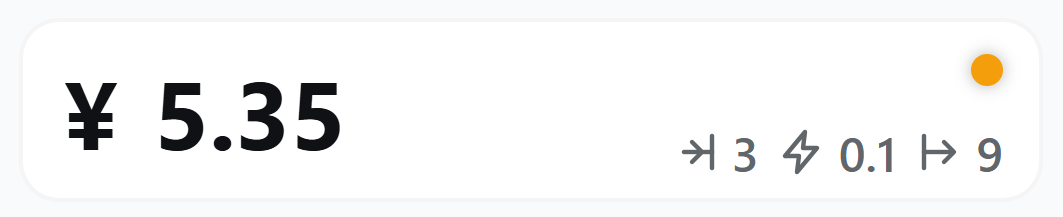
Balance mode (DeepSeek, Kimi, Z.ai, OpenRouter…): the account balance, the current model's input / cache / output unit prices, and the peak / off-peak indicator in the top-right corner.
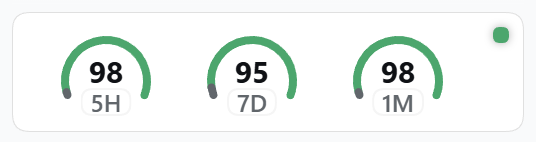
Subscription mode (Kimi For Coding, OpenCode, MiniMax, Claude Code / Codex…): one D-shaped gauge per usage window — the number in the middle is the remaining quota, the grey arc is what has been used, the green arc is what is left (red once 80% is used), and the badge names the window (5H = 5-hour, 7D = weekly, 1M = monthly).
What this plugin does
DSH lets you switch between many model providers, but each provider hides its account status on a different website. This plugin resolves the provider behind the model you have selected in DSH and puts a live status card for that account at the bottom of the sidebar:
- Account reading. Two forms, depending on what the provider offers:
- Balance providers (DeepSeek, Moonshot / Kimi, Z.ai, OpenRouter) publish the account balance, so the card shows it with its currency symbol (
¥/$). - Subscription providers (Kimi For Coding, OpenCode, MiniMax, Claude Code, OpenAI Codex) publish no balance, only usage windows. The card draws one gauge per window — 5-hour, weekly, monthly, whatever the endpoint returns — and shows how much of each quota remains, turning red once 80% is used.
- The card always follows the selected model, so switching provider switches the reading; no per-provider setup beyond the credential.
- Balance providers (DeepSeek, Moonshot / Kimi, Z.ai, OpenRouter) publish the account balance, so the card shows it with its currency symbol (
- Unit prices of the current model. The card lists input, input-cache and output prices for the billing period in effect right now, in the provider's own currency. When a provider bills by time of day — DeepSeek's official peak / off-peak schedule (Mon–Fri 09:00–12:00 and 14:00–18:00 Beijing time is peak, evenings, weekends and holidays are off-peak) or OpenRouter's time-of-day pricing — an orange / green dot marks which window is active, and hovering it shows the time left until the next switch.
Installation and usage
Step 1 — configure the provider's credential. The plugin queries each provider with the key you already use for that provider: fill it on the Models page in DSH, or export it as an environment variable (DEEPSEEK_API_KEY, MOONSHOTAI_API_KEY, ZAI_API_KEY, OPENROUTER_API_KEY, KIMI_CODING_API_KEY, OPENCODE_API_KEY, MINIMAX_API_KEY, …). The deepseek-account route is the exception: it needs no key — sign in to DeepSeek inside DSH and the card reads that account grant.
Step 2 — install the plugin into the web profile:
dsh plugin --profile web add @dougen/dsh-deepseek-usage
Step 3 — restart dsh web and open the URL it prints. The card sits at the bottom of the sidebar, below the Cordis panel button; click it to refresh right away. Provider mappings and subscription tokens are configured in Settings → DeepSeek Usage; when the route behind the selected model is not supported, the card offers a Set up mapping button that opens that page directly.
An API key cannot read these subscriptions — they share an OAuth token instead. When DSH detects Claude Code or OpenAI Codex (or a provider mapping targets one of them), a token field appears in Settings → DeepSeek Usage, under the provider mappings. Paste the token there and the sidebar card starts reporting that subscription's remaining quota:
- Claude Code — on a machine signed in to Claude Code, copy
claudeAiOauth.accessTokenfrom~/.claude/.credentials.json(on macOS: theClaude Code-credentialskeychain item). A token minted byclaude setup-tokenalso works. - OpenAI Codex — copy
tokens.access_tokenfrom~/.codex/auth.jsoninto the token field, andtokens.account_idinto the account ID field.
Tokens are stored through DSH's credential service (~/.dsh/.credentials.yaml) and never leave this machine: no response, log line or page element carries one back. The Clear button removes them again.
dsh plugin --profile web remove @dougen/dsh-deepseek-usage
Then restart dsh web.
Supported DSH versions
Use a plugin version that matches your DSH:
| DSH version | Plugin version to install |
|---|---|
0.2.x (from 0.2.0-rc.1 on) |
0.11.0 or later |
0.1.x (from 0.1.0-rc.6 on) |
0.10.x, or 0.11.0 or later |
Run dsh --version to check your DSH version. Installing without an explicit version picks the newest compatible release automatically; if the newest release does not match your DSH, pin an exact one, e.g. @dougen/dsh-deepseek-usage@0.10.2.
No comments yet. Be the first to write one.