dsh-open-project
Current version: 1.4.0 — see Changelog. If you installed an earlier version, update: 1.2.0 brings the DSH window to the front, and 1.3.x can start the app from a non-default install directory and no longer fails silently.
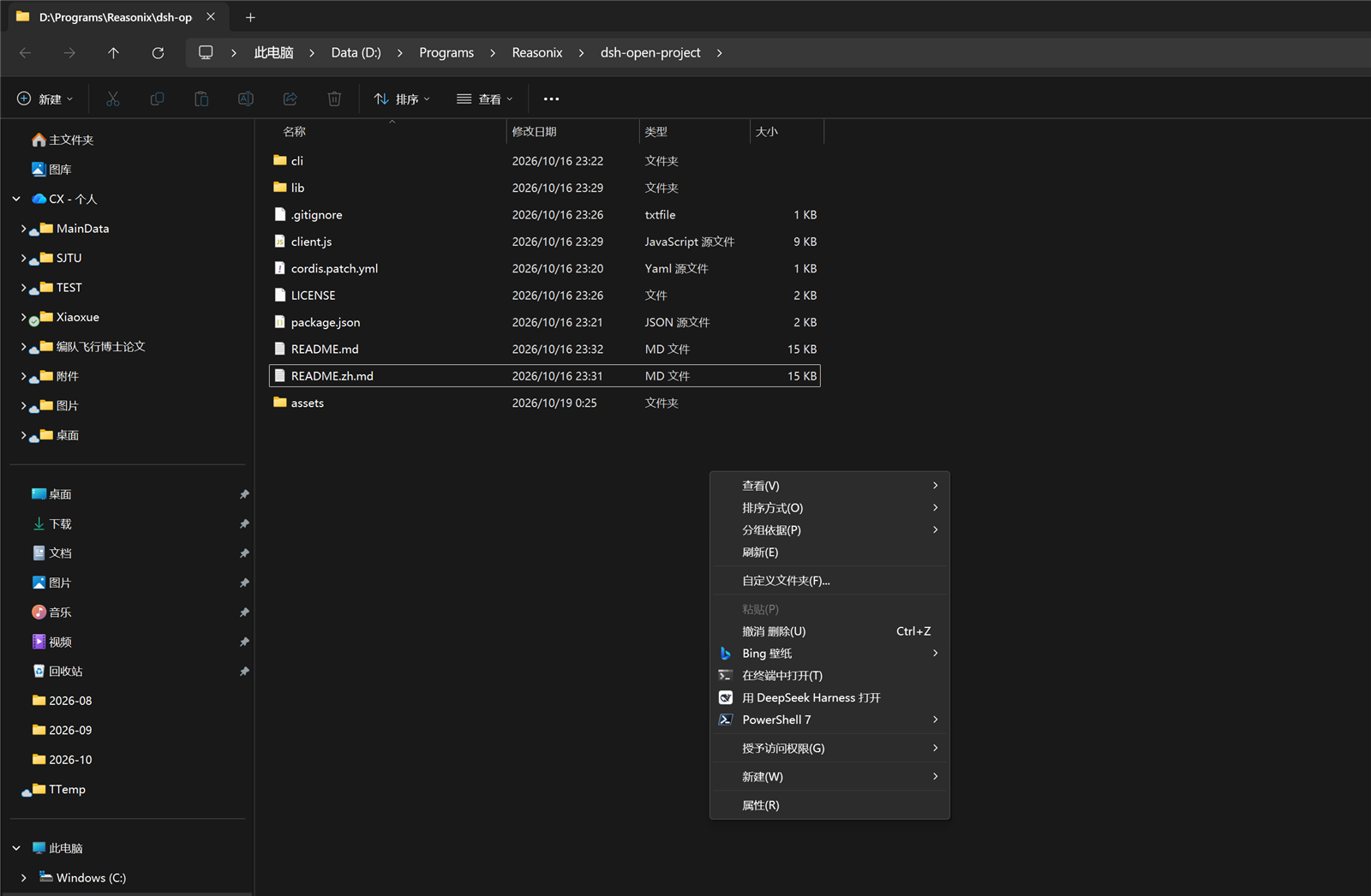
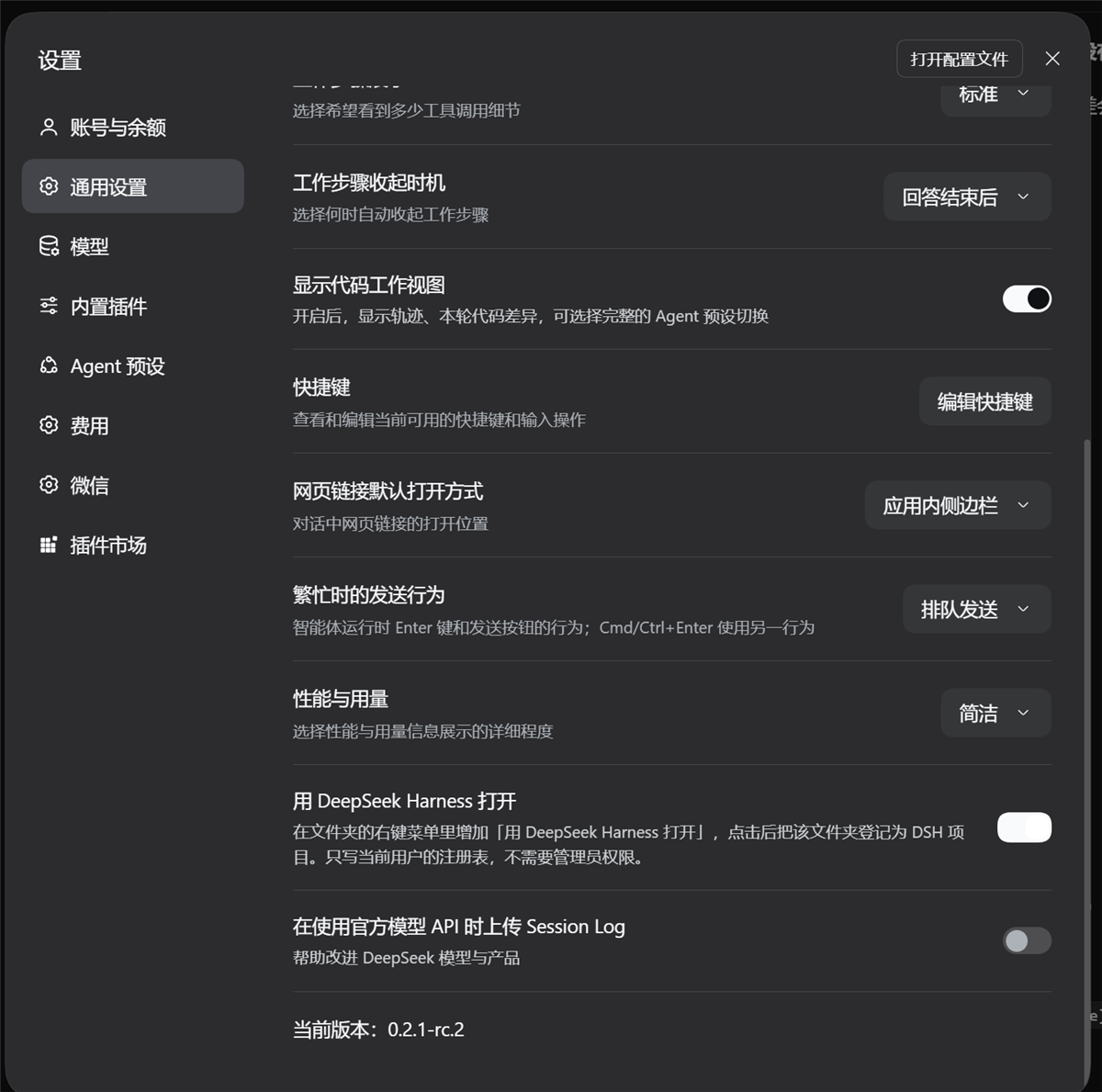
A DSH plugin for Windows: it adds 用 DeepSeek Harness 打开 ("Open in DeepSeek Harness") to the Explorer folder context menu, and registers the clicked folder as a project in DSH's sidebar. One switch in DSH's Settings → General adds or removes that menu entry.
It is a two-half DSH plugin:
| Half | File | Role |
|---|---|---|
| Host | lib/index.js |
Registers two exact routes on DSH's web server: one that registers a directory as a project, one that reads/toggles the context-menu entry. |
| Client | client.js |
Renders one row in the General settings page with a switch that calls the toggle route. |
| Windows helpers | cli/ |
The registry writer (context-menu.ps1), the shared executable lookup (app-path.ps1), and the launcher the context-menu entry actually runs. |
Effect
In Explorer. Right-click a folder — or the empty area inside a folder — and the menu contains 「用 DeepSeek Harness 打开」. Choosing it adds that folder to DSH's project list, brings the DSH window to the front (restoring it from the tray or from minimised), and shows a Windows notification:
Opened as a DSH project— the folder was registered (the notification's second line is the project title);Already a DSH project— a project for that directory already existed, and nothing changed.
Bringing the window forward is part of the action on purpose: registering a project changes nothing on screen, so without it a click looks like it did nothing.
If DSH is not running, the action starts it first: it locates the executable (DSH_DESKTOP_APP_EXE,
then a running instance, then the dsh:// handler the installer registers, then the default
install locations), launches it, waits for the window and brings it forward, then registers the
folder once the host answers. The whole wait is bounded (180 s).
In DSH. Settings → General gains one row — 「用 DeepSeek Harness 打开」 in a Chinese browser, Open in DeepSeek Harness otherwise. Its description says that the switch writes the current user's registry (no administrator rights), and reminds you to turn it off and on again after DSH moves, which re-registers the entry against the new path. The row sits between the code-workspace row and the version row. Turning the switch on writes both registry keys; turning it off deletes them. On a non-Windows host the row is not rendered at all.
Screenshots. Windows 11, DSH desktop 0.2.1-rc.2.
Requirements
- Windows 10/11. The whole feature is an Explorer +
HKCUregistry mechanism. - PowerShell — either version, nothing to install. Windows PowerShell 5.1 ships with Windows 10/11 and is enough on its own: the scripts avoid syntax that only 7 accepts, and they are saved as UTF-8 with a BOM so 5.1 decodes their non-ASCII default title correctly. When PowerShell 7 is installed the plugin uses it instead, because it starts roughly three times faster. The visible difference is the success notification: 5.1 shows a real Windows toast (it can project WinRT), while 7 falls back to a tray balloon.
wscript.exe(ships with Windows) — the menu command runs through it so no console window flashes.- A DSH profile that composes this plugin and provides the
webServerandworkspaceRegistryservices — the ones the DSH desktop application itself uses (its sidebar project list is built on the workspace registry). If either service is missing, the plugin stays pending instead of half-mounting.
Install
From the DSH app (recommended). Open the sidebar Plugins page → Add plugin, and enter one of:
dsh-open-project
github:dongfangxy/dsh-open-project
The plugin manager installs the bundle and enables it by default. The first form resolves from the npm registry the profile uses (the package must be published there); the second fetches the repository.
From the dsh CLI, for a profile you boot yourself:
dsh plugin --profile <profile> add dsh-open-project
dsh plugin --profile <profile> add github:dongfangxy/dsh-open-project
--profile is required — dsh plugin forwards its arguments to pnpm inside
$DSH_HOME/profiles/<profile>. (The app's install dialog describes the package name as "the
part after dsh plugin add in a README"; that is the name, not the whole command.) The DSH
desktop application loads its own reserved profile, so install into it from the Plugins page.
If the settings row does not appear on its own, restart DSH.
Use
- Open Settings → General in DSH and turn the row on (「用 DeepSeek Harness 打开」 in a Chinese browser, "Open in DeepSeek Harness" otherwise). This writes the registry entry; nothing else changes.
- In Explorer, right-click a folder (or the empty area inside one) and choose 用 DeepSeek Harness 打开.
- The folder becomes a project in DSH's sidebar. Open it there and start a session; DSH runs that session in the project's directory.
- To remove the menu entry, turn the same switch off. The switch state is read back from the registry every time the settings page loads.
The registry toggle can also be driven directly:
powershell -NoProfile -ExecutionPolicy Bypass -File cli/context-menu.ps1 -Action status            # human-readable report
powershell -NoProfile -ExecutionPolicy Bypass -File cli/context-menu.ps1 -Action status -Json      # one JSON line (what the host reads)
powershell -NoProfile -ExecutionPolicy Bypass -File cli/context-menu.ps1 -Action enable
powershell -NoProfile -ExecutionPolicy Bypass -File cli/context-menu.ps1 -Action disable
-Title 'Open in DeepSeek Harness' sets another menu label. The settings switch does not pass
a title, so it always writes the default Chinese label.
What it actually does
Nothing here is more than it looks; this is the exact chain.
Context-menu click. The registry command runs wscript.exe //nologo with the absolute path
of cli/open-project-in-dsh.vbs and the clicked folder (%V) as its argument; that starts
cli/open-project-in-dsh.ps1 in a hidden window. That script:
- resolves the folder and stops with a warning dialog if the path does not exist or is not a directory (exit code 2);
- determines DSH's base URL —
DSH_WEB_URLif the session provides it, otherwise the loopback port a runningDeepSeek Harnessprocess is listening on, otherwisehttp://127.0.0.1:19387; - starts the app if it was not running, using the executable found by
cli/app-path.ps1($env:DSH_DESKTOP_APP_EXE→ a running instance's own image path → the default per-user and per-machine install locations). If none is found the action stops with a message that says so (exit code 3); POSTs{"path": "<folder>"}to/.dsh-open-project, retrying until its deadline (30 s when the app was already running, 180 s after it started the app). A 4xx other than 403 is treated as final and is not retried;- reports the outcome: a Windows notification on success, a message box on failure.
Registration. POST /.dsh-open-project is handled by the host half, which calls
ctx.workspaceRegistry.create(<folder>). That is DSH's own workspace registry: it writes a
workspace record — on a default desktop install, $DSH_HOME/storages/workspace.json is the
registry's durable store (unit workspace, version 2). Registration is idempotent: if the
directory already has a project, the existing record is returned unchanged. The record is a
project — an entry in the sidebar's project list; it holds no file contents and no session
data of its own.
The settings row. client.js registers into the settings.general.item slot and calls
GET /.dsh-open-project/menu to read the current state, and
POST /.dsh-open-project/menu with {"enabled": true|false} to change it. The host route runs
cli/context-menu.ps1 -Action status -Json for reads and -Action enable|disable for writes.
If a write fails, the row re-reads the real state instead of showing the requested one.
The registry entry. cli/context-menu.ps1 writes exactly two keys:
HKCU\Software\Classes\Directory\shell\OpenInDeepSeekHarness
HKCU\Software\Classes\Directory\Background\shell\OpenInDeepSeekHarness
Each gets a default value (the menu label), an Icon value when the app executable can be
found, and a command subkey whose default value is the wscript.exe line above. disable
deletes both keys recursively.
Limitations
- It does not change any working directory. Registering a folder only adds a project
record. A session's working directory is DSH's business, not this plugin's: DSH resolves it
as the project's directory when a session is created from a project, and otherwise as the
host process's own directory (
process.cwd()), which is fixed when the application starts. The plugin never sets or changes acwd, never retargets the app, and cannot move a session that is already running. What it does is make the folder available as a project; a session you then start from that project runs in that folder because DSH does that, not because the menu item changed anything. - Windows only. Other platforms have no Explorer context menu, no
HKCU, and nowscript.exe. The host reportssupported: falsethere, and the client row is not rendered at all — so nothing appears in Settings rather than a switch that cannot work. - PowerShell is started once per action, so the menu click and each settings toggle pay a process start-up (about 0.2 s with PowerShell 7, about 0.8 s with 5.1).
- Cold start needs the app executable to be discoverable.
cli/app-path.ps1checksDSH_DESKTOP_APP_EXE, then a running instance, then thedsh://protocol handler the installer registers, then the default Electron install locations. The protocol record covers custom install directories; an installation that registers neither needsDSH_DESKTOP_APP_EXE. Only the starting step is affected — registering works with any running instance. - The menu icon is best-effort. The same lookup decides the icon. If it finds nothing, the
entry is written without an icon (
Iconis removed), and the menu still works. - The screenshots date from DSH desktop 0.2.1-rc.2 (see Effect); the row's exact appearance follows the app's own settings list, so a future release may style it differently.
- The settings row follows the browser language; the notifications and the menu label do
not. The row picks Chinese when
navigator.languagestarts withzh, English otherwise. The success/failure notifications and dialogs come fromcli/open-project-in-dsh.ps1and are hard-coded English. The folder-menu label is written bycli/context-menu.ps1, defaults to Chinese, and can be changed with-Title; the settings switch does not pass a title. - Disabling the plugin does not remove the registry entry — the switch is part of this plugin, so turn the switch off first (see Uninstall). Project records already in the sidebar are stored by DSH and stay after the plugin is disabled.
Permissions and security
- Registry:
HKCUonly. No administrator rights are needed, and nothing outside the two keys above is read or written.powershell -NoProfile -ExecutionPolicy Bypass -File cli/context-menu.ps1 -Action disableremoves them completely. - The routes live on DSH's own local web server, which listens on loopback
(
127.0.0.1) — verified on this machine as127.0.0.1:19387. The plugin adds two exact paths; it does not start a server or open a port. POST /.dsh-open-projectrequires the custom headerx-dsh-open-project(403 without it), refuses anyOriginthat is not loopbackhttp(403), refuses bodies over 64 KiB (413), refuses a non-JSON body (400), requires a non-emptypathstring (400), and answers 405 to any method other thanPOST. Another page cannot forge this request: a cross-origin fetch that adds the header triggers a preflight the route does not answer, and a plain request carries anOriginthe route rejects.- The route accepts no command. Its only input is one directory path, which it hands to
the workspace registry. That call requires a fully qualified path that exists and is a
directory; relative paths, drive-relative paths such as
C:work, missing paths, and files are rejected without creating anything. No shell is involved, and nothing from the request is interpolated into a command line. GET/POST /.dsh-open-project/menutakes no free-form input either: a write must be a boolean, and it selects one of two fixed actions incli/context-menu.ps1. This route is called by the DSH settings page itself and therefore does not require the custom header.- No network access beyond
127.0.0.1. The plugin downloads nothing and executes nothing that came in over HTTP.
Troubleshooting
Every click writes one line to %LOCALAPPDATA%\dsh-open-project\last-run.log, so a click that
seemed to do nothing can be explained afterwards:
2026-10-19 15:53:50 ok; folder=D:\work\app; coldStart=False; exe=; endpoint=http://127.0.0.1:1583; created=False; title=app
coldStart=True plus an exe= path means the app was started for that click. A line ending in
no executable found means the app could not be located; set DSH_DESKTOP_APP_EXE.
Moved or reinstalled the plugin? The menu entry stores an absolute path to this copy's
launcher, written when you turned the switch on. If that copy moved, the entry stays in the menu
and does nothing; status reports it via "stale": true (and a STALE line in the readable
report). Toggle the switch off and on — or run -Action enable — to rewrite both keys against
the new location.
Nothing happens at all, no dialog either? That was a bug before 1.3.0: the failure dialogs
referenced System.Windows.MessageBox without loading WPF, threw, and the error was swallowed.
Re-run the action after updating.
Uninstall
- In DSH, turn off the settings switch — or run
powershell -NoProfile -ExecutionPolicy Bypass -File cli/context-menu.ps1 -Action disable. Either one deletes both registry keys. - Remove the plugin: the sidebar Plugins page → uninstall, or
dsh plugin --profile <profile> remove dsh-open-project.
Do step 1 first: the switch belongs to this plugin. Uninstalling first leaves the menu entry in the registry, and clicking it then fails because the script it names is gone. Removing the plugin also removes its settings row and both routes.
Projects that were registered stay in the sidebar; delete them there if you want them gone. Deleting a project in DSH never touches the folder or its session history.
Repository layout
package.json                 Package metadata: dsh.bundle.patch, dsh.client, files list
cordis.patch.yml             Host bundle patch: inserts the single row named dsh-open-project
lib/index.js                 HOST HALF: the two routes, the launch of cli/context-menu.ps1
client.js                    CLIENT HALF: the Settings → General row (no import/export)
cli/context-menu.ps1         Reads/writes the HKCU context-menu keys (enable|disable|status)
cli/app-path.ps1             Shared lookup for the DSH executable (override, running, defaults)
cli/open-project-in-dsh.ps1  The menu action: find port, start app if needed, POST the path
cli/open-project-in-dsh.vbs  Hidden-window launcher for the .ps1 (kept pure ASCII on purpose)
screenshots.json             Storefront screenshot order (marketplace reads it from the repo)
assets/                      The two screenshots this README shows
Host half vs client half. cordis.patch.yml contributes exactly one host plugin row,
whose id matches the package name; the host half declares inject: ["webServer", "workspaceRegistry"] and registers its routes through ctx.effect, so unloading the plugin
removes them. The client half is a browser bundle: DSH concatenates client.js (per
dsh.client in package.json) into the /plugins combo script and registers it through
window.__ModuleLoader__.load, which is why that file uses no import/export and receives
React through the injected require. Both halves carry the same plugin name, and the package
name, the host row id, and the client module id are kept identical on purpose.
There is no build step: the files are shipped as they are, straight from the repository.
Changelog
- 1.4.0 — The settings row now says what to do after DSH moves: turn the switch off and on again to register the new location.
- 1.3.1 —
statusreports a stale menu entry (stale: true) instead of the entry silently doing nothing after the plugin is moved or reinstalled. - 1.3.0 — Finds the app through the
dsh://protocol record, so a non-default install directory works; failure dialogs actually appear; every loopback port is tried instead of just the first; the window is focused while a cold start is still coming up; and every run appends a line to%LOCALAPPDATA%\dsh-open-project\last-run.log. - 1.2.0 — Brings the DSH window to the front after registering, restoring it from the tray or from minimised, so a click no longer looks like it did nothing.
- 1.1.0 — Runs on Windows PowerShell 5.1, so PowerShell 7 is no longer a requirement; also fixes the success toast, which never appeared under PowerShell 7.
- 1.0.0 — First release.
License
MIT — see LICENSE. Copyright (c) 2026 Chengxi Zhang.
No comments yet. Be the first to write one.