DSH Game Preview





Play your game inside the sidebar while the agent codes it.
Run a Cocos / Godot / Unity / WeChat project, capture the native engine window, forward your mouse and keyboard, and iterate without ever leaving DeepSeek Harness. Then package it — Web zip, Android APK, or a project script like build:taptap — from the same panel.
Made by 邮差游戏工作室 / Postman Game Studio.
English · 简体中文 · 繁體中文 · 日本語 · 한국어 · Deutsch · Español · Français
Try it in 60 seconds
# as a DSH bundle (needs DeepSeek Harness on Windows 10/11)
plugin_manager install_bundle(target: "github:davidmercer0620-ai/dsh-game-preview")
Or add the plugin-market index and install from Settings → Plugins → Discover:
https://raw.githubusercontent.com/davidmercer0620-ai/dsh-game-preview/main/docs/plugin-index.json
Then open a game project and click ▷ 预览 in the chat header.
Maintainers: node scripts/release.mjs --yes runs the checks, regenerates the
plugin index, tags, pushes and publishes the release (--publish adds npm).
- Numbers, not adjectives → docs/CASE_STUDY.md (15.2 fps Unity capture, 1m20s APK, 0.64 MB TapTap bundle, 14 croppable engine modules)
- How it was built → docs/BLOG.md (the iframe-bridge dead end, PrintWindow vs WGC, three white screens)
- Skeptical questions answered → docs/FAQ.md ("why not MCP?", "isn't this just a screen recorder?", "will it eat my CPU?")
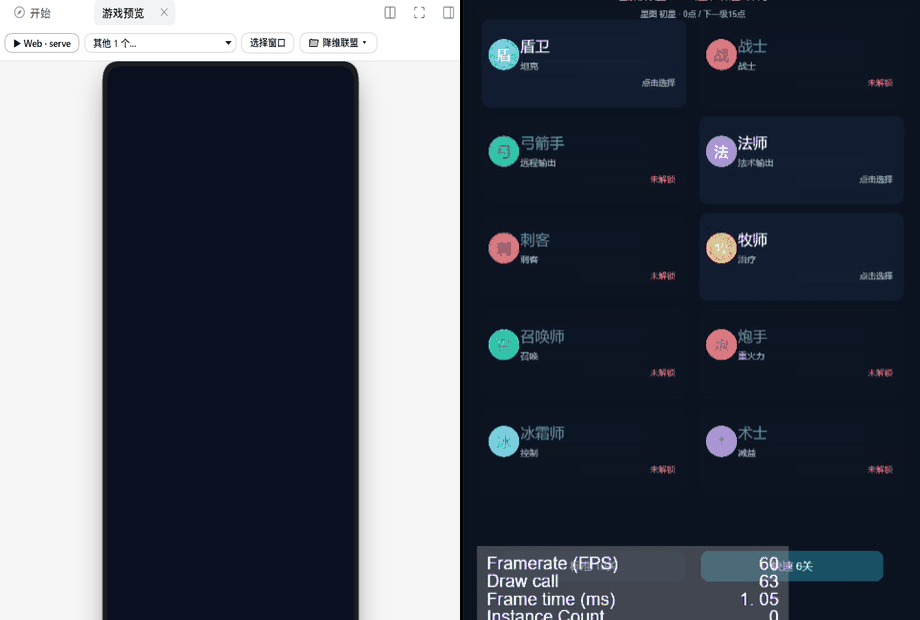
The 游戏预览 tab: engine/build chips, a real 390×844 phone viewport, and the run bar with packaging, console and export below.
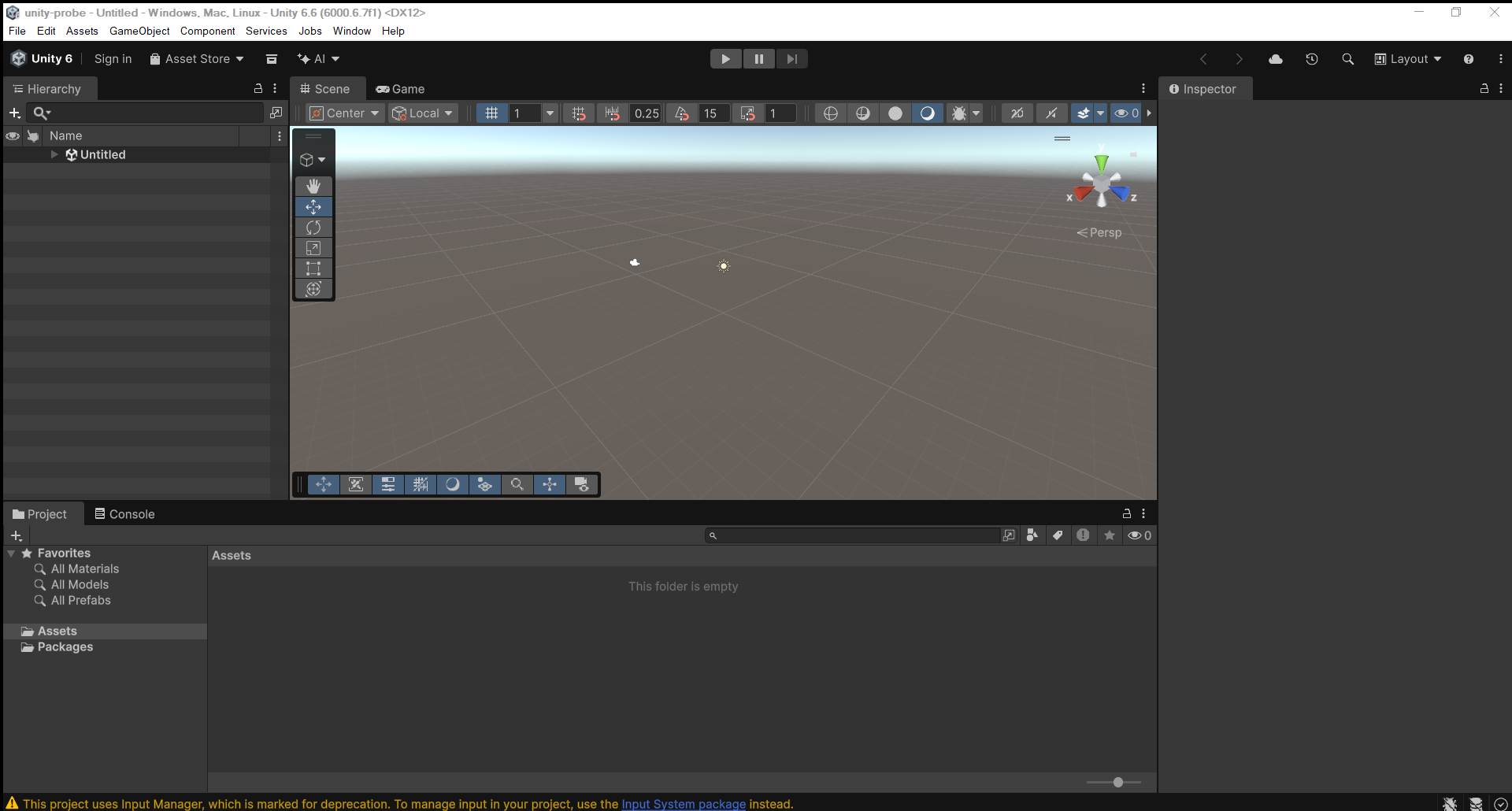
The Unity editor captured live into the sidebar — 1920×1030 at 15 fps, cropped to the Game view, keyboard and mouse forwarded.
Not a screen mirror
A senior developer reviewed an early build and said it plainly:
"The preview is just a screen recording in the sidebar — useless with two monitors. The agent drives Unity through scripts in the background, the editor does nothing until the final test, then it flashes and the scene is finished."
That is right, and it changed the design. Watching a live feed of an idle editor is pointless. What you actually want is the moment the agent was done:
- ⏺ Result timeline keeps a still only when the picture really changes (hash-gated, at most one every 4 s), so ten minutes of agent work becomes a handful of frames — a few hundred KB, near-zero CPU.
- One click makes a GIF of those frames, straight into your project folder, ready to paste into a review or a PR.
- 🗂 Project board for the other half of the complaint — one screen, several games. Every workspace DSH knows appears as a card with its newest frame, frame count and last change; click one to switch the panel to it.
- Recording is on by default and change-gated (8 s floor), so there is nothing to press and an idle editor stores nothing.
- No continuous rendering, no second monitor required: open the panel when you want to check the result, not to babysit it.
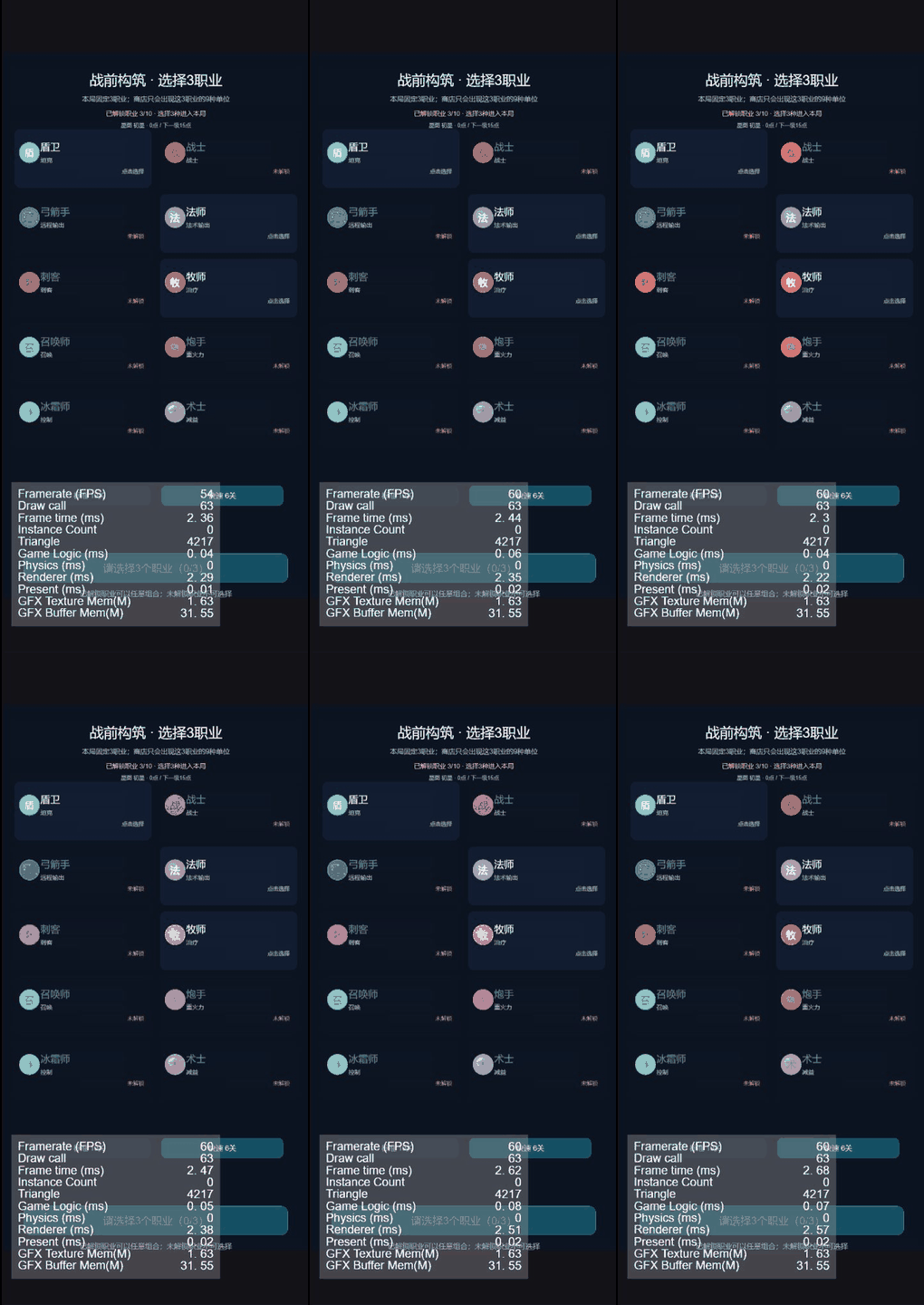
Eight stills out of a 45-second recording of a finished build — what the agent produced, not a live feed.
Why this exists
Every engine has one loop that is faster than all the others. The panel picks that loop automatically:
| Engine | Fastest loop | What the preview does |
|---|---|---|
| Cocos Creator | Editor browser preview (~1 s) | Connects to localhost:7456, keeps the editor's HMR |
| Godot | F5 → native window (~2 s) | godot --path ., captures the window |
| Unity | Editor Play mode (~3 s) | Unity.exe -projectPath, captures the editor, follows the splash → editor window swap |
| WeChat mini game | DevTools build (~90 s) | Opens the project in WeChat DevTools |
| Web / static | dev server or plain files | Starts the script, or serves the folder as-is |
| Engine builds | build/web-desktop/index.html |
Serves the exported bundle, PC or phone viewport |
It never asks "which engine are you using?" — detection decides; when nothing matches you get a manual URL.
Features
| Native window capture | PrintWindow + a two-thread capture/encode pipeline, 15–24 fps; sharp (native size) or smooth (1100 px, ~24–30 fps) |
| Play inside the panel | 🖱 forwards mouse and keyboard to the captured window — DPI-corrected, with F1–F12, arrows and modifiers |
| Crop to the Game view | ✂ drag a rectangle over the capture and keep only that part; remembered per window title |
| PC / phone / auto viewports | Real 1280×720 and 390×844 logical viewports, scaled to fit — the game's media queries see a phone |
| Auto start | Opening the tab restores the last window or config for that project and starts it |
| Dirty counter | Saving does not reload; the panel shows how many changes are waiting, then one click reruns |
| Agent tools | game_preview_run / game_preview_status / game_preview_stop / game_preview_windows |
| Package the game | 📦 exports a Web zip, an Android APK (reusing the project's own android/ shell), or a Windows EXE when the toolchain exists |
| Project scripts, one click | The export panel lists package.json scripts (build/release/verify/bench), android/build.sh, build_apk.js and tools/build-platform.mjs and runs them with a live log |
| Bundle size budget | Per-platform sizes against the store limits (WeChat/Douyin/TapTap 4 MB, web 32 MB), warn at 80%; click a row for the directory/extension/file breakdown |
| Phone preview by QR | Shares the running static build over the LAN behind a random token, shows a QR (host-side python-qrcode, no client dependency), expires after 30 minutes |
| Build history | Every export and project-script run is appended to .dsh-game-preview/history.json; the panel shows duration and byte delta |
| Pipeline bar | 改动 → 运行 → 自检 → 打包, live: a pulsing dot while the workspace is changing, parsed percent for long build jobs, elapsed seconds |
| Project board | A thumbnail wall of every workspace with its latest recorded frame; click to switch the panel |
| Playtest replay | game_preview_playtest replays {wait, click, key, shot} steps against a window and returns the screenshots plus the page errors collected during the run |
| One-command check | game_preview_check runs the whole chain — page errors, fps, a still, an optional playtest, a pixel diff against the previous check, bundle sizes and cropping candidates — and answers pass / warn / fail with evidence paths |
| Visual diff | Compares two frames (or the last two recorded) with Pillow: changed-pixel share plus a diff image, so a broken UI is a number, not an opinion |
| Engine crop report | Scans scenes, prefabs and scripts for engine component usage and lists which Cocos feature-cropping modules are unused, with the engine bundle size |
| Agent eyes | game_preview_screenshot saves the current frame into the project and returns its path; game_preview_logs returns the process tail, so the agent can inspect the game itself |
| The page reports itself | Every served document gets a tiny probe: uncaught errors with stacks, unhandled rejections, console.error, failed asset loads, and a measured frame rate. The chips row shows ⚠ 3 or 58fps, and game_preview_console hands the same list to the agent |
| Hotkeys | F full-bleed · R reload · Esc leave |
Install
From the Discover tab (plugin market)
- Enable the experimental market bundle once:
plugin_manager install_bundle(target: "@deepseek-ai/dsh-experimental-plugin-market-bundle") - In Settings → Plugins → Discover, add this index URL:
https://raw.githubusercontent.com/davidmercer0620-ai/dsh-game-preview/main/docs/plugin-index.json
The index pins an exact commit per version, so an install from it is reproducible.
From a local checkout
Requires DeepSeek Harness 0.2.x and Node.js 22+.
# from a local checkout (links the folder into the profile)
dsh plugin --profile <profile> add /absolute/path/to/dsh-game-preview
or ask the agent inside DSH:
plugin_manager install_bundle(target: "C:\\path\\to\\dsh-game-preview")
Then reload the page (Ctrl+R): a ▶ button appears next to the session title, and 游戏预览 shows up in the right sidebar's “+”.
Native capture, input forwarding and engine launching are Windows 10/11 only. Web previews work everywhere.
Use it
- Open the session whose workspace is your game.
- Click the ▶ icon (or right sidebar → + → 游戏预览).
- The panel auto-detects the engine and starts the fastest loop.
- Edit code — the counter says
●3; press ▶ or let the agent callgame_preview_run. - For Unity: press Play once in the editor, hit ✂ to crop the Game view, then 🖱 to play right there.
Packaging
The 📦 导出 button opens three targets and shows live readiness for each:
| Target | What it does | Needs |
|---|---|---|
| Web zip | zips the detected static build into <project>/dist |
nothing |
| Android APK | runs the project's own android/build.sh (or gradle assembleDebug) with JAVA_HOME/ANDROID_HOME injected, then copies the APK to dist/ |
JDK 17 + Android SDK + Gradle + an android/ Gradle project |
| Windows EXE | builds the Cocos windows platform and copies the .exe |
Visual Studio C++ + CMake + Cocos Creator |
Toolchain paths are discovered where Windows actually keeps them (JAVA_HOME, D:/Android/sdk, D:/jdk*, %USERPROFILE%/.gradle/wrapper/dists, Program Files\\Java), not just PATH.
Projects that pick their entry file by environment variable can use 构建参数… (e.g. ZAOWU_SRC=index_v5_0.html); it is remembered per project.
Configuration
Edit the row in your profile's cordis.patch.yml:
- id: dsh-game-preview
  config:
    port: 7317             # control API start port (probes 16 ports)
    captureFps: 20         # target capture rate
    captureWidth: 0        # downscale before JPEG; 0 = native
    captureQuality: 70     # JPEG quality
    captureWaitMs: 30000   # how long to wait for the engine window
    godotExe: ''           # absolute path when not on PATH
    unityExe: ''           # <version>\Editor\Unity.exe
    cocosEditor: ''        # CocosCreator.exe
    wechatCli: ''          # WeChat DevTools cli.bat
How it works
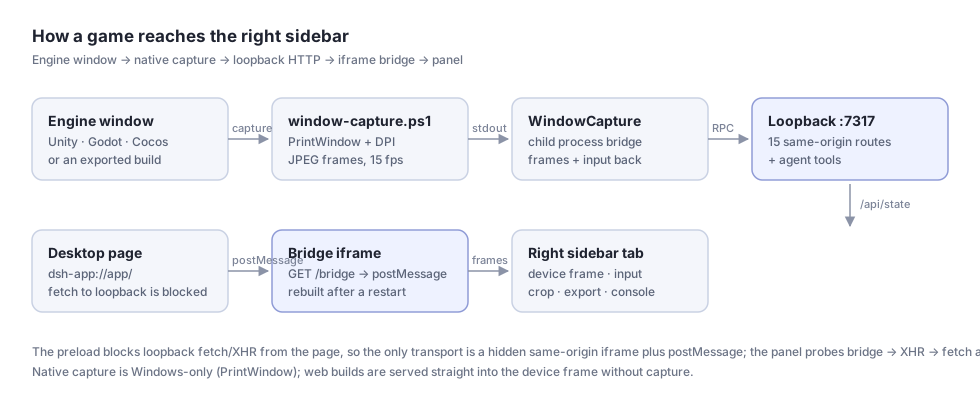
DSH Web UI
├── session header ▶            ──┐
├── right sidebar tab "游戏预览"   │ opens the tab
│      ├── config bar / stage    │
│      └── playtest bar          │
└──────────────┬─────────────────┘
               │ iframe bridge (postMessage + long-poll)
               ▼
Host plugin
├── same-origin routes /api/game-preview/*
├── loopback control API 127.0.0.1:7317 (fallback)
├── workspace scan + watcher (dirty counter)
├── engine / dev-server lifecycle
├── host/window.js          capture bridge + input injection
└── host/window-capture.ps1 resident C# helper (DPI aware, two-thread pipeline)
The desktop app runs its page on dsh-app://app/, where fetch and XMLHttpRequest to loopback are intercepted. The panel therefore talks to the host through a hidden iframe served by the host itself (GET /bridge), and falls back to same-origin routes and the loopback API when that is unavailable.
Known limits
- Windows-only for native capture, input and engine launching.
- Exclusive fullscreen windows capture as black; switch the game to borderless.
- The capture backend is
PrintWindow: a 4K window at native size drops to ~10 fps — use smooth. - Input forwarding covers keyboard and mouse (no gamepads); IME input is not translated.
- Only one level of nested projects is scanned.
Development
node --check index.js && node --check client.js && node --check host/window.js
node scripts/harness.mjs          # host: control API, detection, capture, input, routes
node scripts/client-harness.mjs   # client: registration and every UI state
Reinstall the plugin after changing the host half; reload the page after changing the client half.
License
MIT
If this saves you alt-tabs
Star the repo — it is the signal that tells me to keep the Windows capture path alive. Issues with a screenshot are even better than stars: the panel can capture its own frame, so a bug report with game_preview_screenshot output is reproducible.
- Roadmap and the honest "what we will not build": docs/ROADMAP.md
- Changelog: CHANGELOG.md
- Built by 邮差游戏工作室 / Postman Game Studio, MIT licensed.
No comments yet. Be the first to write one.