dsh-computer-use



Windows computer use for agents: read the screen as text, click controls by name, screenshot, type, scroll, drag — plus an on-screen indicator the human can see and stop with ESC.

A text-only model can drive a GUI with this: dsh-cu tree and dsh-cu read turn a window into a
few hundred tokens of roles, names and clickable points, and dsh-cu tap "Save" clicks the one
control that matches. Screenshots are there when pixels are the answer, not as the only way in.
Built for the DeepSeek Harness; the CLI works
with any agent or script. The CLI is dsh-cu, the skill it registers is dsh-computer-use, the
repository is dsh-computer-use-win — three names, one thing.
Nothing to install. No packages, no driver, no SDK: the backend compiles its own C# with the .NET Framework that ships with Windows.
Requires Node.js 18+ and Windows PowerShell 5.1 on a Windows desktop. The C# compiler is
provided by the built-in .NET Framework; users do not need Visual Studio or the .NET SDK.
PowerShell 7 (pwsh) is not a supported replacement for this Framework/WinRT backend.
Why this one
- Cheap enough for a text-only model.
treereads the control tree through UI Automation (native apps, and web pages once the browser's accessibility is woken up),readruns the OCR that ships with Windows, and both print a clickable point per line. A window costs a few hundred tokens instead of a full screenshot. OCR and UI Automation run locally; MCPscreenshotreturns image data to the connected client/model. - The human can see it and kill it. A rounded status panel that names the command being run ("click 640,380"), a glow along the screen edge and a ring that follows the real pointer; ESC stops everything. Injected ESC is ignored, so an agent cannot switch off its own indicator.
- One pointer, always. The ring is drawn around your own cursor, so there is never a second
arrow chasing the first one.
--hide-cursoris the opt-in for the other model: the drawn marker becomes the only pointer on screen. - Input is refused while the indicator is down.
move,click,drag,wheel,type,key,keys,clipboardandrunanswer with a refusal untildsh-cu overlayhas put the frame on screen. That gate lives in the tool, not in the prompt. - It runs on a stock Windows box. Other computer-use plugins drive an external native driver (cua-driver and friends) that has to be installed first; this one needs only the PowerShell and .NET that Windows already has.
- It is verified against the real machine.
dsh-cu self-testdrives an isolated test window through MCP and checks countdown gating, text, clicks, screenshots and cursor recovery. - Works from inside the Harness sandbox. The Harness file sandbox blocks piped stdio for
nested processes; the CLI falls back to file-descriptor capture, so
dsh-custill works where a naivespawn(..., {stdio: 'pipe'})getsEPERM.
What it is not: it has no browser DOM (UI Automation sees what an app exposes, which is less than the DOM and more than pixels), no multi-monitor support, and no per-application allowlist.
Install
| Way | Command | What you get |
|---|---|---|
| Skill + CLI + PATH | powershell -ExecutionPolicy Bypass -File install.ps1 |
SKILL.md in $DSH_HOME\skills\dsh-computer-use\ and a dsh-cu shim on the user PATH |
| DSH profile plugin | dsh plugin --profile web add github:datuloar/dsh-computer-use-win |
the bundle mounts the plugin, which registers the skill from the repository |
| Nothing at all | bin\dsh-cu.cmd <command> or node src\cli.js <command> from a clone |
the same CLI, no PATH change |
Use one skill delivery path: the copied $DSH_HOME\skills\dsh-computer-use\SKILL.md and the
plugin registration carry the same skill name.
Without any of them: node src\cli.js <command> or bin\dsh-cu.cmd <command>.
The filesystem skill root is scanned live, so no restart is needed for the copy; the profile
plugin needs dsh web restarted once.
OpenCode has a separate distribution: open-code-computer-use-win. Install it from that repository. This repository installs the DeepSeek Harness integration.
The loop
dsh-cu overlay                       # the human is warned for 5 s, ESC cancels
dsh-cu shot                          # capture the screen, print the path
dsh-cu click 640 380                 # click there
dsh-cu type "hello"                  # type into the focused window
dsh-cu keys ctrl+l                   # key combinations
dsh-cu drag 420 300 980 300          # press, glide, release
dsh-cu shot --region 1200 600 420 240   # read one detail instead of the whole screen
dsh-cu overlay --stop                # stop and clean up
dsh-cu overlaybefore the first input.dsh-cu focus <pid>(or--title <text>) the target window.dsh-cu shotand look at the image.- Act on coordinates taken from that screenshot; confirm a
movewithdsh-cu pos. dsh-cu shotagain — a step is done only when the second screenshot says so.dsh-cu overlay --stop(MCP:indicatorwithaction: "stop") after each GUI interaction, before shell work or replying, including on failure. Do not wait for the entire project to finish.
Commands
dsh-cu see <question> [--region <x> <y> <w> <h>]   ask local vision about the screen, returns text

dsh-cu shot [file.png] [--region <x> <y> <w> <h>]   capture the screen, or a crop of it
dsh-cu read [--region <x> <y> <w> <h>] [--lang <tag>] [--json]   the screen as text, with a point per line
dsh-cu tree [--pid N | --title <text>] [--depth N] [--all] [--json]   the control tree of a window
dsh-cu find <text> [--pid N | --title <text>] [--json]   controls whose name contains the text
dsh-cu tap <text> [--pid N | --title <text>]   click the one control named like that
dsh-cu inspect <text> [--pid N | --title <text>] [--max-chars N]   one control value/state as JSON
dsh-cu wait-control <text> [--pid N | --title <text>] [--seconds N] [--state exists|enabled]   bounded read-only wait
dsh-cu move <x> <y>                       move the pointer
dsh-cu click <x> <y> [left|right|middle|double|triple]   click
dsh-cu drag <x> <y> <to-x> <to-y>         press, glide to the second point, release
dsh-cu wheel <delta> [<x> <y>] [--horizontal]   scroll, 120 = one notch, at that point when x y are given
dsh-cu type <text>                        type into the focused window
dsh-cu key <name> [down|up]               Enter, Esc, Tab, Space, Ctrl, Alt, F1..F12, arrows
dsh-cu keys <combo>                       ctrl+l, ctrl+shift+t, ...
dsh-cu clipboard [get|set <text>|clear]   read or write the clipboard
dsh-cu pos                                pointer position and foreground window
dsh-cu windows [--json]                   visible windows with pid, title and rectangle
dsh-cu focus <pid> | --title <text>       bring a window to the front, verified
dsh-cu wait-window <text> [seconds]       wait for a window to appear, then focus it
dsh-cu run <command line>                 run a command line — see the safety rules
dsh-cu broker [start|stop|status]         elevated input broker, asks for UAC
dsh-cu overlay [--announce N] [--quiet] [--hide-cursor]   on-screen indicator, ESC stops it
dsh-cu overlay-state                      whether the indicator is running
dsh-cu display                            primary screen size and DPI
dsh-cu mcp                                serve the same tools over MCP (stdio)
dsh-cu doctor                             what this machine can do
dsh-cu self-test                          test Windows/MCP in an isolated window
dsh-cu overlay --stop                     stop the indicator, restore the cursor
dsh-cu overlay --restore-cursor           emergency cursor rescue
read, tree, find and tap are the cheap path; shot writes into %TEMP%\dsh-computer-use\
and prints SAVED <path> <bytes>; --region x y w h
crops it to that rectangle in screen coordinates. --quiet draws only the pointer marker, for
pixel-accurate reads. Arguments are handed to the backend as a JSON array, so typed text and window
titles keep their spaces, quotes and leading dashes.
drag presses at the first point, glides to the second in eased steps and releases it, which is
what sliders, selections and drag-and-drop targets expect; click also takes middle and
triple.
As MCP tools (DeepSeek Harness, Claude Code, Cursor)
dsh-cu mcp serves every command as native tools over MCP stdio: ui_tree, find, tap,
read_text, screenshot (returns the image), click, move, drag, scroll, type, press,
windows, focus, wait and indicator. It keeps one backend process warm, so a call takes
without recompiling C# for each call; timings depend on the application's UI Automation provider.
Input tools, including focus, start the on-screen
indicator by themselves the first time.
DeepSeek Harness — add a row to your profile patch (<DSH_HOME>\profiles\web\cordis.patch.yml);
the tools then appear as mcp__pc__click, mcp__pc__ui_tree, ...:
- id: mcp-pc
  name: '@deepseek-ai/dsh-mcp-client'
  config:
    serverName: pc
    transport: stdio
    command: node
    args: ['C:\\path\\to\\dsh-computer-use\\src\\mcp.js']
    toolCallTimeoutMs: 120000
Claude Code: claude mcp add pc -- node C:\path\to\dsh-computer-use\src\mcp.js.
Cursor takes the same command in its MCP settings.
If the human presses ESC, the indicator records it and every input tool refuses for the next ten minutes with a message telling the agent to stop and ask — an agent cannot quietly restart the indicator it was just stopped with.
Driving a GUI without vision
Optional local sight: run powershell -ExecutionPolicy Bypass -File install-vision.ps1 once.
It downloads about 3.4 GB of pinned, SHA256-verified Qwen3-VL 4B weights and a Vulkan
llama.cpp runtime from their official repositories. No Python, SDK or API key is needed.
The local server starts on demand at 127.0.0.1:19471. After five minutes without tasks,
llama.cpp unloads the model and its caches from memory. The lightweight server stays running
and automatically reloads the model on the next request. Active tasks prevent idle sleep.
Restart an existing MCP connection once to discover the new see tool.
Call see with a specific question and a crop of the relevant window. It returns text
instead of image blocks, so a text-only DeepSeek can use it. Images go only to the local
server; the resulting text goes to the main model. Coordinates are estimates;
the tool converts normalized model boxes into screen_box and screen_point in screen pixels.
Prefer UIA for exact controls and reobserve
after moving or scrolling. The tool observes only and never clicks by itself.
dsh-cu overlay                       # the human is warned, ESC cancels
dsh-cu focus --title "Settings"      # pick the window
dsh-cu tree                          # roles, names and a clickable point each
dsh-cu tap "Bluetooth"               # click the one control with that name
dsh-cu tree                          # verify: the tree is the new state
tree walks the window with UI Automation and prints one line per control:
TREE Invoice draft (6 elements, depth 6)
  Text "Invoice draft" @1066,643
  Edit "Customer name" @1250,754
  Button "Save" @1075,1013
  Button "Cancel" @1245,1013
find "save" filters that list, and tap "Save" clicks the single match — or refuses and prints
the candidates when the name is ambiguous, so a wrong click is never silent. Before clicking, tap
checks that the point really belongs to the target window and refuses when something covers it.
Chrome, Edge and other Chromium browsers keep their accessibility tree switched off until a client
asks for it; the first tree or find wakes the renderers and waits for the page, later calls are
immediate. A browser window then lists its links, buttons and fields the same way, which is enough
to drive most web UIs without a DOM. Firefox and Electron apps expose whatever they expose — check
with tree before planning a run.
When a window shows no tree (canvas apps, games, remote desktops, a PDF viewer), read falls back
to the OCR that ships with Windows:
dsh-cu read --region 1200 600 420 240 --lang en-US
READ 3 lines (en-US, 420x240 at 1200,600)
[1310,648] Customer name
[1288,712] Design system audit
[1276,764] Save
Each line carries the point to click, small regions are upscaled before recognition, and --lang
picks an installed language pack (dsh-cu read --lang ru). doctor lists what is installed.
A screenshot is still the right tool when the question is about pixels — colours, layout, an image,
a chart. Then shot --region keeps it small, and a vision-capable route (for DeepSeek Harness: the
Vision Toolkit plugin) can answer questions about it.
Scrolling follows the pointer, so pass it the page: dsh-cu wheel -600 1280 700 is five notches
down at that point, --horizontal scrolls sideways, and key PageDown / keys ctrl+End scroll the
focused page. Every scroll moves the coordinates you measured — take a fresh shot before clicking.
What the human sees
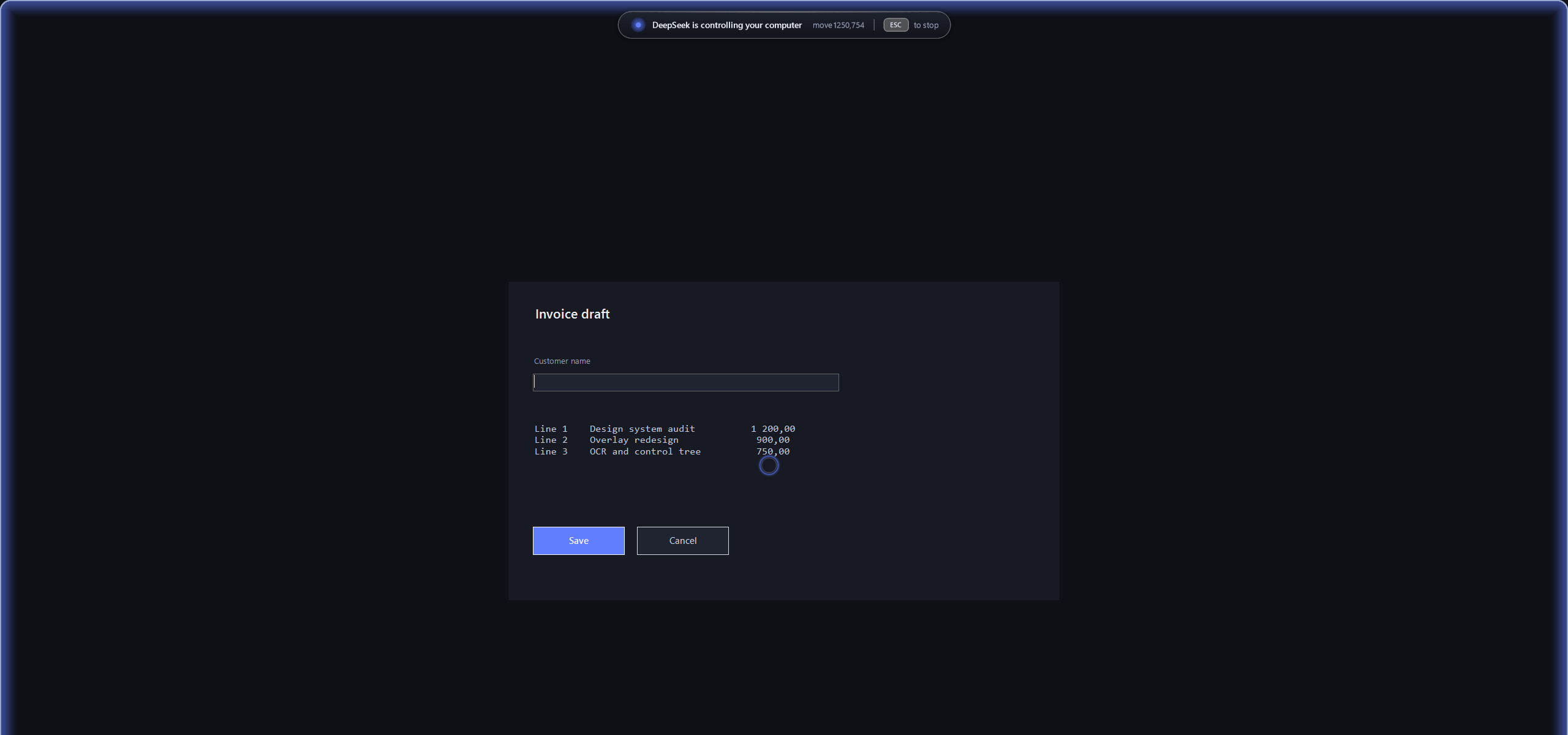
| Countdown before the first input | A click, shown where it landed |
|---|---|
 |
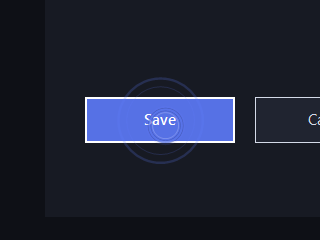 |
- The panel names the command that is running; typed text is shown as a character count only.
- The edge glow breathes while the agent is in control and is solid during the countdown.
- The ring follows your own pointer and pulses on every click. Screenshots never contain the system cursor, which is why only the ring shows up in the images above.
All images on this page were taken over a neutral demo window, not a real desktop.
Safety model
- Input is refused while the indicator is down — and again the moment the indicator process
dies, so a killed indicator cannot leave the human blind for the seconds the heartbeat stays
fresh. Override only deliberately:
DSH_CU_ALLOW_NO_INDICATOR=1. - The indicator comes up before input is allowed, and the CLI waits out the full announcement
(default 5 s) after the frame is confirmed on screen. Set
DSH_CU_ANNOUNCE_SECONDSto an integer from 0 to 30 for CLI/MCP, or useoverlay --announce Nfor one CLI session. The indicator publishes readiness only after that countdown. CLI, MCP and direct backend input all check it, including concurrent calls.focusandwait-windoware gated too.--quiethides chrome only after the countdown. - ESC stops it — a physical press only; injected ESC is ignored.
Text input and drags check the gate during execution; key releases still run during cleanup.
An already launched
runprocess is not cancelled by ESC. - The panel says what is happening. Every command writes a one-line label the indicator shows
next to the status text, so the human can follow along;
typeis reported as a character count rather than the text, so a typed password never appears on screen. overlay --stopkills the indicator by pid file, reloads the system cursors and removes its state files. The indicator also stops itself after 60 seconds without a desktop command.- One pointer, never two. By default nothing replaces your cursor: the indicator draws a ring
around it, so the pointer you see is the real one and the ring only says "the agent is here".
dsh-cu overlay --hide-cursoris the opt-in for screen sharing and recordings: it blanks the system cursor and draws the marker arrow instead, so there is still exactly one pointer. The tool records that it blanked the cursor,overlay --stopgives it back, and if the indicator is killed the nextdsh-cucommand restores it and says so.dsh-cu doctorreportscursor: visible/replaced by the marker/hidden, but not by this tool. runandbroker startare the escape hatches.broker startraises a UAC prompt and letsrunexecute a command line elevated, for windows this process cannot reach (UIPI). Both are gated behind the indicator and are meant for explicit human requests — the Harness already has a shell, so the only thing they add is elevation.clipboard getis gated too: it can expose whatever the human last copied.- The skill instructs the agent never to press anything destructive without an explicit request.
Environment variables
| Variable | What it does |
|---|---|
DSH_CU_ALLOW_NO_INDICATOR=1 |
let input through while the indicator is down — deliberate override, nothing else bypasses the gate |
DSH_CU_UI_SCALE=1.5 |
scale the indicator on top of the display DPI, for a 4K panel or weak eyes (0.75–4) |
DSH_CU_ANNOUNCE_SECONDS=5 |
CLI/MCP countdown from 0 to 30 seconds; explicit CLI --announce wins |
DSH_CU_POWERSHELL=powershell |
the default; set it to another PowerShell only if yours lives elsewhere |
DSH_CU_OWNER |
per-client desktop identity, assigned by MCP; leave unset for manual CLI use |
Running from inside a sandboxed agent session
The Harness file sandbox denies nested processes a pipe, so node-spawns-powershell with
stdio: 'pipe' fails with EPERM before PowerShell even starts. The CLI detects that exact
failure and re-runs the backend with two file descriptors instead of pipes, so every command keeps
working. If you would rather skip Node entirely, call the backend directly — it takes the same
commands:
powershell -NoProfile -ExecutionPolicy Bypass -File backends\windows.ps1 shot C:\temp\shot.png
Limits, stated plainly
- Windows desktop only.
doctorcan report an unsupported host; the interactive self-test requires Windows too. - Elevated windows cannot be driven from a non-elevated process (UIPI) — use
broker start. - The UAC consent dialog and the lock screen are unreachable: they run on the secure desktop, which is neither capturable nor clickable without a signed UIAccess binary.
- Captchas: there is no solver in here — no OCR, no model call, no bypass. A checkbox or a tile is the same click as any other target, chosen by whoever looked at the screenshot; whether clicking it is allowed is between you and the site.
- Primary monitor only, in physical pixels. The process claims per-monitor DPI awareness, so a
screenshot is native resolution and its coordinates are the coordinates
clickexpects. - The control tree is UI Automation, not the DOM. It sees what an application exposes: most
native Windows apps and Chromium browsers do well, some custom-drawn UIs (games, canvases,
emulators) expose nothing at all.
read(OCR) andshotcover those. - Waking a browser's accessibility tree costs the browser some memory and CPU while it stays on, which is the price of reading a page without an extension.
- OCR is as good as the installed language pack and no better: it misreads small, low-contrast
or decorative text. Coordinates it returns are the line's own box, so a click lands on the text,
not necessarily on the control behind it — prefer
tree/tapwhere a tree exists. - Typing runs at 12 ms per character, which is what modern text controls accept reliably; a newline is sent as Enter and a tab as Tab. Coordinates outside ±32767 are refused rather than clamped.
- The indicator is drawn on the physical screen. The panel also appears in remote-desktop streams; the layered frame does not.
Troubleshooting
| Symptom | Cause | Fix |
|---|---|---|
spawnSync powershell EPERM |
an old version without the file-descriptor fallback, or a different sandbox rule | update; use the direct backend call above |
the on-screen indicator is not running |
no dsh-cu overlay yet, or it was stopped/ESC'd |
run dsh-cu overlay, or set DSH_CU_ALLOW_NO_INDICATOR=1 deliberately |
| The cursor is invisible (only possible if you upgraded from 1.1.0, which blanked it) | that version replaced the system cursors and a killed indicator could leave them blank | dsh-cu overlay --restore-cursor; if that does not help, re-apply a pointer scheme in Settings → Mouse → Additional mouse options → Pointers, or sign out and back in |
the elevated broker took the command but did not answer |
it is still running that command | wait, then retry if needed; dsh-cu broker stop if it is wedged |
the backend was stopped after 60s |
a modal dialog or a busy machine blocked the call | look at the screen, dismiss the dialog, retry |
capture returned an empty image |
session locked or display asleep | unlock and retry |
SendInput delivered 0 of 1 events |
the focused window is elevated | dsh-cu broker start, then retry |
| The agent never sees the skill | $DSH_HOME is unset, or the skill frontmatter is invalid YAML |
dsh-cu doctor reports the skill path; node src\verify.js validates the frontmatter |
Development
node src\verify.js           # static: skill frontmatter, documented commands, plugin manifest
node test\run.mjs            # node:test suite for the pure parts (frontmatter, command table, contract)
node src\cli.js self-test    # real machine: isolated test window, takes over mouse and keyboard
node src\cli.js doctor
verify and the test suite touch nothing, so a runner can execute them (see
.github/workflows/ci.yml, which calls exactly these two). self-test is the invasive one — run it
on an unlocked desktop you are willing to hand over. It creates its own Windows Forms window,
leaves existing editors and the clipboard alone, and closes only that test window. The test
fails if the desktop cannot accept input. It refuses to replace an active session or restart
after a recent human ESC. Screenshots and text evidence are retained in the reported temp folder.
Each run writes report.json with individual outcomes, durations, numeric timing measurements,
environment details and a SHA256 fingerprint of the tested sources. Failed checks and setup or
cleanup errors mark the report as failed; an interrupted process leaves its report running.
Physical ESC and an actual model's ability to finish a task remain separate interactive checks.
See the current validation record for results and limits.
The UI-TARS comparison records the audited upstream commit, current differences and open work. The benchmark protocol separates backend correctness from model task success and defines the evidence required for comparison claims.
src/cli.js              entry point: argv -> one command call, one error path
src/commands.js         the command table: name, args, summary, gate and handler
src/backend.js          the only file that spawns a process or reads a temp path
src/contract.js         static contract check (frontmatter, docs, plugin manifest)
src/selftest.js         checks against the real machine
src/tool-error.js       the error type whose message is meant for the operator
backends/windows.ps1    the PowerShell host: argv, dispatch, indicator lifecycle, broker
backends/csharp/        the C# it compiles, one type per file
lib/index.js            DSH plugin entry: registers the skill
lib/skill.js            the skill registration object, read from SKILL.md
lib/frontmatter.js      the two frontmatter fields the plugin needs
cordis.patch.yml        the bundle patch that mounts the plugin
test/                   node:test suite (test/run.mjs runs it in one process)
SKILL.md                agent-facing skill: when to use it, the loop, the safety rules
AGENTS.md               index for a coding agent: layout, entry points, rules easy to break
install.ps1             one-command install
Getting it into the plugin market
The market is the dshmarket plugin (Settings → Plugin Market); its catalog comes from
curated PRs, and the catalog installs a
plugin either from a package registry or straight from its GitHub repository — this one uses the
repository, so there is nothing to publish first.
| Step | State |
|---|---|
| GitHub repository | datuloar/dsh-computer-use-win — public, branch main |
dsh.bundle.patch + plugin entry |
in the repository, so the bundle mounts and registers the skill |
| Install path | dsh plugin --profile web add github:datuloar/dsh-computer-use-win |
| Repository metadata | add the dsh-plugin topic and a one-line description on GitHub |
| Catalog PR | one file data/plugins/datuloar__dsh-computer-use-win.yml with url, name, category: tools and a bilingual description |
The catalog entry itself, ready to paste into that PR:
url: https://github.com/datuloar/dsh-computer-use-win
name: datuloar/dsh-computer-use-win
category: tools
description:
  en: Windows computer use for DeepSeek Harness agents — screenshot, click, type, scroll and focus windows, with an on-screen indicator the human can see and stop with ESC. No dependencies and no driver to install.
CI in the catalog wants a dsh.bundle, real working code, a repository at least a day old and a
description that matches the code. Optional but recommended: a screenshots.json next to
package.json (1–8 GitHub-hosted images) so the card shows curated shots instead of scraping this
README — docs/indicator.png is the one shot this repository ships.
If the CLI is ever renamed, three places move together: bin in package.json, the exported name
in lib/index.js, and the id/name in cordis.patch.yml; the skill keeps its own name
dsh-computer-use, which is what $DSH_HOME\skills\ and the catalog show. node src\verify.js
fails if they disagree.
Note that os: ["win32"] makes the package manager refuse the install on macOS and Linux, while the
catalog has no Windows-only flag — the market will still show the card to everyone.
License
MIT
No comments yet. Be the first to write one.