简体中文 · Agent installation guide · Developer guide · Terminology · vd-node definitions · Example Gallery
🎬 DeepSeek-Harness Video-Director
A visual, node-based video director for DeepSeek Harness.
Script · Prompt · Image · Audio · Video · Fully local workflows
DSH Plugin · ComfyUI · Ollama · MiniMax-H3
DeepSeek-Harness Video-Director is a video-production plugin built for DeepSeek Harness. It turns script, image, audio, and video generation into a connectable canvas, with ready-to-use paths for ComfyUI, Ollama, OpenAI-compatible APIs, and Codex Plan.
Beginners can start with the built-in workflows instead of assembling every provider call by hand. Native Qwen3.8-27B and MiniMax-H3 paths make a fully local, deployment-controlled multimedia pipeline possible when the selected models and runtime support it.
We call canvas elements vd-nodes and the overall canvas graph a vd-workflow. A ComfyUI-backed vd-node executes a comfyui-workflow containing comfyui-nodes. See the terminology guide for definitions, packages, bindings, and execution IDs.
✨ Why Video-Director
| Highlight | What you get |
|---|---|
| 🧩 Visual production graph | Connect text, images, audio, video, workflows, previews, and saved outputs on one infinite canvas. |
| 🚀 Beginner-ready workflows | Start from bundled image, H3 video, H3 audio, and prompt-enhancement workflows. |
| 🏠 Local-first generation | Use Ollama and ComfyUI on your own machine, including Qwen3.8-27B and MiniMax-H3 pipelines. |
| 🔌 Multiple providers | Mix Ollama, OpenAI-compatible endpoints, Codex Plan, and one logical ComfyUI backend in the same project. |
| 🎞️ Project-aware direction | Every Video Project keeps its own canvas, chat session, jobs, immutable assets, and provider choices. |
| 🌐 Language and storage | Switch between English and Chinese, and relocate canvas data from Settings. |
| 🛠️ Extensible by design | Import reviewed API-format comfyui-workflows or package them as declarative vd-node packs. |
🚀 Quick start
1. Install into DSH and run
Requirements: Git, Node.js ^22.19.0 or >=24, pnpm 11.7.0, and an installed dsh CLI. For a single-machine, fully local deployment, NVIDIA DGX Spark is the recommended environment, but it is not required; the exact hardware requirement depends on the installation preset and model precision you select. Run the following from the directory where you want to keep the plugin:
git clone --branch main --single-branch https://github.com/chiphoton/DeepSeek-Harness-Video-Director.git
cd DeepSeek-Harness-Video-Director
pnpm install --frozen-lockfile
pnpm run build
dsh plugin --profile web add "file:$PWD"
dsh web
dsh web opens the DSH Web UI. The plugin is installed persistently into the web profile, so later starts only need:
dsh web
If you run DSH from a sibling source checkout instead of an installed CLI:
# Run once in DeepSeek-Harness-Video-Director
pnpm install --frozen-lockfile
pnpm run build

# Then run in the sibling deepseek-harness checkout
pnpm dsh plugin --profile web add ../DeepSeek-Harness-Video-Director
pnpm dsh web
2. Connect a generator
If Ollama or ComfyUI is not ready yet, give the agent installation guide to an agent. It inventories the exact models, comfyui-workflows, and ComfyUI custom-node packages used by this repository, installs only the selected installation preset, and verifies the result. The default path installs both services locally; a separate path keeps cloud services bound to their remote loopback interfaces and reaches them through SSH local port forwarding.
Open Settings → Connections in Video-Director:
- Ollama: defaults to
127.0.0.1:11434; install a model such as Qwen3.8-27B on the Ollama host, then select it in Video-Director. - ComfyUI: defaults to
127.0.0.1:8188; install each comfyui-workflow's required models and ComfyUI custom-node packages on the ComfyUI server. - OpenAI Compatible: set the Base URL and API key, then refresh to discover the provider's model list.
- Codex Coding Plan: uses the machine's existing Codex sign-in for prompt and image workflows. Models and default reasoning effort come from the installed CLI. Refresh reloads the catalog; Fast (priority) is optional and off by default. Set
DSH_VIDEO_DIRECTOR_CODEX_PATHif Codex is not on PATH.
Connection fields save when you leave the field or press Enter. Refresh checks the saved connection and displays its model inventory; choose generation models on individual nodes. ComfyUI lists installed files under checkpoints, diffusion_models, loras, and vae tabs, with search inside each category. Samplers, schedulers, and other workflow options remain in node controls. Unload Models releases loaded Ollama models or requests ComfyUI model/cache cleanup on that card's endpoint. Installed model files remain available. On narrow screens, Refresh and Unload Models use icons. A blank API key field keeps the saved key; Clear saved key explicitly removes its settings override.
You only need one working provider to begin. Video-Director does not silently install models, ComfyUI custom-node packages, or external services.
3. Build your first vd-workflow
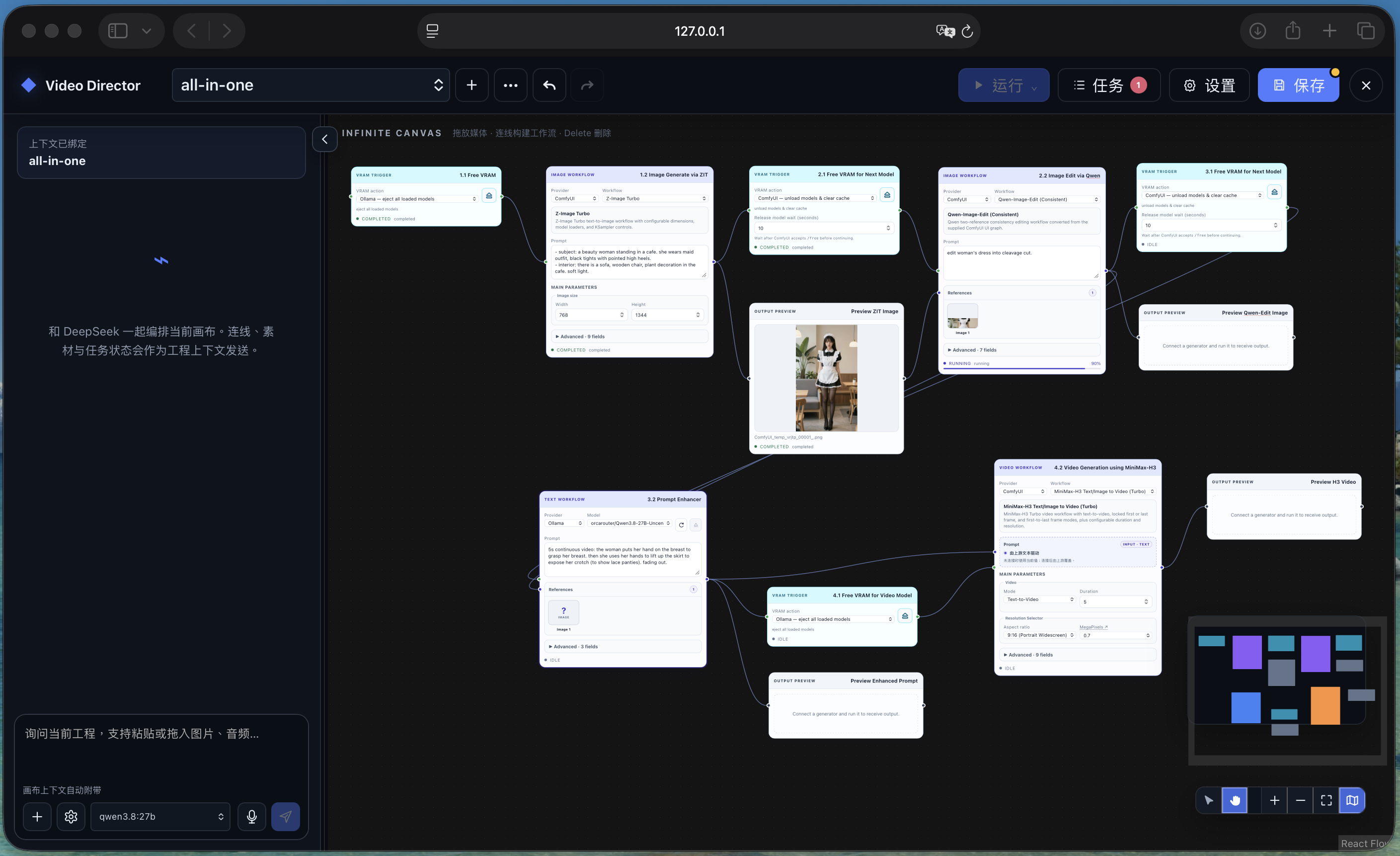
Double-click empty canvas space, add vd-nodes, and connect compatible handles:
Text → Prompt Enhancer → H3 Video → Preview → Save Output
Set the provider on each executable vd-node, choose its model or registered comfyui-workflow as applicable, enter a generation prompt, then click Run. Use Save in the top bar to persist canvas edits; generation can run from the current unsaved canvas snapshot.
Unsaved workflows appear in italics with an ***** in the project picker and its selected title. Edits are cached automatically, independently of Save, so you can switch projects and recover drafts after restarting DSH. The picker shows the unsaved count; drag project rows to reorder them (or use Alt+Up / Alt+Down), and use each row’s ⋯ menu for project actions. The order survives restart.
New projects, imports, duplicates, and editable example copies stay unsaved until you click Save. Discard changes restores the last explicitly saved workflow and clears undo/redo while retaining its jobs and assets. For a never-saved copy, Discard removes the draft and its owned assets; its DSH conversation remains. Wait for queued/running tasks to finish or cancel them before discarding.
Click Run again to queue another snapshot. All browser tabs on the same DSH host share one workflow queue, with dependency stages and batches kept together. You can switch, rename, duplicate, import, and export workflows during execution. Jobs initially fetches the latest 10 records and loads another 10 when you scroll to the bottom (or choose Load 10 more). Loaded pages stay in this tab’s controller memory across drawer closes and workflow filters; a new tab or reload starts with 10 again. Completed cards append (elapsed time) to their datetime line. Jobs shows compact runs across all workflows with filtering, live elapsed time, clickable artifacts, and a three-dot menu for artifact/workflow downloads, opening the submitted snapshot, removing history, and inspecting properties. Choose Cancel Job at the top of the three-dot menu to cancel queued or running work; the inspector keeps its cancel action too. Inspect Property shows Elapsed Time directly below Submitted: it excludes queue wait, updates during execution, and stops at the terminal timestamp. Opening a submitted snapshot is undoable; exporting produces an importable project archive with its referenced assets. The DSH backend persists and schedules the complete graph, including dependent stages, triggers, and Batch Input cases. Tabs may be minimized, suspended, or closed after submission. Run N adds N separate runs. Keep DSH and the computer running; after a host restart, queued snapshots resume in order, while interrupted active work is marked failed rather than submitted twice.
Duplicating a workflow creates independent asset references to the same stored media bytes. Replacing an input affects only that copy, and deleting one workflow keeps files referenced by other workflows. Portable exports still include their media.
Starting a vd-workflow or a single node resets other non-frozen, inactive nodes to IDLE, preserving their cached outputs. Nodes stay IDLE while waiting, show RUNNING with their current stage or percentage during execution, and show COMPLETED with the local finish time (MMDD-HH:mm:ss) and duration in seconds. Frozen nodes retain FROZEN. New job durations exclude the Host queue wait; older history uses its available timestamps.
If an SSH tunnel drops, active ComfyUI and Ollama work waits and retries automatically with backoff. ComfyUI retrieves completed outputs using the original prompt ID; Ollama retries the interrupted text request. Permanent configuration or execution errors still fail visibly.
Cancel also stops the submitted ComfyUI prompt, including a prompt waiting in ComfyUI's queue. The job stays cancelling until that prompt stops; cancelling-reconnecting means cancellation is waiting for the tunnel to recover. Other users' jobs are unaffected. Running-prompt cancellation requires ComfyUI's per-job cancellation API; older servers report an explicit failure instead of interrupting an unrelated job. Ollama cancellation closes the active inference request and stops retries; it leaves the model loaded for later use.
🧰 vd-nodes and how to use them
| Group | vd-nodes | Use |
|---|---|---|
| Inputs | Text, Image, Audio, Video, Sketch | Type, upload, paste, drop, or draw source material. |
| Generation | Prompt Enhancer, Image Processing, H3 Video, H3 Audio | Generate or transform media with the selected provider and model or comfyui-workflow. |
| Utilities | VRAM Trigger | Insert an execution barrier and optionally eject Ollama models or clear ComfyUI VRAM/cache. |
| Outputs | Preview, Save Output | Inspect results in the project or download them with an explicit filename. |
| vd-node definitions | Bundled and imported definitions | Run typed, reusable ComfyUI-backed vd-nodes with compact primary and Advanced controls. |
Useful canvas gestures:
- Adding an Image, Audio, or Video input creates an empty node. Choose or drop a file when ready.
- Audio inspection opens a compact waveform player with a scrolling timeline, full-track overview, click/drag seeking, zoom, precise playback time, 15-second skip controls, volume, and playback speed. Duration, format, sample rate, channel count, file size, and embedded metadata remain available.
- Edit, to the left of Metadata in audio/video previews, opens the Media Editor. You can also right-click and choose Edit Audio or Edit Video. Trim with the waveform handles or exact times; videos also offer a draggable crop rectangle, aspect presets, and Export current frame. Export downloads the result without changing the source; Save applies it to the current source; Save as new copy makes the copy active and retains the original in Gallery. Discard changes closes without applying edits. The close button exits immediately when unchanged, or asks for confirmation when there are unsaved edits. Source changes support Undo, and closing a context menu only requires clicking elsewhere. Editing requires
ffmpegandffprobeon the DSH host; output is MP4 video, FLAC/WAV audio, or PNG frames. - Image, Audio, and Video inputs offer Replace and Inspect in their right-click menu. Click an image to inspect it in the Preview viewer, or click the filename to replace its file; hovering or focusing the filename reveals Replace. Replacement preserves the node and connections, resets its mask and trim, and supports Undo.
- Drop one matching file onto a Text, Image, Audio, or Video input to replace its content. Batch Input accepts multiple supported text/media files and applies its filename regex; unsupported files are skipped with feedback. Drops on input nodes never create extra canvas nodes.
- Video inspection in Input, Preview, and Save Output shows dimensions, FPS, format, duration, and file size. Metadata opens container/stream tags and codec details. Detailed video inspection uses
ffprobefrom FFmpeg on the DSH host; if it is unavailable, browser-readable dimensions and duration still appear. - Gallery, beside Tasks, opens on All workflows and groups source artifacts under Input and cached results plus retained job history under Output. Filter by workflow and search filenames, workflow/node names, media types, or text content; cards identify their workflow, and unsaved drafts are included. Browsing does not switch or save the active workflow. Refresh reloads the catalog. Repeated files appear once per workflow/tab. Click any image, video, audio, or text card to inspect it; images support drag-to-pan, wheel/button zoom, Reset view, and Metadata. Closing Inspect preserves the Gallery tab, filter, and search.
- Text inputs show a live character count above the textbox, with Import (UTF-8 text files) and Clear below it. Import replaces the text while preserving whitespace; both actions support Undo.
- Double-click blank space to search the node menu.
- Drag an output onto blank space to create and connect a compatible node.
- Select (V): drag empty canvas to pan, click a node to select it, and drag a node to move it. Hand (H): drag anywhere to pan, including over nodes and their controls. Hold Space for temporary Hand navigation.
- The sidebar accepts Image, Audio, Video, Folder and Node references. Compact tiles show preview/remove controls on hover or keyboard focus; clicking the body inserts an atomic alias such as
<Image 1>. Removing an unsent reference renumbers draft aliases; aliases already sent remain stable. Double-click anywhere on a node title bar, drag its editable title into chat, choose + → Node, or right-click the node and choose Add to Chat References. Media and folders can be dropped anywhere in the sidebar. Folder previews offer a searchable tree. Aliases belong to the conversation; imported canvas assets retain their original filenames. - Sidebar context contains a compact workflow summary. The Host-owned
vd_canvastool queries details on demand and can edit/validate/run workflows after tabs close. Conflicting human/agent edits are detected. See sidebar architecture and validation for commands, context handling and current limits. - Ctrl-drag selects a group in either mode; Ctrl-click adds or removes a node. On macOS, Command also works for these gestures and shortcuts; Ctrl-click selects without opening a context menu. Selected nodes have an expanded border, and draggable node areas use a crosshair cursor in Select mode. Ctrl+B freezes or unfreezes the selection.
- Scroll to zoom over the canvas or nodes. Scrollable fields and panels consume the wheel to scroll their own content.
- Right-click empty canvas for the Node catalog, Reset VRAM, or Paste. Right-click a node for Run/Cancel, Freeze, Copy, Duplicate, Rename, Details, and Delete. Input fields retain their native context menu.
- Ctrl+C / Ctrl+V copy and paste nodes within the current project, including connections between copied nodes. Copy captures a snapshot; pasted nodes get new identities and are created at the cursor. Reset VRAM unloads configured Ollama models and releases ComfyUI model/cache memory.
- Select a node and use Run for one node, a selection, downstream nodes, or the whole graph.
- Connect generated media to Preview and Save Output; unconnected results receive an automatic Preview.
Bundled vd-node definitions include Qwen image editing with Qwen-Rapid-AIO-SFW-v19.safetensors, Z-Image Turbo, MiniMax-H3 text/image-to-video, reference-to-video, and Turbo/Standard H3 audio. See custom_nodes/ for dependencies and safety notes.
🪄 ComfyUI workflow-to-node Skill
The bundled comfyui-workflow-to-node Skill converts a trusted comfyui-workflow into either:
- a repository built-in registered comfyui-workflow; or
- a portable, declarative vd-node pack (the existing Custom Node v1 protocol).
Invoke it from a DSH conversation:
$comfyui-workflow-to-node
Convert /absolute/path/my-workflow-api.json into a reusable vd-node pack.
Keep model and sampler controls in Advanced.
API-format workflows can be analyzed offline. Editor/UI workflows require exact metadata from the matching ComfyUI /object_info; the Skill stops instead of guessing when a mapping is ambiguous. Conversion does not submit the graph, install ComfyUI custom-node packages, download models, or generate media.
The Skill is already prepared for plugin distribution: its project source lives under skills/comfyui-workflow-to-node/, package.json includes skills/ in the published package, and the Host strips the Skill's YAML front matter before registering its body with the DSH Skills service while retaining its local references and script.
The project picker includes an examples/ folder. Select canvas-demo or all-in-one to open an independent editable copy; current edits are saved first, and importing never starts generation. Settings → Language switches English/Chinese immediately and remembers the choice in this browser.
The picker supports nested virtual folders. A folder's three-dot menu offers New Workflow, New Folder, move, rename, and delete. Move to… opens a collapsible directory tree with / as the root destination; the global menu retains Import project. Drag onto a folder to move inside it, or between siblings to reorder; hold near either edge to scroll, and drop on / to move to the top level. Multi-Select replaces row menus with checkboxes and adds a batch menu for select all, deselect all, invert selection, move, and delete, including items inside collapsed folders. Selecting a folder and its descendants preserves their nesting when moved. Delete confirmation lists affected workflows and folders separately: explicitly selected workflows are deleted, while folder children can be moved to / or deleted. Mixed selections require a separate confirmation for the selected workflows. Folder organization updates shortcut metadata only; it never creates disk directories or relocates workflow or asset files.
💾 Where files are saved
The default Host data directory is ./.dsh-video-director, resolved from the directory where dsh web starts:
.dsh-video-director/
├── project-folders.json                # virtual folders, shortcut membership, and ordering
├── projects/<project-id>/project.json   # saved workflow, optional draft, and recent jobs
├── projects/<project-id>/runs/          # run summaries and immutable submitted snapshots
├── assets/index.json                    # IDs, ownership, original names, hashes, and relative paths
├── assets/inputs/<original-name>.<ext>   # uploaded input files, shared across workflows
├── assets/inputs/mask/mask-YYYYMMDD-<short-uuid>.<ext>
├── assets/inputs/sketch/sketch-YYYYMMDD-<short-uuid>.<ext>
├── assets/outputs/YYYYMMDD-<uuid>.<ext>  # generated and edited media
├── migrations/asset-layout-v2.json      # legacy index and completed migration mapping, when needed
└── workflows.json                       # imported workflow registry
Input uploads keep their original filenames. An existing name with the same SHA-256 reuses the stored file; different bytes try name-0001.ext, name-0002.ext, and so on, checking the hash at each candidate. Workflow references share immutable bytes, and deleting a workflow removes a file only when its last reference disappears. Dates use UTC. Generated outputs keep their provider filename in the index and use it for downloads and exports.
Image, Video, Audio, and Sketch inputs offer Choose from assets, showing compatible inputs and outputs across all workflows with filename search and a source filter. The chooser loads 15 items at a time; scrolling to the bottom loads the next 15, including for search/filter results. Click a thumbnail to preview without selecting, then select a row and choose Use asset to attach it. Selecting an asset adds a reference without copying its media. An empty Sketch input also offers Draw sketch.
The first launch with a legacy flat asset folder migrates it automatically. Migration checks local hashes and workflow/job metadata without decoding media or contacting a provider. It preserves IDs and URLs, stages files before atomically replacing the index, and retains the original index and mapping in the migration record. Interrupted migrations resume on launch. Files with no identifiable output provenance remain inputs; a hash mismatch stops migration without changing original files.
Settings → Storage opens the current folder, changes to a new or empty folder, or resets to the original dataDir. A change caches current drafts, copies canvas data, and takes effect immediately; previous folders remain as backups. The original data directory keeps .video-director-storage.json so the choice survives restart. Generations and workflows must finish or be cancelled first. Native folder controls act on the Harness host machine. Harness continues to manage conversation history and provider credentials. You can also set the initial dataDir in the plugin's DSH configuration. Save Output downloads a copy through the browser to the browser's configured download directory; the project-owned asset remains under dataDir/assets.
📝 Notes
- This plugin orchestrates providers; it is not a hosted generation service. Ollama, ComfyUI, models, and remote API accounts are operated separately.
- “Fully local” means the selected Ollama/ComfyUI path stays on infrastructure you control.
- MiniMax-H3 weights have a separate license. Review it before enabling production or commercial use.
- ComfyUI workflow JSON is executable configuration because it can invoke installed ComfyUI custom-node packages. Import only trusted graphs.
- Uploaded assets are limited to 200 MiB each by default. Projects retain the latest 100 job records.
- Canvas edits are explicit-save. Running captures an immutable snapshot, so later edits do not change work already queued.
- The plugin binds DSH Web to its normal loopback-safe defaults. Protect and authenticate any remote Ollama, ComfyUI, or OpenAI-compatible endpoint.
For configuration, architecture, transport behavior, recovery, security, limitations, and development commands, read the developer guide.
License
MIT. Model weights, ComfyUI, ComfyUI custom-node packages, and external services retain their own licenses and terms.
Batch Input and Batch Output support sequential text/file/folder cases, regex filtering, inclusive index ranges, per-node seed policies, and indexed previews/downloads. See Batch processing. Batch cases run on the DSH backend and continue with the browser closed.
No comments yet. Be the first to write one.