dsh-workspace-categories
English · 简体中文
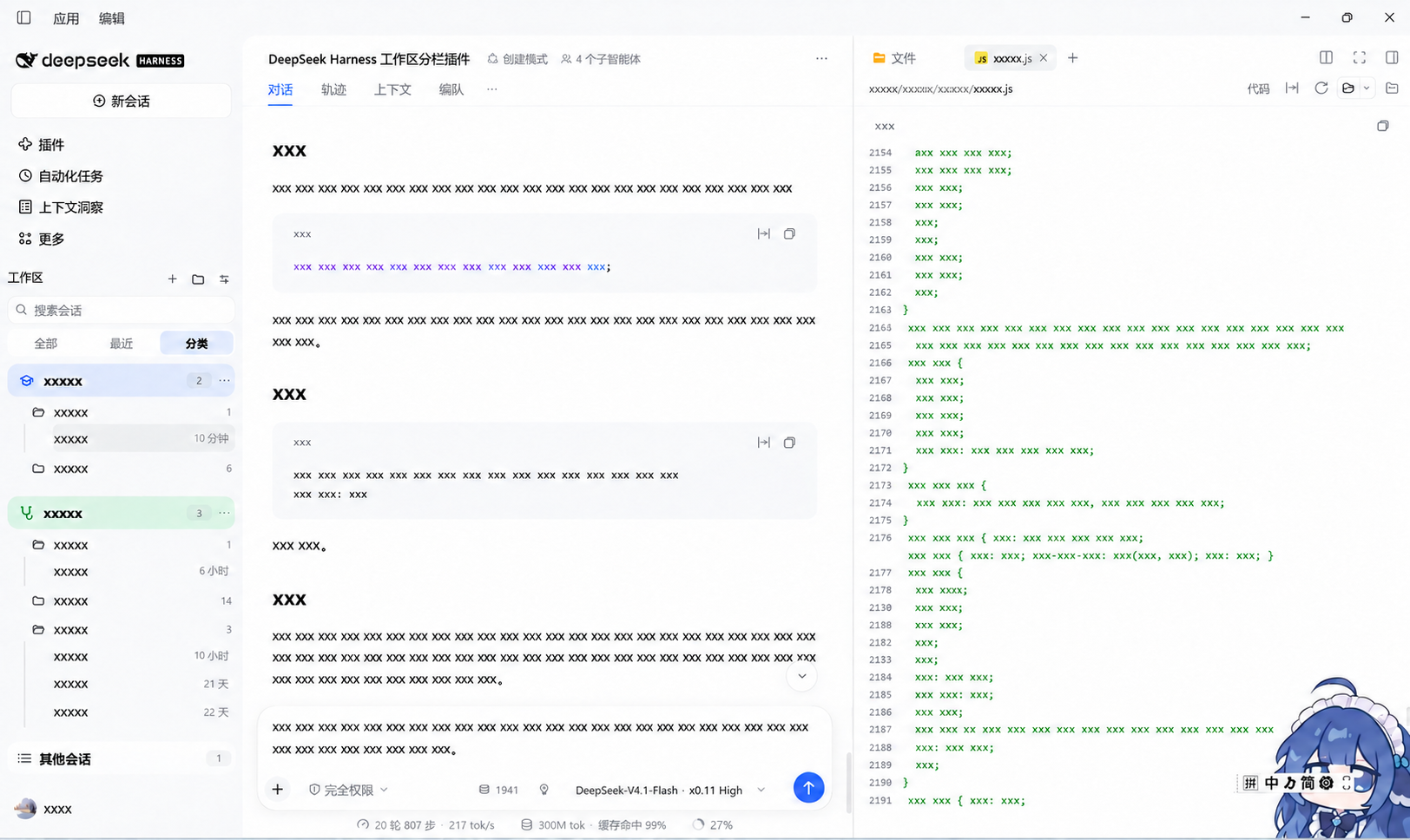
Group the DeepSeek Harness desktop sidebar's workspaces into custom categories. A category is a compact tinted row that holds its own workspaces and their sessions, and you file things by pressing and holding a title and dragging it where you want it.


Requirements
- DeepSeek Harness desktop
>= 0.2.0-rc.2. Developed and verified against0.2.2-rc.3. - No build step, no network access, no extra dependencies. The plugin is plain JavaScript and a manifest.
Install
The plugin is a local bundle: DSH links the directory into the active profile rather than copying it.
From the Plugins page (recommended)
- Get the files. Either
git clone https://github.com/Znk1314/dsh-workspace-categories.gitor use the repository's Code → Download ZIP and extract it. - In DSH open Settings → Plugins → Add plugin.
- Select the repository directory — the folder that contains
package.jsonandcordis.patch.yml, not a parent folder and not a file. - The entry Workspace categories appears in the plugin list. Make sure it is enabled; the sidebar updates immediately.
Verify it loaded
Open the sidebar. You should see the Workspaces header with All / Recent / Categories tabs under the search box, and the + button beside the header creates your first category.
If the sidebar looks unchanged, the plugin did not activate. Check Settings → Plugins that the entry is present and enabled, then reload the window. A plugin that throws while rendering silently falls back to the built-in sidebar, so an enabled-but-broken plugin looks identical to a disabled one.
Updating
After replacing client.js (or pulling a new version), remove and re-add the
plugin. A local install is a link, and DSH does not hot-swap an already loaded
client module. Your categories live on the Host, so they survive the reinstall.
Uninstalling
Remove the plugin in Settings → Plugins. Your data stays at
<DSH_HOME>/plugin-data/dsh-workspace-categories/categories.json; delete that
file to remove it too. No session, workspace, or message is ever deleted by this
plugin.
Features
- Rounded tinted category rows — the category's own row is one rounded rectangle filled with a light tint of its accent, carrying its icon, name, and count; its workspaces and sessions hang below on the plain sidebar surface, joined by an indent guide.
- Three filters — All (one flat session list), Recent (recently used workspaces), and Categories (your groupings). The selected filter is a tinted pill.
- Fold by icon — click a category's icon to collapse the category, or a workspace's folder to collapse just that workspace (closed folder while folded, open folder while shown).
- Live status — a running session shows a spinner where its timestamp normally sits.
- Long-press drag — hold a workspace title for a moment and drag it into any category.
- Free re-ordering — drag with the same gesture to change a workspace's position inside a category.
- Category ordering and pinning — drag a category row, or use Move up / Move down; pinned categories always render first.
- Pick an icon and a colour — 30 line glyphs and 9 swatches per category, chosen from one picker that previews the change live. The colour tints the category row and its glyph; text stays in the theme ink.
- Nothing disappears — workspaces with no category fall into an Unassigned entry at the foot of the list, and sessions with no workspace into an Other sessions entry.
- Keeps built-in power features — search (auto-expands folded categories), archived-row filtering, add/rename/delete workspace, and the full right-click session menu.
- Durable — categories are stored on the Host, not in browser storage, so they survive restarts and port changes.
Usage
| Action | How |
|---|---|
| Create a category | the + beside the sidebar's Workspaces title |
| File a workspace | press and hold its title, then drag into a box — or use its ⋯ menu → Move to category |
| Re-order inside a box | press and hold, then drop on the upper/lower half of another workspace row; the box tail shows an insertion line |
| Re-order categories | press and hold a category header, or its ⋯ menu → Move up / Move down |
| Pin a category | category ⋯ menu → Pin category (pinned boxes stay on top) |
| Change icon or colour | category ⋯ menu → Icon and colour, then pick a glyph and a swatch |
| Collapse / expand a category | click the category's icon; expand shows it open, collapse hides its workspaces |
| Collapse / expand one workspace | click its folder icon (open folder = expanded, closed = folded), or its ⋯ menu → Collapse workspace |
| Remove a workspace from a category | drag it into Unassigned, or its ⋯ menu → Remove from category |
| Delete a category | category ⋯ menu → Delete category (its workspaces return to Unassigned; no session is deleted) |
| Switch view | the All / Recent / Categories tabs under the search box |
| Archived filter | the sliders button at the right |
Every drag-only action also has a menu path, so a keyboard or touch user can do all of it.
Gesture details
- Dragging starts after a 180 ms hold; moving more than 6 px first is treated as a scroll or a click instead.
- Press
Escmid-drag to cancel. Losing window focus or a cancelled pointer also ends the drag cleanly — no stuck ghost, no locked text selection. - Dropping into the gap between boxes, or into empty space, is not a valid target and changes nothing. Only the Unassigned box unfiles a workspace.
- Dropping a row onto itself does nothing rather than jumping to the end.
- Pinned and unpinned categories never interleave; a cross-group drop is refused instead of silently discarded.
Data
Categories live in one JSON document, served by the Host half over an
authenticated route (/api/workspace-categories.doc; only the owner peer may
reach it):
<DSH_HOME>/plugin-data/dsh-workspace-categories/categories.json
Writes are debounced 240 ms and serialised through a temporary file plus rename. A failed save shows a notice in the panel and is retried every 5 seconds; the notice clears once a write succeeds.
{
  "version": 1,
  "categories": [
    { "id": "c1", "name": "Client work", "color": "blue", "icon": "briefcase",
      "pinned": true, "collapsed": false, "workspaceIds": ["w1", "w2"] }
  ],
  "view": { "tab": "categories", "archived": "default" },
  "unassignedCollapsed": false,
  "collapsedWorkspaces": ["w3"]
}
color accepts ink | red | orange | amber | green | blue | violet | pink | slate;
view.tab accepts categories | recent | all; view.archived accepts
default | show | only; collapsedWorkspaces lists folded workspace ids; icon names one of the 30 built-in glyphs
(folder, book, graduation, briefcase, terminal, palette, brain, plant, …) and falls back to folder.
The Host repairs malformed or hostile input, so a
damaged file never takes the sidebar down.
How it works
sidebar.workspacesis asingleslot. This plugin registers into it withpriority: -1000; the slot keeps the lowest priority, so it replaces the shipped browser instead of sitting beside it.- The sidebar's scroll region declares
container-type, which makesposition: fixedresolve against the sidebar. Menus, dialogs, and the drag ghost therefore portal intodocument.body. - Session rows raise the built-in session menu through the shared
useContextMenuseat, and the shipped rename/archive dialogs keep working because they live inshell.overlay, outside the replaced region. - All colours and surfaces come from theme tokens (
--dsw-alias-*,--dsw-radius-*), so light and dark themes both work.
Limitations
- A workspace belongs to at most one category; categories do not nest.
- Only the workspace browsing region is replaced. Per-row hover buttons (pin/archive) go with the shipped browser; both actions remain in the session right-click menu.
- State is per machine and per profile; there is no sync.
Development
See CONTRIBUTING.md. The verification harness is in tools/:
node tools/check-keys.js client.js
node tools/test-gestures.cjs client.js
node tools/test-regressions.cjs client.js
node tools/test-host.mjs
License
MIT © 2026 Znk1314
No comments yet. Be the first to write one.