📅 dsh-calendar
See at a glance what DeepSeek did, and when. A beautiful, theme-aware usage calendar for DeepSeek Harness — every project and task's execution time, in day / 7-day / month / year views.
English | 中文



Screenshots
Four time perspectives of your DeepSeek usage — light and dark both follow DSH.
🗓️ Year & 🗂️ Month
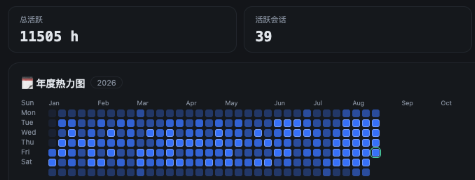 Year |
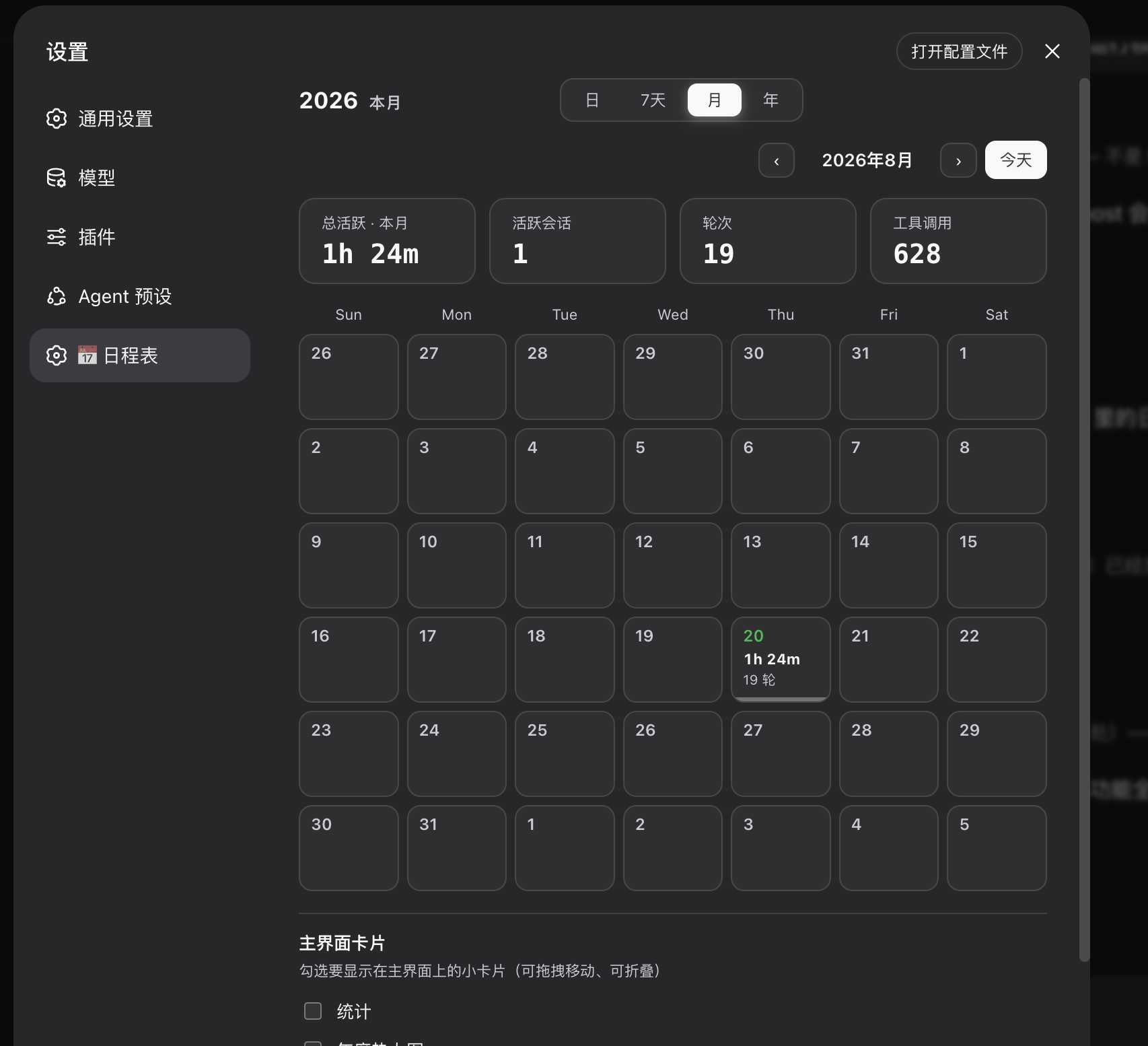 Month |
📅 7-day view
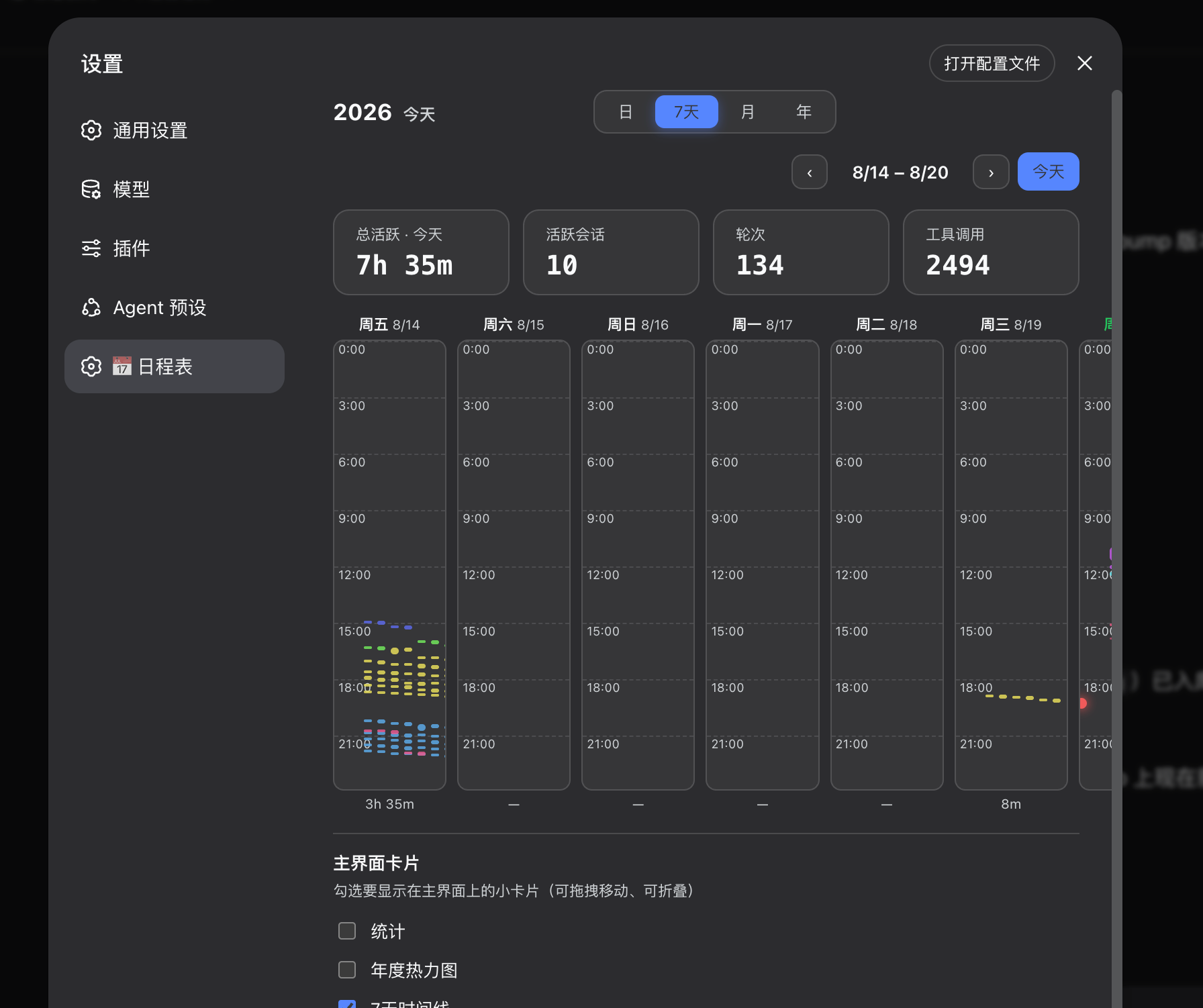 🌙 Dark |
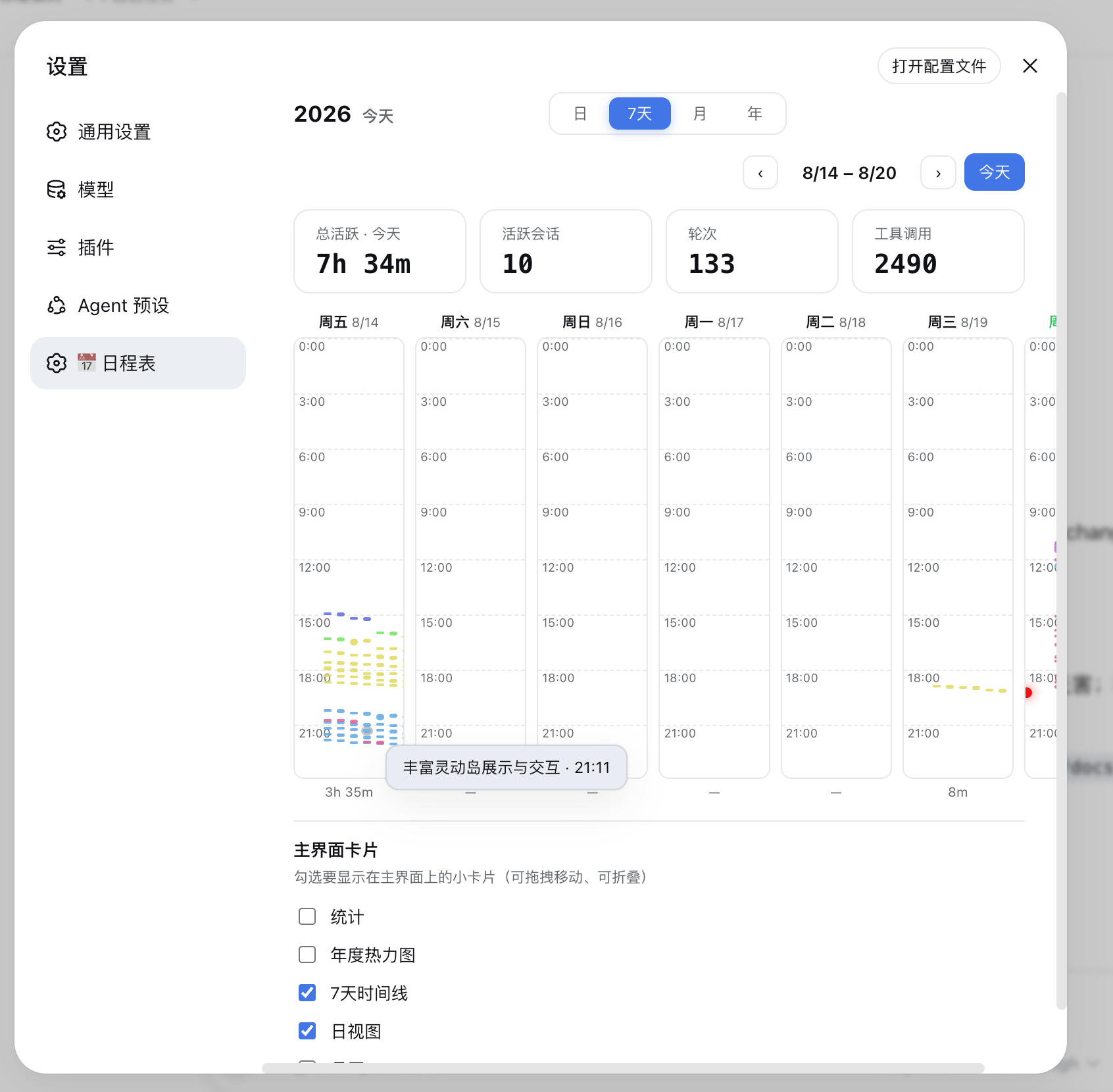 ☀️ Light |
⏱️ Day view
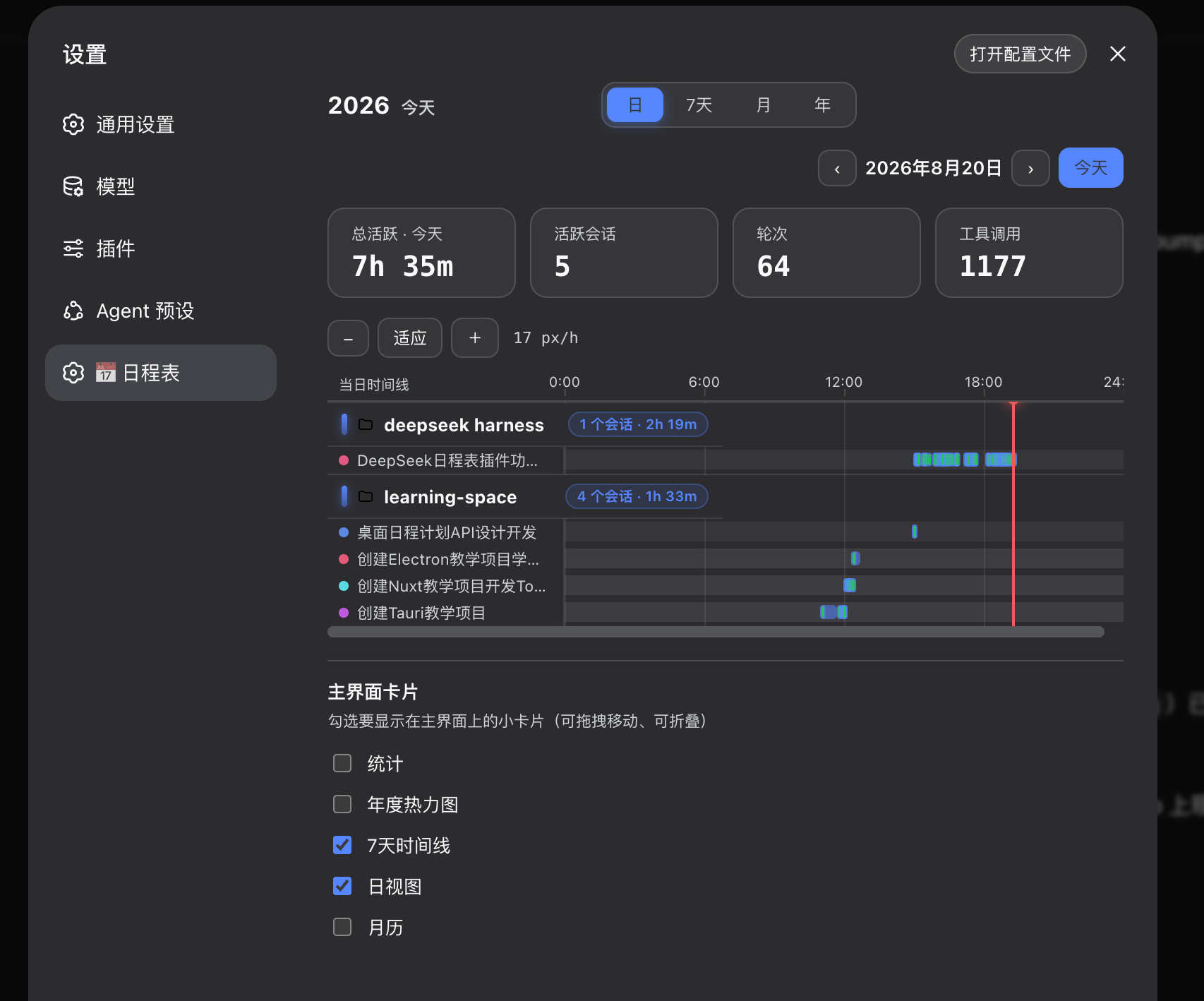 🌙 Dark |
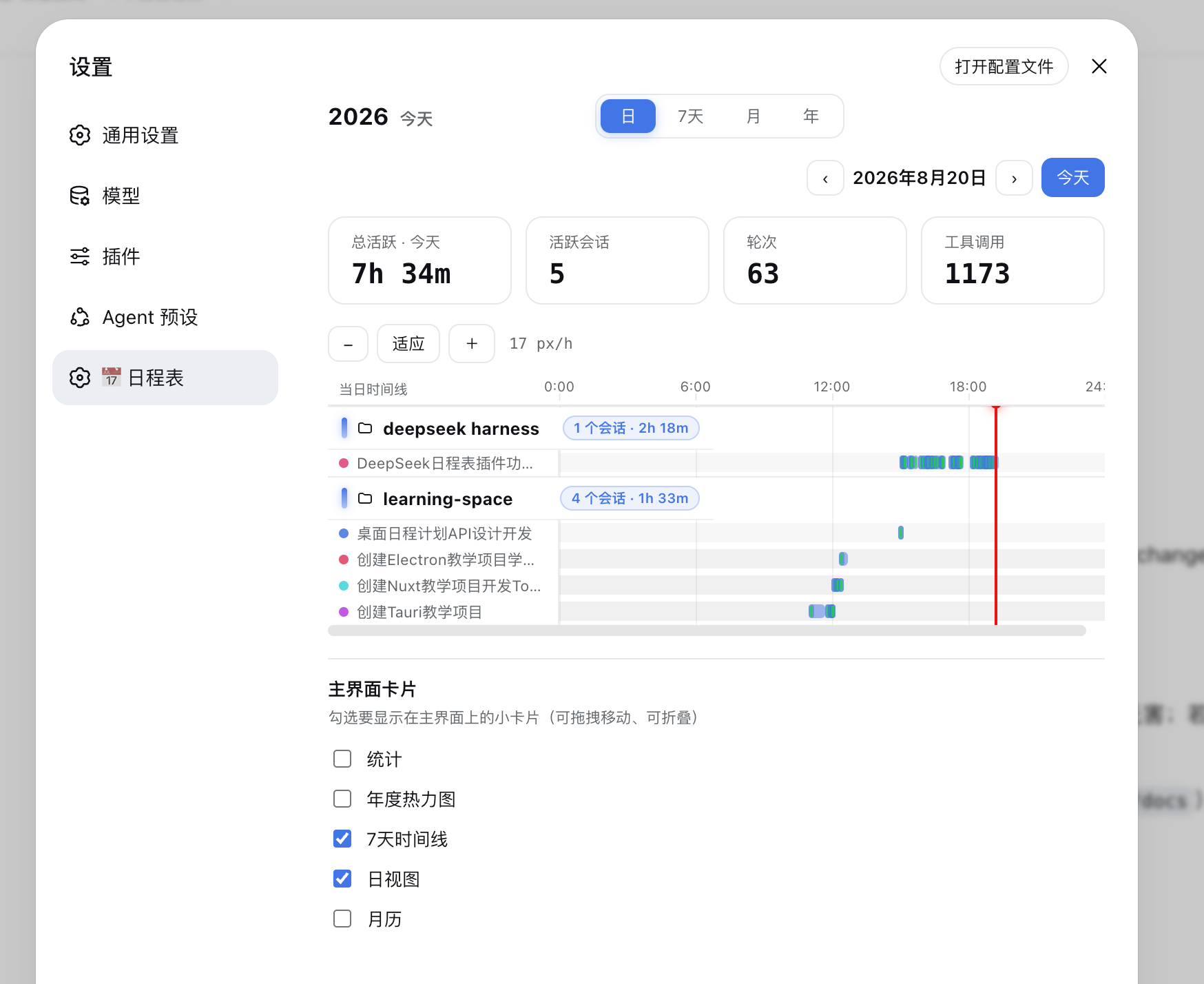 ☀️ Light |
🃏 Main-UI cards
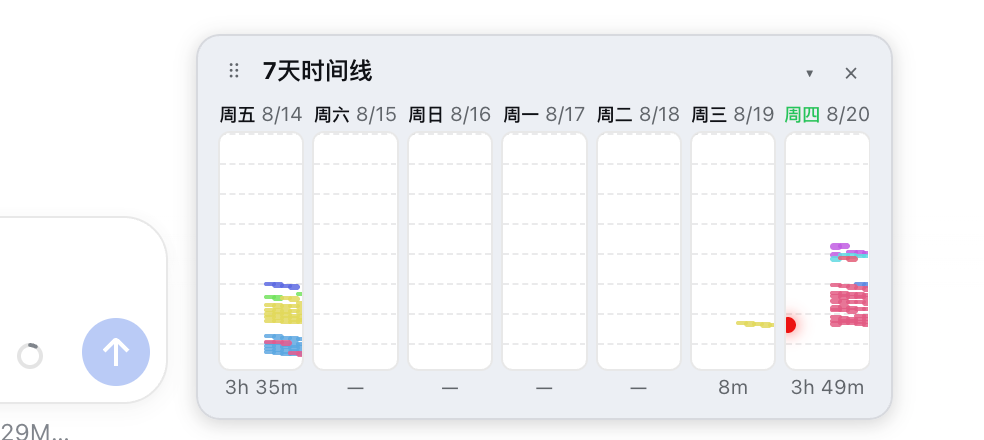 7-day |
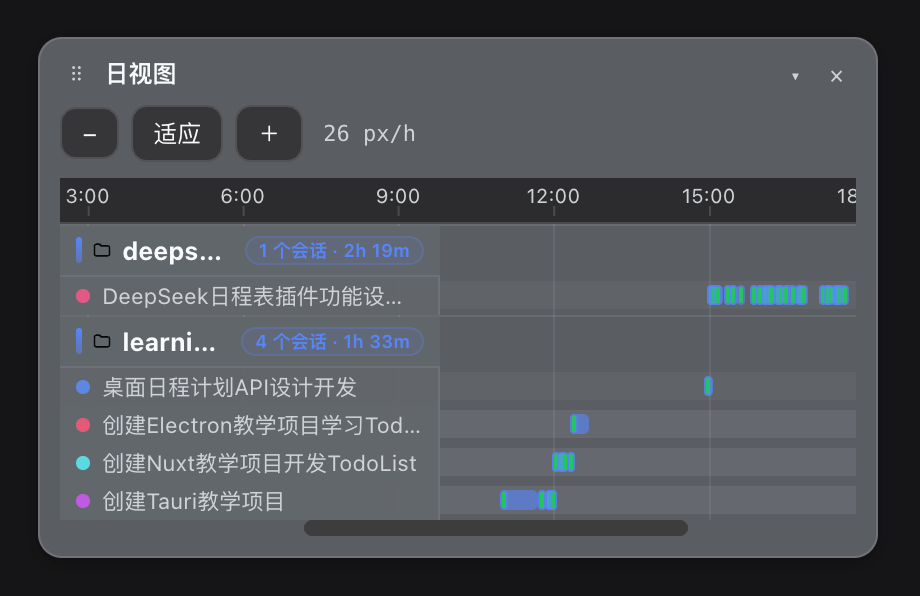 Day · 🌙 Dark |
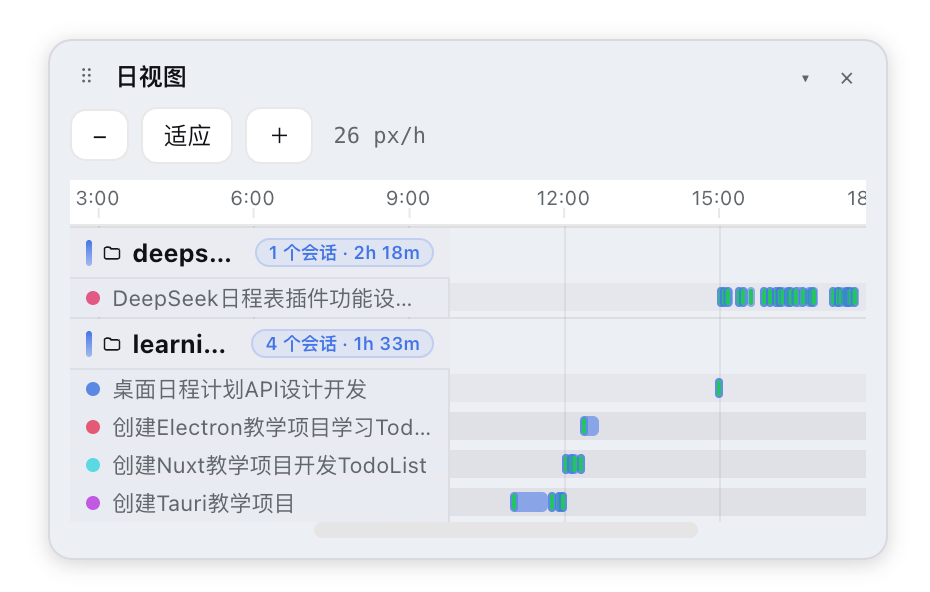 Day · ☀️ Light |
Why
You use DeepSeek Harness every day — dozens of sessions, background jobs, scheduled reminders. But there was never a way to see the work: when each project ran, for how long, how much tool activity happened, or when the next recurring task fires.
dsh-calendar turns your existing usage history into a beautiful calendar — zero configuration, no extra data store, nothing to maintain. Install, restart, open Settings → 📅 Calendar, and your entire history is there.
Features
| 🗓️ Year heatmap | GitHub-style 52×7 contribution map — spot your busiest seasons at a glance |
| 📅 7-day timeline | Seven columns, one day each, a vertical 24-hour timeline. Every session keeps its own color, so you can trace one task across days |
| ⏱️ Day timeline | 24-hour Gantt axis by workspace → session. Turns merge into task segments — one user prompt opens a task, the work that follows joins it, one bar per task |
| 🗂️ Month grid | Classic calendar with per-day heat bars and totals |
| 🃏 Main-UI cards | Draggable mini cards (stats / year / 7-day / day / month) float over the main interface — move, collapse, or close them; pick which ones show in Settings. Frosted translucent cards with soft shadows, so they sit lightly on top of your work |
| 🏷️ Workspace headers | Timeline rows carry a folder icon, a glowing accent bar, and a pill badge with session count + active time — at a glance, per workspace |
| 🖱️ Drill through | Click any timeline bar to open the actual conversation |
| 📊 Stats strip | Active time / sessions / turns / tool calls / tokens for the selected range, with count-up numbers |
| 🪙 Token usage | Billed token accounting per day / session / workspace — exact when the provider reports usage, heuristically estimated otherwise |
| 🎨 Theme-aware | Follows the harness theme — light and dark, automatically; bars and heat use the real brand blue in both themes |
| ✨ Animations | Gentle entry effects and a decrypt-reveal headline — nothing janky, nothing in the way |
| 🕐 History, out of the box | Past sessions are folded and cached at startup — last month's activity is visible without opening anything |
Compatibility
| dsh-usage-calendar | DeepSeek Harness |
|---|---|
| 0.1.4 | 0.1.1-rc.1 (next) — adapted to the session-projection stateSchema / wire unit contract; @deepseek-ai/dsh-client-web-react removed (merged upstream) |
| 0.1.0 – 0.1.3 | 0.1.0-rc.7 |
Install
dsh plugin --profile web add dsh-usage-calendar
Restart dsh web, then open Settings → 📅 Calendar.
Usage
- Views — switch Day / 7-day / Month / Year with one click;
‹ ›steps, Today jumps back. - Drill through — click a heatmap cell, a month cell, or a timeline bar to jump into that day or conversation.
- Main-UI cards — drag the ⠿ handle anywhere, collapse
▾, close×; re-enable in Settings → Calendar → Main-UI cards. - Hover — any cell or bar shows the exact window, duration, and turn count.
- Live — running sessions pulse, and today's day view draws a live now-line.
Demo preview
▶️ Live demo: open the showcase page — hero banner, four views, and the main-UI cards, ready to screenshot.
No live harness needed to preview the visuals locally either — the repo ships a demo page with rich sample data (dark/light switchable):
pnpm demo:build && open docs/demo.html
Roadmap
- Recurring-reminder panel (upcoming / overdue / fired history) with ⏰ markers on the timelines
- Yearly
Wrappedreport + shareable PNG export - Workspace filtering and session search
- iCal export of DeepSeek's active windows
No comments yet. Be the first to write one.