dsh-codexlike-projectless
English | 简体中文
Codex-like no-project conversations for DeepSeek Harness: write your message first, then create a working directory organized by date and topic when you send it.
DSH Codexlike Projectless is independently maintained with its own release history. The repository and internal plugin are both named dsh-codexlike-projectless. Source attribution and MIT license details are in NOTICE and LICENSE. This is not an official DeepSeek or OpenAI project.
The current version is 0.1.1, targeting DSH Desktop 0.2.0-rc.2 on Windows. Independent release numbering starts at 0.1.0. The complete flow requires the plugin and the native DSH bridge; the plugin package alone cannot enable it. Releases contain the plugin package, Windows installer and source. They do not include DSH's app.asar, user profiles or local backups.
How it works
- A new no-project conversation opens a browser-only draft with the native composer. No real Session, Workspace or working directory is created yet.
- On the first send, DSH's built-in title service generates a topic using the current model. If it fails, the native fallback title is used.
- The plugin creates
ROOT/YYYY-MM-DD/topic, appending_2,_3, etc. for collisions. It then creates a real Session and binds the prepared title to its native event log. - The message goes through the native send path with its selected model, Agent preset, permissions, planning mode and attachments.
- After acceptance, the temporary Workspace registration is removed. The conversation, directory, cwd and history remain, and the conversation appears under Ungrouped.
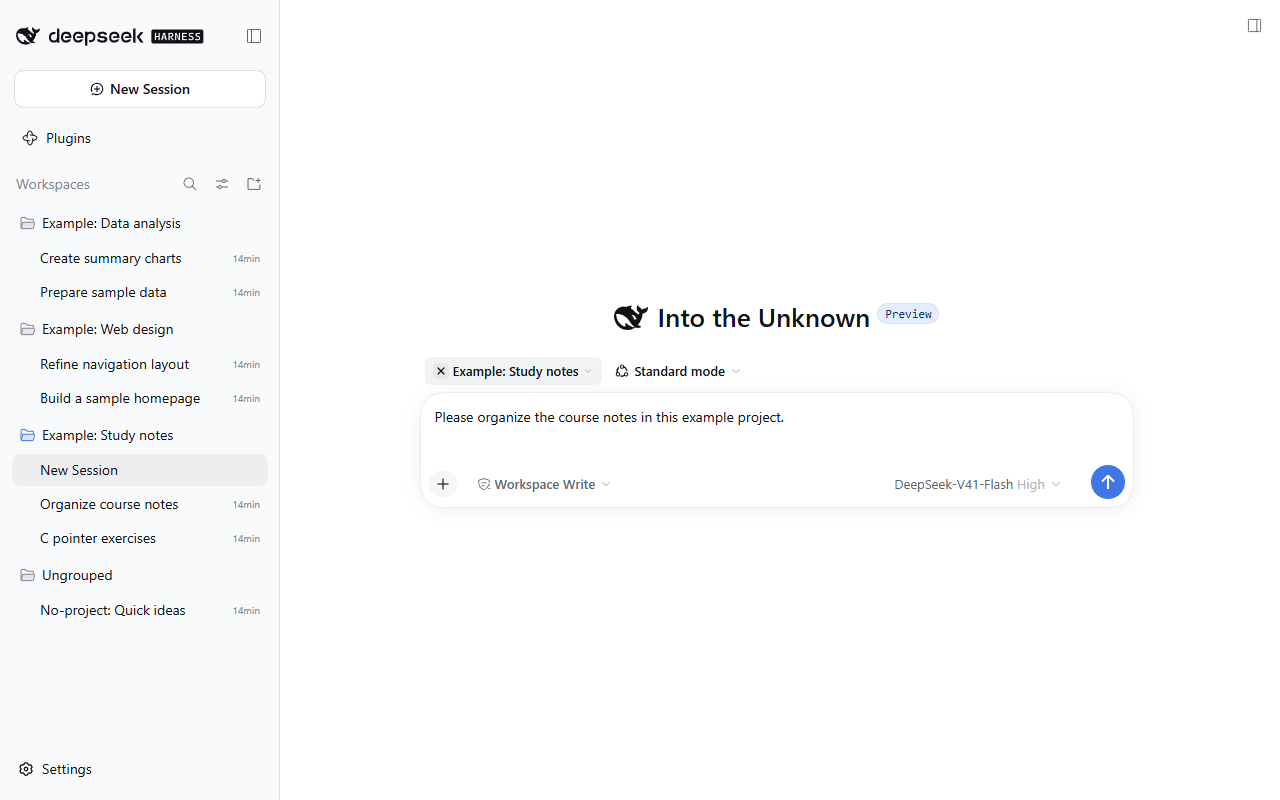
A circular × appears to the left of the project button above the composer on hover or keyboard focus. In an unsent editor, it switches to no-project mode and restores that draft. In a project conversation that has already sent a message, it opens a new blank no-project editor while preserving the original conversation's project and cwd. The × is hidden in no-project mode; the picker also provides a "No project" entry.
New Conversation and the shortcut open a blank editor using the current default project selection. Opening history updates that selection. A no-project conversation retains its no-project identity after its temporary Workspace is detached. The selection survives restarts; a deleted project falls back to no-project mode.
Switching through the project picker restores the most recently used unsent editor for each project and for no-project mode, including text, attachments, model, permissions, Agent preset and planning mode. Selecting the current project again does not recreate the editor. Explicitly starting a new conversation opens a blank editor without carrying over text or attachments, while previous editors remain available during that runtime. Confirmed sends clear the corresponding recoverable draft; failures retain it, and uncertain results block resending.
An uncertain send is not retried and does not delete resources. The plugin waits for confirmation from native persistent Session state. Explicit rejection or creation failure reclaims only newly allocated empty directories; existing files are not deleted.
Screenshots
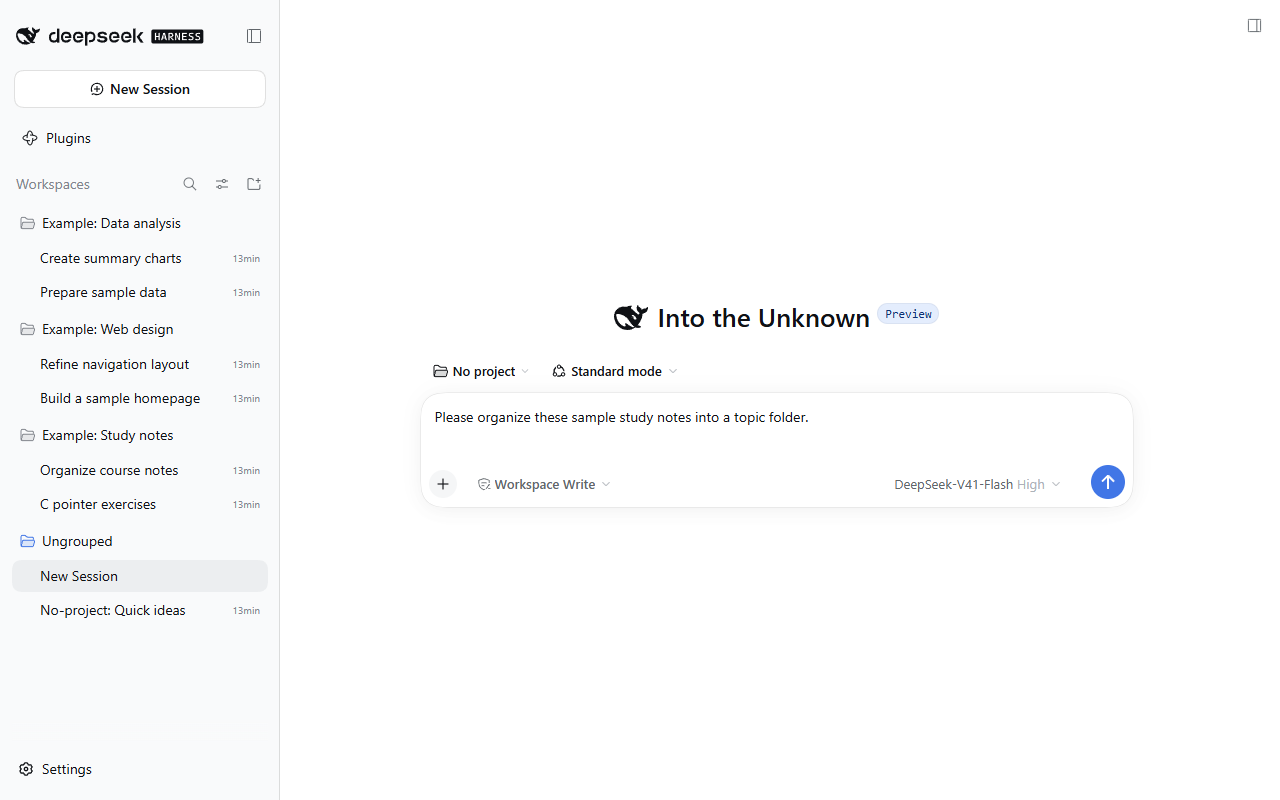
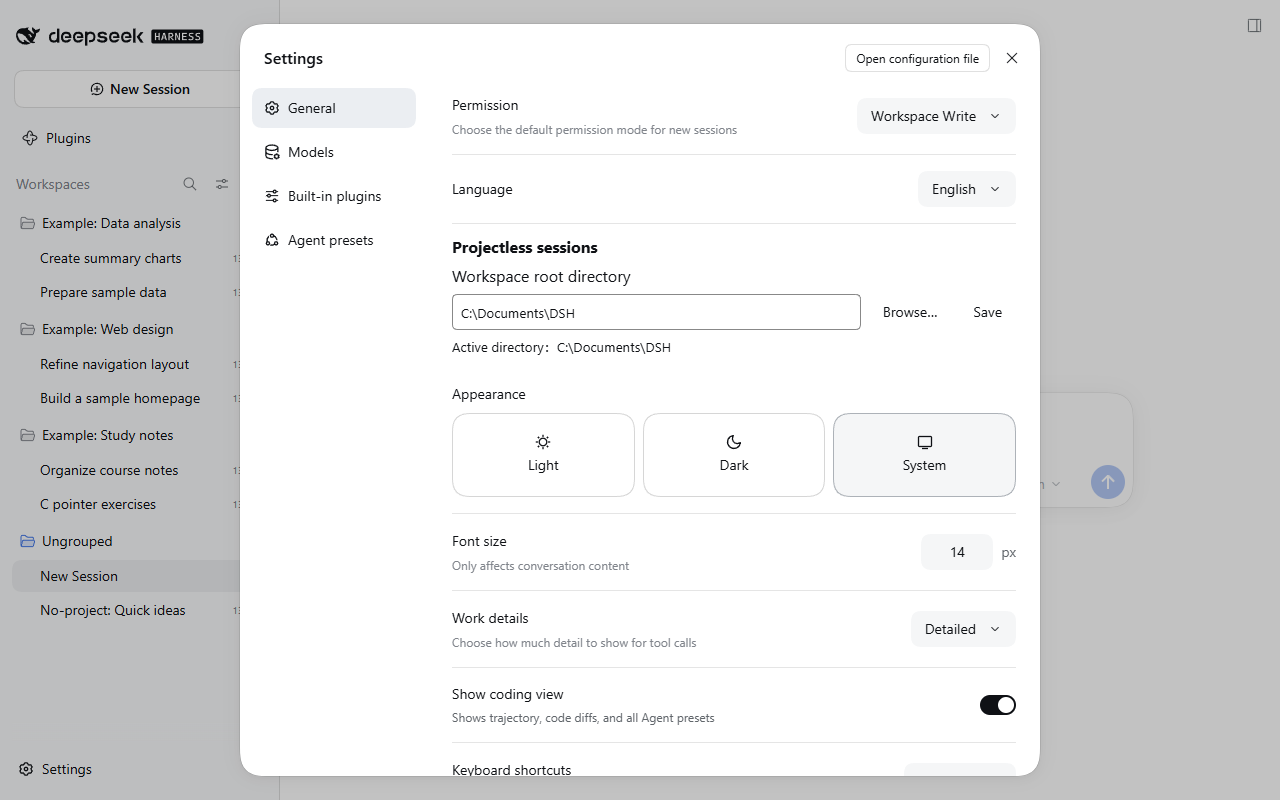
These unmodified screenshots were captured on 2026-10-03 from a real, running DSH Desktop 0.2.0-rc.2 instance on Windows with the pre-rename development build 0.7.0-local.5. The isolated profile loads only DSH's built-in components and this plugin, using the native UI without theme, pet or enhanced sidebar plugins. Three example projects, six project conversations and one ungrouped conversation were created specifically for this demonstration; no personal conversation history is included. The example conversations illustrate project membership, not model execution results. Interface labels, example project names, conversation titles and draft text are shown in English.
No-project draft alongside project conversations
The sidebar shows three example projects and their conversations, while the current editor is in no-project mode with native model, permissions and Agent preset controls. An example under Ungrouped illustrates the difference from project-bound conversations.
Switch from a project to no-project mode
Hovering over the project button reveals a circular × that opens the no-project editor. The selected project is "Example: Study notes", with other projects and ungrouped conversations visible in the sidebar.
Choose the conversation directory
General Settings lets you browse, save and inspect the effective workspace root. The example root is C:\Documents\DSH; you can choose your own location.
Installation and restoration
You need Windows, an installed copy of DSH Desktop 0.2.0-rc.2, and Node.js 22.19 or newer. The Release installer handles both first installation and updates. You do not need to install npm dependencies, compile source, or prepare patches manually.
Direct installation (recommended)
- Download
dsh-codexlike-projectless-0.1.1-windows-installer.zipfrom GitHub Releases and extract it to a local directory. Run it from the extracted directory. - Fully quit DSH, including its tray process. If
dsh-projectless-sessionis installed, disable it in DSH first. - Double-click
Install.cmd. The installer looks for the DSH installation directory and asks for a path if it finds none or more than one. - After "Installed / 已安装" appears, reopen DSH. In Settings → General → No-project conversations, choose a workspace root and save it.
The default profile is %USERPROFILE%\.dsh\profiles\desktop. To select another profile or specify the application directory, open PowerShell in the extracted directory and run:
.\install.ps1 -AppDirectory 'E:\DeepSeekHarness' -ProfileDirectory 'C:\Users\your-name\.dsh\profiles\desktop'
The installer reads the original DSH archive, checks its version and patch anchors, generates the native bridge locally, and prepares compatibility patches for dsh-better-sidebar and Git Graph 0.4.4 in the selected profile. An unrecognized compatibility file or unsupported Git Graph version stops installation before application or profile writes. First installation also registers the plugin dependency and configuration entry. Existing workspace settings and other plugin configuration remain in place.
The plugin copy, original archive and restore tools live in dsh-codexlike-projectless-installer under the selected profile. After installation succeeds, you can delete the downloaded ZIP and extracted directory. Keep the installer directory for updates and restoration. The profile uses a local link: dependency pointing to the stored plugin copy. To update, download the new installer ZIP, quit DSH, and run the same entry point.
Import a local package through the plugin market
This plugin is not yet listed in the plugin market or published to npm. A market or plugin manager that supports local package import can install the Release .tgz:
- Download
dsh-codexlike-projectless-0.1.1.tgzanddsh-codexlike-projectless-0.1.1-windows-installer.zipfrom the same Release. - Open the plugin market or plugin management page in DSH. Use its local package import action, select the downloaded
.tgz, and finish installation. The action's name varies by client. Use the desktop profile you actually run; pass that same profile to the installer if it is a custom location. - Disable
dsh-projectless-sessionif present, then fully quit DSH. - Extract the matching installer ZIP, run
Install.cmd, and reopen DSH after installation succeeds.
Market import installs the plugin package. Step 4 supplies the native bridge required for the complete workflow. Import the .tgz, not the installer ZIP. Direct installation handles both parts, so market import is optional.
Update an older installation
The old source-based workflow stored backups in native/backups. When updating an older patched build, provide that directory to the new installer:
.\install.ps1 -AppDirectory 'E:\DeepSeekHarness' -LegacyBackupDirectory 'old-source-directory\native\backups'
The installer checks the current archive against backup records using SHA-256 and locates a verified original archive. If it cannot verify the backup chain, it stops. You can specify -OriginalArchive 'original-backup\app.asar', but the archive must still match the current installation's backup records. The native bridge targets DSH 0.2.0-rc.2 and needs adaptation after a DSH update.
Restore the pre-installation state
Installation prints the backup directory and a complete restore command. A failed installation restores the application, plugin and profile to their state before that operation, including removal of a newly registered plugin after a failed first install. To restore manually, fully quit DSH and run the printed command, for example:
powershell -NoProfile -ExecutionPolicy Bypass -File 'C:\Users\your-name\.dsh\profiles\desktop\dsh-codexlike-projectless-installer\install.ps1' -Restore -BackupDirectory 'backup-directory-printed-by-the-installer'
Restoration replaces profile configuration with the selected backup, including other plugins' configuration. Later edits to those files will be reverted. It leaves conversation history, working directories and the separate workspace-root settings file in place. Removing the .tgz through the market does not remove the native bridge; use restoration for that. If you imported the package before running the installer, restoration retains that imported plugin, which you can then uninstall through the market. For legacy backups, use scripts/restore-native.ps1 from the old source checkout.
Choose a workspace root
In Settings → General, find the no-project conversation section. Enter a workspace root or click Browse, then Save. The UI shows the effective path; validation or save failures leave the old value in place. The setting is stored in DSH_HOME/storages/dsh-codexlike-projectless-settings.json, survives restarts and does not rewrite unrelated profile settings.
Without a saved override, the root comes from the profile's dsh-codexlike-projectless.config.root, falling back to ~/Documents/DSH. Changes affect only future first sends; existing conversations and directories are not moved. Each first send keeps the root selected when it began, including for rollback. Setting debug: true enables diagnostic logging of state and paths, without message text or secrets.
Validation and limitations
The 0.1.1 installer integration tests cover first installation, updates, configuration preservation and rollback using synthetic ASAR archives with actual DSH 0.2.0-rc.2 module code. They do not establish live Desktop installation or restart acceptance. Earlier build checks: 0.1.0 validation.
See the historical local validation record (Chinese). Its versions, logs and screenshots refer to development builds before the rename; they do not establish installation and restart acceptance for 0.1.0. Drafts support model, preset, permissions and planning mode selection, plus attachments. Tools, tasks and commands that require a real Session or execution directory become available after the first message creates the Session. Draft text and attachments exist only in runtime memory and do not survive refresh, closing or restart. Restart DSH after updating the native bridge; hot replacement of the plugin is not an installation acceptance check.
Releases and development
Source and version downloads are available in GitHub Releases. The release workflow publishes to GitHub only. Each Release includes a .tgz plugin package, a complete -windows-installer.zip bundle and SHA256SUMS. It does not publish to npm. See CONTRIBUTING.md to build from source.
See CONTRIBUTING.md for development and validation, and CHANGELOG.md for version history. Paths to logs, screenshots and backups in historical validation records describe the evidence from those runs. Apart from the selected screenshots above, those runtime artifacts are excluded from the public repository. Further checks and optimization are tracked through this repository's Issues and future releases.
No comments yet. Be the first to write one.