📌 dsh-home-hosted
Prompt your servers into existence — keep them running and manage them via dsh / home-hosted panel UI.
Your whole home stack, up after every reboot — your dsh web included.
A DeepSeek Harness plugin for
home-hosted, the panel that supervises your services.
Ask for a Gitea, a Jellyfin, an FTP server; dsh-home-hosted sets up the entries and manages them
— panel, ports, restarts and boot autostart included.
Nothing is installed or started until you say so.



🚀 Quick start · 🎛️ What the plugin does · 🤖 Agent tools · 🧩 Depth
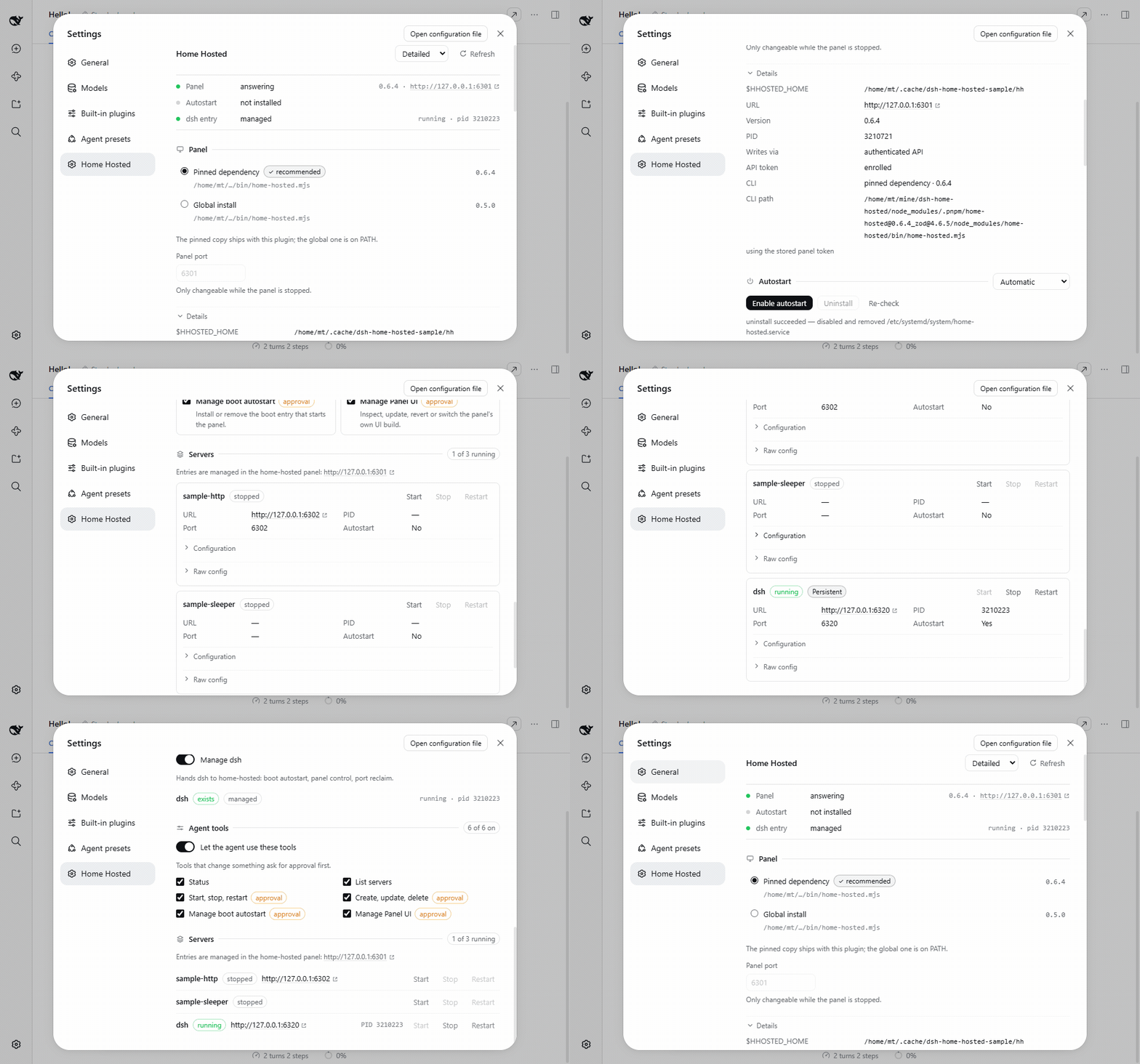
The Detailed style, then the same sections in Compact — both switchable from the page header.
🚀 Quick start
dsh plugin --profile web add dsh-home-hosted
Open Settings → Home Hosted and add your servers — or just ask the agent:
add a Gitea on 3000, and a Jellyfin on 8096
Then, optionally, turn on Manage dsh and Autostart, so the panel — and everything in it — comes back after a reboot.
🤔 Why
Ever tried setting up a media server, a Gitea and a few more yourself — then keeping them all managed?
dsh-home-hosted uses home-hosted to do it: prompt for
the servers you want, let it write and configure the entries, and manage them all from dsh or the
panel — ports, health, restarts and autostart included.
   you ──▶ "add a Gitea, a Jellyfin, a cache…"
             │
             ▼
   dsh-home-hosted ──▶ home-hosted panel ──▶ ┌──────────────┐
     page · agent              │             │ gitea  :3000 │
                               │             └──────────────┘
                               ├──────────▶ ┌──────────────┐
                               │             │ jellyfin     │
                               │             │ :8096        │
                               │             └──────────────┘
                               └──────────▶ ┌──────────────┐
                                             │ postgres     │
                                             │ :5432        │
                                             └──────────────┘

   ★ OS boot entry ──▶ the panel comes back, and so does everything in it
     systemd · launchd · XDG · Run key
dsh is one entry in the panel, not the whole product. The panel is the supervisor: it starts
each entry, watches it, restarts what dies and reclaims its port. Add your Gitea, your Jellyfin,
your compose stack, your database — manage them from the page, or hand the entry ids to an agent.
Managing dsh itself is the bonus: the entry that keeps your harness up is a highlight on top of
the server management, not the thing this plugin is.
🎛️ What the plugin does
| 🖥️ Servers, set up by prompt | Add, edit, start, stop and restart entries — Gitea, Jellyfin, FTP, a compose stack. Written through the panel's API, so nothing restarts behind your back. |
| 🏠 The whole home-hosted panel | Not just servers: BYOU custom UIs, workspaces, a reverse proxy with automatic HTTPS, backups (zip or AES-256), notifications, dynamic DNS, health probes, live logs and host vitals. |
| 🤖 Agent tools | On by default, session permissions still gate every write. |
| 🚀 Boot autostart | Highlight: installs, verifies and removes the OS entry, so the panel starts at boot. Opt in per machine. |
| 🧭 Token warnings that mean something | A missing or refused API token is called out on the page, with one click to mint a working one. |
| 🪟 Knows the other panels | Several panels on one machine? The agent is told which one this plugin manages, and asks before touching another. |
🤖 Agent tools
| Tool | Does |
|---|---|
home_hosted_status |
Panel, boot entry and managed-entry state |
home_hosted_workspaces_list |
Every workspace the panel serves, with counts |
home_hosted_servers_list |
Every supervised server in a workspace |
home_hosted_servers_lifecycle |
start · stop · restart |
home_hosted_servers_edit |
create · update · delete |
home_hosted_autostart_manage |
install · uninstall |
home_hosted_ui_manage |
status · update · revert · switch (official asset or local zip) |
Every server tool names its workspace, because an id is only unique inside one.
A tool that changes something asks for approval only when the session is not already Full access.
A refused token is re-enrolled on the spot and the tool retries — see automatic regeneration below.
Every tool takes an optional instance (a panel's --home or URL). Omit it for the panel this plugin manages; with several panels found the call asks which one you mean, and naming another panel asks first too — then reaches it by editing its config file, running the CLI against it, or minting a token and using its API.
🧩 Depth
Boot autostart, per platform| Platform | Mechanism | Starts |
|---|---|---|
| Linux | systemd-user, systemd-system, XDG autostart |
login, or boot with a system unit / loginctl enable-linger |
| macOS | launchd-agent, launchd-daemon |
login, or boot with the daemon (one-time sudo) |
| Windows | Run key, Task Scheduler | login |
When the process cannot elevate, the page prints the exact commands instead — including the
launchd-daemon that starts a Mac before login.
A boot entry runs the panel as the person who installed it: the account comes from the login that
elevated (SUDO_UID) or from the panel root's owner, not from $USER.
An entry with no account to name runs the panel as root — that is the default, and the page
says so rather than hiding it. A User= systemd cannot resolve is refused too, because it makes
the unit fail to start. Moving an install from root to a user later needs
chown -R <user> <home>.
The pinned dependency by default; the page can switch to a global install, or install the pinned
range globally for you. Boot entries run a small stable launcher the plugin writes, so a
node_modules path that moves never breaks boot.
A dsh you cloned and built yourself is supported: the managed entry starts a stable launcher that
re-finds your build at boot, so a rebuild, a moved checkout or a fresh profile does not strand it.
Falls back to whatever dsh is on PATH, and fails with the reason when it finds neither.
The Desktop client is supported, with one exception. Everything server-side works as it does in the browser: the page, the agent tools, workspaces, the panel, and boot autostart.
Manage dsh is web-only and shown disabled there, because Desktop starts its own reserved profile
in Electron — it is never one of the panel's server entries. (dsh --profile desktop is refused by
the CLI, so a row for it could only crash-loop.) Server entries of every other kind are unaffected.
One entry (dsh), one toggle: the panel keeps it alive, restarts it and reclaims its port. A
detached restart is recognised on macOS and Linux (follow); Windows cannot prove identity through
a .cmd shim, so it uses onPortConflict: kill. The plugin pins home-hosted 0.7+, so every key it
writes is one that panel parses.
Web only — see dsh Desktop above.
The plugin needs its own home-hosted API token to read and write the panel. home-hosted keeps only
the token's hash, so a token it did not mint can never be recovered — <stateDir>/panel-token is
0600, never rendered or logged, and Regenerate token enrols a new one that replaces it.
A missing or refused token is called out on the page with that button, including when the panel is not answering at all — a token problem is often why it cannot be reached. Regenerate token automatically (Agent tools section, on by default) does the same thing when a panel call is refused: the tool re-enrols and retries once instead of failing. Turn it off to be asked instead of having a working token silently replaced.
Operator configThe Cordis row config is for operator overrides only:
- id: dsh-home-hosted
  name: 'dsh-home-hosted'
  config:
    stateDir: /custom/state/dir        # default: $DSH_HOME/dsh-home-hosted
    homeHostedCommand: /usr/bin/home-hosted
    defaultEntryId: dsh
Everything a person toggles lives in <stateDir>/settings.json.
Each install drives its own panel root — <stateDir>/panel, or $HHOSTED_HOME when set — and names
its own boot entry, so two dsh installs no longer share one panel. An existing ~/.home-hosted
panel is adopted as-is, and the page shows which root this install owns.
pnpm install
pnpm typecheck && pnpm test && pnpm build
Node 24+, pnpm. The same commands CI runs.
MIT · npm · releases · issues · built on home-hosted
No comments yet. Be the first to write one.