dsh-window-control
English · 简体中文



Give an LLM agent eyes and hands on an already-running Windows desktop: enumerate and find windows, screenshot windows that are completely covered by others, read UI through OCR / template matching / UI Automation, click and type for real, and drive Chrome over the DevTools Protocol.
It ships as a Python package (winctl) plus a DeepSeek Harness plugin that registers
it as an MCP server, so the model gets 37 native tools named mcp__window__*.
Everything is also usable from the CLI or as a plain Python library.
┌───────────────┐   MCP (stdio)   ┌──────────────────────────────────────────┐
│  DSH / any    │ ───────────────▶│ winctl                                   │
│  MCP client   │◀─────────────── │                                          │
└───────────────┘  {ok,data,…}    │  ① UI Automation   exact, no focus steal │
                                  │  ② Vision          OCR + template        │
                                  │  ③ Input           SendInput/PostMessage │
                                  │  ④ CDP             DOM-level browser     │
                                  └──────────────────────────────────────────┘
Why
Most "computer use" stacks need a browser, a VM or a screenshot-only loop. The common
real-world case is a live desktop with apps someone else is using: an Electron/CEF
streaming tool, WeChat, a UWP settings page, a browser with 40 tabs. winctl handles
exactly that:
- Nothing to instrument. No accessibility tree? Fall back to pixels. No pixels
because the window is covered? Capture it directly with
PrintWindow/DWM. - Honest results. Every call returns
{"ok", "data", "error", "elapsed_ms"}. A click that could not be delivered sayssendinput_unavailable: uipi_blocked …instead of pretending it worked; aset_valueis read back and verified. - Non-invasive by default. Background actions optionally restore the previous
foreground window;
work_area-aware window placement; the browser layer always uses its own Chrome profile and port instead of hijacking yours.
Features
| Layer | What you get |
|---|---|
| Windows | Enumerate/inspect/activate/move/close windows, WindowFromPoint, client↔screen mapping, PerMonitorV2 DPI — all coordinates are physical pixels, multi-monitor and negative virtual origins included |
| Capture | PrintWindow(PW_RENDERFULLCONTENT) → DWM → BitBlt → screen-region fallback chain; captures fully occluded windows, never masks or fakes content; only failure case is a minimized window |
| UI Automation | Flattened tree dump with index/depth/parent_index/patterns, find by name/regex/type/automation-id, actions (invoke/set_value/toggle/select/expand/collapse/scroll_into_view/send_keys) with read-back verification |
| Vision | RapidOCR (rapidocr-onnxruntime, Chinese+English) with a WinRT OCR fallback, multi-scale template matching (cv2.matchTemplate + NMS), diff ratio, dark-UI preprocessing |
| Input | Absolute-coordinate SendInput, PostMessage background clicks/typing (Unicode, emoji), hotkeys, drag/scroll, restore_foreground |
| Browser | Chrome DevTools Protocol over websocket-client (no Playwright/Selenium): launch own instance, tabs, Runtime.evaluate, DOM query/click/type/wait, tab screenshots |
| Orchestration | One locator DSL (kind = uia / image / ocr / coords, auto = automatic degradation) and win_sequence for multi-step flows |
Requirements
- Windows 10 or 11 (x64), Python 3.11+
- Dependencies:
python -m pip install -r requirements.txt - Optional: DeepSeek Harness for the plugin route (the CLI/library route needs no DSH)
- Chrome/Edge for the CDP layer (edge is auto-detected), and the optional OCR extra
git clone https://github.com/MaxEvansLiuer/dsh-window-control
cd dsh-window-control
python -m pip install -r requirements.txt
Install as a DSH plugin
The plugin folder dsh-plugin/ is a config-only DSH bundle named
dsh-window-control; it registers the server under serverName: window. There are two
routes — route 1 also lists the plugin in DSH's plugin directory/panel.
Route 1 — install as a plugin bundle (recommended)
# from the repository root
powershell -ExecutionPolicy Bypass -File .\winctl\install\plugin-bundle.ps1
# restart DeepSeek Harness
The script does what the DSH plugin manager does for a local plugin: copies the bundle
to %USERPROFILE%\.dsh\plugins\dsh-window-control, fills in your real python.exe and
repository paths, adds the dependency plus dsh.profile.bundles entry to the profile
package.json, links it into node_modules (a junction, so no pnpm install), and
removes the legacy patch entry so the MCP server is not registered twice. Afterwards the
plugin is listed in the plugin panel and the model has 37 mcp__window__* tools.
Useful flags: -Python C:\Python311\python.exe (python not on PATH), -Profile <name>,
-Uninstall.
Route 2 — patch only (no plugin-panel entry)
powershell -ExecutionPolicy Bypass -File .\winctl\install\apply-plugin.ps1 -DryRun   # preview, writes nothing
powershell -ExecutionPolicy Bypass -File .\winctl\install\apply-plugin.ps1 -Apply    # backup + write
# restart DeepSeek Harness
This appends the MCP-server record straight into
%USERPROFILE%\.dsh\profiles\<profile>\cordis.patch.yml. The tools work exactly the same,
but the plugin manager does not list it. Roll back with
.\winctl\install\revert-plugin.ps1 -Apply.
Both installers are idempotent, back up the profile files to a timestamped folder, and
fill in your real paths. They write every file without a UTF-8 BOM — DSH parses the
profile package.json with JSON.parse, which rejects a BOM. See
dsh-plugin/README.md for the manual steps.
Use from the CLI
# what windows exist? (read-only, JSON out)
python -m winctl windows --process chrome
python -m winctl find-window --title-re "Notepad|记事本"

# can this session inject real mouse/keyboard input? (UIPI / lock screen diagnostics)
python -m winctl input-state --pretty

# screenshot — works even if the window is behind others; --activate brings it up temporarily
python -m winctl screenshot --hwnd 262728 --out shot.png
python -m winctl screenshot --hwnd 262728 --activate --out shot.png

# UI Automation: tree, find, exact action with read-back verification
python -m winctl tree --hwnd 262728 --depth 6
python -m winctl find --hwnd 262728 --control-type Edit
python -m winctl act  --hwnd 262728 --control-type Edit --action type --text "hello 你好"

# one-shot locator: uia → image → OCR → coordinates, automatic degradation
python -m winctl click --hwnd 262728 --text "Save" --kind ocr

# browser (own profile, own port — your Chrome is untouched)
python -m winctl browser launch
python -m winctl browser eval --tab <tabId> --expr "document.title"
Every command prints the same envelope and exits 1 on failure:
{"ok": true, "data": { "...": "..." }, "error": null, "elapsed_ms": 12}
MCP tools (37)
| Group | Tools |
|---|---|
| Windows (6) | win_list_windows win_find_window win_window_info win_window_activate win_window_move win_window_close |
| Capture (1) | win_screenshot |
| UI Automation (5) | win_uia_tree win_uia_find win_uia_act win_uia_wait win_uia_element_at |
| Orchestration (3) | win_resolve win_act win_sequence |
| Input (7) | win_type win_click win_hotkey win_press win_scroll win_drag win_input_state |
| Browser / CDP (13) | win_browser_status win_browser_launch win_browser_attach win_browser_tabs win_browser_open win_browser_close win_browser_eval win_browser_query win_browser_click win_browser_type win_browser_wait win_browser_shot win_browser_rect |
| Vision (2) | win_ocr win_find_image |
Examples
Click a button in a CEF app that exposes no accessibility tree (the vision path):
from winctl import actions
from winctl.types import Locator

actions.act(hwnd, Locator(kind="ocr", text="开始直播"), "click")   # ① screenshot ② OCR ③ click
Type into a control and prove it landed (the UIA path):
actions.act(hwnd, Locator(kind="uia", control_type="Edit"), "type", text="hello 你好")
# data.uia.verified == True, data.uia.value == "hello 你好"
Drive a real browser page:
from winctl import browser

tab = browser.open_tab("data:text/html,<input id=x>")
browser.type_text(tab, "#x", "hello")
browser.evaluate(tab, "document.querySelector('#x').value")   # → "hello"
How the four strategies cooperate
- UI Automation — exact and focus-free; preferred whenever
win_uia_treereportsuia_usable: true. Actions are read back (verified: true/false). - Vision — for CEF/Chromium shells and other self-drawn UIs: capture, then OCR or template matching, returning physical-pixel rectangles you can click.
- Input —
SendInputfor real mouse/keyboard,PostMessageas a background, focus-free alternative. Availability is probed and reported, never assumed. - CDP — when the target is a browser, talk to the DOM instead of guessing pixels.
kind: "auto" locators try UIA → image → OCR and record what actually worked.
Measured on a real machine
Windows 11, 150% DPI, dual monitor (primary 2560×1440 + secondary 1920×1080 at a negative virtual origin):
| Check | Result |
|---|---|
| Capturing a fully occluded Electron window | 1280×720, pixel-identical to the same screen region, 0% diff |
| OCR in a CEF app (Chinese + English lyrics/UI) | 19 lines, score 0.94 – 0.998, physical-pixel rects |
| Template matching | score 1.0000, exact rect |
| UIA tree, Win32 notepad | 27 elements; set_value written and read back |
| UIA tree, UWP settings page | 94 elements, incl. slider value=100 |
| Real keyboard injection | 35 Unicode chars typed, read back through UIA |
| CDP round trip | type_text → evaluate returns the typed value |
| 12 test modules | all green (GUI/COM-heavy tests, ~2 min) |
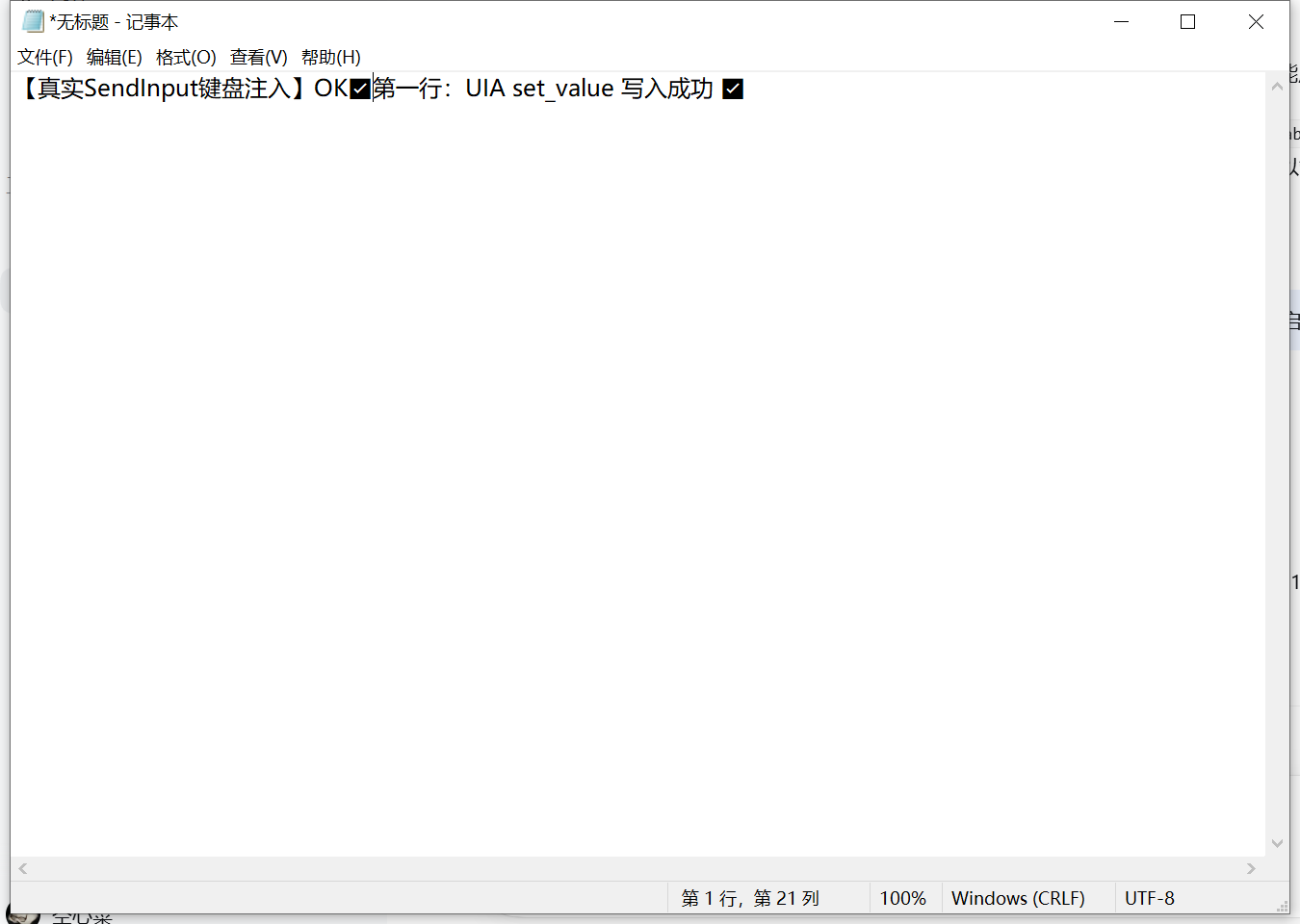
Both write paths landing in the same notepad — the right half was typed with real
SendInput keyboard events, the left half was written through UI Automation
set_value, and both were read back from the control:
Limitations (read before complaining 🙂)
- UIPI / elevated foreground. If an administrator-elevated window owns the
foreground, Windows blocks
SetCursorPos/SendInput/PostMessagefrom a non-elevated process.winctldetects this and returnssendinput_unavailable: uipi_blocked …. Fix: focus a normal window, or run DSH/the caller as administrator. (win_input_statediagnoses it in one call.) - CEF / Qt shells expose no UIA content.
uia_usable: falseis not a bug — use the vision layer. Detection short-circuits in ≤16 ms, so it never hangs. - Chrome 136+ refuses
--remote-debugging-porton the default profile, so the CDP layer always launches its own instance (%LOCALAPPDATA%\winctl-chrome-profile, port 9333). It will not attach to your everyday Chrome profile. win_clickrestores the previous foreground by default, so “click then type” needs an explicitwin_window_activatein between (or a type call targeting the window directly).verifiedsemantics.invoke/clickcannot be read back — they reportverified: falsemeaning “dispatched”, not “UI changed”.set_value/type/toggle/ selectare read back and fail loudly withtype_verify_failed.mode="message"never steals focus, but CEF/Chromium apps often ignore postedWM_*messages (effective: null).- Windows that require elevation themselves (Task Manager, UAC prompts) cannot be automated from a normal-integrity process.
- Automating a service's UI may violate its terms of use. You are responsible for what you automate.
Testing
powershell -ExecutionPolicy Bypass -File .\run_tests.ps1        # all modules
powershell -ExecutionPolicy Bypass -File .\run_tests.ps1 -Pattern test_uia_*   # subset
run_tests.ps1 runs each test module in its own Python process. This is not
cosmetic: GUI + COM test suites can crash the interpreter during teardown (comtypes
releasing UI Automation objects), and a single crash would otherwise swallow the whole
run. Per-module isolation also makes leaks (leftover test windows) obvious.
Tests create their own windows (notepad/calculator/own Chrome instance), never touch
windows they did not spawn, and clean up with tearDownClass + atexit guards.
Project layout
winctl/                 Python package
├─ core/                window enumeration, DPI, capture chain (PrintWindow/DWM/BitBlt/screen)
├─ uia/                 UI Automation tree/find/perform + CEF-shell fast path
├─ vision/              RapidOCR + template matching + image diff
├─ input/               SendInput / PostMessage mouse & keyboard, availability probe
├─ browser/             Chrome DevTools Protocol client
├─ actions.py           locator resolution + action orchestration
├─ mcp_server.py        MCP stdio server exposing 37 tools
├─ cli.py               `python -m winctl …`
└─ install/             apply/revert DSH plugin patch (DryRun by default)

dsh-plugin/             config-only DSH bundle (package.json + cordis.patch.yml + locales)
tests/                  12 unittest modules (GUI/COM integration tests included)
demo.py                 runnable demo of the four layers
run_tests.ps1           per-module test runner
License
MIT © 2026 liuboshan.
No comments yet. Be the first to write one.