DSH for VS Code 🐳




English | 中文
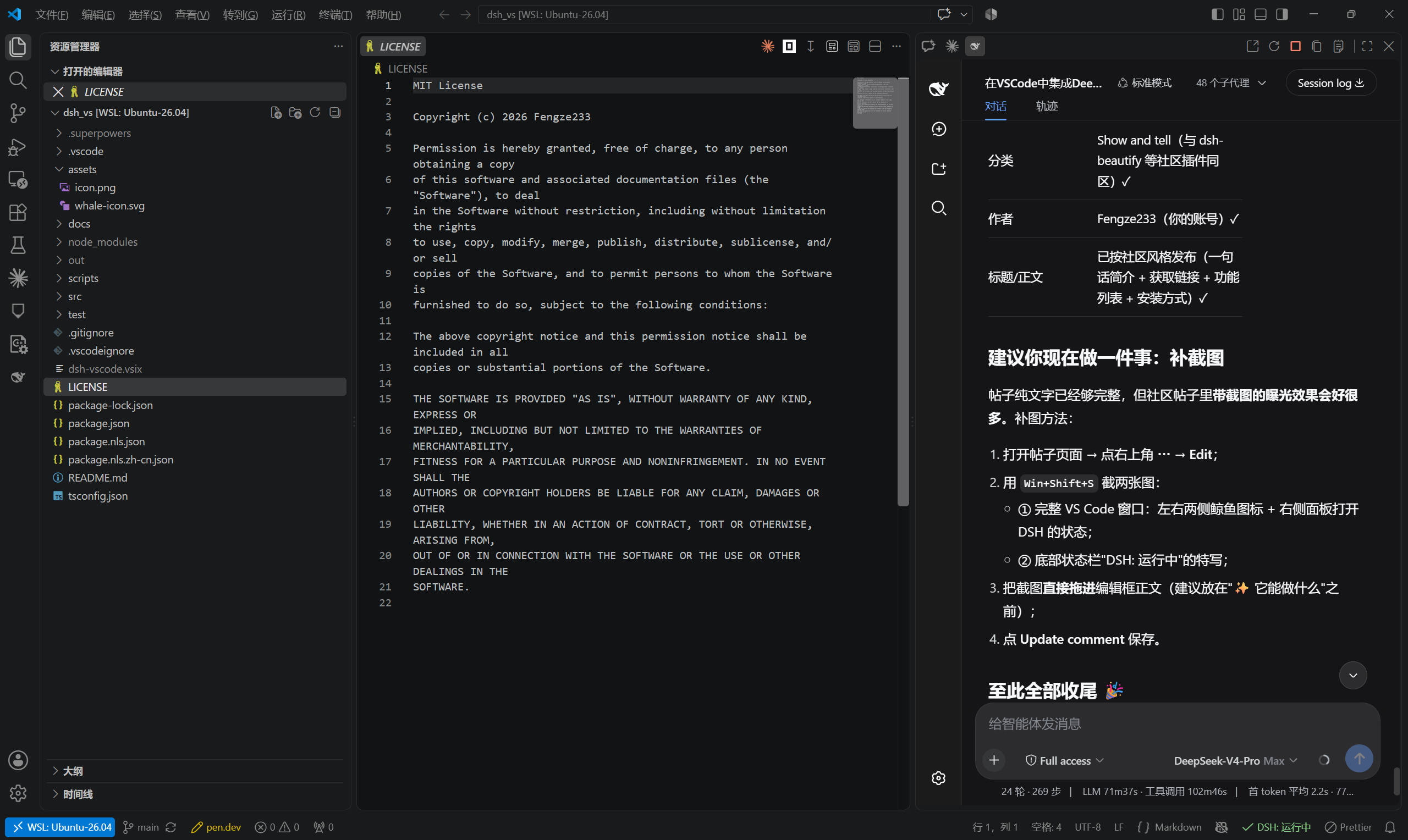
Use the DeepSeek Harness (DSH) web UI right inside VS Code: click a sidebar icon to embed DSH, which auto-starts (or reuses) the dsh web service — code and AI interface side by side, no more switching between terminal, browser, and IDE.
Works with DSH 0.1.2 and newer, including its one-time-token browser authentication (auto sign-in, no manual step) — see DSH ≥0.1.2 authentication. Older DSH (≤ 0.1.1, no auth) keeps working unchanged.
📸 Screenshot
🎬 Demo video
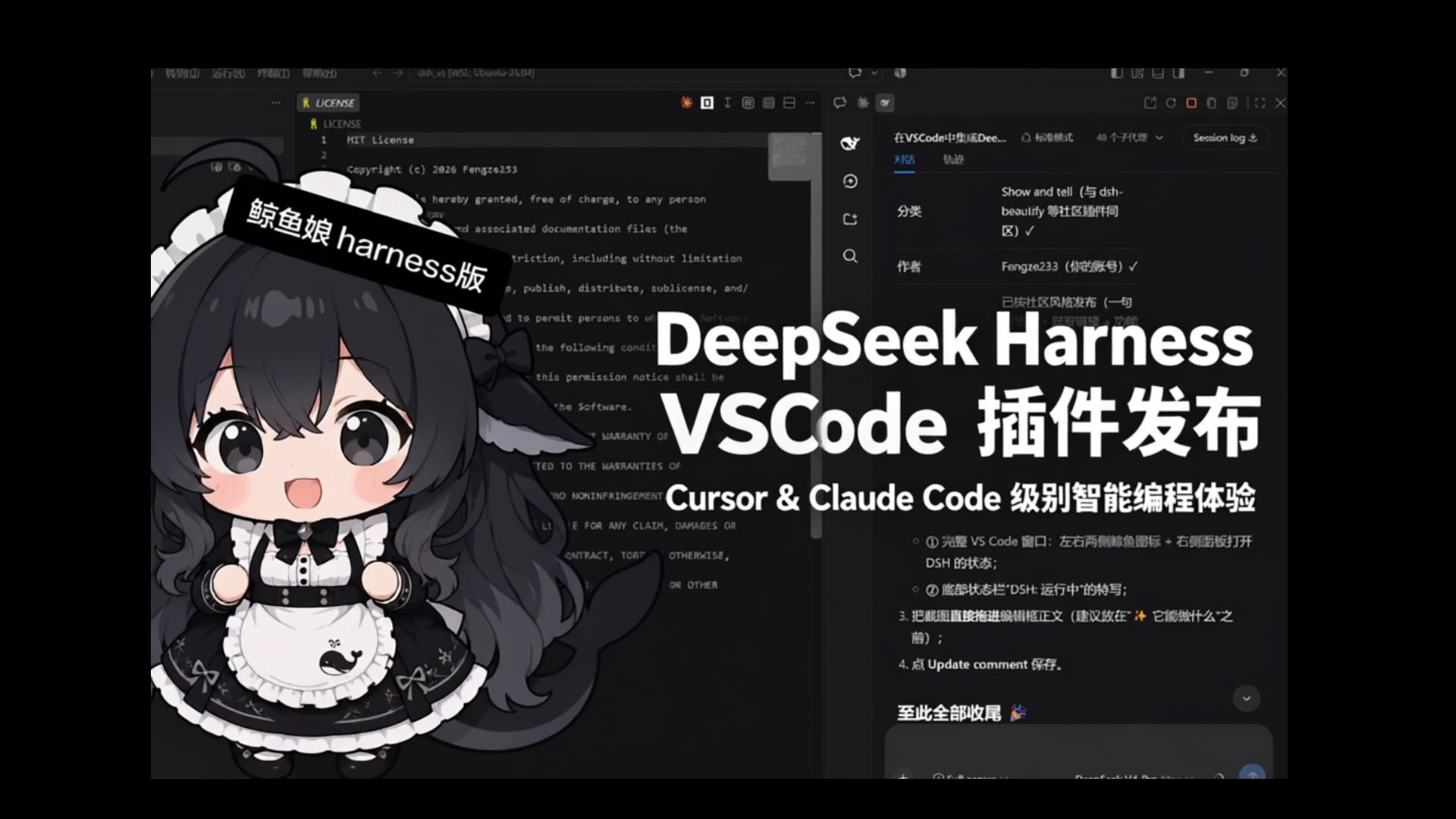
59-second demo on Bilibili (Chinese): BV1p8bD6dE18
✨ Features
- 🖱️ One-click open: a DSH whale icon in both the left Activity Bar and the right Secondary Side Bar — click either to embed the DSH page in that sidebar;
- 🚀 Automatic service management: auto-detects the port — reuses an already-running
dsh web, otherwise starts one silently in the background and loads it once ready; - 🔄 Live status sync: four-state status bar indicator (running green / starting yellow / failed red / stopped gray); click it to toggle the panel;
- 🛟 Error fallbacks: port occupied,
dshmissing, start timeout, crash/disconnect — each has a dedicated page with one-click reconnect; if the configured port is taken by another program, the extension temporarily falls back to the first free port for that session, never a blank screen; - 🌐 Bilingual UI: copy follows the VS Code display language — Chinese for
zh-*, English otherwise; - 📋 Copy/Paste/Context menu, works out of the box: fixes the macOS webview quirk where
Cmd+C/Cmd+Vand the right-click menu silently fail inside the embedded DSH page — the panel ships its own standard edit shortcut simulation and a context menu (Copy/Paste/Cut/Select All/Undo/Redo), while plain-browser usage and every existing feature stay untouched; - 🧹 Clean exit: closing the window stops the auto-started service, no zombie processes; manually started services are never touched;
- 🔒 Security boundary: loopback addresses only (127.0.0.1 / localhost / [::1]); no credentials are read.
- 🔐 DSH 0.1.2 auth-aware: the extension parses the one-time launch URL from the service log, exchanges it for DSH's signed browser cookie (valid 30 days, survives service restarts) and serves the panel through a local loopback relay that presents that session for the iframe — so the embedded UI keeps working even though DSH's
SameSite=Strictcookie can never be used inside a cross-site iframe. A session that expires is re-acquired automatically (a self-started service) or after one paste (an externally started service); - 🔝 Editor title-bar icon: a DSH whale button sits in the top-right of the editor tab bar (like Claude Code) — one click opens the right-side DSH panel;
- 🌐 SSH Remote (opt-in): when connected to a remote host, run dsh on the remote and open the panel through a VS Code tunnel (
dsh.remote.enabled, off by default); - 🖼️ Free image upload: send images even when the active model has no vision — the image is cached in the workspace and dispatched as a file-path reference, letting the model inspect it with an image tool (files are cleaned up when the panel closes; opt-out via
dsh.image.fallback); - 🪟 No surprise browser window:
dsh webis started with--no-openby default (restore withdsh.openInBrowser).
📥 Installation
Option 1: Marketplace (recommended)
Search for DSH (publisher Fengze233) in the VS Code Extensions view, or run:
code --install-extension Fengze233.dsh-vscode-panel
Marketplace page: https://marketplace.visualstudio.com/items?itemName=Fengze233.dsh-vscode-panel
Option 2: .vsix package
- Download the latest
dsh-vscode.vsixfrom Releases; - In VS Code press
Ctrl+Shift+P→ runExtensions: Install from VSIX...→ select the file; - Reload the window (
Developer: Reload Window).
Option 3: Build from source
git clone https://github.com/Fengze233/dsh-vscode.git
cd dsh-vscode
npm install
npm run package        # produces dsh-vscode.vsix, then install as in Option 2
Prerequisite: the dsh CLI from DeepSeek Harness must be installed and on your PATH (the extension detects it and shows a hint if missing).
🚀 Usage
- After installation, a DSH whale icon appears in both the left Activity Bar and the right Secondary Side Bar;
- Click either icon: the extension auto-starts (or reuses)
dsh weband embeds the DSH page in that sidebar;- Click the right icon → the panel opens on the right, leaving the file explorer untouched;
- If
dsh.portis occupied by another program, the extension automatically switches to the first free port for this session only (your setting is unchanged; a notification tells you the temporary port);
- Panel title bar buttons:
Open in BrowserRestart ServiceStop ServiceCopy URLShow Logs; - The bottom status bar shows the service status; click it to toggle the panel.
Command palette (prefixed DSH:)
| Command | Description |
|---|---|
DSH: Open Panel |
Open the left panel |
DSH: Open in Secondary Side Bar |
Open the right panel |
DSH: Open in Browser |
Open the DSH page in the system browser |
DSH: Restart Service |
Restart the extension-managed service |
DSH: Stop Service |
Stop the extension-started service |
DSH: Copy URL |
Copy the DSH page URL |
DSH: Show Logs |
Open the extension log output channel |
DSH: Copy Logs |
Copy the full DSH log (environment info + service log) to the clipboard for bug reports |
DSH: Retry Bridge Install |
Reinstall the bridge and restart the service |
DSH: Uninstall Bridge |
Remove the bridge package and restore cordis.patch.yml |
🔐 DSH ≥0.1.2 authentication & the local relay
DSH 0.1.2 introduced mandatory browser authentication. On startup dsh web prints a one-time launch URL:
dsh web: http://127.0.0.1:3080/?token=<one-time token>
Visiting it returns 303 plus a signed session cookie (HttpOnly; SameSite=Strict, bound to the request Host, 30-day lifetime). Every page and every /api call then requires that cookie; without it DSH answers 401 dsh web authentication required.
Why a relay is needed. The panel is a cross-site iframe (its top-level document is vscode-webview://…), and browsers never send a SameSite=Strict cookie in that context — verified empirically with three different top-level document shapes. So the iframe cannot log itself in, no matter what URL it loads.
What the extension does (all automatic for a service it started itself):
- Recognizes
401/403with adsh webbody marker as “DSH is running and needs a login” instead of “port occupied” (this is what previously produced the confusing “service not ready within 15s / port occupied” loops); - Parses the launch URL from the child process output (token masked in the log, never echoed in errors);
- Exchanges it once for the session cookie and stores it in the extension's private storage, keyed by
host:port(30 days; a service restart does not invalidate it); - Runs a loopback relay (random port on
127.0.0.1): the panel iframe loads the relay, which forwards all traffic todsh webwhile injecting the session cookie and rewritingHost, and adapts DSH's/apibrowser-trust fence (the fence requiresOrigin.host === Hostand rejectsSec-Fetch-Site: cross-site, neither of which can hold behind a relay — the relay strips those browser-origin headers, acting as the trusted local intermediary it is). Uploads, SSE streams and WebSocket upgrades are forwarded as streams; - If the session ever expires (or DSH's credentials are reset), the relay reports the
401upstream and the extension re-acquires the session automatically (self-started service) or shows the sign-in page again.
If you start DSH yourself (systemd, a terminal), the extension cannot read that process's log, so the panel shows a one-time sign-in page: paste the launch URL from the service log (e.g. journalctl -u dsh -n 100). One paste lasts up to 30 days, and a service restart does not require pasting again. You can also paste a bare http://127.0.0.1:3080/ address — for a DSH ≤ 0.1.1 (no auth) service that is enough.
Exposure of the relay: it listens on 127.0.0.1 only and holds a 30-day session, so any local process (including other local users) that finds the port can drive that session — the same exposure as a DSH ≤ 0.1.1 service listening on 127.0.0.1:3080 with no authentication at all, and narrower in practice (the port is random and must be scanned). 0.1.2's authentication protects against network exposure and cross-site browser contexts; the relay does not reintroduce network exposure.
🔗 Bridge integration
After installation, the extension installs its own bridge package dsh-vscode-bridge into DSH's official client-plugin extension point under your DSH user directory, enabling three integrations:
- 🔗 External links: clicking a link in the panel opens it in your system browser (instead of being trapped inside the iframe);
- 📂 File jumps: clicking a file path in the panel opens the file in VS Code;
- 📋 Clipboard copy: copy buttons inside DSH (such as code-block copy) are routed through the extension host, working around VS Code's clipboard permission block for cross-origin iframes inside webviews.
- ↩️ Undo/redo (macOS Cmd+Z / Cmd+Shift+Z, Windows Ctrl+Z / Ctrl+Y): VS Code swallows standard shortcuts in nested iframes, and DSH's input is a React-controlled field whose native undo stack is empty, so
execCommand('undo')no-ops. After handshake the bridge keeps a manual undo/redo stack per editable element (consecutive typing grouped into one step per 400ms) — native undo is preferred when it works, manual fallback otherwise (fixes issue #6 "Cmd+Z undo doesn't work").
Install / uninstall mechanism (transparency disclosure)
To let the DSH page communicate with VS Code, the extension will:
- Install its bridge package
dsh-vscode-bridgeinto your DSH user directory ($DSH_HOME/profiles/web, default~/.dsh/profiles/web) via DSH's official client-plugin extension point; - Write a marked
insert:entry (wrapped in# dsh-vscode-bridge: begin/# dsh-vscode-bridge: end) intocordis.patch.yml, registering the bridge as a DSH client plugin — writing only to the user directory and never touching the DSH installation directory.
To remove, either way works:
- Uninstall the extension: VS Code runs the package's
uninstallhook automatically, removing the marked entry and the bridge directory (best-effort — it never blocks the uninstall); - Remove only the bridge: run
DSH: Uninstall Bridgefor the same result.
Versioning: the bridge package version is always identical to the extension version (the two ship together in one vsix to the marketplace); the installer force-reinstalls the bridge whenever the bundled version differs from the installed one, so logic updates always reach the user.
Bridge-related settings (dsh.*)
| Setting | Default | Description |
|---|---|---|
dsh.bridge.enabled |
true |
Enable the bridge (when off: no install, no injection, no warning; the three integrations are unavailable) |
dsh.workspaceRootIndex |
0 |
For multi-root workspaces: which root to use as the dsh web process working directory (out-of-range falls back to the first) |
dsh.bridge.silenceWarning |
false |
Suppress the bridge degradation warning |
Degradation behavior
The bridge only works inside the panel. If it is inactive (e.g. you open the DSH page in a browser, or the install failed), the panel remains fully usable — only the three integrations above are unavailable; a one-time startup warning (with "Retry Install" / "Don't Show Again") is shown.
🆕 What's new in v0.4.0
- DSH 0.1.2 support (browser authentication): automatic sign-in (launch-URL capture → session exchange → 30-day cookie) plus a loopback relay so the embedded panel keeps working under DSH's
SameSite=Strictsession model; externally started services get a one-time paste page. See DSH ≥0.1.2 authentication. - Fixed the “service not ready within 15s / port occupied” loop on DSH 0.1.2: an authenticated
401is now recognized as DSH is running and needs a login instead of a foreign program squatting the port. - Fixed
/api403 inside the panel (“failed to load provider catalog”, empty workspace/session lists): the relay adapts DSH's browser-trust fence (Origin/Sec-Fetch-*) as a trusted local intermediary. - Fixed image fallback on DSH 0.1.2 (images could not be sent at all): the bridge now speaks both RPC dialects — slash endpoints (
session/prompt),payload.args.requestwrapping, and thesession/attachment-invalidrejection code. - WSL Remote fixes (issue #13): handshake no longer depends on the iframe
loadevent,postMessageuses'*'(the webview service worker rewrites the iframe origin), CSPframe-srcis derived from the final frame URL only, WSL is classified separately from SSH-style remotes (localhost direct, no tunnel) and the handshake timeout is widened per remote class. - Environment header now shows the dsh version on Linux/macOS too (symbolic-link aware package lookup).
🆕 What's new in v0.3.0
- Top-right DSH icon: the whale button in the editor title bar opens the right-side panel (command
DSH: Open Right Panel). The icon is the original whale on a white background (whale-icon-bg.svg), clearly visible in both dark and light themes; the activity bar and secondary sidebar keep the original whale icon. - SSH Remote: with
dsh.remote.enabledon, the extension runs on the remote host, starts/reusesdshthere, and shows the panel through a VS Code tunnel — your local VS Code window stays clean and the remote service stays on127.0.0.1. - Image upload works seamlessly even for non-vision models: attach images freely in the dialog. When the active model has no image input, the image is saved into your workspace and the message is sent back out as the original text plus a
image: <absolute-path>reference — no error, no popup; the model inspects the file with its own image tool and answers normally. Vision-capable models keep the native image upload untouched. - No browser auto-open:
dsh webis started with--no-open, so the plugin no longer pops a browser window; turn that back on withdsh.openInBrowser.
⚙️ Settings (dsh.*)
| Setting | Default | Description |
|---|---|---|
dsh.port |
3080 |
Desired port (used for both detection and startup) |
dsh.host |
127.0.0.1 |
Service address (loopback only) |
dsh.autoStart |
true |
Auto-start the service when it is not running |
dsh.stopOnExit |
true |
Stop the extension-started service when the last window closes |
dsh.extraArgs |
[] |
Extra arguments appended when starting dsh web |
dsh.executablePath |
"" |
Absolute path to the dsh executable (dsh.cmd on Windows); empty = look up on PATH |
dsh.openInBrowser |
false |
Open the DSH page in the default browser after the service starts (when off, --no-open is passed to dsh web) |
dsh.remote.enabled |
false |
Enable remote scenarios (SSH Remote / WSL / Dev Containers / Codespaces): run dsh on the remote and open the panel through a VS Code tunnel (off by default; reload the window after enabling) |
dsh.image.fallback |
true |
Send attached images as file-path references when the active model has no vision, instead of failing (files are cached in the session working directory and removed when the panel closes) |
🌍 Localization
UI copy follows the VS Code display language (Configure Display Language): zh-* → Simplified Chinese, anything else → English.
🧑💻 Development
Requirements: Node.js ≥ 22, VS Code ≥ 1.91.
npm install
npm run test          # 161 unit/integration tests (including a full real dsh web flow)
npm run compile       # builds out/extension.js
npm run watch         # watch build
npm run typecheck     # type check
npm run package       # package .vsix
Debugging: open this folder in VS Code and press F5 to launch the Extension Development Host.
src/
├── extension.ts          # entry: assembly and command registration
├── i18n.ts               # runtime copy dictionary (zh-* Chinese / otherwise English)
├── config.ts             # settings normalization (loopback whitelist)
├── service/
│   ├── detect.ts         # port probing (DSH marker detection)
│   ├── process.ts        # cross-platform subprocess wrapper (dsh / dsh.cmd)
│   └── manager.ts        # service manager state machine (core)
├── bridge/               # bridge: installer, handshake host, message handling, status
├── panel/
│   ├── html.ts           # panel page templates (minimal CSP)
│   └── provider.ts       # WebviewViewProvider (iframe + placeholder pages)
├── workspaceRoot.ts      # multi-root workspace resolution
└── statusbar.ts          # status bar controller
🧭 Known limitations
- The colored icon on the "Get Started with DSH" walkthrough card comes from Marketplace gallery data and only appears after the extension is published (the card itself works regardless);
- VS Code platform rule: the left icon opens the left panel, the right icon opens the right panel — the left icon cannot open the right panel.
- SSH Remote: the extension must also be installed on the remote (VS Code prompts for it); the tunnel appears in the Ports view and can be closed by the user (the plugin re-creates it on the next ready).
- Image fallback caches the image files under the workspace root — an open workspace folder is required (with no folder open, images cannot be cached and no fallback happens). Temp images are deleted as soon as the model has seen them: the previous batch is removed the moment the next message is sent in the same session (the model already read it and answered); if no further message comes, a ~2-minute TTL auto-deletes them; conversation create/switch/delete, panel close, page unload and extension deactivate also clean up (best-effort). On activation the extension additionally sweeps any orphaned
dsh-imgcache-*files left by an earlier session (VS Code restarts lose the in-memory registry), and you can always run theDSH: Clean Up Image Cachecommand to purge them manually. - Verifying the bridge was updated: in the DSH panel DevTools console you should see
[dsh-vscode-bridge] handshake ok, **v0.4.0**, imageFallback=trueand, after sending an image,image fallback: 已把图片改为地址随消息重发(N 张): …. If it still shows an older version, the bridge was not reinstalled — restart the DSH service (the vsix ships bridge0.4.0; the installer force-reinstalls on version mismatch or on aclient.jscontent difference, so same-version repackaging also refreshes it). - Externally started DSH (≥ 0.1.2): the extension cannot read another process's log, so the first sign-in needs one paste of the launch URL (then 30 days, no repeats) — see DSH ≥0.1.2 authentication.
- Narrow-viewport CJK caret (upstream): in a ~300–400px wide panel the text caret can land inside the last CJK character. This is a DSH web-frontend issue (tracked as issue #9); the composer was rewritten upstream in 0.1.2, and this extension cannot patch DSH's page code — the investigation is documented in that issue.
--no-openis passed todsh webby default, unlessdsh.extraArgsordsh.openInBrowserexplicitly opts back in to opening the browser.
🌐 Community
This is a DeepSeek Harness community plugin (topic: dsh-plugin).
- DSH official repo: https://github.com/deepseek-ai/deepseek-harness
- Issue tracker: https://github.com/Fengze233/dsh-vscode/issues
- DSH community discussions: https://github.com/deepseek-ai/deepseek-harness/discussions
📄 License
MIT © 2026 Fengze233
No comments yet. Be the first to write one.