Background Swapper
Put your own photo behind the DeepSeek Harness.
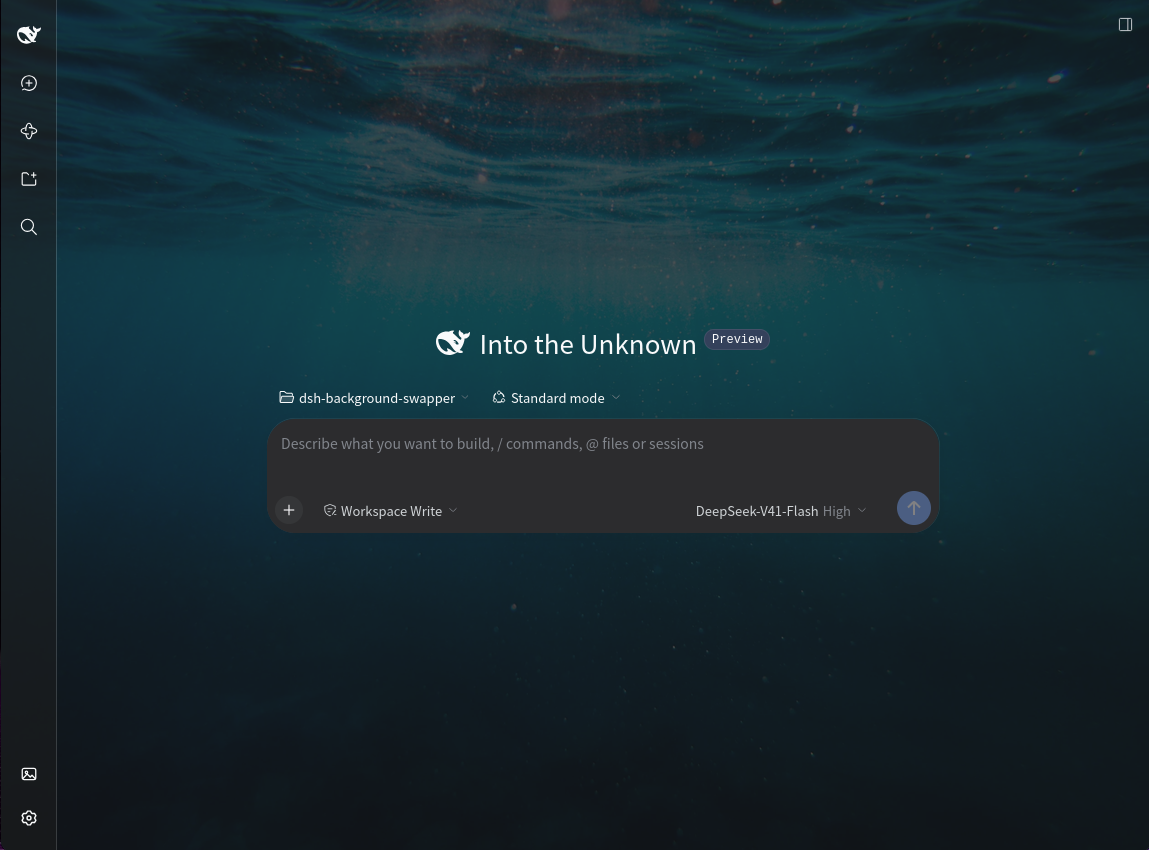
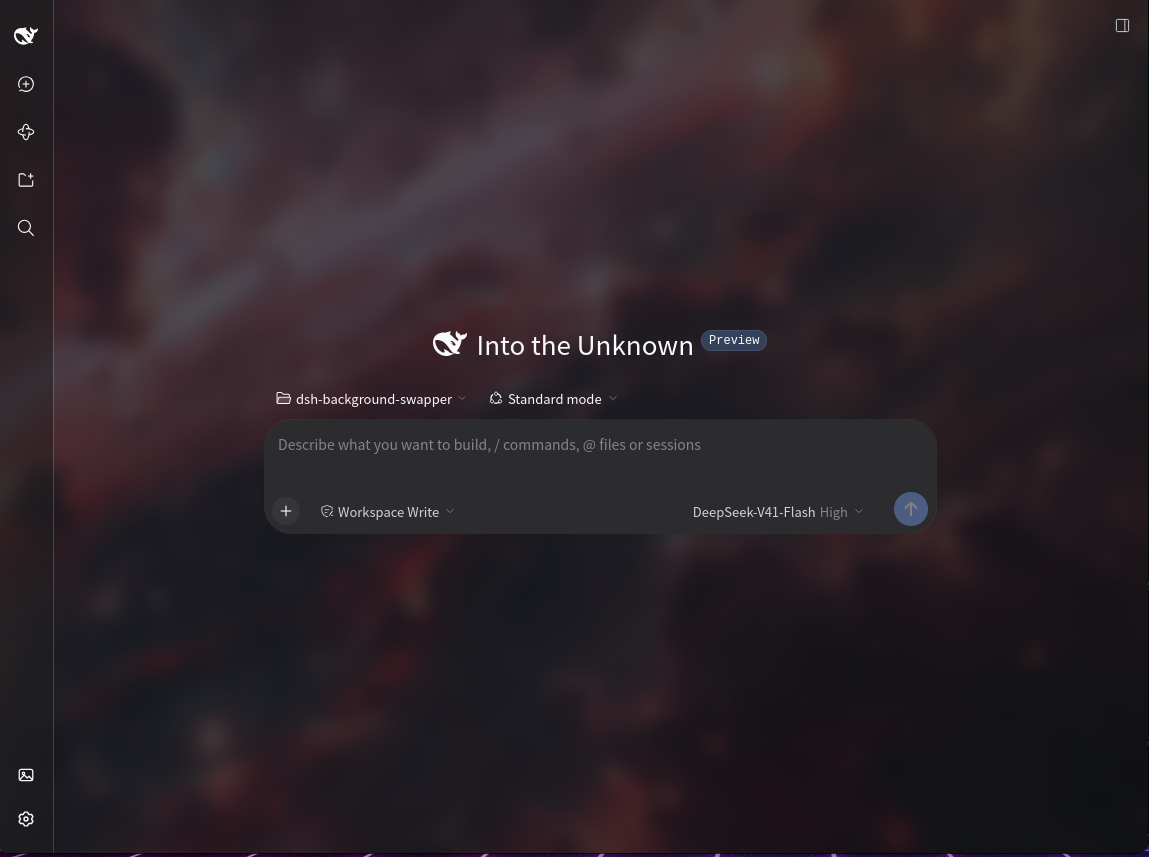
Two different backgrounds. The space photo on the right has Blur turned up.
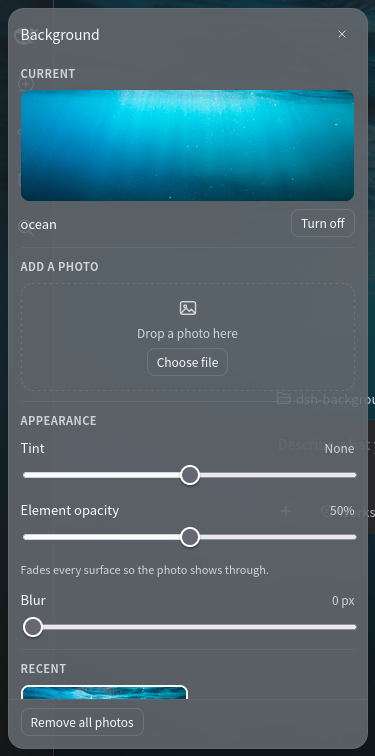
Swap Background sits just above Settings in the left sidebar. Click it and a small panel opens where you add a photo, give it a name, and keep a set of favorites. Three presets set the balance between the interface and the photo in one click, five sliders fine-tune how the photo looks and how much of it shows through, and any balance you like can be saved under its own name.
What you can do
- Add a photo. Drop one on the panel or pick a file, name it, and it becomes your background.
- Keep a library. Every saved photo is listed in Recent, newest first, six to a page. Click one to switch to it.
- Rename or delete. A pencil renames an entry, a bin deletes it, and Remove all photos empties the library.
- Presets. Wallpaper, Glass and Solid set all three opacity sliders at once, and the one you are on stays lit. Tint and Blur are left alone, so trying a preset never undoes a photo you tuned.
- Save your own look. Save current in the same row keeps the three opacities under a name you choose, so you can try Glass and get your own balance back in one click. Your looks sit in the row beside the shipped ones, each with a small × to remove it, and up to six are kept.
- Background opacity. How solid the page behind everything is. Lower it and the photo fills the open space; at 0% the photo is bare. It starts at 20%.
- Element opacity. How solid the cards, inputs and menus over that page are. Raise it to keep text readable while the photo stays bright behind them. It starts at 85%.
- Sidebar opacity. How solid the left column is. It moves on its own, so the navigation can stay readable while the panels go glassy, or the other way round. It starts at 85%.
- Tint. One slider from Darken 100% to Lighten 100%, for when text is hard to read over a bright photo.
- Blur. Softens the photo, from 0 to 24 pixels.
- Turn off. Hides the photo and puts the interface back the way it was. Nothing is deleted.
Install
You need the DeepSeek Harness, running either in a browser or in the desktop app.
In the Harness, open Plugins in the left sidebar.
Press Install.
Paste this repository's address:
https://github.com/DevTarlow/dsh-background-swapperInstall it, then refresh the page.
If you would rather work from a local copy, clone the repository and paste the folder's full path instead. The install dialog accepts a GitHub address, a package name, or a local folder.
The plugin is added to your Harness, so it stays available in every session until you remove it.
Using it
- Click Swap Background above Settings.
- Under Add a photo, drop an image on the dashed box or press Choose file. A photo longer than 2560 pixels on a side is scaled down first, and the panel tells you when that happened.
- Type a name and press Save. The photo is stored and becomes your background straight away.
- Start from a preset in Appearance — Wallpaper, Glass or Solid — then adjust the sliders above the library. Everything applies as you drag and is saved a moment after you let go, so there is no Save button for any of it. Once you like what you see, press Save current, type a name and press Save to keep that balance for later.
- Click any thumbnail in Recent to switch photos. Turn off clears the current one without deleting it.
Press Escape or click anywhere outside the panel to close it.
Your photos
Your photos live with the Harness, not inside the plugin:
~/.dsh/storages/background-swapper/
├── index.json      your names, the current photo, the slider settings, and your saved looks
└── images/         one file per photo
The Harness keeps its data in ~/.dsh unless you have moved it. On Windows the
folder is %USERPROFILE%\.dsh\storages\background-swapper.
Because the photos are stored there, the same library and the same look appear in every browser you open and in the desktop app, as long as they are pointed at the same Harness.
To back your library up, copy that folder somewhere safe. To start over, delete it: the plugin recreates it the next time it loads.
Optional settings
These four values are read from cordis.patch.yml when the plugin loads. Change one and restart the Harness.
| Setting | Default | What it does |
|---|---|---|
pageSize |
6 |
How many photos show per page in Recent. |
maxImageBytes |
16777216 (16 MB) |
The largest photo that can be uploaded. |
maxDimension |
2560 |
The longest side a photo is scaled down to before it is saved. |
dataDir |
empty | Where the photos go. Empty means the folder shown above. |
If you would rather keep your own values, put the same override in your Harness profile's patch file instead, so a later reinstall cannot replace it:
- id: background-swapper
  config:
    pageSize: 9
    maxImageBytes: 33554432
A new install starts on the Wallpaper preset — Background opacity 20%,
Element opacity and Sidebar opacity 85% — with Tint None and
Blur off. The Reset link beside each slider returns it to those values,
which is the balance Wallpaper sets. Looks you save start empty and live in
index.json with the rest of your settings.
Common questions
The photo is too faint, or too strong. Use Background opacity. Lower shows more photo in the open page, higher makes that page more solid. At 100% the photo only shows through the panels and the sidebar; with Element opacity and Sidebar opacity at 100% as well nothing shows at all, and the panel says so.
The interface is too see-through to read. Raise Element opacity, or Sidebar opacity if it is the left column that is the problem. Either solidifies its own layer without taking the photo off the page, so you no longer have to choose between the two. The sliders fade different layers: Background opacity the page everything sits on, Element opacity the panels over it, Sidebar opacity the left column beside it.
Text is hard to read over the photo. Set Tint to darken it, or Blur to soften it. Both keep the effect; raising an opacity slider only hides more of the photo behind that layer.
What do the presets change? Only the three opacity sliders — the shipped ones and anything you save. Tint and Blur stay exactly where you left them, so trying a preset never undoes a tuned photo. Solid keeps the photo selected but hides it behind a fully opaque interface; Turn off clears the photo instead. Both leave it in Recent, and one click brings it back.
I saved a look. Where did it go? Into the preset row, beside Wallpaper,
Glass and Solid, with a small × on its right to remove it. It is stored
in index.json with the rest of your settings, so it is there in every browser
and in the desktop app. Six is the most that are kept.
Why does the sidebar look darker than the rest? Two see-through surfaces sit behind the sidebar and only one behind the main area, so at the same slider setting it always reads a little more solid. Lower Sidebar opacity to even them up.
Does it work in another browser? Yes. The library and the settings are stored with the Harness, so any browser pointed at it sees the same thing.
Can each session have its own background? No. One background applies to the whole app.
What image types can I use? PNG, JPEG, WebP, GIF and AVIF. Animated GIFs keep animating. SVG files are refused.
My photo looks different after uploading. Anything longer than 2560 pixels on a side is scaled down before it is saved, and a scaled photo is re-encoded, which drops camera metadata such as the date and location. Animated GIFs are never scaled.
Removing it
Open Plugins, find dsh-background-swapper, and uninstall it. The interface goes back to normal immediately. Your photos stay in the folder above, so delete that folder yourself if you also want the disk space back.
For developers
Two files plus a storage helper, and no build step.
| File | Runs in | Owns |
|---|---|---|
| index.js | the Harness | apply(ctx, config) and the /__background-swapper routes |
| store.js | the Harness | index.json and images/ on disk |
| client.js | the browser | the background painter and the sidebar panel |
Things to know before changing it:
- It imports nothing it is not given. The Harness side uses only Node
built-ins and the browser side only React, which the Web shell already
provides. That is what lets it load on a released
dshwith no build. - The photo is painted on
html::before, a fixed pseudo-element behind everything, so the application's own elements are left alone. - The see-through effect redefines the theme's background variables, using
color-mix()of the same palette tones they already point to. The aliases are split into the ground the frame and body paint, the panels raised over it, and the sidebar column, and each slider fades one group. No application class name is targeted, so renaming one breaks nothing. A saved look is exactly that group of alphas plus a name, which is why loading one changes nothing else. - Everything the plugin adds is React-rendered, so unloading it restores the
interface exactly. Nothing writes to
document.bodyor appends a stylesheet by hand. - Uploads are validated and ids are looked up in the index, so a request can
never name a path on disk.
maxImageBytesis enforced on the Harness side andmaxDimensionin the browser. PATCH /staterefuses a field it does not know instead of ignoring it. The two halves ship together but load separately — a browser half a version ahead would otherwise have its write answered200and dropped, which the panel shows as a setting that saved and then vanished at the next reload.- The slider defaults live in one place,
DEFAULT_SETTINGSin store.js, and are served with everyGET /listso the panel's Reset links cannot drift away from them. The panel's Wallpaper preset repeats those same numbers, so a fresh library and a Reset both light it up: change one and the other belongs in the same commit.
npm test
Both harnesses run in under a second and need no browser.
test/host.test.mjs mounts the routes on a bare node:http
server and drives the whole surface over real HTTP.
test/client.test.mjs loads the browser bundle against a
stub module loader and checks the registrations, the exact CSS the painter
emits, and the panel's preset row: loading a shipped look, saving one of your
own, and removing it.
Edit client.js and refresh the page. Edit index.js, store.js or
cordis.patch.yml and restart the Harness. AGENTS.md has the full
loop.
License
MIT.
No comments yet. Be the first to write one.