dsh-perf-hud
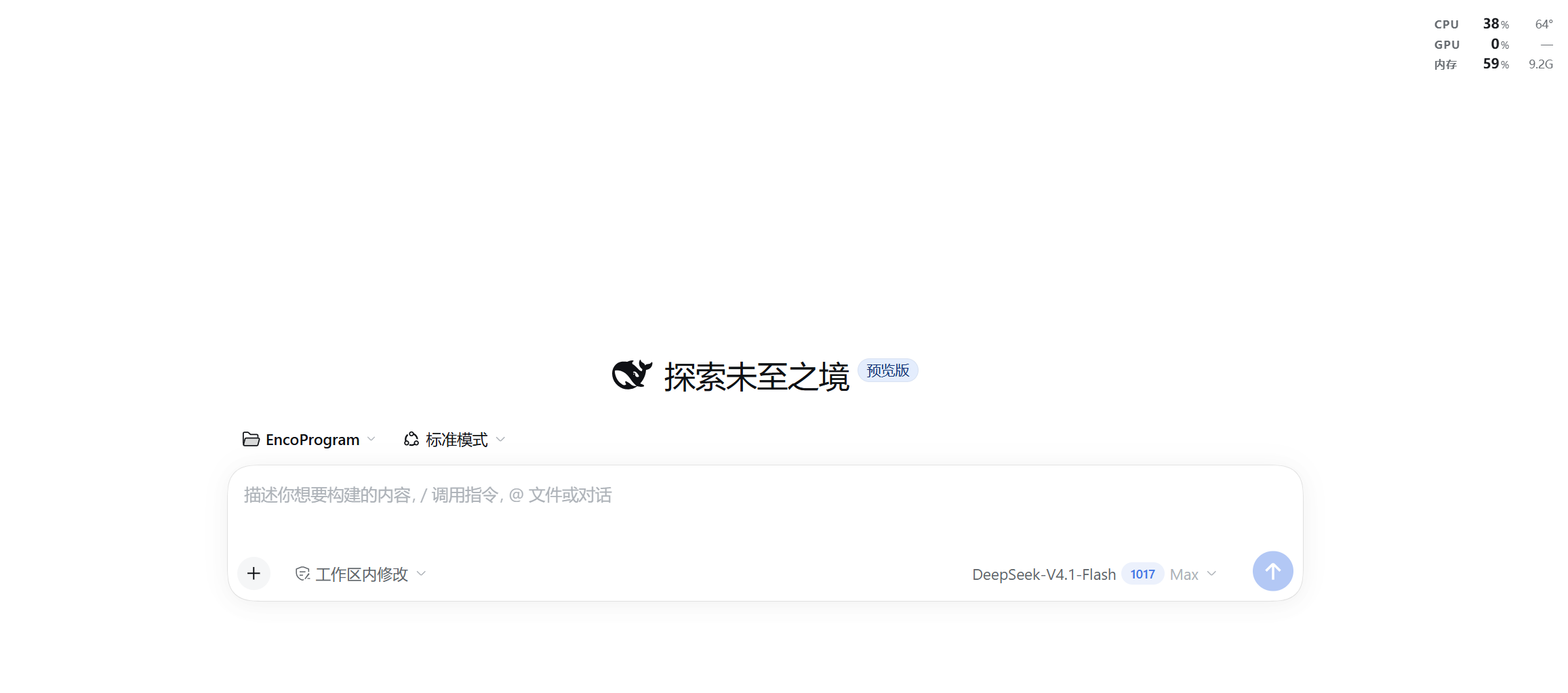
A transparent, draggable performance HUD for the DeepSeek Harness web UI: CPU / GPU / memory usage, plus the CPU package temperature when the optional helper is installed.
Highlights
- Fully transparent — no card background, no border. Just three rows of text floating over the interface, with a soft halo so it stays readable on any content.
- Drag it anywhere. On release it anchors to the nearest window corner, so maximising, restoring or resizing the window keeps it exactly where you put it. Double-click resets to the top-right, arrow keys nudge it, and the chevron that appears on hover collapses it to a single row.
- Load-aware colours — usage turns amber at 70% and red at 90%; temperature at 78 °C / 88 °C. Stale readings dim the whole card instead of flashing a fake zero.
- Theme-aware — only
--dsw-alias-*tokens, so it follows light, dark and any custom theme. - Local only — the metrics route answers loopback, same-origin requests and returns 403 for everything else. Nothing is uploaded.
Requirements
- Windows 10/11. The GPU counters, the PowerShell worker and the temperature helper are Windows-specific.
- DeepSeek Harness with the web UI.
Install
From the Plugins page (install from GitHub or a local folder), or:
dsh plugin add ChendarCe/dsh-perf-hud
Then reload the interface once.
What it reads
| Metric | Source |
|---|---|
| CPU usage | node:os CPU-time deltas, once a second |
| Memory usage | os.totalmem() / os.freemem() — same definition as Task Manager's "In use" |
| GPU usage | Windows GPU Engine performance counters, busiest engine (what Task Manager reports) |
| CPU temperature | optional helper — LibreHardwareMonitor's CPU Package sensor |
| GPU temperature | only when the GPU exposes a temperature sensor; most integrated GPUs do not, so the cell shows — |
Temperatures (optional)
The plugin works out of the box; without the helper both temperature cells show
—. For the real CPU package temperature, run once (it asks for
administrator rights):
helper\setup.cmd
That script downloads and sets up:
- LibreHardwareMonitor 0.9.6 (portable, library only) — reads the sensors;
- PawnIO 2.2.0, a signed kernel driver — required to read MSRs while Windows "Memory integrity" (HVCI) stays enabled, so you do not have to weaken that setting;
sensor-helper.ps1, which writes one small JSON file about every 0.4 s;- a scheduled task
DSH Perf Sensor(at logon, highest privileges, no window), so it never asks again.
Files go to D:\DSHTools when that drive exists, otherwise
%LOCALAPPDATA%\DSHTools. The plugin reads either location.
Measured overhead on an 8-core laptop: 0.08 % of one core and ~87 MB of RAM for the helper — it is mostly waiting on the driver, not burning CPU.
Remove it again with:
helper\uninstall.ps1              # stops the task, uninstalls the driver
helper\uninstall.ps1 -RemoveFiles # ...and deletes the helper files
Limitations
- Windows only.
- GPU temperatures need a dedicated sensor; Intel integrated GPUs do not expose one, and the CPU package temperature is the closest reference (same die).
- The card floats inside the Harness window, not as a separate always-on-top desktop window.
中文说明
DeepSeek Harness 界面里的一块完全透明的性能读数:CPU / GPU / 内存占用率,加上 CPU 封装温度。没有底色和边框,只有三行文字浮在界面上。
- 拖动卡片任意位置移动,松手后吸附到最近的窗口角,窗口最大化 / 还原 / 改变 大小都保持位置;双击回到右上角,方向键微调,悬停右侧箭头可收起成一行。
- 占用率 ≥70% 变琥珀、≥90% 变红;温度 ≥78 °C / ≥88 °C 同理;读数过期整卡变暗。
- 安装:插件页面安装本仓库,或
dsh plugin add ChendarCe/dsh-perf-hud。 - 温度需要可选助手:管理员运行一次
helper\setup.cmd(会安装 LibreHardwareMonitor 与 PawnIO 签名驱动,并注册开机自启任务)。不需要时用helper\uninstall.ps1移除。 - 没有温度助手时温度一栏显示
—;Intel 核显本身没有独立温度传感器,同样显示—。 - 仅支持 Windows;悬浮窗在 Harness 窗口内部,不是独立的桌面置顶窗口。
No comments yet. Be the first to write one.