Four-pointed star (FPS)
FPS is a conversation workspace for DeepSeek Harness (DSH). Track tool progress, open session outputs, and check context and provider usage from one interface. Keep unsent attachments when switching sessions, use a configured vision model to interpret images for a text-only model, or enable cloud or local image generation.
Screenshots
These screenshots were captured in the English interface with simulated task data.
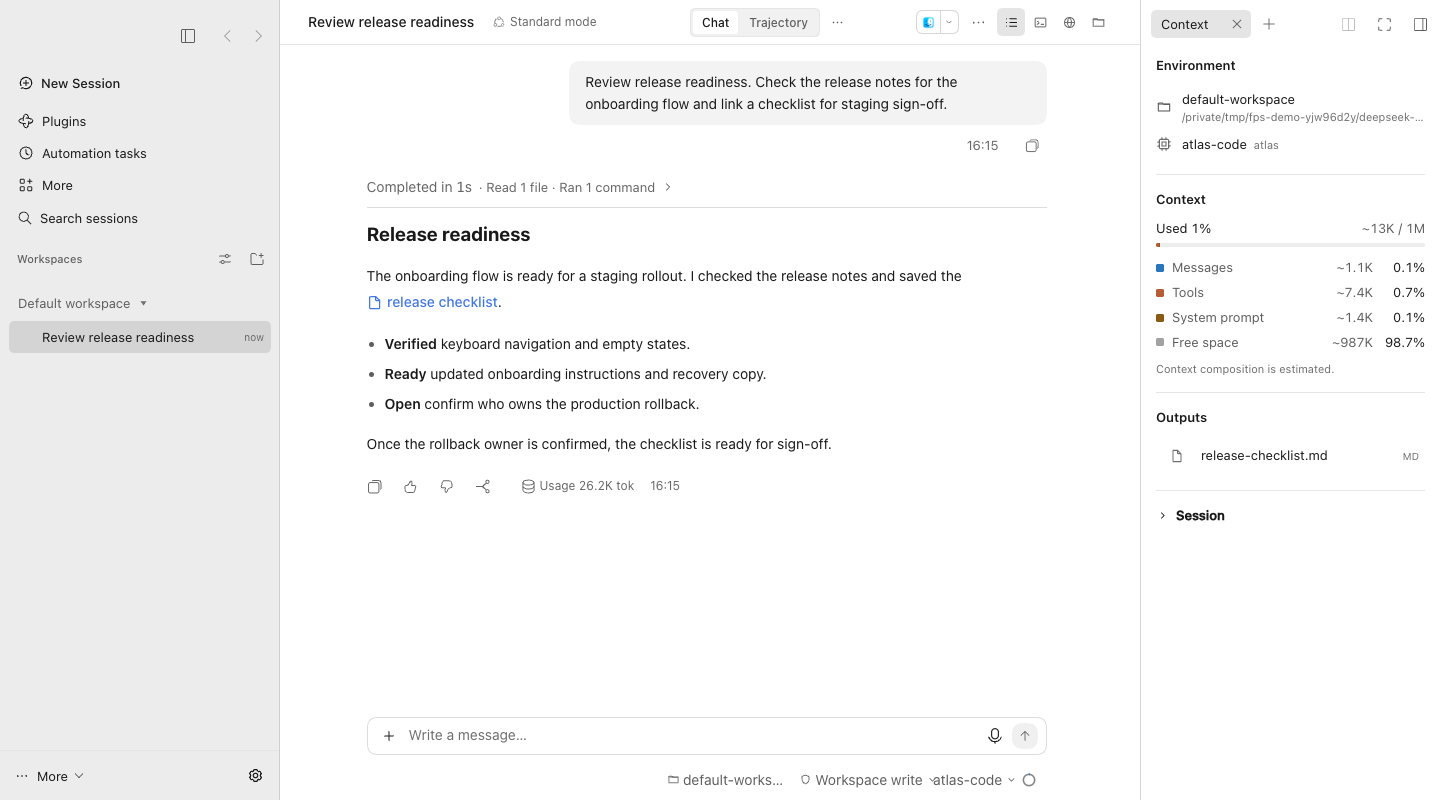
A completed report in light mode, with tool progress in the conversation and the generated file in Outputs.
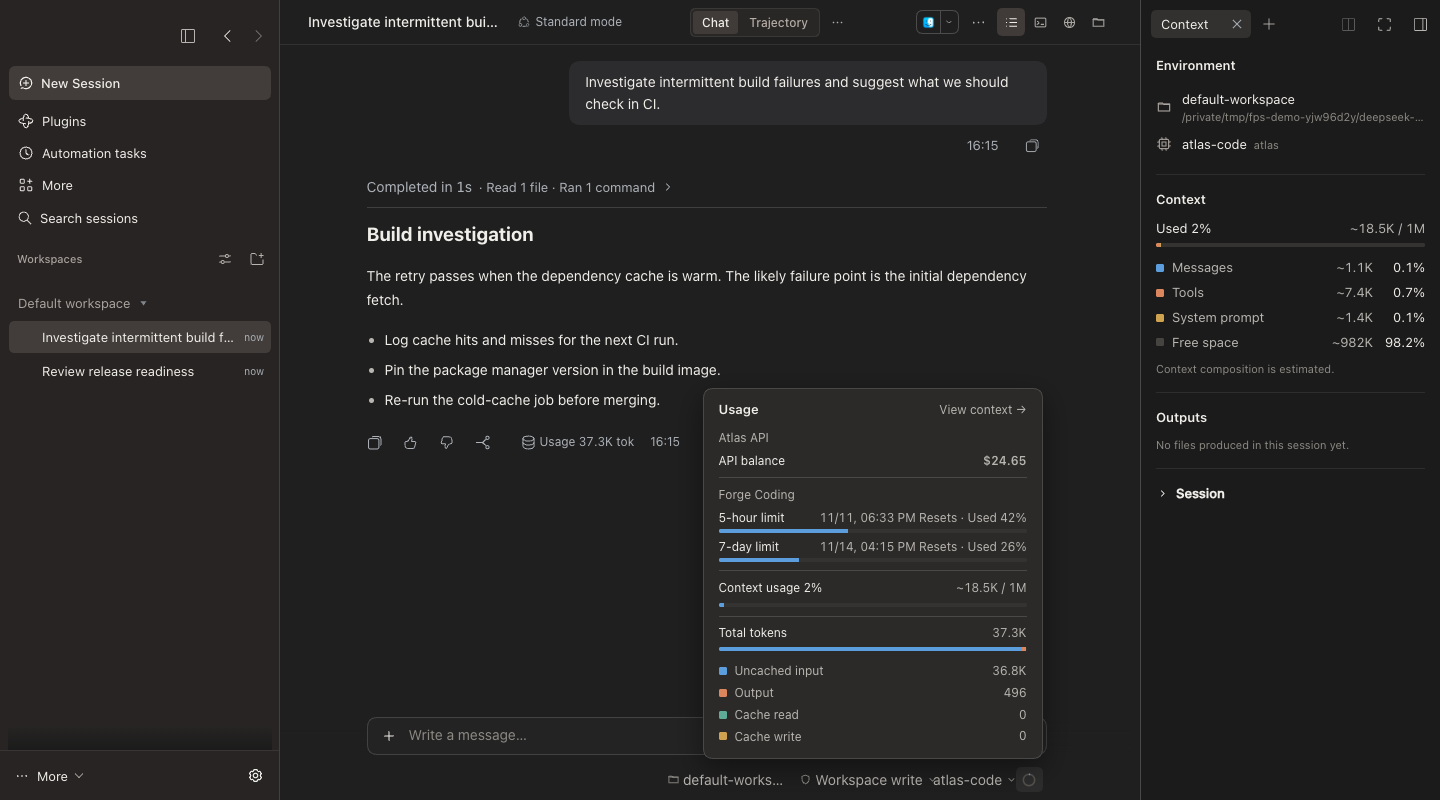
Dark mode with the Context sidebar and provider usage popover. Balances and quotas shown are sample data.
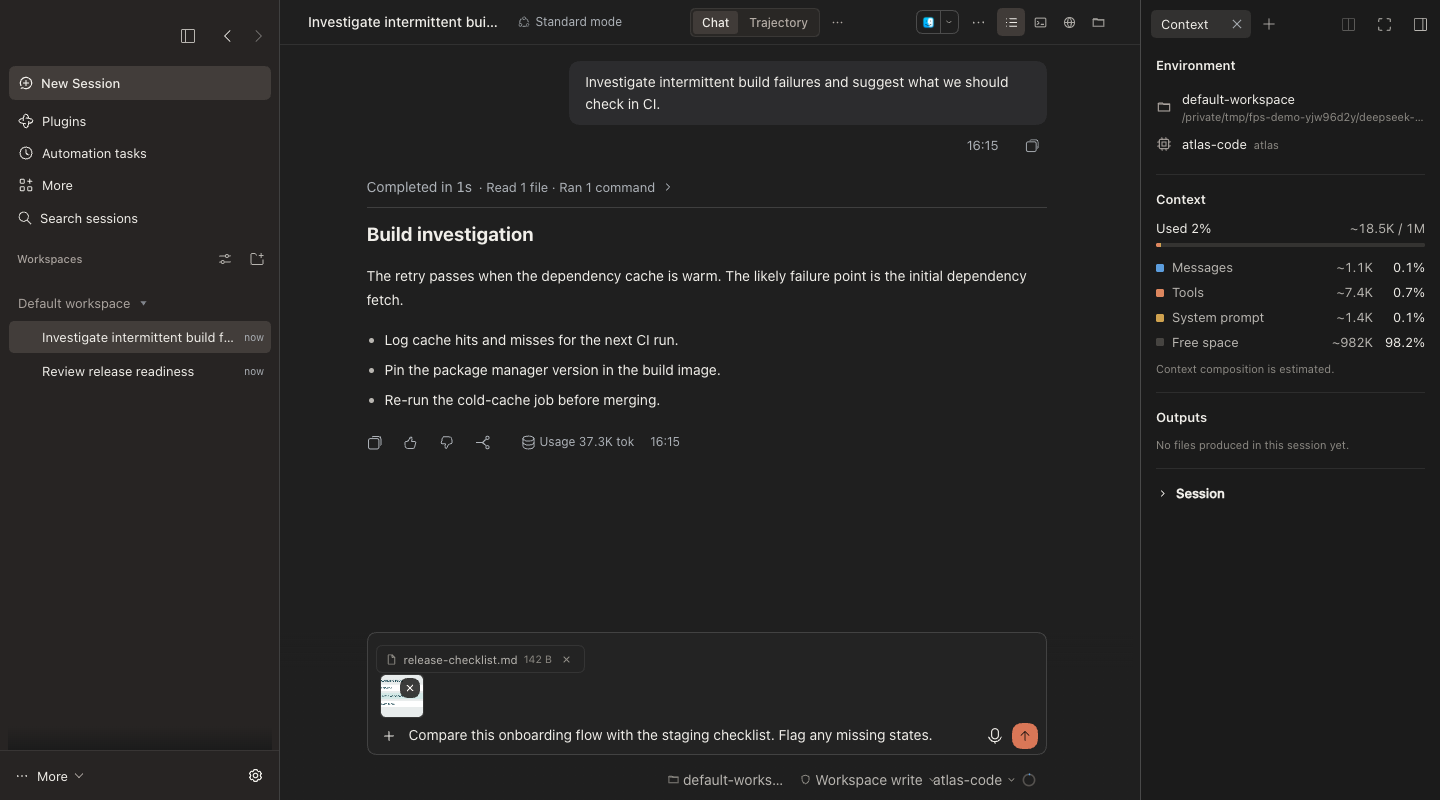
An unsent draft after switching away and back. The text, image, and file are restored together.
What you can do
- Context and session outputs. Open Context in the conversation header to see the model, session state, and estimated context composition. Outputs lists local files produced or explicitly linked in the session. Select a file to open it in DSH's native preview. The header also gives you access to Files, Terminal, and Browser.
- Tool progress summaries. Consecutive file reads, commands, and edits appear in one summary row. Expand it for DSH's native tool details. The task list distinguishes completed, active, and pending work. While the session runs,
ThinKingshows elapsed time alongside the FPS mark and respects the system's reduced motion setting. - Composer and attachment drafts. Paste images or use the Add menu to choose images and files. When you return to a session, its draft text and unsent attachments are restored. Reloading or closing the interface clears unsent attachments. Each message supports up to four images of 8 MB each and six files of 20 MB each.
- Images with text-only models. When the selected model does not support images, FPS looks for an available model with image input in DSH. It sends the image and prompt to that model and passes the resulting description to the current session. If no suitable model is available, the composer keeps the draft and shows an error.
- Sessions and workspaces. The sidebar keeps DSH's workspaces, session search, and settings. Use the back and forward arrows beside the sidebar toggle to revisit sessions opened in the current window.
- Commands, references, and voice. Type
/to find commands and@to reference files or sessions. The composer footer gives you access to the workspace, permissions, model, reasoning effort, and usage. Enable Voice input in DSH’s Plugins page. The microphone appears next to Send and opens voice setup on first use if needed.
FPS sends messages through the native DSH session. Models can use the tools enabled in the current configuration, and DSH runs them or requests approval according to the session permissions.
Provider usage
Click the ring next to the model selector. FPS queries usage using the providers and API keys enabled in DSH. It shows the balance, spending, quota, or reset time returned by a supported endpoint. Zero balances are displayed. Accounts or fields are hidden when an endpoint is unsupported, a query fails, or data is missing. DSH supplies the session's token counts and estimated context usage separately.
Optional image generation
Open Plugins → Four-pointed star → Image generation to switch on providers. All four are off by default. Ask for a provider by name or let FPS choose among the enabled, ready providers. Generated images appear in session outputs and open in DSH's native preview. Cloud providers receive your image prompt.
The screenshot shows the download button after you turn on ComfyUI. Setup starts only when you select Download and install.
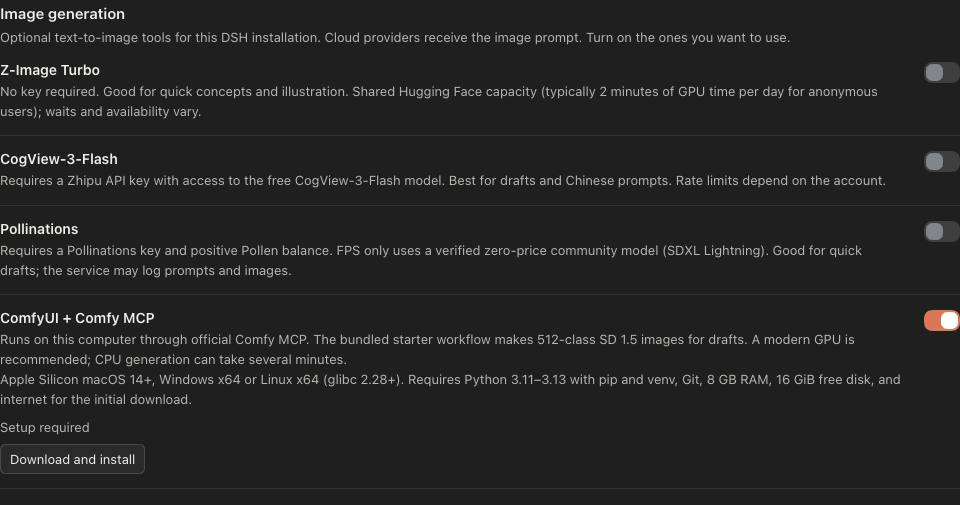
- Z-Image Turbo. No API key. The shared Hugging Face Space is suited to quick concepts and subject to queueing and daily GPU quotas.
- CogView-3-Flash. Standard-quality generation on Zhipu's free Flash tier. Requires a Zhipu BigModel API key and is subject to rate limits.
- Pollinations. Requires your own API key. FPS uses SDXL Lightning for quick drafts when the live catalog lists it at zero price. Pollinations may still require a positive available balance.
- ComfyUI + Comfy MCP. Local generation with ComfyUI and its official MCP integration. Switch it on, then start the download explicitly. The included SD 1.5 workflow is suitable for roughly 512 px drafts. Setup needs Python, Git, internet access, and 16 GiB of free disk space.
See the plugin details for setup, credentials, platform requirements, and output quality. Image generation guide
Customize
- Appearance. In DSH, open Settings → General → Appearance and select Light, Dark, or System. FPS follows that setting across its sidebar, conversation, composer, and menus.
- Models and usage. In DSH, open Settings → Models to add or edit your providers, API endpoints, models, and API keys. Reopen the usage panel to query the updated configuration. A custom endpoint needs a matching usage integration to show balances or quotas. If you use a text-only model, you can add a model that supports image input here for FPS to select automatically.
- Tools and permissions. Manage plugins that provide tools in DSH's Plugins page. Use the composer footer to select your session model and permissions. Tool availability depends on the model's capabilities and the session permissions.
Install
Use DSH 0.2.2-rc.1 or later with the desktop or Web conversation interface. Features such as voice input and file previews require the corresponding DSH components in your profile.
Download the .tgz bundle from the latest GitHub release and install it through Plugins → Add plugin using the local path option. You can also run the following command with the DSH CLI.
dsh plugin --profile desktop add "/path/to/fps-workbench-0.1.76.tgz"
Replace desktop with web for the Web profile. After updating an existing installation, restart DSH to load the image generation tools.
Known issue
Sessions and scheduled tasks may fail to load after upgrading DSH Desktop to 0.2.2-rc.2. This can happen when the desktop profile still loads the 0.2.2-rc.1 storage dependency from an older Computer Use installation. The issue occurs with FPS enabled or disabled. Back up the desktop profile, move the old Computer Use packages and their storage dependency out of its package directory, and restart DSH so it loads the components bundled with the installed version.
License
FPS is available under the MIT License.
No comments yet. Be the first to write one.