
dsh-vps-manager
Use your VPS inside DeepSeek Harness as seamlessly as over SSH: curated zero-token commands, plus the AI in the conversation can operate the server.
在 DSH 中和 SSH 一样无感地使用 VPS,除了精选的部分常用命令之外,使用时还能让对话中的大模型对 VPS 进行操作。










English · 简体中文
Overview
Install: search for dsh-vps-manager in the DSH plugin market and click install; or quit DSH completely and run the line below in a terminal (for command-line dsh web, replace desktop with web; see Install). Then open DSH and add a machine under Settings → VPS Manager.
dsh plugin --profile desktop add dsh-vps-manager
Manage your VPS from DeepSeek Harness (DSH): check server status with commands that skip the model and cost no tokens, tell the AI what to do and let it work on the server, see how the server is doing on one page, open a real terminal or move files in the conversation when you want to do it yourself, and handle common installs and maintenance with recipes.
It works with DSH on Windows, macOS and Linux, in both DSH Desktop and command-line dsh web, and several computers (home, office) can manage the same server at the same time.
You enter the password once when adding a machine; from then on everything uses SSH key login and shares one execution mechanism: operations that change things run as remote tasks and keep going if the connection drops; changes on the same machine run one at a time; config files are backed up before they are edited; an automatic restore is set up on the server before firewall or SSH changes; and every run is written to an audit log.
Want DSH itself running on your VPS? See the sister project dsh-vps: one command on the VPS installs stock DSH behind a login page with automatic HTTPS, reachable from any browser, with settings, API keys and the plugin market all working, and new DSH releases upgraded with one click in the page. The two work together: install this plugin in the DSH on your VPS and manage that server right from the conversation.
At a glance
| Capability | What it does |
|---|---|
| Zero-token commands | 22 /vps- commands: check status, install software, reboot and wait for the machine to come back, without touching the model |
| VPS mode | One click in the conversation header and that conversation operates the server; each conversation has its own binding, so one window can work on the server while another keeps working on local code |
| Real connection state | Header squares: grey not selected · yellow connecting · green connected · red unreachable, with the reason and a retry button |
| Terminal in the conversation | A real terminal (xterm.js over ssh -tt) where menu scripts, top and vim work; red / yellow / green buttons to end, minimize and maximize; nothing lost when you minimize or switch conversations, and it reconnects after a drop |
| Status in the conversation | One page for how the server is doing: rule-judged "needs attention" items first (failed services, full disks, expiring certificates, pending security updates), then ring meters, disks, services, containers, ports, firewall and more; click Interpret for a few sentences from DSH's default model. Expand it into DSH's right sidebar to keep it open beside the chat, refreshing every minute while visible, and pick any of your machines to look at |
| Files in the conversation | A file browser for the server: drag in to upload, right-click to download, double-click to edit, deletes go to a trash you can restore from; backups before overwriting or editing; right-click "let the AI look at this file" |
| AI on the server | 5 tools with risk-tiered confirmation: read-only runs automatically, changes ask you, dangerous commands ask again; levels can be set per machine, group or globally |
| Three safeguards | Files are backed up before editing and restored if validation fails; a connectivity safety net before firewall and SSH changes; long operations run as remote tasks that survive disconnects |
| Commands that fit the system | A health check finds the OS, package manager, init system, privilege, running services and containers, and the model is told to write commands for that machine |
| Recipe library | 29 repeatable recipes (7 install · 6 configure · 16 query); anything the AI gets working can be saved as a recipe in one sentence |
| Settings page | Add a machine with one form (enter the password once, the key is put in place for you, the password is not stored), import from ~/.ssh/config, baseline configuration, terminal settings, uninstall |
| Three platforms, both kinds of DSH | Windows, macOS, Linux; DSH Desktop and dsh web. Terminal connections pass DSH's sign-in check, a same-origin check and the plugin token, and open only on the local computer by default |
| Several computers, one server | Each computer has its own key; changes queue on the server and say which computer is making them; trash, backups and task records are shared; uninstalling revokes only that computer's key |
| English / 中文 | The interface follows the language set in DSH and switches instantly, without a reload; server messages, /vps- command output and recipe names follow too |
| Light install | No native modules (no node-pty to compile); the only runtime dependencies are ws and yaml |
Screenshots

Three screenshots take turns here (1 → 2 → 3); click to step through them on the project page. Full size: 1 · 2 · 3
1 Settings → VPS Manager: the numbered machines · 2 Files below the conversation, VPS status kept in the right sidebar · 3 Where the main controls are


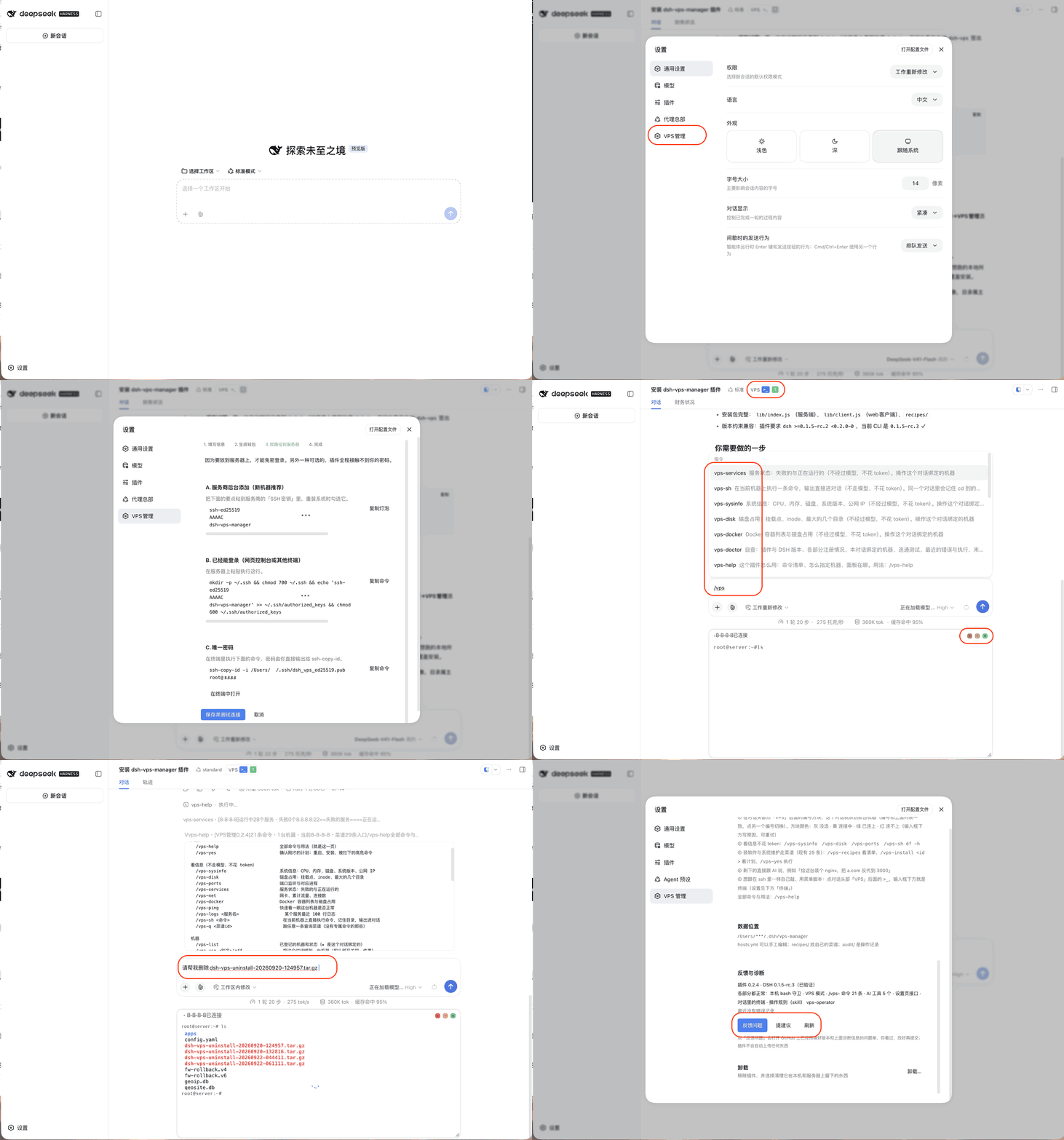
From installing the plugin to reaching the first machine (the address and user name in the recording are blacked out)
Contents
- Three ways to use it · Requirements · Platforms · Install · Adding a machine · Several computers, one server
- Choosing a machine in a conversation · Terminal in the conversation · Files in the conversation · Status in the conversation · Commands · Talking to the AI
- Recipes · Settings page · How it works · What it does not protect against
- Where data lives · Feedback and suggestions · Repository layout · Development
Three ways to use it
| Look things up | Talk to the AI | Install and maintain with recipes | |
|---|---|---|---|
| How | Commands like /vps-sysinfo |
"Install nginx on this machine and reverse-proxy a.com to port 3000" | /vps-install <recipe id> shows the plan, /vps-yes runs it |
| Uses the model | No | Yes | No |
| Cost | Zero tokens | Normal token use | Zero tokens |
| Scope | Fixed read-only queries | Anything SSH can do, with confirmations by risk level | 29 recipes that are safe to run again |
Requirements
- DeepSeek Harness 0.1.5-rc.2 or later (up to 0.2.x), DSH Desktop or
dsh web - Windows, macOS or Linux (see Platforms below)
- Node.js >= 22.13
- Everyday logins use an SSH key. A password is used only once, when adding a machine, to put the key in place.
sudothat asks for a password is not supported - Operations that change the system need the remote user to be
rootor to have passwordlesssudo; read-only queries do not
Platforms
| Windows | macOS | Linux | |
|---|---|---|---|
| SSH client | The built-in "OpenSSH Client". Usually already installed on Windows 10 / 11; otherwise add it under Settings → System → Optional features | Built in | Built in; otherwise install openssh-client |
| Speed | The Windows build of OpenSSH has no connection sharing, so each command opens its own connection, a fraction of a second more | One shared connection, tens of milliseconds | One shared connection, tens of milliseconds |
| Copying in the terminal | Select text, then Ctrl+C (with nothing selected, Ctrl+C interrupts) | ⌘C | Select text, then Ctrl+C |
~ in data locations |
Your user folder, C:\Users\yourname |
Home directory | Home directory |
| How it is verified | On every push, GitHub's Windows 2022 and 2025 machines go through the full flow against a real server | The author's daily machine | On every push, the full flow against a real server; every 6 hours, a compatibility check against the latest DSH |
Everything works the same on all three: commands, the AI, the terminal, the Files page, recipes, the settings page and uninstall.
Interface language follows DSH: pick English or 中文 under DSH Settings → General → Language, and the plugin's settings page, conversation header, terminal and Files panel switch at once; server errors and hints, /vps- command output, and recipe names and plans use the same language. Those are the two languages DSH ships today; with another language pack installed, the plugin shows English or Chinese according to the pack's declared fallback.
Install
Plugin market: search for dsh-vps-manager in DSH's plugin market (dshmarket) and click install. Works in both DSH Desktop and dsh web.
Command line: quit DSH completely first, then run the line for your DSH:
# Official DeepSeek Harness desktop app
dsh plugin --profile desktop add dsh-vps-manager
# Command-line dsh web
dsh plugin --profile web add dsh-vps-manager
- The desktop app needs its own
dshcommand: install it from the app menu, "Manage dsh command…". Adshinstalled from npm cannot change the desktop app's plugins. --profilemust come beforeadd. Since DSH 0.2.0, leaving it out fails withrequired option '--profile <name>' not specified.
For the latest code on GitHub (possibly newer than the release on npm), use github:AIcivilization/dsh-vps-manager as the package name instead.
Open DSH afterwards. Plugins are loaded when DSH starts. What changed in each version is listed under Releases.
To uninstall, open DSH Settings → VPS Manager, scroll to the bottom and click "Uninstall…" (see Settings page). You can also quit DSH completely, run dsh plugin --profile desktop remove dsh-vps-manager in a terminal (--profile web for dsh web) and reopen DSH; that removes only the plugin and keeps the machine list, keys, SSH configuration and audit log.
Adding a machine
Open DSH Settings → VPS Manager → "+ Add machine". It is one form:
- Server: IP or domain, SSH port, user, password
- What to call it (optional): alias (derived from the address if left empty), group, note
Click Save and connect:
- The plugin generates a dedicated key
~/.ssh/dsh_vps_ed25519(your existing keys are left alone) - It logs in once with the password you entered and adds that key's public half to
~/.ssh/authorized_keyson the server (skipped if it is already there) - The connection settings go into
~/.ssh/config.d/dsh-vps.conf, oneIncludeline is added at the very top of~/.ssh/config(backed up first to~/.ssh/config.dsh-bak), and the machine is reached with the key and gets a health check - You see the result and the host fingerprint (recorded on first contact; if it ever changes the connection is refused, so nobody can pose as your server)
The password is used once and never stored: it goes only into the environment of that single ssh process and reaches ssh through SSH_ASKPASS. It is not written to any file, log or audit record, and every later connection uses the key. Adding with a password only works on the computer running DSH, so the password never crosses the network.
A wrong password, a server that refuses password logins, or a changed fingerprint is explained right in the form. For a key-only server, expand "No password?" under the form: paste the public key into your provider's "SSH keys" page, or run a one-line command on a server you can already log in to, then click "The public key is in place, connect".
Machines already defined in ~/.ssh/config can be taken over with "Import from ~/.ssh/config". The plugin never rewrites what you wrote in ~/.ssh/config.
On Windows the paths are the same, with ~ meaning your user folder (for example C:\Users\yourname).
Several computers, one server
DSH on Windows, a Mac and Linux can each have the plugin installed and manage the same server at the same time:
- Each computer has its own key, so add the machine once on each computer (entering the password each time). The server's
authorized_keysgets one line per computer, commenteddsh-vps-manager@computer-name, so you can tell them apart - Changes queue up on the server: while one computer's change task is running, a change started from another computer is told "another change task is running", along with which computer started it. Queries, the terminal and browsing files are not affected
- Task records, backups taken before editing files, and the Files page trash are shared on the server: something moved to the trash from the Mac can be restored from Windows
- Two computers editing the same file: the one that saves second is told the file has changed, instead of silently overwriting it
- Uninstalling on one computer revokes only that computer's key; while other computers still use the server, the shared folder on it is kept
Choosing a machine in a conversation
The conversation header has a VPS switch: the word VPS, then the terminal button >_, then one small square per machine. Each square shows its number (1 for the first machine, 2 for the second, and so on), matching the numbers on the settings page.
A square's colour is the real connection state, not just whether it is selected:
- Grey: this conversation has not selected that machine
- Yellow (pulsing): selected, connecting
- Green: selected, and just checked to be reachable
- Red: selected, but unreachable. The reason is shown below the input box (for example "the SSH configuration has no entry for this machine") with a retry button; hovering the square shows it too
A live check runs when you turn the switch on, open the conversation, or come back to the DSH window (tens of milliseconds over the shared connection, a fraction of a second on Windows). Every command, AI tool call and terminal connection also records whether it reached the server, and the square follows
Click a square: this conversation enters VPS mode. From then on
/vps-commands act on that machine, and the plugin tells the model which machine this conversation operates on, what system it runs (package manager, init system, privilege), which program holds ports 80/443, which services and containers are running, plus a few rules it must follow (never guess names, handle systemd services only through systemctl, never turn a failed lookup into a restart or reinstall). The model writes commands for that system, and knows what you mean by "this machine" or "the server"In VPS mode the model cannot use local bash: a call is refused with a pointer to the VPS tools, so the model does not investigate server problems on your own computer. Reading files, searching and similar tools are unaffected
Click it again: VPS mode ends, the square turns grey, and local bash is available again. With nothing bound there is no default machine at all: commands do not run, and the AI must name the machine it operates on
Each conversation can be bound to one machine at a time. A binding only applies to its own conversation: one window can operate the server in VPS mode while another keeps working on local code, without affecting each other
The same from the keyboard:
/vps-use <alias>binds,/vps-use offunbindsA machine that has never had a health check gets one in the background when the switch is turned on, so the model receives its system details
Nothing is shown below the input box, except a single line in three cases: a task is running on the machine, the machine is unreachable, or its disk is at least 85% full.
Terminal in the conversation
The >_ button right after VPS in the conversation header is the terminal. Once a machine is bound, click it and a real terminal opens below the input box, working just like an SSH session (with only one machine you can click it before binding, and it binds that machine for you):
- Menu scripts,
top,htop,vim,docker exec -it,mysqland other programs that need keystrokes all work, as do Ctrl+C, arrow keys and CJK text. To copy: ⌘C on a Mac; on Windows and Linux, select text and press Ctrl+C (with nothing selected, Ctrl+C interrupts as usual) - Three round buttons at the top right of the terminal:
- Red ×: end this terminal; the shell on the server and anything running in it end too
- Yellow −: minimize to a bar below the input box ("terminal running in the background · open N minutes"); the terminal keeps running, and clicking the bar brings it back
- Green: maximize; the terminal fills the conversation area and the input box moves to the top. Click again (or double-click the title bar) to restore
- The
>_button in the header is still a switch: not open → open; open → minimize; minimized → restore. While minimized it shows a small green dot - Minimizing, switching to another conversation and coming back keeps the terminal and everything on it
- Reloading the page or losing the network: the server keeps the terminal for a while (10 minutes by default, adjustable in settings). Come back within that time and it reconnects automatically, replaying the output you missed; only after that does it end
- At normal size, drag the bottom-right corner to change the height; full-screen programs redraw at the new size, and the height is remembered
- Turning the VPS switch off or moving to another machine ends that conversation's terminal
- What you type and see here does not go to the AI; run a command with
/vps-shwhen you want the AI to see its output - Opening and ending are recorded in the audit log (keystrokes are not)
Settings (DSH Settings → VPS Manager → 界面 / Interface): colour scheme (follow system / dark / light, where follow system matches DSH's appearance), font size (11–20), how long to keep the terminal after a disconnect (5 minutes / 10 minutes / 30 minutes / 1 hour), and whether other devices may open it.
It works in both DSH Desktop and dsh web: the connection follows the page address (an https page automatically uses an encrypted connection). Every connection must pass three checks: DSH's own sign-in check, an origin that is the DSH page itself, and the plugin token embedded in that page. On top of that, by default the terminal only opens on the computer running DSH: when you reach dsh web through a LAN address or a reverse proxy, first tick "允许从其他设备打开 VPS 终端" (allow opening the VPS terminal from other devices) under DSH Settings → VPS Manager → Interface. The terminal is full control of the server, so only turn this on for access paths you trust.
No native module has to be compiled on your machine: the pseudo-terminal on the server is requested with ssh -tt, and window-size changes are applied over a second SSH connection. The terminal display is xterm.js (MIT licensed, bundled with the plugin and loaded the first time you open a terminal).
Files in the conversation
The terminal panel's title bar has a Terminal | Files | Status switch. Files is a file browser for the server this conversation is bound to:
- Browse: common places on the left (home, the website directory,
/etc,/var/log, root, trash) and a clickable path on top; click the empty part of the path to type one (~means home). Columns sort, and files starting with.are hidden until you turn on "show hidden files" - Upload: drag files in from your computer, or click Upload; there is a progress bar and you can cancel. Before overwriting, it asks, backs the original up to
~/.cache/dsh-vps/backups/on the server, and keeps its mode and owner. New files get 644 and new folders 755, so web servers can read them. An upload that breaks off halfway leaves the original untouched - Download: right-click, Download, with progress and a cancel button at the bottom; a folder is packed into a
.tar.gzas it downloads. Download managers installed on your computer (IDM, Folx and the like) do not get in the way - Edit: double-click a text file (up to 1 MB) to edit it, save with ⌘S / Ctrl+S, and the original is backed up first. If the AI or anyone else changed the file after you opened it, you are asked whether to reload or overwrite. Files that can lock you out when wrong (
sshd_config, firewall rules) are flagged at the top - Delete: moves to a trash on the server (
~/.cache/dsh-vps/trash) you can restore from; deleting permanently or emptying the trash asks again. Top-level system directories (/etc,/usrand the like) cannot be deleted - Let the AI look at this file: right-click it and the content, with secrets masked, is handed to the AI along with a "take a look at this file" message sent for you, so the AI starts right away and answers in the conversation; follow up as usual ("what's wrong with this config"). If the input box holds a message you have not sent, nothing is sent for you, and the AI sees the file along with that message when you send it. Large files such as logs send only the last 48 KB
- Also: new folder, rename, copy path, and "open this folder in the terminal" (switches back and
cds there) - Every upload, download, edit, delete and restore is written to the audit log. Like the terminal, it opens only on the computer running DSH by default
- It works as the SSH login user without escalating, so places that user cannot change say "permission denied"
Status in the conversation
The terminal panel's third tab, Status, shows on one page how the server bound to this conversation is doing:
- Switching to the tab takes one look (about 2 seconds, read-only); after that it refreshes only when you click ↻. The panel still opens on Terminal, and nothing is collected until you switch to Status
- At the top is the conclusion ("3 need attention" or "All good") with host, system, kernel, uptime and privilege; the green row below counts and lists what is fine
- Needs attention is judged by fixed rules, with no model involved: services that failed or are enabled at boot but not running, scheduled runs that failed, available memory under 10% / 5%, swap over half used, disks or inodes at 85% / 95%, load above the core count, containers that exited and will not restart, certificates running out (thresholds scale with the certificate's lifetime, so short-lived IP certificates are not flagged all the time), pending security updates, a reboot required, and 100+ failed logins in 24 hours without fail2ban. Each row has Logs (services and containers: shows the last 50 lines in the terminal), Open (disks: opens that directory in Files) and Ask AI (hands the item to the conversation)
- Everything else: ring meters for CPU, memory and swap plus traffic since boot; a usage bar per disk; then cards that each fit their content: services, containers (state and image), the busiest processes by CPU and memory, listening ports (public and local only), firewall, scheduled tasks, certificates (days left and a validity bar), security, and the plugin's own trash and backups. At normal height these fold into one line; maximize the panel or click Show all to see them
- AI interpretation: click Interpret and DSH's default model reads the collected data and says in a few sentences how the machine is and what matters most. The model is called only when you click, it answers in the interface language, and the reading notes which look it was based on. Ask in chat carries it into the conversation to follow up
- Collapse what you don't need: every section except the CPU / memory row and Disks has a triangle at its top right. Clicking it (or the section's title) folds the section to its title row, which keeps its count, summary and status colour. The choice is kept on this computer and shared by the bottom panel and the right sidebar
- Things a non-root user cannot read (containers, firewall, failed logins) say so instead of guessing
- The last look and reading are kept on this computer (
$DSH_HOME/vps-manager/status/), so reopening the tab shows them at once; each of your computers keeps its own - A look also refreshes what VPS mode tells the AI about the machine (running services, containers, what holds ports 80/443)
In the right sidebar
While the Status tab is showing, the button with a divided square, left of the panel's three dots, opens the same page in DSH's right sidebar (the column Files and document previews use). It sits beside the conversation, stays open while you chat, and comes back after you switch conversations or reload; it is also listed on the right sidebar's start page as VPS status.
- Numbered squares at the top pick the machine to look at, numbered as in the conversation header. The colour is that machine's connection state, a line marks the machine this conversation operates, and a red or yellow dot means its last check found something to look at (hover for when)
- Picking another machine only views it; the conversation keeps operating its own machine. A note says so, with Use #N here to switch (the same as clicking the square in the header). While viewing another machine, buttons that would act on it (Ask AI, Logs, Ask in chat) are hidden; Interpret still works
- While visible it checks once a minute; collapsed, behind another tab or with the window minimised, it does not. When it comes back into view, it checks right away if the last look is over a minute old. An unreachable machine is tried once a minute, not in a loop
- The bottom panel and the sidebar share one copy of each machine's status, so looking at the same machine in both does not check twice
- Needs a DSH with the right sidebar (0.2 and later); on older versions the button simply does not appear
Network check-up
The first card on the Status tab is Network. Click Start check-up (about 30 seconds, no tokens) and it tells you, one line each, whether things actually work; the numbers are under Details:
- Reachable from China: the public Globalping network (run by jsDelivr, free) connects over TCP from China Telecom, Unicom and Mobile nodes in mainland China to this server's SSH port and its public ports (up to 3), and from the US, Japan and Germany for comparison. It tells apart "blocked in China", "only one port blocked", "one carrier cannot connect" and "the port is closed, not a block". The server address is shared with Globalping; at most 250 probes an hour. UDP ports (proxies such as Hysteria2 and TUIC) cannot be tested
- ChatGPT, Claude: requests their API endpoints from this server's IP (without a key) and reads whether the answer means "available" or "not available in this region"
- Gemini, where Google places you: reads Google's view of this IP, and infers Gemini from it. If Google places you in mainland China, that is flagged in red
- YouTube Premium, Netflix, Disney+: whether it works and which region; Netflix tells apart the full library and originals only
- How clean the IP is: which country Cloudflare, OpenAI, Google, ipinfo, ip-api and Netflix each think you are in (if they disagree, it is a "broadcast IP" that some services may misjudge), whether it is a data-centre IP, and whether it is on the main spam blocklists
- Everything is decided by fixed rules; when a site cannot be reached or answers with something unfamiliar, the line says "unclear" instead of guessing
- Only curl is used on the server; nothing is installed. Results are kept locally (
$DSH_HOME/vps-manager/net/, one file per check, kept for 90 days);/vps-netcheckshows the same in the conversation
The Speed card measures from your own computer, with your broadband plan as 100% (enter it once in the card, for example 1000).
- Through the proxy: requests go out as usual and your proxy app (Shadowrocket and the like) routes them by its rules; download, single connection, upload and latency are measured against fast.com's Netflix test servers, and the exit is checked to really be this VPS
- Direct to this server: bypasses the proxy app (binds the physical network interface and resolves names through AliDNS) and connects straight to this server. Measuring bandwidth opens a temporary port on the server, allowed only for your home IP, closed and removed afterwards, and recorded in the audit log; you are asked the first time. If the provider's security group blocks it, it falls back to measuring over SSH (reads low; the result says so). The server also confirms the connections came from your home address
- Verdict: full speed / fair / slow with a percentage bar; whether it is enough for 8K, 4K, video calls and gaming; where it is slow (proxy protocol or CPU, the route itself, the VPS's own uplink); evenings are compared with daytime once both have been measured
- Uses roughly 1–2 GB of traffic per test, depending on speed. Results are kept locally (
$DSH_HOME/vps-manager/speed/, 90 days)
The Compare servers card is for choosing a VPS provider. Enter a few candidates as IPs, domains or a provider's Looking Glass address (click + to add a row, up to 10); they are tested directly from your computer (not through your proxy), side by side:
- Latency, jitter and loss (the TCP connect time when ping is blocked)
- For a Looking Glass page, its test file is found automatically (preferring 100 MB) and the download speed is measured with several connections and with one; for a bare IP, a few common test-file names are tried
- One line recommends the best (fastest download, lowest latency), with the server you use now listed for reference. Downloads run one after another so they do not compete for your bandwidth
+AI on the cards: the Network, Speed, Compare servers, Ports, Firewall and Security cards have a blue-violet +AI at the right of their title row. Clicking it sends that card's findings and key numbers to the conversation as one message; the AI answers there, and you can follow up or let it act. Only the findings go, not the raw data or your home broadband IP; it is hidden while the right sidebar shows another machine. The whole-page interpretation is still the AI interpretation at the top
Commands
Commands skip the model and cost no tokens. DSH folds a command's result down to one line, so the first line of every result is the conclusion.
Two rules:
- Commands act on the machine bound to the current conversation. If nothing is bound, they do not run.
- Commands listed without arguments below must be sent as the bare command name. DSH only passes the text after a command to the plugin when the command declares arguments. Add text after a command that takes none, and the whole line is sent to the model as an ordinary message. Anything that needs confirmation shows a plan first, and you confirm by sending
/vps-yeson its own.
Commands you type are shared with the AI: DSH itself never passes command results to the model. The plugin keeps your last few /vps-sh commands and their output (tokens, passwords and private keys masked first) and attaches them the next time you talk to the AI, so you can investigate yourself and then just ask "why did that fail?". Prefix --private to keep a command out of it.
Entry points
| Command | What it does |
|---|---|
/vps-help |
Every command and how to use it |
/vps-yes |
Confirms the plan you just saw: a reboot, an install, or a dangerous command that was held. Only for the current conversation, valid for 5 minutes, runs once |
Looking things up
| Command | What it does |
|---|---|
/vps-sysinfo |
OS, CPU, memory, disk, load, public IP |
/vps-disk |
Mounts, inodes, largest directories (the scan has a time limit) |
/vps-ports |
Listening ports and the processes behind them |
/vps-services |
Running and failed services |
/vps-net |
Network interfaces, cumulative traffic, connection count |
/vps-docker |
Containers and disk usage |
/vps-ping |
Hostname, OS, load, uptime |
/vps-netcheck |
Network check-up: reachable from China, whether ChatGPT and other AI and streaming services work, how clean the IP is (about 30 seconds; see Network check-up) |
/vps-logs <service> |
The last 100 log lines of a service |
/vps-q <recipe id> |
Runs any query recipe, e.g. ip-info, top-procs, cron-list, cert-expiry, firewall-status, updates, login-history |
/vps-sh <command> |
Runs a command on the machine and shows the output in the conversation: the directory you cd into is remembered within the conversation; commands that keep refreshing or page (top, tail -f, journalctl -f, less, watch) are turned into one-shot output, and things that cannot work here (vim, interactive shells) point you to the terminal; commands judged dangerous are held until you send /vps-yes. Prefix --bg to run in the background, --private to keep this output away from the AI |
Machines
| Command | What it does |
|---|---|
/vps-list |
Registered machines and their status; ★ marks the one bound to the current conversation |
/vps-use <alias> |
Binds the current conversation to a machine; /vps-use off removes the binding |
/vps-probe |
Runs the health check again: OS, init system, package manager, privilege, CPU, memory, disk |
/vps-reboot |
Checks before rebooting: why a reboot is needed (kernel or libc updates waiting), whether now is a safe time (it refuses while the package manager is installing or a plugin task is running), which containers will stop, and whether they will start again by themselves. /vps-yes reboots, waits for the machine to come back, and reports the kernel change, containers and failed services. If the machine is still unreachable after 5 minutes, it tells you to check your provider's console |
Installs and tasks
| Command | What it does |
|---|---|
/vps-recipes |
The recipe list, grouped into installs, configuration and queries |
/vps-install <recipe id> [key=value …] |
Shows the plan: detection result, parameters and their defaults, steps, and the script itself. /vps-yes runs it |
/vps-tasks |
Remote tasks on the machine |
/vps-task <task id> [--stop] |
A task's state and log; add --stop to terminate it |
Troubleshooting
| Command | What it does |
|---|---|
/vps-doctor |
Plugin and DSH versions (and whether this DSH version is verified), registration status of each part, the machine bound to the current conversation, a connectivity test, recent errors and runs; ends with a pre-filled feedback link |
Talking to the AI
The plugin registers 5 tools for the model, plus a set of operating rules (the vps-operator skill, which the model reads when it needs to):
| Tool | What it does |
|---|---|
vps_hosts |
Lists registered machines |
vps_exec |
Runs a script on a machine |
vps_write_file |
Writes a remote file: backs it up first and restores it if validation fails |
vps_task |
Remote tasks: list, status, log, terminate |
vps_recipe |
Recipes: list, show, run, and save what was just done as a recipe |
Confirmation by risk level
Before any script runs, the plugin decides its risk level. The level the model declares can only raise the result, never lower it.
| Level | Examples |
|---|---|
| Read-only | df -h, systemctl status, docker ps, journalctl |
| Change | apt-get install, sed -i, systemctl restart, writing files |
| Dangerous | rm -rf, mkfs, firewall changes (ufw, iptables), passwd, reboot, killing processes (kill, pkill, killall), curl … | sh |
Whether a confirmation dialog appears depends on the machine's confirmation level (machine > group > global):
| Level | Read-only | Change | Dangerous |
|---|---|---|---|
| Careful (default) | Automatic | Ask | Ask |
| Relaxed | Automatic | Automatic | Ask |
| Fully automatic | Automatic | Automatic | Automatic |
| No approval UI available | Automatic | Refused | Refused |
Three safeguards
- Files are backed up before edits.
vps_write_filecopies the original to~/.cache/dsh-vps/backups/on the server, writes atomically (an existing file keeps its mode and owner), runs the validation command you give it (such asnginx -t), and restores the original if validation fails - Connectivity safety net. Before firewall, SSH or network changes, a timed restore is set up on the server (120 seconds by default). After the change, a brand-new connection is used to test access. If it cannot connect, the restore runs when the time is up, so you are not locked out
- Long operations survive disconnects. Operations that change things run as remote tasks that continue on the server if the connection drops, and you can check on them again later. Cancelling only stops waiting and does not kill the task; terminating a task is always an explicit action
Recipes
29 built-in recipes, each safe to run again:
- Installs (7): Docker, Nginx, fail2ban, common CLI tools, Portainer, Uptime Kuma, Nginx Proxy Manager
- Configuration (6): system update, system cleanup, swap, timezone, BBR congestion control, automatic security updates
- Queries (16): system info, disk, ports, services, network, containers, service logs, reachability and load, health check, public IP, top processes, scheduled tasks, certificate expiry, firewall status, available updates, login history
Install and configuration recipes have four parts:
- detect: checks whether it is already installed or already in the target state
- plan: the steps, written for people
- run: does the work
- verify: proves it actually works, e.g.
docker inforather thandocker --version
A recipe that is already in its target state skips the install and goes straight to verification.
Pass parameters as key=value. The plan lists every parameter with its default:
/vps-install setup-swap size_mb=4096
/vps-yes
Adding your own
- Ask the AI to save one. After it has done something reusable for you, say "save this as a recipe". It turns the specific values into parameters and adds
detectandverify; the plugin checks that no password or key slipped in, then saves it as$DSH_HOME/vps-manager/recipes/my-<id>.yml - Write a YAML file yourself and put it in that directory
Your own recipes get a my- id prefix and cannot replace built-in ones. To change one, save it again under the same id; to delete one, delete its file.
Your own recipes are treated as untrusted: their risk level is the stricter of what the recipe declares and what the plugin's static analysis finds, and the first run after a recipe is added or changed asks for confirmation at least at the "change" level.
Settings page
DSH Settings → VPS Manager, all point-and-click, never through the model:
Update (top right, next to the version number): when a new version is released on GitHub, the button turns into Update to vX.Y.Z with a note linking to what's new. Clicking it hands the install to DSH's own plugin manager (the same one DSH's Plugins page uses: it runs pnpm under a lock and restores your profile if anything fails). Quit DSH completely and reopen it to run the new version. If npm hasn't caught up with GitHub yet, the button waits; if the install fails, the reason and the
dsh plugin addcommand to run yourself are shown. The check is cached for 6 hours; the button checks again on demandMachine list: number (matching the squares in the conversation header), address, privilege, group, note; one-click connectivity test
Add machine, and Import from ~/.ssh/config
Per-machine settings: alias, address, port, user, jump host, public key placement, host fingerprint, confirmation level, removal
Basics: fill in the state you want (timezone, swap size, BBR, automatic security updates, fail2ban, common CLI tools). On save, only the items that differ from the current state are run, each as a remote task with progress shown
Global settings: default confirmation level, safety-net duration, and whether changes may be made from the settings page when DSH's web server is open to the local network
Interface: colour scheme (follow system / dark / light), font size, how long to keep the terminal after a disconnect, and whether the terminal may be opened from other devices (off by default)
Use DSH on your phone or tablet too: a two-line note about the sister project dsh-vps, which installs DSH on your VPS so a phone or tablet browser can reach it; it links to GitHub and mentions searching
dsh-vpsin the plugin marketplace. If dsh-vps is already installed, the note says so and points to "VPS Deploy" in the settings sidebarFeedback and suggestions: "report a problem" and "suggest" open a pre-filled GitHub issue; the diagnostics (plugin and DSH versions, registration status of each part, recent errors, masked) stay folded away until you click "diagnostics"
Data location
Uninstall: tick what to do, confirm, and see the result of each step. The plugin itself is removed last: in the official DeepSeek Harness app through DSH's own plugin manager (the settings page disappears as it goes; quit and reopen DSH for a clean start), on the old DSH Desktop through its own service with a one-click restart; elsewhere you get the terminal command to run
- Remove the plugin itself (ticked by default)
- Remove the SSH connection settings (ticked by default): the
Includeline the plugin added at the top of~/.ssh/configis removed andconfig.d/dsh-vps.confis renamed as a backup, so both can be restored - Clean up the plugin directory
~/.cache/dsh-vpson the servers (machines with a running task are skipped, and so are machines another computer's plugin also manages, because that directory is shared) - Revoke this computer's plugin key on the servers (this computer's line is removed from
authorized_keys, after a backup; other computers' keys are left alone). If that key is your only way into a server, you will be locked out - Delete the plugin's dedicated key, and delete the plugin data (machine list, audit log, your own recipes); these cannot be restored
Server-side items run first, because once the local configuration and key are gone the servers can no longer be reached. Only the first two items are ticked by default
The settings page's backend only accepts same-origin JSON requests carrying a token generated at random each time DSH starts. It offers no arbitrary command execution and cannot write arbitrary files. When DSH's web server is bound to 0.0.0.0, operations that change a server are turned off by default.
How it works
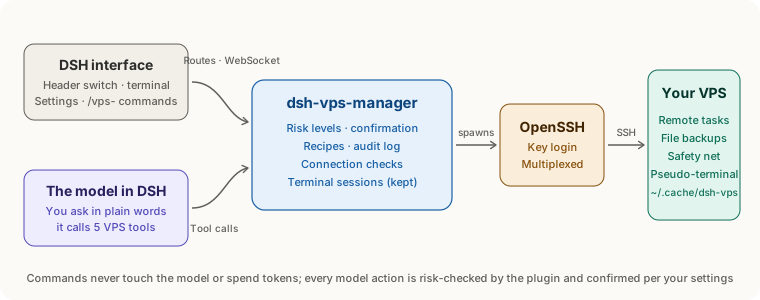
- One engine, three entry points: the settings page,
/vps-commands and the AI tools share one execution engine. Scripts reach the server on SSH's standard input and are written to a file before they run, so no outside data is ever spliced into the remote command line - Shared connections: each machine uses one SSH master connection (OpenSSH ControlMaster), so commands and connection checks over it take tens of milliseconds. The OpenSSH that ships with Windows cannot share connections, so there each command connects afresh
- Remote tasks: operations that change things run as tasks under
~/.cache/dsh-vps/on the server, with a lock, and keep going after a disconnect; you can reattach and read the log at any time - Several computers: the lock, task records, backups and trash live on the server, so the plugins on every computer see the same ones and changes queue automatically
- Terminal: the pseudo-terminal is requested on the server with
ssh -tt, and the browser reaches the plugin over a WebSocket; if the connection drops, the session is kept for a while and the missed output is replayed on reconnect - What the model is told: when a conversation enters VPS mode, the plugin gives the model that machine's system, services, containers and the rules it must follow; in VPS mode the model cannot use local bash
What it does not protect against
- Risk-level confirmation guards against AI mistakes, not against an AI set on getting around it. Static analysis cannot recognise every disguised form, and the model can also use DSH's own bash tool to ssh into the server directly
- DSH's sandbox does not cover the ssh processes this plugin starts itself
- Nothing typed in the terminal goes through risk-level confirmation. You are typing the commands yourself, exactly as in SSH, and the plugin does not intercept them
- There is no general rollback. What you have is file backups, the connectivity safety net and recipes that can be run again. Take a snapshot in your provider's console before reinstalling the OS, upgrading to a new major release, or repartitioning
Where data lives
| Location | Contents |
|---|---|
$DSH_HOME/vps-manager/hosts.yml |
Machines, groups, confirmation levels (safe to edit by hand) |
$DSH_HOME/vps-manager/state.json |
Health check results and which machine each conversation is bound to |
$DSH_HOME/vps-manager/status/ |
The last look from the Status tab and its AI reading, one file per machine |
$DSH_HOME/vps-manager/recipes/ |
Your own recipes |
$DSH_HOME/vps-manager/audit/ |
Audit log: one JSON line per run (source, machine, action, level, result), one file per month, kept for 6 months |
~/.ssh/config.d/dsh-vps.conf |
SSH connection settings maintained by the plugin |
~/.ssh/dsh_vps_ed25519 |
The dedicated key the plugin generates |
~/.cache/dsh-vps/ on the server |
Remote task directories, logs, file backups, trash (shared by all your computers) |
$DSH_HOME defaults to ~/.dsh; on Windows ~ is your user folder (C:\Users\yourname).
The plugin never reads private key contents. The password you enter when adding a machine is used for that one login only; it is never written to a file or stored.
Feedback and suggestions
- Something wrong: send
/vps-doctorin DSH, or click Settings → VPS Manager → 反馈问题 (report a problem). It opens a GitHub issue pre-filled with the plugin version, DSH version and diagnostics for you to review and edit before submitting. Diagnostics are masked and contain no machine addresses; the plugin never uploads anything by itself - Suggestions: open a suggestion
- Broke after a DSH upgrade: every 6 hours the plugin is tested against DSH's latest, next and alpha releases (install the plugin, boot the web app, check each part), and a failing run opens an issue automatically; see compatibility issues. When the DSH version you run has not been verified, the settings page and
/vps-doctorsay so
Errors the plugin runs into itself (registration failures, backend errors, interface errors) are kept locally under $DSH_HOME/vps-manager/logs/, masked, for 3 months.
Repository layout
| File | Purpose |
|---|---|
lib/index.js |
Plugin entry: registers tools, commands, the skill, VPS mode, settings routes and the terminal |
lib/commands.js |
The 22 /vps- commands |
lib/tools.js |
The 5 tools for the model |
lib/risk.js · lib/safety.js |
Risk classification, tiered confirmation, connectivity safety net |
lib/engine.js · lib/payload.js · lib/prelude.sh |
Execution engine: payloads, remote tasks, the cross-distro prelude |
lib/actions.js · lib/task.js · lib/files.js |
Health checks, runs, remote tasks, file edits (backup + validation + restore) |
lib/recipes.js · lib/recipe-store.js · recipes/ |
Loading, running and saving recipes; the 29 built-in recipes |
lib/vps-mode.js · lib/skills/vps-operator.md |
VPS mode and the operating rules for the model |
lib/terminal-server.js · lib/vendor/xterm/ |
The in-conversation terminal (server side) and the bundled xterm.js |
lib/terminal.js |
The /vps-sh mini terminal: remembered directory, interactive-command rewriting, masking |
lib/reach.js |
Connection checks (the colour of the header squares) |
lib/health.js · lib/verified-dsh.json |
Self-diagnostics: registration results, DSH version verification, local error log, feedback link |
scripts/compat-smoke.mjs · scripts/install-dsh.sh · .github/workflows/dsh-compat.yml |
Compatibility check: install the plugin, boot a real DSH web app and check each part, against DSH's three release channels every 6 hours. If a fresh DSH release is still missing packages on npm, the install is retried every 10 minutes, up to 4 times, so it doesn't raise a false alarm |
lib/client.js |
Interface: header switch, terminal panel (terminal, files, status), notices below the input box, settings page |
lib/status.js |
The Status tab: the read-only collection script, rules, local cache and AI interpretation |
lib/netcheck.js |
The Network card (network check-up): read-only checks on the VPS, reachability from China (Globalping), rules |
lib/speedtest.js |
The Speed and Compare servers cards: proxy and direct speeds measured on this computer, the temporary speed-test service on the VPS, candidate comparison |
lib/update.js |
The settings page's Update button: latest release on GitHub and npm, install through DSH's plugin manager |
lib/routes.js |
Settings page backend |
lib/config.js · lib/onboarding.js · lib/ssh.js |
Machine list, SSH configuration, adding machines, ssh arguments |
lib/reboot.js · lib/uninstall.js · lib/audit.js |
Reboot and wait for the machine, uninstall, audit log |
test/ |
339 tests |
scripts/windows-e2e.mjs · .github/workflows/platform-e2e.yml |
Cross-platform run against a real sshd on GitHub's Windows and Linux machines: adding a machine, running commands, the Files page, the Status page, the terminal, uninstalling |
Development
npm install
npm test
339 tests, no real server needed: a local sh -s stands in for the remote sshd, covering the payload protocol, remote tasks, locking, backup and restore, risk classification, VPS mode, uninstall, commands, the settings-page backend, the terminal connection (authentication, local-only access, input and output, window size, keeping and resuming after a disconnect, cleanup), the status collection script and rules, and UI rendering. On a machine with DSH Desktop installed, tool definitions, return values, skill fields and approval outcomes are also checked against DSH's own dsh-tools, dsh-skill and dsh-user-approval, along with whether the notice the plugin adds to a conversation is accepted by the host's session format.
On every push, GitHub's Windows machines (2022 and 2025, with the OpenSSH that ships with Windows) and a Linux machine also each connect to a real sshd and follow the same path a user does: add a machine with a password, run commands, run a remote task, upload, download and edit on the Files page, open the terminal and resize it, and revoke the key on uninstall.
License
Bundled third-party code: lib/vendor/xterm/ contains xterm.js 6.0.0 and addon-fit 0.11.0, MIT licensed, copyright the xterm.js authors; see lib/vendor/xterm/LICENSE.
No comments yet. Be the first to write one.